
מָבוֹא
This manual provides essential information for setting up, operating, maintaining, and troubleshooting your HP 14-cf2733wm laptop. Please read this manual thoroughly before using your device to ensure proper function and longevity.
The HP 14-cf2733wm is a 14-inch laptop designed for portability and everyday productivity. It features an Intel Celeron N4120 processor, 4GB of RAM, and 64GB eMMC storage, running on Windows 11 Home in S mode.
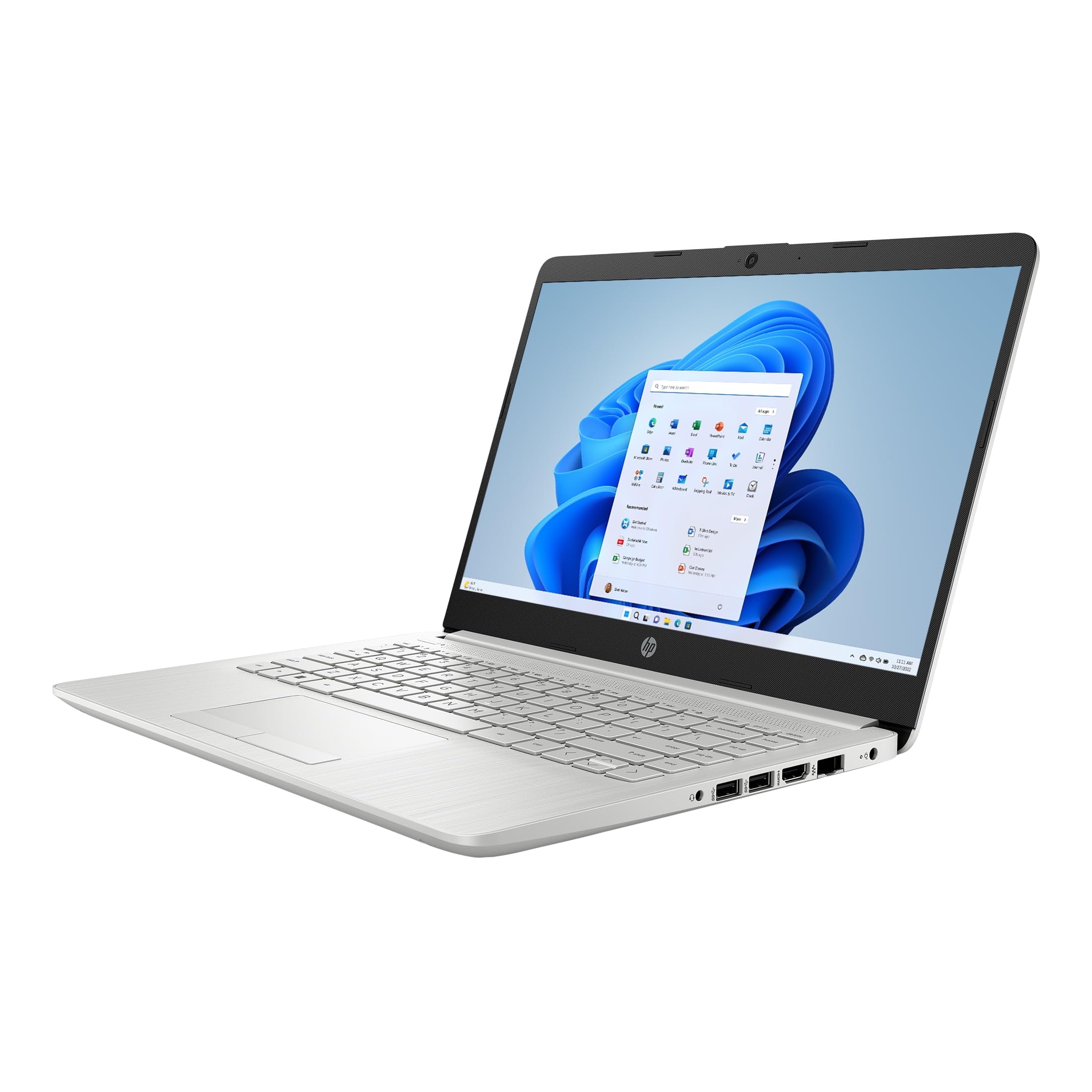
Figure 1: HP 14-cf2733wm Laptop. This image shows the silver HP laptop in a closed position, highlighting its slim design.
1. התקנה
1.1 פירוק המחשב הנייד
הוציאו בזהירות את כל הרכיבים מהאריזה. ודאו שהפריטים הבאים נמצאים:
- HP 14-cf2733wm Laptop
- מתאם חשמל וכבל
- תיעוד (מדריך התחלה מהירה, מידע בטיחות)
1.2 חיבור ספק הכוח
- חבר את כבל החשמל למתאם החשמל.
- חבר את מתאם החשמל לשקע בקיר.
- Insert the adapter's connector into the power port on the side of your HP laptop.
מומלץ לטעון את המחשב הנייד במלואו לפני השימוש הראשוני.
1.3 הפעלה ראשונית והגדרת Windows
- פתח את מכסה המחשב הנייד.
- לחץ על לחצן ההפעלה, הממוקם בדרך כלל על גבי לוח המקשים.
- Follow the on-screen instructions to complete the Windows 11 Home in S mode setup. This includes selecting your region, language, connecting to a Wi-Fi network, and creating a user account.
- Activate the included 12-month Microsoft 365 Personal subscription as prompted during setup or later via the Microsoft Store.
2. הפעלת המחשב הנייד
2.1 שימוש במשטח המגע
The precision touchpad supports multi-touch gestures for navigation. Common gestures include:
- בֶּרֶז: לחיצה אחת ללחיצה, לחיצה כפולה לפתיחה.
- גלילה עם שתי אצבעות: גרור שתי אצבעות למעלה או למטה כדי לגלול.
- צביטה כדי להגדיל: צבטו שתי אצבעות זו לזו או פרשו אותן זו מזו כדי להגדיל או להקטין את התצוגה.
- הקשה בשתי אצבעות: פועל כלחיצה ימנית.
2.2 חיבור התקנים חיצוניים
Your laptop features various ports for connecting peripherals:
- יציאות USB: Connect USB drives, external mice, keyboards, or other compatible USB devices.
- יציאת HDMI: Connect an external monitor or TV for extended display.
- שקע אודיו: חבר אוזניות או רמקולים חיצוניים.
קישוריות Wi-Fi ו-Bluetooth 2.3
כדי להתחבר לרשת Wi-Fi:
- לחץ על סמל ה-Wi-Fi בשורת המשימות.
- בחר את הרשת הרצויה מהרשימה.
- הזן את סיסמת הרשת אם תתבקש ולחץ על "התחבר".
To enable or disable Bluetooth:
- עבור אל הגדרות > בלוטות' ומכשירים.
- Toggle the Bluetooth switch On or Off.
2.4 Windows 11 Home in S mode
Windows 11 Home in S mode is a version of Windows optimized for security and performance. It exclusively runs apps from the Microsoft Store and uses Microsoft Edge for safe browsing. If you need to install apps outside the Microsoft Store, you can switch out of S mode. This is a one-way switch.
כדי לצאת ממצב S:
- במחשב שבו פועל Windows 11 במצב S, פתחו הגדרות > מַעֲרֶכֶת > הַפעָלָה.
- בקטע "מעבר ל-Windows 11 Home", בחר לך לחנות.
- בדף "יציאה ממצב S" (או דומה) שמופיע בחנות Microsoft, לחץ על הסמל לְקַבֵּל לַחְצָן.
- After you see a confirmation message on the page, you'll be able to install apps from outside the Microsoft Store.
3. תחזוקה
3.1 ניקוי המחשב הנייד
- מָסָך: השתמש קלות במטלית רכה נטולת מוך דampשטוף במים או בחומר לניקוי מסכים. הימנע מכימיקלים חזקים.
- מקלדת ושלדה: השתמשו במטלית רכה ויבשה. עבור לכלוך עיקש, נגבו מעטamp ניתן להשתמש בבד. יש להימנע מחדירת לחות לפתחים.
- יציאות: השתמש באוויר דחוס כדי לנקות בעדינות אבק מהפתחים.
תמיד כבו ונתקו את המחשב הנייד מהחשמל לפני ניקוי.
3.2 טיפול בסוללה
- הימנע מטמפרטורות קיצוניות.
- אין לפרוק את הסוללה לחלוטין באופן קבוע.
- אם מאחסנים את המחשב הנייד לתקופה ממושכת, יש לטעון את הסוללה לכ-50-70%.
3.3 עדכוני תוכנה
בדוק באופן קבוע אם קיימים עדכוני Windows והתקן אותם כדי להבטיח יציבות, אבטחה וביצועים של המערכת. עבור אל הגדרות > Windows Update.
4. פתרון תקלות
4.1 המחשב הנייד לא נדלק
- ודא שמתאם החשמל מחובר היטב הן למחשב הנייד והן לשקע חשמל תקין.
- ודא ששקע הקיר תקין על ידי חיבור מכשיר אחר.
- נסה להחזיק את כפתור ההפעלה למשך 15-20 שניות כדי לבצע איפוס קשיח.
4.2 ביצועים איטיים
- סגור יישומים מיותרים הפועלים ברקע.
- בדוק אם קיימים עדכוני Windows ממתינים והתקן אותם.
- Ensure you have sufficient free storage space on the 64GB eMMC drive.
- הפעל סריקת מערכת לאיתור תוכנות זדוניות או וירוסים.
4.3 בעיות קישוריות Wi-Fi
- Restart your laptop and your Wi-Fi router.
- ודא ש-Wi-Fi מופעל בהגדרות Windows.
- שכח את הרשת והתחבר מחדש, הזן שוב את הסיסמה.
- בדוק אם מכשירים אחרים יכולים להתחבר לאותה רשת Wi-Fi.
5. מפרטים
| תכונה | פְּרָט |
|---|---|
| שם הדגם | HP 14-cf2733wm |
| מעבד | Intel Celeron N4120 (up to 2.6 GHz burst frequency) |
| מַעֲרֶכֶת הַפעָלָה | Windows 11 Home במצב S |
| לְהַצִיג | 14-inch HD (1366 x 768) micro-edge anti-glare LED display |
| גרָפִיקָה | Intel UHD Graphics 600 משולב |
| אַיִל | 4 GB DDR4 |
| אִחסוּן | 64 GB eMMC |
| קישוריות אלחוטית | 802.11n Wi-Fi, Bluetooth |
| נמלים | 2x USB, 1x HDMI, 1x Headphone/Microphone combo |
| סוֹלְלָה | ליתיום-יון, 45 וואט שעות |
| מידות (L x W x H) | 32.56 x 21.39 x 1.65 ס"מ (12.82 אינץ' x 8.42 אינץ' x 0.65 אינץ') |
| מִשׁקָל | 3.5 פאונד (1.59 ק"ג) |
| צֶבַע | כֶּסֶף |
| Webפִּקָה | מְשׁוּלָב Webפִּקָה |
6. אחריות ותמיכה
6.1 אחריות מוגבלת
Your HP 14-cf2733wm laptop comes with a 1-year limited hardware warranty. This warranty covers defects in materials and workmanship under normal use. For full terms and conditions, please refer to the warranty documentation included with your product or visit the official HP support webאֲתַר.
The warranty does not cover damage caused by accidents, misuse, unauthorized modifications, or external causes such as power fluctuations.
6.2 תמיכה טכנית
לקבלת סיוע טכני, הורדות מנהלי התקנים או תמיכה נוספת, אנא בקרו באתר התמיכה הרשמי של HP website. You will need your product's model number (14-cf2733wm) and serial number (found on the product label) when contacting support.
תמיכה של HP Webאֲתַר: https://support.hp.com