
1. הקדמה
תודה על הרכישהasing the KTC 24-inch WQHD 100Hz IPS Monitor. This manual provides essential information for the safe and efficient use of your new monitor. Please read it thoroughly before use and keep it for future reference.
This monitor features a 24-inch IPS panel with WQHD (2560x1440) resolution, offering stunning visual clarity and vibrant colors with 122% sRGB coverage. A 100Hz refresh rate and FreeSync & G-Sync compatibility ensure smooth, tear-free visuals, ideal for both office work and casual gaming. Advanced eye care technologies, including blue light reduction and flicker-free operation, provide a comfortable viewing experience even during extended use. The monitor also supports HDR10 for enhanced dynamic range and features flexible connectivity options with HDMI and DisplayPort.
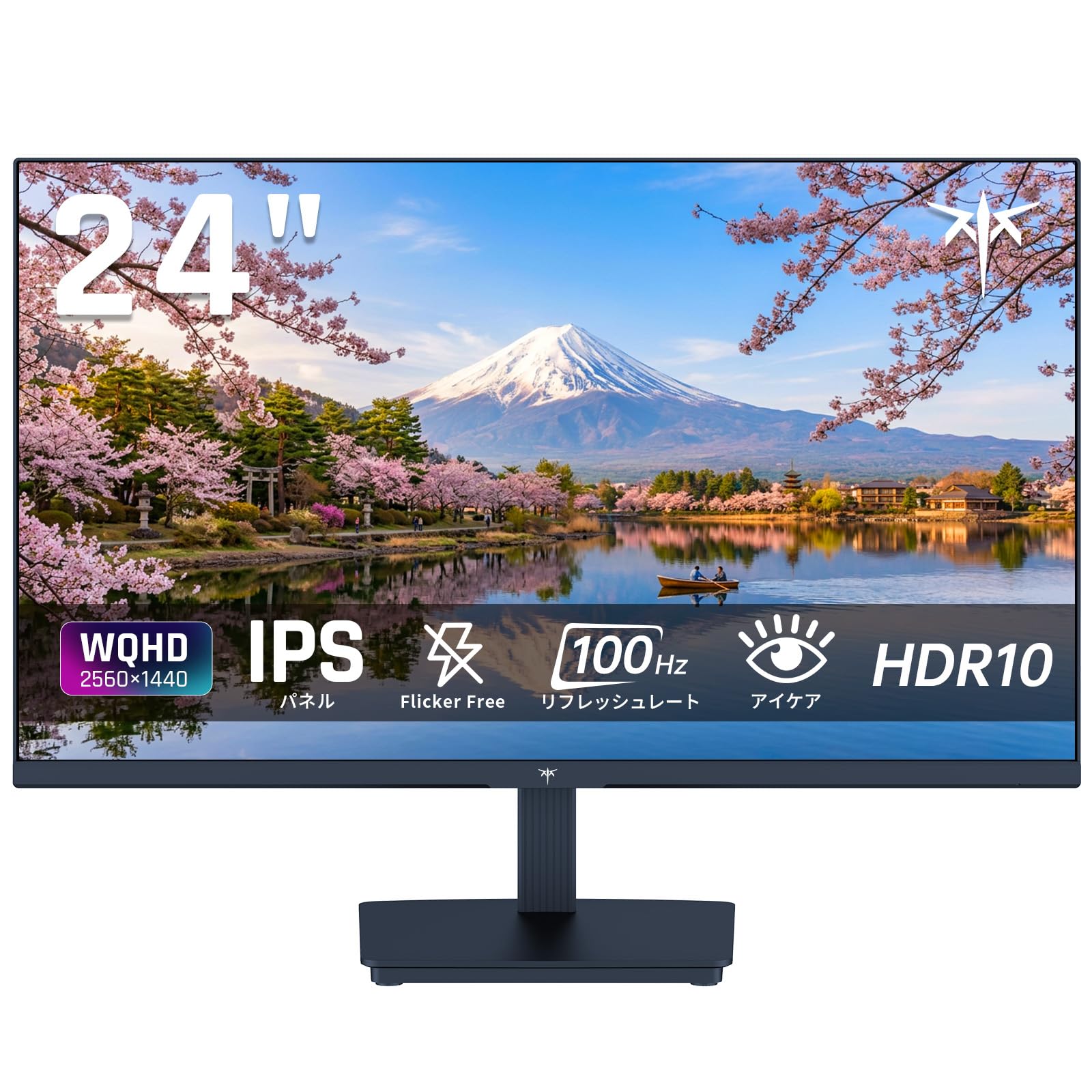
Image: KTC 24-inch WQHD 100Hz IPS Monitor.
2. מידע בטיחות
Please observe the following safety precautions to prevent damage to the monitor or injury to yourself or others:
- אין לחשוף את הצג לגשם, לחות או טמפרטורות קיצוניות.
- ודא אוורור נאות סביב הצג כדי למנוע התחממות יתר.
- השתמשו רק במתאם החשמל המצורף לצג.
- הימנעו מהנחת חפצים כבדים על כבל החשמל או הצג.
- אל תנסה לפרק או לתקן את הצג בעצמך. פנה לאנשי שירות מוסמכים.
- הרחק את הצג משדות מגנטיים חזקים.
3. תכולת החבילה
ודא שכל הפריטים נמצאים בחבילה:
- KTC 24-inch WQHD 100Hz IPS Monitor (H24T27)
- בסיס צג
- כבל HDMI
- מתאם מתח
- מדריך למשתמש
4. התקנה
4.1 הרכבת המעמד
- הוציאו בזהירות את הצג והבסיס מהאריזה.
- חבר את צוואר המעמד לפאנל הצג.
- Secure the base to the stand neck using the provided screws.
4.2 חיבור הצג
חבר את הצג למחשב שלך או להתקנים אחרים באמצעות הכבלים המתאימים.
- חיבור חשמל: Connect the power adapter to the monitor's DC input and then plug it into a power outlet.
- חיבור וידאו: Use the supplied HDMI cable or a DisplayPort cable to connect your computer's video output to the corresponding port on the monitor.
- פלט שמע: If desired, connect headphones or external speakers to the 3.5mm audio output jack.

Image: Close-up of the KTC monitor's rear ports, including DC power, HDMI, DisplayPort, and audio out.
5. הוראות הפעלה
5.1 הפעלה/כיבוי
לחץ על לחצן ההפעלה הממוקם על הצג כדי להפעיל או לכבות אותו.
5.2 תפריט תצוגה על המסך (OSD).
The OSD menu allows you to adjust various monitor settings. Use the control buttons (usually located on the back or bottom of the monitor) to navigate the menu and make selections.
5.3 הגדרות תצוגה
- הַחְלָטָה: The monitor supports WQHD (2560x1440) resolution for sharp and detailed images. Ensure your graphics card is set to this resolution for optimal display.
- קצב רענון: Enjoy smooth visuals with a 100Hz refresh rate. This can be configured in your operating system's display settings.
- סולם צבעים: The monitor offers 122% sRGB coverage for rich and accurate colors.

Image: KTC monitor highlighting key features like IPS panel, 100Hz, WQHD, 24-inch, Adaptive Sync, and blue light reduction.

Image: Comparison of WQHD (2560x1440) and FHD (1920x1080) resolutions, demonstrating enhanced detail with WQHD.

Image: Comparison of 100Hz and 60Hz refresh rates, showing smoother motion with 100Hz.
5.4 Adaptive Sync (FreeSync & G-Sync)
The monitor supports both FreeSync and G-Sync technologies to eliminate screen tearing and stuttering, providing a fluid gaming experience. Ensure this feature is enabled in your graphics card settings and the monitor's OSD.

Image: Monitor display showing HDR10 content on one side and standard HDR on the other, along with FreeSync & G-Sync comparison (ON/OFF).
5.5 תכונות טיפוח עיניים
The monitor includes Flicker-Free technology and a Blue Light Reduction mode to minimize eye strain during prolonged use. These settings can be adjusted via the OSD menu.

Image: KTC monitor displaying eye care features: Low Blue Light (ON/OFF) and Flicker-Free (ON/OFF).
5.6 תמיכה ב-HDR10
This monitor supports HDR10, providing a wider range of colors and contrasts for a more immersive viewing experience. Ensure HDR is enabled in your device's display settings for compatible content.
5.7 מעמד מתכוונן
The monitor stand allows for tilt adjustment from -5° to 15°, enabling you to find the most comfortable viewזווית ing.

תמונה: צד view of the KTC monitor demonstrating the tilt-adjustable stand (-5° to 15°).
5.8 רחב Viewזווית
The IPS panel provides a wide 178-degree viewing angle, ensuring consistent color and image quality from almost any perspective.

Image: KTC monitor showcasing a wide 178-degree viewing angle with consistent color.
6. תחזוקה
6.1 ניקוי הצג
- נתק תמיד את הצג לפני הניקוי.
- השתמש קלות במטלית רכה נטולת מוך דampנשטפו במים או בחומר ניקוי מסך עדין ולא שוחק.
- אין לרסס חומר ניקוי ישירות על המסך.
- הימנע משימוש בכימיקלים קשים או חומרים שוחקים.
6.2 טיפול כללי
- יש לשמור את הצג בסביבה נקייה ויבשה.
- הגן על המסך מפני חפצים חדים.
- When moving the monitor, handle it carefully and avoid putting pressure on the screen.
7. פתרון תקלות
אם נתקלת בבעיות עם הצג שלך, עיין בבעיות הנפוצות ובפתרונות הבאים:
| בְּעָיָה | פתרון אפשרי |
|---|---|
| אין תמונה על המסך | Check power connections. Ensure video cable is securely connected to both monitor and computer. Select correct input source via OSD. |
| התמונה מטושטשת או מעוותת | Ensure the display resolution is set to 2560x1440. Check video cable for damage. |
| קריעת מסך או גמגום | Verify FreeSync/G-Sync is enabled in both monitor OSD and graphics card settings. |
| אין צליל מהאוזניות/רמקולים | Check audio cable connection. Ensure volume is not muted on monitor or computer. |
| המסך לא נדלק | Check power outlet and power adapter connection. Try a different power outlet. |
If the problem persists after trying these solutions, please contact KTC customer support.
8. מפרטים
מפרט טכני מפורט עבור צג KTC H24T27:
| תכונה | מִפרָט |
|---|---|
| מותג | CTC |
| מספר דגם | H24T27 |
| גודל מסך | 24 אינץ' |
| הַחְלָטָה | WQHD (2560 x 1440 pixels) |
| יחס גובה-רוחב | 16:9 |
| סוג פאנל | IPS |
| משטח המסך | ללא סנוור |
| קצב רענון | 100 הרץ |
| זמן תגובה | 7 אלפיות השנייה |
| יחס ניגודיות | 1300:1 |
| בְּהִירוּת | 300 תקליטורים/מ"ר |
| סולם צבעים | 122% sRGB |
| Viewזווית | 178 מעלות |
| טכנולוגיית HDR | HDR10 |
| סנכרון אדפטיבי | FreeSync, G-Sync |
| קישוריות | 1x HDMI, 1x DisplayPort, יציאת שמע |
| צריכת חשמל | 12 וואט |
| כרך ידtage | 100 וולט |
| מידות (D x B x H) | 18.3 x 54 x 40.5 ס"מ |
| תכונות נוספות | Adaptive Sync, Eye Care, Flicker-Free, Blue Light Filter, Tilt Adjustment |
| מכשירים תואמים | Game Consoles, Laptops |
| צֶבַע | שָׁחוֹר |
| צוּרָה | שָׁטוּחַ |
| מָקוֹר | סִין |
9. אחריות ותמיכה
9.1 מידע אחריות
Your KTC monitor comes with a אחריות יצרן לשנה. In the event of a product defect, a free replacement will be provided. Please note that this warranty does not cover loss or damage caused by customer negligence.

Image: KTC's 3-year free replacement warranty details and contact information.
9.2 תמיכת לקוחות
For any inquiries or concerns, please feel free to contact us. We are committed to providing full support to ensure your satisfaction.
טֵלֵפוֹן: 050-3606-8990
אֶלֶקטרוֹנִי: support@ktcplay.com
You can also contact support through Amazon:

Image: Step-by-step guide on how to contact customer support via Amazon.
10. המוצר נגמרview וִידֵאוֹ
צפו בסרטון הזה לקבלת הצצה חזותיתview of the KTC QHD computer monitor and its features.
Video: This video showcases the KTC QHD computer monitor, highlighting its 2560x1440 (2K) resolution, 100Hz refresh rate, FreeSync and G-Sync compatibility, flicker-free and low blue light features, 8-bit & 116% sRGB color gamut, 3-side frameless design, -5° to 15° tilt adjustable stand, and available sizes (24, 27, 32 inches). It emphasizes its suitability for professional office use.