
1. המוצר נגמרview
The KOORUI G2722P is a 27-inch QHD (2560x1440) gaming monitor designed for an immersive visual experience. It features a Fast IPS panel with a 200Hz refresh rate and a 1ms response time, ensuring smooth and responsive gameplay. The monitor supports HDR 400 for enhanced contrast and color depth, and Adaptive Sync technology to minimize screen tearing and stuttering. Its ergonomic stand allows for height, tilt, and pivot adjustments, and it is VESA 75x75mm compatible for flexible mounting options.

The KOORUI G2722P monitor integrated into a typical gaming environment.
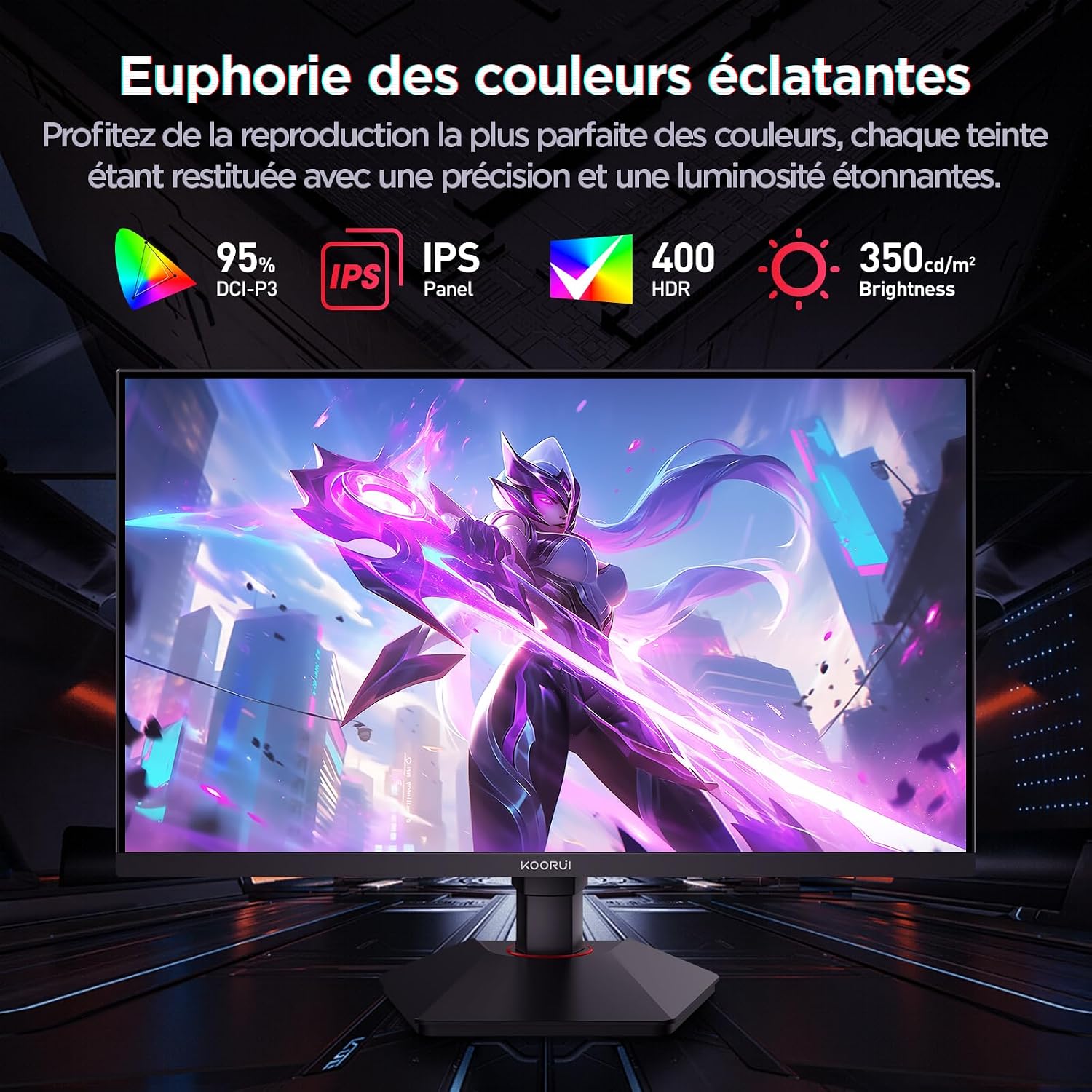
This image highlights the monitor's color capabilities, including 95% DCI-P3 color gamut, IPS panel technology, HDR 400 support, and 350 cd/m² brightness.
2. מידע בטיחות
- קרא בעיון את כל ההוראות לפני השימוש בצג.
- אין לחשוף את הצג לגשם או לחות כדי למנוע סכנת שריפה או התחשמלות.
- אל תפתח את הצג גasinז. אין חלקים בפנים הניתנים לתיקון על ידי המשתמש. יש לפנות לכל טיפול וטיפול באנשי מקצוע מוסמכים.
- הנח את הצג על משטח יציב ושטוח כדי למנוע ממנו ליפול.
- הרחק את הצג מאור שמש ישיר, מקורות חום וטמפרטורות קיצוניות.
- ודא אוורור נאות סביב הצג. אין לחסום פתחי אוורור.
- השתמשו רק במתאם החשמל ובכבלים שסופקו או מומלצים על ידי היצרן.
- נתק את הצג משקע החשמל במהלך סופות ברקים או כאשר אינו בשימוש למשך תקופות ארוכות.
3. תכולת החבילה
ודא שכל הפריטים נמצאים בחבילה:
- KOORUI G2722P Monitor
- מעמד למוניטור (בסיס וצוואר)
- מתאם חשמל וכבל חשמל
- כבל DisplayPort (DP)
- מדריך למשתמש (מסמך זה)
- ברגים להרכבת מעמד
4. מכלול הצג
4.1 חיבור המעמד
- הנח בזהירות את הצג כשפניו כלפי מטה על מטלית רכה ונקייה כדי למנוע שריטות.
- Attach the stand neck to the back of the monitor until it clicks into place or is secured with screws (refer to specific instructions in the included quick start guide).
- חברו את בסיס המעמד לצוואר המעמד ואבטחו אותו באמצעות הבורג המצורף.
- Carefully lift the monitor and place it on a stable desk.
4.2 הרכבה של VESA
The monitor supports VESA 75x75mm mounting. To use a VESA mount:
- הסר את המעמד אם הוא כבר מחובר.
- Attach your VESA-compatible mount (sold separately) to the 75x75mm screw holes on the back of the monitor using appropriate screws.
- Ensure the mount is securely fastened before releasinהצג.

This image demonstrates the monitor's ergonomic adjustments (height, tilt, pivot) and provides a visual reference for stand attachment points.
5. חיבור הצג
חבר את הצג למחשב שלך או למכשירים אחרים באמצעות היציאות הזמינות.
- חיבור חשמל: Connect the power cable to the power adapter, then connect the adapter to the monitor's power input and a wall outlet.
- חיבור וידאו:
- For optimal performance (QHD @ 200Hz), use the provided DisplayPort (DP 1.4) cable to connect the monitor to your graphics card.
- Alternatively, use an HDMI 2.0 cable to connect to an HDMI port on your device.
- פלט שמע: Connect external speakers or headphones to the 3.5mm audio output jack on the monitor if you wish to use the monitor's audio passthrough.

This image displays the rear of the monitor, highlighting the available connectivity options: two HDMI 2.0 ports, one DisplayPort 1.4, an audio output jack, and the VESA 75x75mm mounting pattern.
6. הפעלת המוניטור
6.1 הפעלה/כיבוי
- לחץ על לחצן ההפעלה הממוקם על הצג כדי להפעיל או לכבות אותו.
- נורית חיווי ההפעלה תידלק כאשר הצג דולק.
6.2 תפריט תצוגה על המסך (OSD).
The OSD menu allows you to adjust various monitor settings. Typically, buttons are located on the back or bottom right of the monitor.
- לחץ על אחד מלחצני תפריט המסך כדי להפעיל את התפריט.
- Use the navigation buttons (usually directional or a joystick) to browse through menu options.
- לחץ על לחצן הבחירה כדי להיכנס לתפריט משנה או לאשר הגדרה.
- לחץ על כפתור היציאה כדי לסגור את תפריט המסך.
7. הגדרות תצוגה
7.1 רזולוציה וקצב רענון
The monitor supports a native resolution of 2560x1440 (QHD) and a maximum refresh rate of 200Hz. Ensure your graphics card and operating system are configured to use these settings for the best experience.

This image illustrates the difference in motion clarity between a 75Hz and a 200Hz refresh rate, emphasizing the 1ms response time for reduced blur and ghosting.
7.2 Adaptive Sync (FreeSync)
This monitor supports Adaptive Sync technology (compatible with AMD FreeSync) to synchronize the monitor's refresh rate with your graphics card's frame rate, eliminating screen tearing and reducing stuttering.
- Enable Adaptive Sync in the monitor's OSD menu.
- Ensure Adaptive Sync (or FreeSync) is enabled in your graphics card control panel.

This image visually compares the display with Adaptive Sync enabled versus disabled, demonstrating how Adaptive Sync eliminates screen tearing for a smoother visual experience.
7.3 HDR 400
The monitor supports HDR 400, providing a wider dynamic range for brighter whites and deeper blacks, resulting in more vibrant and realistic images.
- Enable HDR in your operating system's display settings and in the monitor's OSD menu if available.
7.4 הגדרות צבע
The Fast IPS panel offers excellent color reproduction and wide viewזוויות.
- Adjust color temperature, gamma, and saturation through the OSD menu to suit your preferences.
- The monitor features a 178-degree wide viewing angle, ensuring consistent color and image quality from various perspectives.
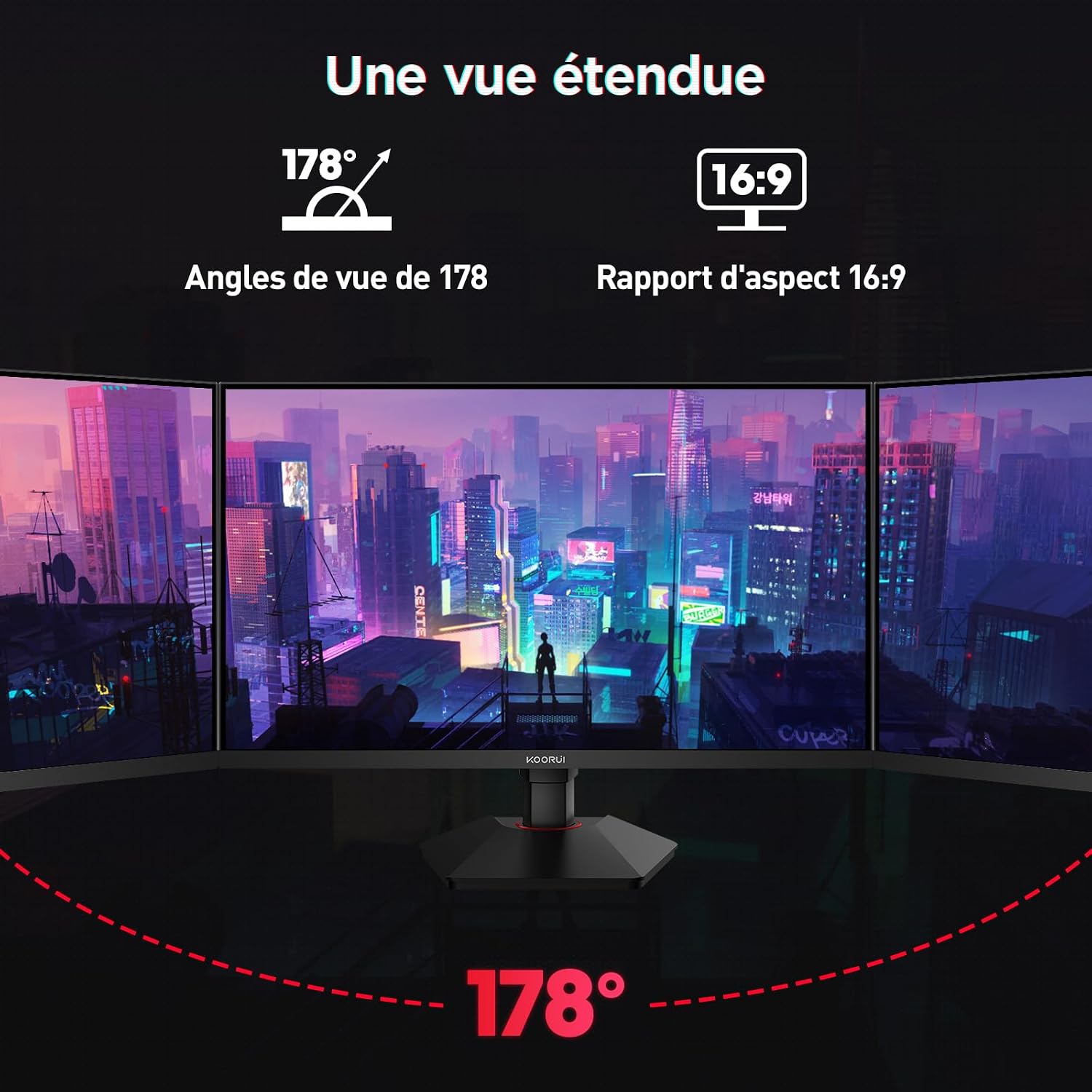
This image demonstrates the monitor's wide 178-degree viewing angle, illustrating how the display maintains clarity and color consistency even when viewed from extreme angles, ideal for multi-monitor setups.
8. התאמות ארגונומיות
מעמד הצג מאפשר מגוון אפשרויות כוונון כדי לייעל את הביצועים שלך viewנוחות:
- התאמת גובה: Adjust the monitor height by up to 100mm by gently pushing or pulling the monitor up or down.
- התאמת הטיה: Tilt the screen from -5° (forward) to +20° (backward) to find your preferred viewזווית ing.
- סיבוב (ציר): Rotate the screen 90° to switch between landscape and portrait orientations.
This image illustrates the full range of ergonomic adjustments available: 100mm height adjustment, -5° to +20° tilt, and 90° pivot rotation for optimal viewנוחות.
9. מאפייני טיפוח עיניים
The KOORUI G2722P monitor incorporates features designed to reduce eye strain during prolonged use:
- טכנולוגיה ללא הבהוב: Reduces screen flickering, which can cause eye fatigue.
- מסנן אור כחול נמוך: Minimizes harmful blue light emissions to protect your eyes. This feature can usually be adjusted or enabled/disabled in the OSD menu.
10. תחזוקה
תחזוקה נאותה מבטיחה את אורך החיים והביצועים האופטימליים של הצג שלכם.
- ניקוי המסך: נגבו בעדינות את המסך בעזרת מטלית רכה ונטולת סיבים. עבור סימנים עקשניים, השתמשו בתמיסת ניקוי ספציפית למסך המרוחה על המטלית, ולא ישירות על המסך.
- ניקוי ה-Casing: השתמשו במטלית רכה ויבשה לניקוי הצגasinז. הימנעו משימוש בחומרי ניקוי שוחקים או ממסים.
- טיפול: Avoid touching the screen directly with your fingers or sharp objects. Do not place heavy objects on the monitor.
11. פתרון תקלות
אם נתקלת בבעיות עם הצג שלך, עיין בבעיות הנפוצות ובפתרונות הבאים:
| בְּעָיָה | פתרון אפשרי |
|---|---|
| אין תמונה על המסך |
|
| הבהוב או קריעה של התמונה |
|
| אין צליל מפלט השמע |
|
| Monitor not reaching 200Hz |
|
12. מפרטים
Key technical specifications for the KOORUI G2722P monitor:
| תכונה | מִפרָט |
|---|---|
| גודל מסך | 27 אינץ' |
| סוג פאנל | IPS מהיר |
| הַחְלָטָה | QHD (2560 x 1440) |
| קצב רענון | 200 הרץ |
| זמן תגובה | 1ms |
| תמיכה ב-HDR | HDR 400 |
| סנכרון אדפטיבי | FreeSync |
| יחס ניגודיות | 1000:1 (סטטי) |
| בְּהִירוּת | 350 תקליטורים/מ"ר |
| Viewזווית | 178° (H/V) |
| סולם צבעים | 95% DCI-P3 |
| כניסות וידאו | 2x HDMI 2.0, 1x DisplayPort 1.4 |
| פלט אודיו | 1x 3.5mm Audio Out |
| תאימות VESA | 75x75 מ"מ |
| צריכת חשמל | 19 וואט (אופייני) |
| ארגונומיה | Height, Tilt, Pivot Adjustment |

This diagram provides the physical dimensions of the monitor, including width, height, and depth.
למידע מפורט על אנרגיה, אנא עיינו במסד הנתונים של EPREL: https://eprel.ec.europa.eu/qr/2216313
13. אחריות ותמיכה
The KOORUI G2722P monitor comes with a אחריות יצרן לשנה. אחריות זו מכסה פגמים בחומרים ובעבודה בשימוש רגיל.
For technical support, warranty claims, or further assistance, please contact KOORUI customer service through their official webהאתר או הקמעונאי שבו המוצר נרכש.