
מָבוֹא
This manual provides detailed instructions for the JZK Voice Remote Control, designed as a replacement or secondary remote for NVIDIA Shield TV Pro models from 2015, 2017, and 2019. This remote features voice search capabilities and an ergonomic design for comfortable use. Please read this manual thoroughly before operating your device.
תוכן החבילה
ודא שכל הפריטים נמצאים בחבילה שלך:
- 1 x JZK Voice Remote Control
- מדריך למשתמש אחד (מסמך זה)
Note: 2x AAA batteries are required and are not included in the package.

Image: Contents of the JZK remote control package, including the remote and a small user guide.
הגדרה
1. התקנת סוללה
- אתר את תא הסוללות בגב השלט הרחוק.
- החלק את מכסה הסוללה כלפי מטה כדי לפתוח אותו.
- הכניסו שתי (2) סוללות AAA, תוך הקפדה על הקוטביות הנכונה (+ ו-) כפי שמסומן בתוך התא.
- החלק את מכסה הסוללה בחזרה למקומו עד שיינעל היטב.

Image: The remote control with its battery cover removed, illustrating where to insert two AAA batteries.
2. זיווג השלט הרחוק
The remote control uses an infrared connection. For initial setup or re-pairing, follow these steps:
- Ensure your NVIDIA Shield TV is powered on and within 1 foot (approx. 30 cm) of the remote control.
- On your NVIDIA Shield TV, navigate to Settings > Device Preferences > Remotes & Accessories.
- לחץ והחזק את בְּחֲזָרָה כפתור ואת בַּיִת button simultaneously on the JZK remote control until the remote's indicator light begins to flash.
- The NVIDIA Shield TV should detect the new remote. Select it from the list of available devices to complete the pairing process.
- Once paired, the remote's light will stop flashing, and you can begin using it.
If pairing fails, ensure the batteries are correctly installed and charged, and try the process again. You may also need to restart your NVIDIA Shield TV.
הוראות הפעלה
הכירו את הכפתורים ואת תפקידיהם:

Image: Detailed button layout of the JZK remote control with labels for each function.
| לֹא. | לַחְצָן | פוּנקצִיָה |
|---|---|---|
| 1 | מיקרופון מובנה | Used for Voice Search commands. |
| 2 | כּוֹחַ | Turns the NVIDIA Shield TV on or off. |
| 3 | הגדרות | Accesses the NVIDIA Shield TV settings menu. (Customizable in Settings > Devices & Accessories > Customize Settings button) |
| 4 | טבעת ניווט | Navigates menus: Up, Down, Right, Left. |
| 5 | Select (OK) | Confirms selections or opens items. |
| 6 | בְּחֲזָרָה | חוזר למסך או לתפריט הקודם. |
| 7 | בַּיִת | חוזר למסך הבית הראשי. |
| 8 | הרצה קדימה | Skips forward in media playback. |
| 9 | הפעל/השהה | מנגן או משהה את הפעלת המדיה. |
| 10 | החזר לאחור | Skips backward in media playback. |
| 11 | חיפוש קולי | Activates voice command input. Press and hold, then speak your command. |
| 12 | הגדל את עוצמת הקול | מגביר את עוצמת הקול. |
| 13 | הורד את עוצמת הקול | מפחית את עוצמת הקול. |
| 14 | פתח את נטפליקס | מפעיל ישירות את אפליקציית נטפליקס. |
Using Voice Search
The voice search feature allows for quick navigation and content discovery. To use it:
- לחץ והחזק את חיפוש קולי כפתור (11).
- Speak your command clearly into the built-in microphone (1). For example, say "Open YouTube," "Find action movies," or "Adjust volume."
- שחרר את חיפוש קולי כפתור לאחר שתסיים לדבר.
תַחזוּקָה
ניקוי השלט הרחוק
לניקוי השלט רחוק, השתמשו במטלית רכה ויבשה. במקרה של לכלוך עיקש, נגבו מעטampשטפו את המטלית במים או בחומר ניקוי עדין ולא שוחק. הימנעו משימוש בכימיקלים חזקים או ממסים, מכיוון שאלה עלולים לפגוע בפני השטח של השלט או ברכיבים הפנימיים.
החלפת סוללה
When the remote's performance degrades or it becomes unresponsive, it's time to replace the batteries. Follow the battery installation steps outlined in the הגדרה section. Always replace both AAA batteries at the same time with new ones.
פתרון בעיות
If you encounter issues with your JZK Voice Remote Control, refer to the following common problems and solutions:
| בְּעָיָה | סיבה אפשרית | פִּתָרוֹן |
|---|---|---|
| השלט רחוק לא מגיב. | Low or dead batteries. Incorrect battery installation. Remote not paired. Obstruction between remote and Shield TV. | Replace batteries. Check battery polarity. Re-pair the remote (see Setup section). Ensure clear line of sight to Shield TV. |
| Voice Search not working. | Microphone blocked. Remote not properly paired for voice functions. Software glitch. | Ensure microphone is clear. Re-pair the remote. Restart NVIDIA Shield TV. |
| Buttons are sticky or not registering presses. | לכלוך או פסולת מתחת לכפתורים. | Clean the remote (see Maintenance section). |
| מרחוק מתנתק לעתים קרובות. | הפרעות. סוללות חלשות. | Ensure no strong interference sources nearby. Replace batteries. Re-pair the remote. |
מפרטים
| תכונה | פְּרָט |
|---|---|
| מותג | JZK |
| תאימות דגם | NVIDIA Shield TV Pro (2015, 2017, 2019 models), NVIDIA Shield TV Cube (2019) |
| סוג חיבור | אינפרא אדום (IR) |
| מקור כוח | 2 סוללות אלקליין AAA (לא כלולות) |
| תכונות מיוחדות | Voice Search, Ergonomic Design, Dedicated Netflix Button |
| חוֹמֶר | ABS עמיד |
| צֶבַע | שחור / לבן |
| מידות (L x W x H) | מידות בקירוב: 16.8 x 6 x 2.6 ס"מ (6.6 x 2.4 x 1.0 אינץ') |
| מִשׁקָל | כ-60 גרם (2.1 אונקיות) |

Image: Dimensions of the JZK remote control, indicating its length, width, and thickness.
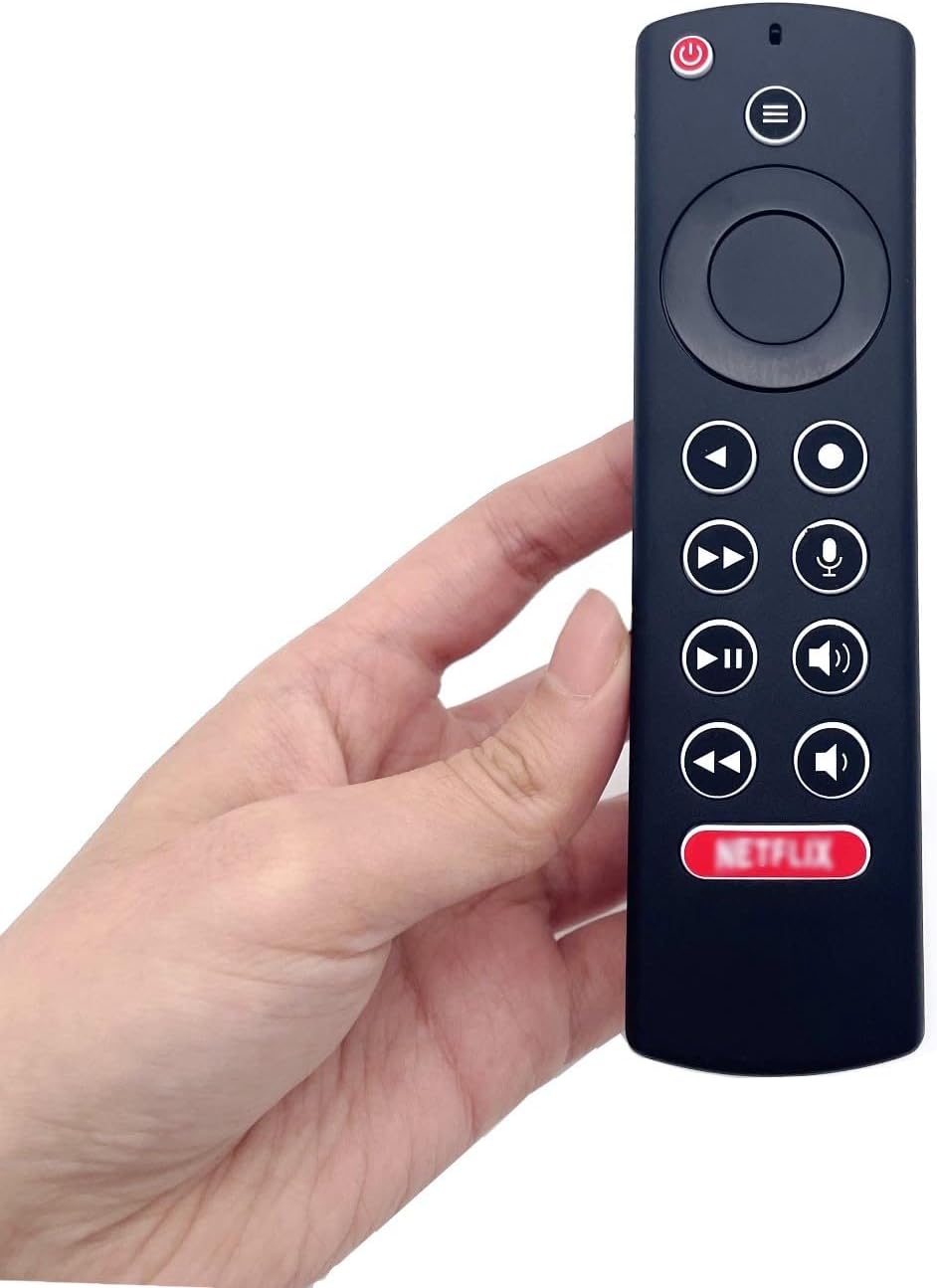
Image: The JZK remote control held in a hand, highlighting its comfortable and ergonomic design.
מידע על אחריות
Specific warranty details for this JZK product are not provided in the product description. Please refer to the retailer's return policy or contact JZK customer support for information regarding warranty coverage and terms.
תְמִיכָה
For further assistance, troubleshooting, or inquiries about your JZK Voice Remote Control, please contact the retailer where you purchased the product or refer to the official JZK website for customer support options.