
1. הקדמה
Thank you for choosing the Gawfolk 34-inch Ultrawide Curved Gaming Monitor. This manual provides essential information for setting up, operating, and maintaining your monitor. Please read it thoroughly before use to ensure optimal performance and safety.
The Gawfolk GF340C monitor features a 34-inch 1500R curved VA panel, UWQHD (3440x1440) resolution, a 165Hz refresh rate, and a 1ms response time (GtG). It supports FreeSync technology for smooth gaming and includes Eye Care Technology to reduce eye strain during extended use. The monitor also offers multiple connectivity options and VESA mount compatibility.

איור 1: חזית view of the Gawfolk 34-inch Ultrawide Curved Gaming Monitor.
איור 2: מלמעלה למטה view illustrating the 1500R curvature of the monitor, designed for immersive gameplay.
2. מה בקופסה
פרקו בזהירות את הקופסה וודאו שכל הפריטים נמצאים ובמצב תקין. אם חסרים או ניזוקו פריטים כלשהם, אנא צרו קשר עם תמיכת הלקוחות.
- Gawfolk 34-inch Ultrawide Curved Gaming Monitor
- Monitor Stand (Chassis)
- כבל חשמל
- כבל HDMI
- כבל DisplayPort (DP)
- מדריך למשתמש (מסמך זה)
3. התקנה
3.1 הרכבת המעמד
- הנח את מסך הצג כשפניו כלפי מטה על משטח רך ונקי כדי למנוע שריטות.
- Attach the stand neck to the back of the monitor until it clicks into place or is secured with screws (refer to the diagram for specific screw locations).
- Attach the base to the stand neck and tighten the thumb screw or screws securely.
- הרם בזהירות את הצג המורכב והנח אותו על משטח יציב ושטוח.
3.2 התקנת מתקן VESA (אופציונלי)
The monitor supports VESA 75 x 75 mm mounting. If you plan to use a VESA mount (not included), remove the stand and attach the VESA mount bracket to the monitor's VESA holes using appropriate screws. Ensure the VESA mount can support the monitor's weight (approximately 5.55 kg).
3.3 התחברות למכשירים
The monitor provides multiple input ports for various devices. Ensure your device supports the required resolutions and refresh rates for optimal performance.
- יציאת DisplayPort (DP 1.4): Connect your PC or laptop using the provided DP cable for resolutions up to 3440x1440 at 165Hz.
- חיבור HDMI (HDMI 2.0): Connect your PC, laptop, or gaming console (e.g., PS5, Xbox) using an HDMI cable. HDMI 2.0 supports up to 3440x1440 at 120Hz.
- יציאת קול: חבר רמקולים חיצוניים או אוזניות לשקע שמע 3.5 מ"מ.
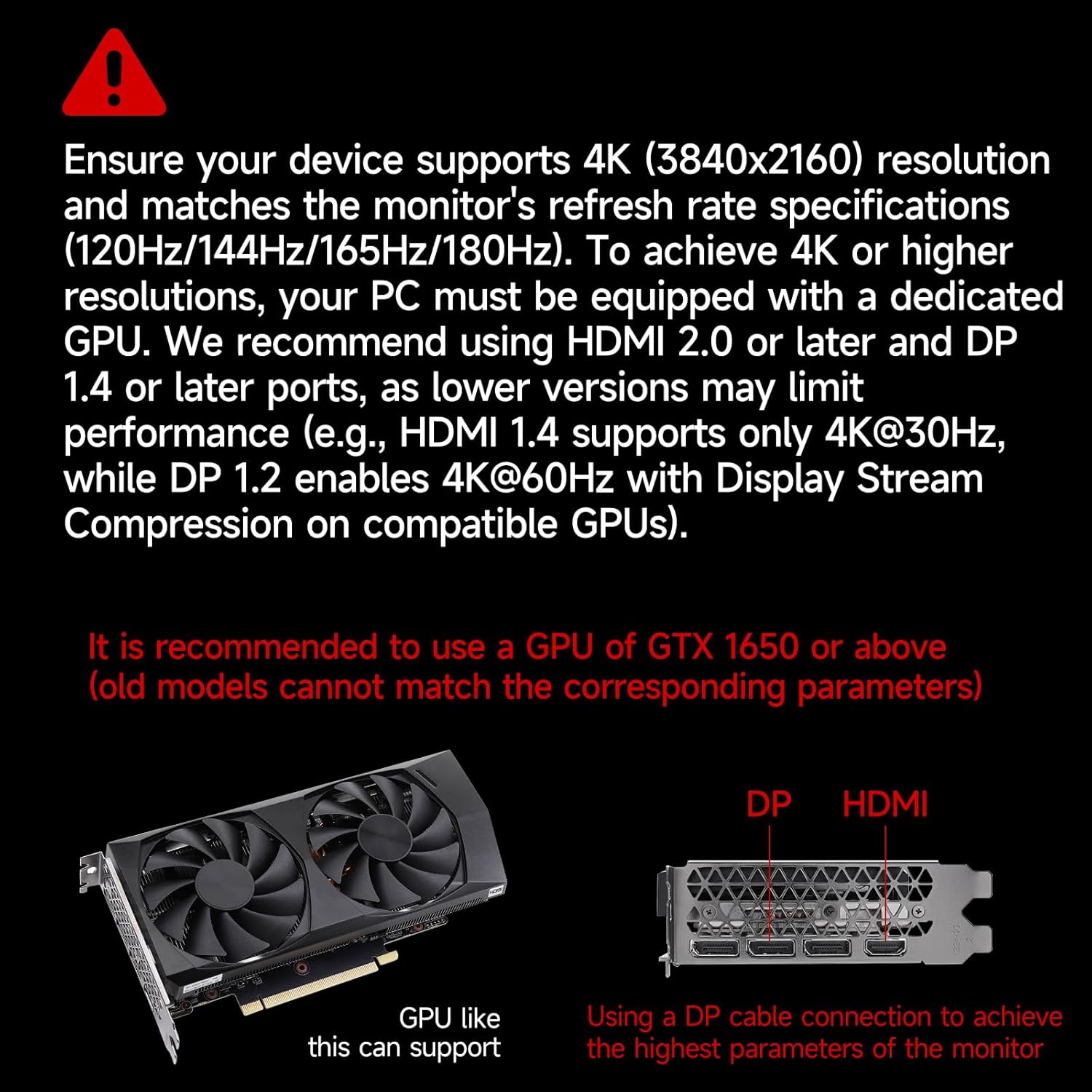
Important: For 4K (3840x2160) resolutions, your PC must be equipped with a dedicated GPU. We recommend using HDMI 2.0 or later and DP 1.4 or later ports. Lower versions may limit performance (e.g., HDMI 1.4 supports only 4K@30Hz, while DP 1.2 enables 4K@60Hz with Display Stream Compression on compatible GPUs). It is recommended to use a GPU of GTX 1650 or above.

Figure 3: Diagram illustrating various device connections (PC, Notebook, PS5, Xbox) and their supported resolutions/refresh rates via DP 1.4 and HDMI 2.1 (note: product specs list HDMI 2.0).

Figure 4: Visual guide for GPU compatibility and recommended port types (DP 1.4, HDMI 2.0 or later) for optimal display performance.
4. הוראות הפעלה
4.1 הפעלה/כיבוי
Connect the power cable to the monitor and a power outlet. Press the power button, usually located on the back or bottom right of the monitor, to turn it on or off.
4.2 תפריט תצוגה על המסך (OSD).
The OSD menu allows you to adjust various monitor settings. Use the buttons on the back or bottom of the monitor to navigate the menu. Common settings include:
- ניגוד בהירות: Adjust image luminance.
- הגדרות צבע: שינוי טמפרטורת צבע, גמא ורוויה.
- מקור קלט: בחירה ידנית בין כניסות HDMI ו-DisplayPort.
- מצב תמונה: בחר מצבי תצוגה מוגדרים מראש (למשל, רגיל, משחק, סרט).
- מצב שומר עיניים: Reduces blue light emissions to minimize eye fatigue.
- FreeSync: Enable/disable adaptive synchronization for tear-free gaming.
4.3 תכונות תצוגה
The Gawfolk GF340C monitor offers several features to enhance your viewחוויית משחק ומשחק:
- UWQHD 3440x1440 Resolution: Provides a wide and detailed viewאזור ing.
- קצב רענון של 165 הרץ: Ensures smooth motion and reduced input lag, especially beneficial for gaming.
- 1ms Response Time (GtG): Minimizes ghosting and motion blur for crisp visuals.
- תמיכה ב-HDR: Enhances contrast and color depth for a more vivid image.
- Multi-Tasking (PIP/PBP): Display multiple sources simultaneously. Refer to the OSD menu for Picture-in-Picture (PIP) and Picture-by-Picture (PBP) settings.

Figure 5: The monitor's capability for multi-tasking, showing multiple programs and external device connections, including PIP/PBP mode.

Figure 6: Highlighting the 165Hz refresh rate and 1ms GtG response time for superior gaming performance.

Figure 7: Demonstrating the monitor's ability to capture fine details with Adaptive Sync and 300 cd/m² brightness.

Figure 8: The Eye Saver Mode, which reduces blue light and flicker for comfortable extended use.
5. תחזוקה
5.1 ניקוי הצג
- תמיד נתקו את הצג משקע החשמל לפני ניקויו.
- השתמש במטלית רכה נטולת מוך מעט דampנשטפו במים או בחומר ניקוי מסך עדין ולא שוחק.
- אין לרסס חומר ניקוי ישירות על המסך. יש למרוח אותו תחילה על המטלית.
- הימנעו משימוש בכימיקלים חזקים, אלכוהול או חומרים שוחקים, מכיוון שאלה עלולים לפגוע במשטח המסך.
5.2 אחסון
If storing the monitor for an extended period, ensure it is clean, dry, and stored in its original packaging or a protective cover to prevent dust and damage.
6. פתרון תקלות
אם אתם נתקלים בבעיות עם הצג שלכם, אנא עיינו בפתרונות הנפוצים הבאים:
| בְּעָיָה | פתרון אפשרי |
|---|---|
| אין תמונה על המסך | Ensure the power cable is securely connected and the monitor is turned on. Check that the video cable (HDMI/DP) is firmly connected to both the monitor and your device. Select the correct input source via the OSD menu. |
| הבהוב או עיוות תמונה | Check video cable connections. Ensure your graphics card drivers are up to date. Try a different video cable. Disable FreeSync in the OSD menu to see if the issue persists. Verify your device's resolution and refresh rate settings are compatible with the monitor. |
| פיקסלים מתים או פיקסלים תקועים | A small number of dead or stuck pixels is common in LCD/LED technology and may not indicate a defect. If the number of pixels exceeds manufacturer specifications, contact customer support. |
| הכפתורים לא מגיבים | Unplug the monitor, wait 30 seconds, then plug it back in. Ensure no buttons are physically stuck. |
| אין שמע מהאוזניות/רמקולים | Ensure external audio devices are properly connected to the 3.5mm audio out port. Check audio settings on your connected device and the monitor's OSD menu. |
If the problem persists after trying these solutions, please contact Gawfolk customer support.
7. מפרטים
Below are the technical specifications for the Gawfolk GF340C monitor:
| תכונה | מִפרָט |
|---|---|
| מותג | גאפולק |
| שם הדגם | GF340C |
| גודל מסך | 34 אינץ' |
| הַחְלָטָה | UWQHD 3440 x 1440p |
| יחס גובה-רוחב | 21:9 |
| עַקמוּמִיוּת | 1500R |
| סוג פאנל | VA |
| קצב רענון | 165 הרץ |
| זמן תגובה | 1 אלפיות השנייה (GtG) |
| בְּהִירוּת | 350 cd/m² (lumens) |
| יחס ניגודיות | 3000:1 |
| סולם צבעים | 99% sRGB (8-bit, 16.7 million colors) |
| Viewזווית | 178 מעלות |
| סנכרון אדפטיבי | FreeSync |
| קישוריות | 2 x HDMI (2.0), 2 x DisplayPort (1.4), 1 x Audio Out (3.5mm) |
| הרכבה VESA | 75 x 75 מ"מ |
| צריכת חשמל | 12 וואט |
| Dimensions (P x L x H) | 23P x 80L x 44H סנטימטרים |
| מִשׁקָל | 5.55 קילוגרם |
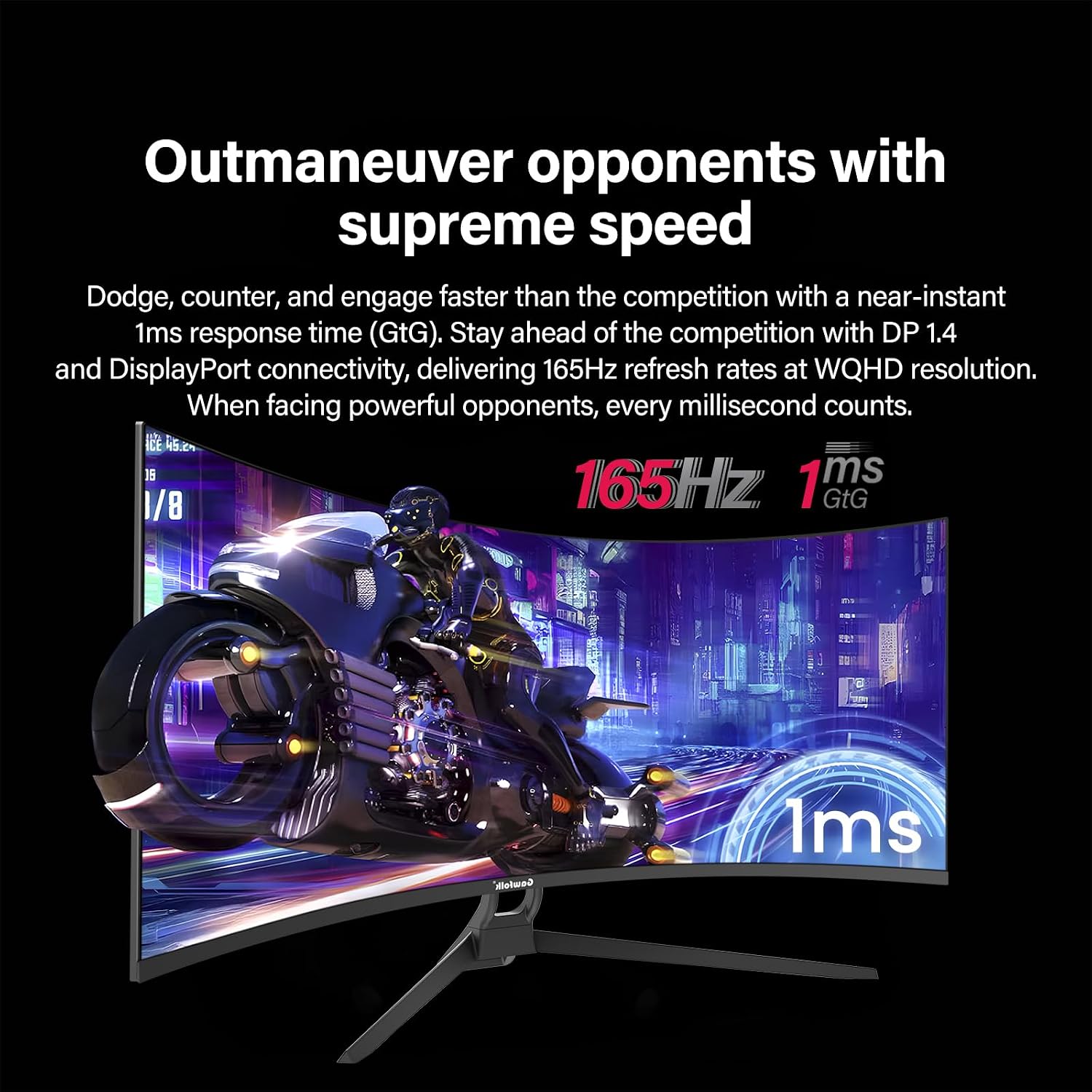
Figure 9: Comparison of the 21:9 ultrawide aspect ratio with a traditional 16:9 display, highlighting the increased screen real estate.
8. אחריות ותמיכה
8.1 אחריות יצרן
This Gawfolk monitor comes with a אחריות יצרן לשנה ממועד הרכישה. אחריות זו מכסה פגמים בחומרים ובביצוע בשימוש רגיל. היא אינה מכסה נזק שנגרם כתוצאה משימוש לרעה, תאונות, שינויים לא מורשים או גורמים חיצוניים.
אנא שמור את הוכחת הרכישה שלך עבור תביעות אחריות.
8.2 תמיכת לקוחות
For technical assistance, warranty claims, or any questions regarding your Gawfolk monitor, please contact Gawfolk customer support. Refer to the official Gawfolk webבאתר או במסמכי הרכישה שלך לקבלת פרטי יצירת קשר.
Note: The provided product data did not include specific contact information for support. Please refer to the product packaging or the official brand webאתר לערוצי התמיכה העדכניים ביותר.