
Vetroo 850 G5
Vetroo 850W Power Supply User Manual
דגם: 850 G5
1. המוצר נגמרview
The Vetroo 850W Power Supply is a high-performance, fully modular unit designed for modern personal computers. It meets the latest ATX 3.1 and PCIe 5.1 standards, ensuring compatibility with current and future hardware. Featuring 80 Plus Gold certification, it provides high efficiency and reliable power delivery. Its quiet operation is maintained by a 120mm FDB fan, and premium 105°C capacitors contribute to stable, long-term performance.

Image: The Vetroo 850W Power Supply unit shown alongside its retail packaging, highlighting its compact design and the 850W rating.
תכונות עיקריות:
- מוכן ל-PCIe דור 5.1: Supports the latest PCIe 5.1 standards, backward compatible with PCIe 4.0 and 3.0.
- Fully ATX 3.1 Compliant: Designed for optimal performance with the newest ATX 3.1 specifications.
- Premium 105°C Capacitors: Ensures stable and low-temperature operation for high-end systems.
- 80 פלוס זהב מוסמך: Guarantees high efficiency and energy savings.
- עיצוב מודולרי לחלוטין: Allows for easy cable management and reduced clutter by only installing necessary cables.
- פעולה שקטה: Equipped with a 120mm Fluid Dynamic Bearing (FDB) fan for minimal noise.
- 10 שנות אחריות: Provides long-term assurance of product quality and durability.
2. מה בקופסה
עם פתיחת האריזה, תמצא את הרכיבים הבאים:
- Vetroo 850W Power Supply Unit
- Modular Cable Set (detailed below)
- כבל מתח AC
- Cable Ties / Velcro Straps
- ברגי הרכבה
- מדריך למשתמש (מסמך זה)
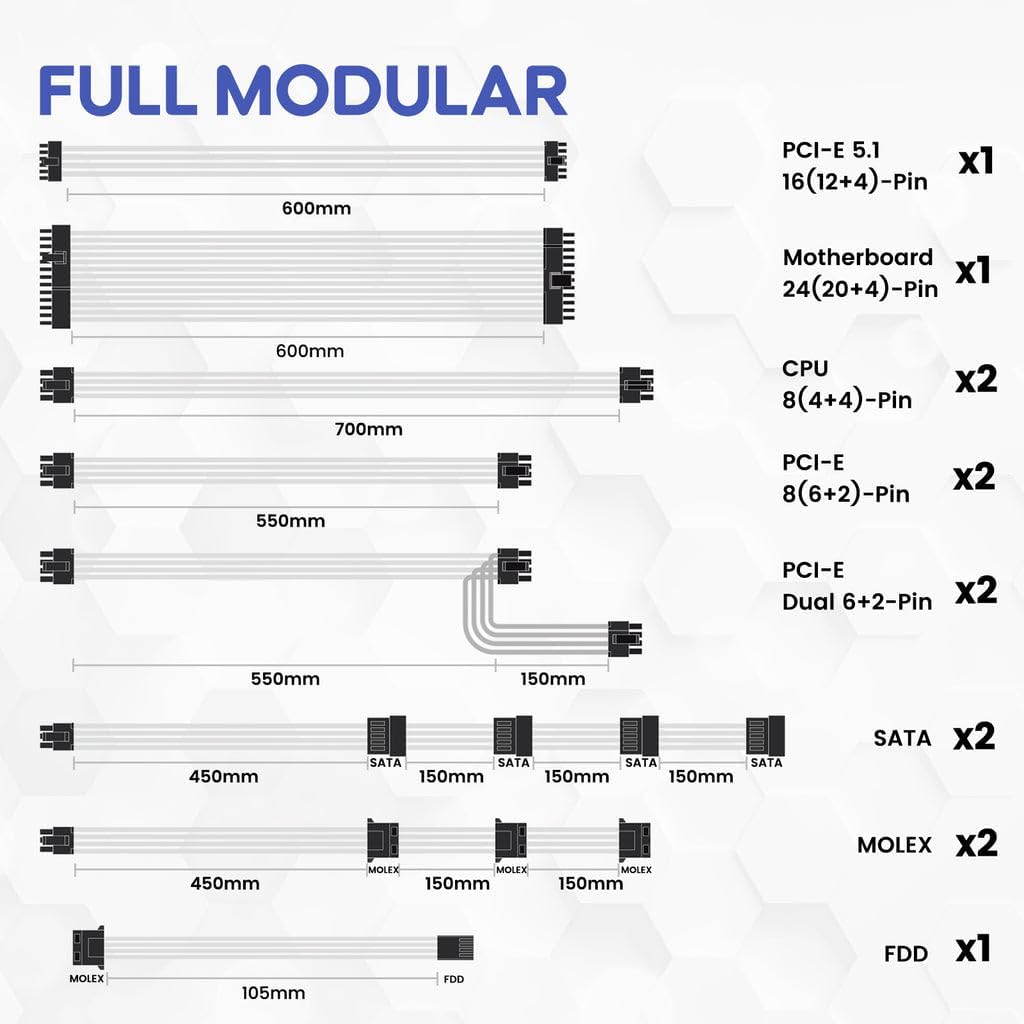
Image: A visual representation of all included modular cables and their lengths, demonstrating the full modular design.
Included Modular Cables:
| סוג כבל | כַּמוּת | תֵאוּר |
|---|---|---|
| PCI-E 5.1 16 (12+4)-Pin | x1 | For next-generation graphics cards. |
| Motherboard 24 (20+4)-Pin | x1 | מחבר חשמל ראשי ללוח האם. |
| CPU 8 (4+4)-Pin | x2 | For CPU power. |
| PCI-E 8 (6+2)-Pin | x2 | For graphics cards requiring 8-pin or 6-pin connectors. |
| PCI-E Dual 6+2-Pin | x2 | Dual connectors for graphics cards. |
| SATA | x2 | For SATA devices like SSDs, HDDs, and optical drives. |
| MOLEX | x2 | עבור ציוד היקפי או בקרי מאווררים ישנים יותר. |
| FDD | x1 | For floppy disk drives or specific legacy devices. |
3. התקנה והתקנה
This section provides general guidance for installing your Vetroo 850W Power Supply. For detailed, step-by-step instructions, please refer to the official מדריך התקנה (PDF).
3.1 התקנה פיזית
- הכן את מארז המחשב שלך: Ensure your PC case has adequate space for the power supply unit. The Vetroo 850W PSU has dimensions of approximately 5.9 x 5.5 x 3.4 inches.
- התקן את ספק הכוח: Carefully slide the power supply into its designated bay in your PC case. Secure it using the provided mounting screws.
- חיבור כבלים חיוניים:
- חבר את כבל ה-ATX בעל 24 פינים ללוח האם שלך.
- חבר את כבל/י החשמל של המעבד בעל 8 הפינים (4+4) ללוח האם שלך.
- For graphics cards, connect the appropriate PCIe 8-pin (6+2) or the new PCIe 5.1 16 (12+4)-pin cable. Ensure your GPU is compatible with the connected cable type.
- חיבור כבלי ציוד היקפי: Attach SATA cables for SSDs, HDDs, and optical drives, and Molex cables for other peripherals as needed. The fully modular design allows you to connect only the cables required, reducing cable clutter and improving airflow.
- ניהול כבלים: Route cables neatly behind the motherboard tray or in designated cable management areas to optimize airflow and aesthetics. Use the included cable ties or Velcro straps.
- חבר מתח AC: Once all internal connections are secure, connect the AC power cord to the power supply and then to a wall outlet or surge protector.

Image: The compact dimensions of the Vetroo 850W Power Supply, illustrating how it fits into a standard PC case.

תמונה: מפורט view of the power supply's modular cable ports, emphasizing the dual PCIe 5.1 connectors for modern GPUs.

Image: An illustration detailing the GPU support capabilities, including compatibility with NVIDIA RTX 50 series graphics cards via PCIe 5.1 and 8-pin connectors.
Video: An official Vetroo video demonstrating the unboxing, components, and key features of the 850W Power Supply, including a close-up of the modular connections and the ECO mode switch.
4. הוראות הפעלה
The Vetroo 850W Power Supply is designed for straightforward operation. After successful installation, follow these steps:
- מתג הפעלה: Locate the main power switch on the back of the power supply unit. Ensure it is in the 'ON' (I) position before powering on your computer.
- מתג מצב ECO: The power supply features an ECO mode switch.
- ECO ON: In this mode, the fan will stop spinning under low load conditions (typically below 50% load) to provide silent operation. The fan will automatically activate when the load increases.
- ECO OFF: In this mode, the fan will spin continuously regardless of the load, providing constant cooling.
- הפעלת המערכת: Once the power supply is connected and switched on, you can power on your computer system using the case's power button.
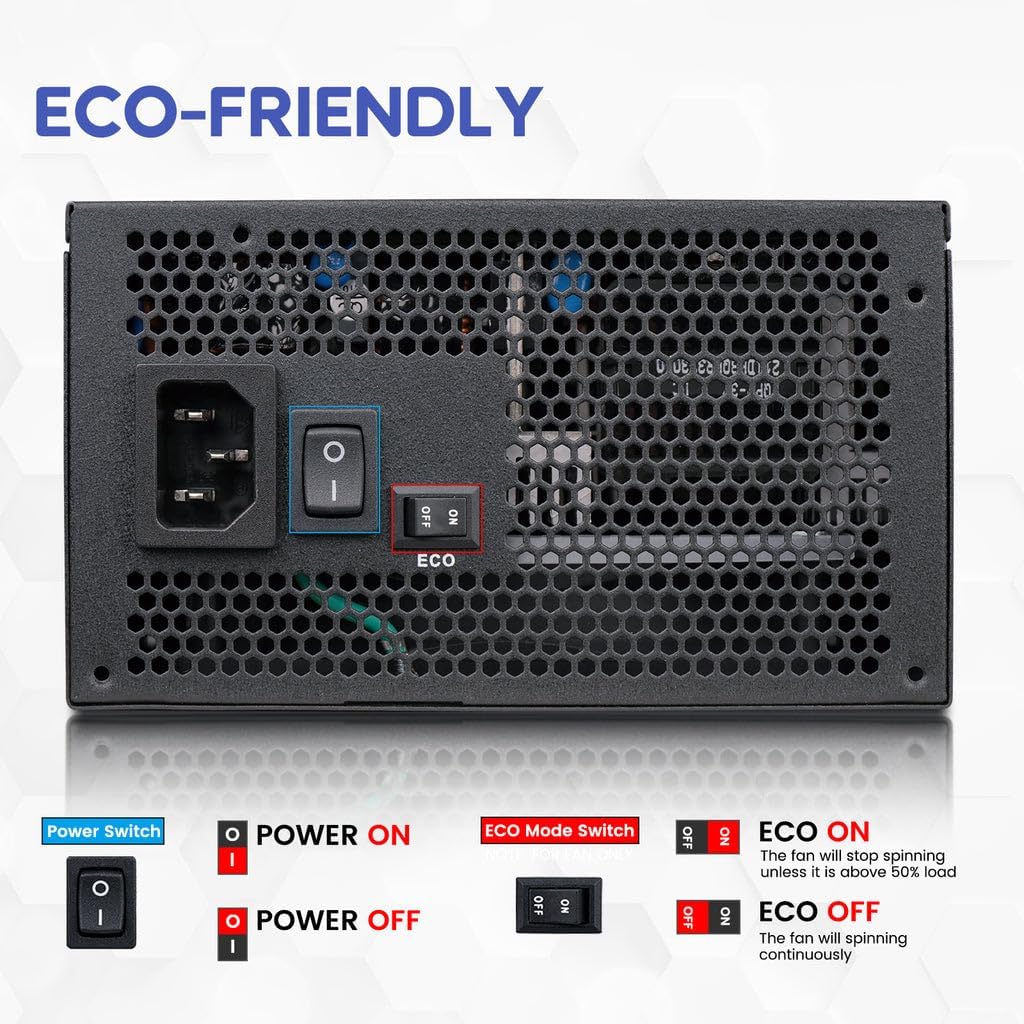
Image: The rear panel of the power supply, clearly showing the main power switch and the ECO mode switch with its 'ON' and 'OFF' positions.
5. תחזוקה
Proper maintenance ensures the longevity and optimal performance of your Vetroo 850W Power Supply.
- הסרת אבק: Periodically clean the power supply's fan and ventilation grilles to prevent dust buildup, which can impede airflow and lead to overheating. Use compressed air to gently blow dust out of the unit. Ensure the power supply is disconnected from the wall outlet before cleaning.
- בדיקת מאוורר: The 120mm FDB fan is designed for quiet and efficient cooling. If you notice unusual noises or reduced fan performance, ensure there are no obstructions.
- חיבורי כבלים: Occasionally check all modular cable connections to ensure they are securely seated. Loose connections can lead to instability or component damage.
- סביבת הפעלה: Ensure the power supply operates in a well-ventilated area, free from excessive heat, humidity, and direct sunlight.

תמונה: תקריב view of the power supply's internal components, emphasizing the premium capacitors that contribute to its reliability and stable performance.
6. פתרון תקלות
If you encounter issues with your Vetroo 850W Power Supply, refer to the following common troubleshooting steps:
- אין חשמל למערכת:
- ודא שכבל החשמל AC מחובר היטב הן לספק הכוח והן לשקע בקיר.
- Verify the main power switch on the PSU is in the 'ON' (I) position.
- Check all modular cables are firmly connected to both the power supply and the respective components (motherboard, CPU, GPU).
- בדוק את שקע הקיר עם מכשיר אחר כדי לוודא שיש לו חשמל.
- Fan Not Spinning (in ECO Mode):
- This is normal behavior if the ECO mode is enabled and the system load is low. The fan will activate automatically when the load increases.
- If you prefer continuous fan operation, switch the ECO mode to 'OFF'.
- חוסר יציבות או קריסות מערכת:
- ודא שדרישות החשמל של המערכת שלך אינן עולות על קיבולת 850W של ספק הכוח.
- בדוק אם יש חיבורי כבלים רופפים.
- The power supply includes multiple protection features (OVP, OCP, OPP, SCP, UVP, OTP) to prevent damage. If the PSU shuts down unexpectedly, it might be due to one of these protections being triggered. Disconnect power, wait a few minutes, and re-attempt. If the issue persists, consult a professional.
- רעשים חריגים:
- Ensure no cables or foreign objects are obstructing the fan.
- If the noise persists and is not related to normal fan operation, contact customer support.
Image: A graphic detailing the comprehensive protection features of the power supply, including Over Voltage Protection (OVP), Over Current Protection (OCP), Over Power Protection (OPP), Short Circuit Protection (SCP), Under Voltage Protection (UVP), and Over Temperature Protection (OTP).
7. מפרטים
Detailed technical specifications for the Vetroo 850W Power Supply (Model: 850 G5).
| תכונה | פְּרָט |
|---|---|
| שם הדגם | 850 G5 |
| מהtage | 850 וואט |
| הסמכה 80 פלוס | מוסמך זהב |
| תקן ATX | תואם ל-ATX 3.1 |
| תקן PCIe | PCIe Gen 5.1 Ready (Dual) |
| גורם צורה | ATX |
| מודולריות | מודולרי לחלוטין |
| סוג מאוורר | מאוורר FDB 120 מ"מ |
| קבלים | Premium 105°C Capacitors |
| מידות המוצר (L x W x H) | 5.9 x 5.5 x 3.4 אינץ' |
| משקל פריט | 5.68 פאונד |
| מכשירים תואמים | מחשב אישי |
| סוג מחבר | ATX, PCI Express |
| UPC | 850050943815 |
| תאריך ראשון זמין | 26 בנובמבר 2024 |
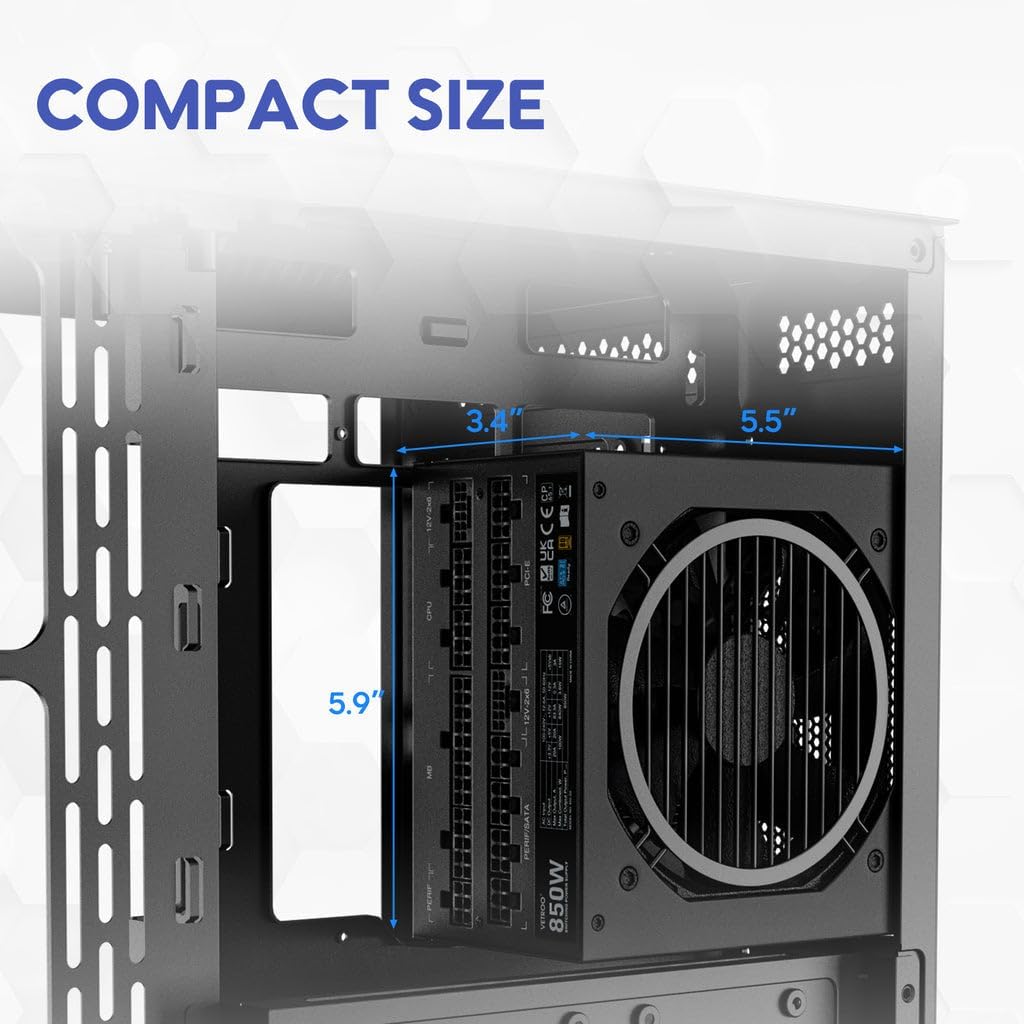
Image: The 80 Plus Gold certification badge prominently displayed on the power supply, indicating its high energy efficiency.

Image: The power supply unit featuring the ATX 3.1 Ready badge, signifying its enhanced performance capabilities for modern systems.
8. אחריות ותמיכה
Vetroo stands behind the quality of its products. Your Vetroo 850W Power Supply comes with a comprehensive warranty and dedicated support.
8.1 מידע אחריות
This power supply is covered by a אחריות לשנה מתאריך הרכישה. אחריות זו מכסה פגמים בחומרים ובביצוע בשימוש רגיל. אנא שמור את הוכחת הרכישה שלך לצורך תביעות אחריות.
8.2 מדיניות החזרה
Products purchased are typically eligible for a 30-day return policy for refund or replacement, subject to the retailer's terms and conditions.
8.3 תמיכת לקוחות
For further assistance, technical support, or warranty claims, please visit the official Vetroo store or contact their customer service:
- Vetroo Store: Visit the Vetroo Store on Amazon
- מדריך התקנה: For detailed installation steps, download the מדריך התקנה (PDF).
Ask a question about this manual
Ask about setup, troubleshooting, compatibility, parts, safety, or missing instructions. Manuals+ will review the question and use this page’s manual context to help answer it.