
1. המוצר נגמרview
The COUGAR FV150 RGB is a mid-tower gaming case designed for high-performance PC builds. It features a dual-chamber design, separating the main components from cables, storage drives, and the power supply unit (PSU) for a clean aesthetic and improved airflow. The case supports various motherboard form factors and offers extensive cooling options, including pre-installed ARGB fans.
תכונות עיקריות:
- עיצוב דו-תאי: מספק ברור view of your build through glass panels while concealing cables and other components.
- תמיכה ב-GPU: Accommodates graphics cards up to 400mm in length, with options for vertical GPU orientation.
- תאימות לוח אם: Supports Mini-ITX, Micro-ATX, and ATX motherboards.
- Engineered Bottom Fan Bracket: Simplifies fan installation by allowing attachment prior to setup.
- Extensive Fan & Water Cooling Support: Multiple fan mounting points and radiator support up to 360mm.
- Seamless RGB Synchronization: Integrated universal fan hub for easy ARGB lighting control.
- Modern I/O Panel: Includes 2 x USB Type-A and 1 x USB 3.2 Type-C ports.
- אחסון גמיש: Supports combinations of 3.5" HDDs and 2.5" SSDs.
- מסנני אבק מגנטיים: Located on the top and right side for easy maintenance.

תמונה 1.1: בזווית view of the COUGAR FV150 RGB case, highlighting its dual-chamber design and pre-installed ARGB fans.
2. התקנה והתקנה
Follow these steps for proper installation of your PC components into the COUGAR FV150 RGB case.
2.1 פריקה ובדיקה ראשונית
- הוציאו בזהירות את המארז מאריזתו.
- בדוק את המארז לאיתור סימני נזק במהלך ההובלה.
- Remove the tempered glass side panel by unscrewing the thumb screws, if present, or by releasinז את מנגנון הבריח.
2.2 התקנת לוח אם
- Ensure the correct standoffs are installed for your motherboard form factor (Mini-ITX, Micro-ATX, or ATX).
- הנח את מגן ה-I/O בפתח האחורי של המארז.
- יישר בזהירות את לוח האם שלך עם המעמדים ומגן הקלט/פלט, ולאחר מכן אבטח אותו באמצעות ברגים.
2.3 התקנת יחידת ספק כוח (PSU)
- The FV150 RGB supports bottom-mount PSUs.
- Slide the PSU into its designated compartment in the secondary chamber from the rear of the case.
- Secure the PSU with screws from the exterior rear of the case.
2.4 התקנת כונן אחסון
- Locate the drive bays in the secondary chamber.
- For 3.5" HDDs, slide the drive into the appropriate tray and secure it.
- For 2.5" SSDs, mount them to the designated brackets or trays.
2.5 התקנת כרטיס מסך (GPU)
- הסר את כיסויי חריצי ההרחבה הדרושים בחלק האחורי של המארז.
- Insert your GPU into the PCIe slot on the motherboard and secure it with screws.
- The case supports GPUs up to 400mm. For vertical GPU mounting, a separate riser cable and bracket (not included) are required.
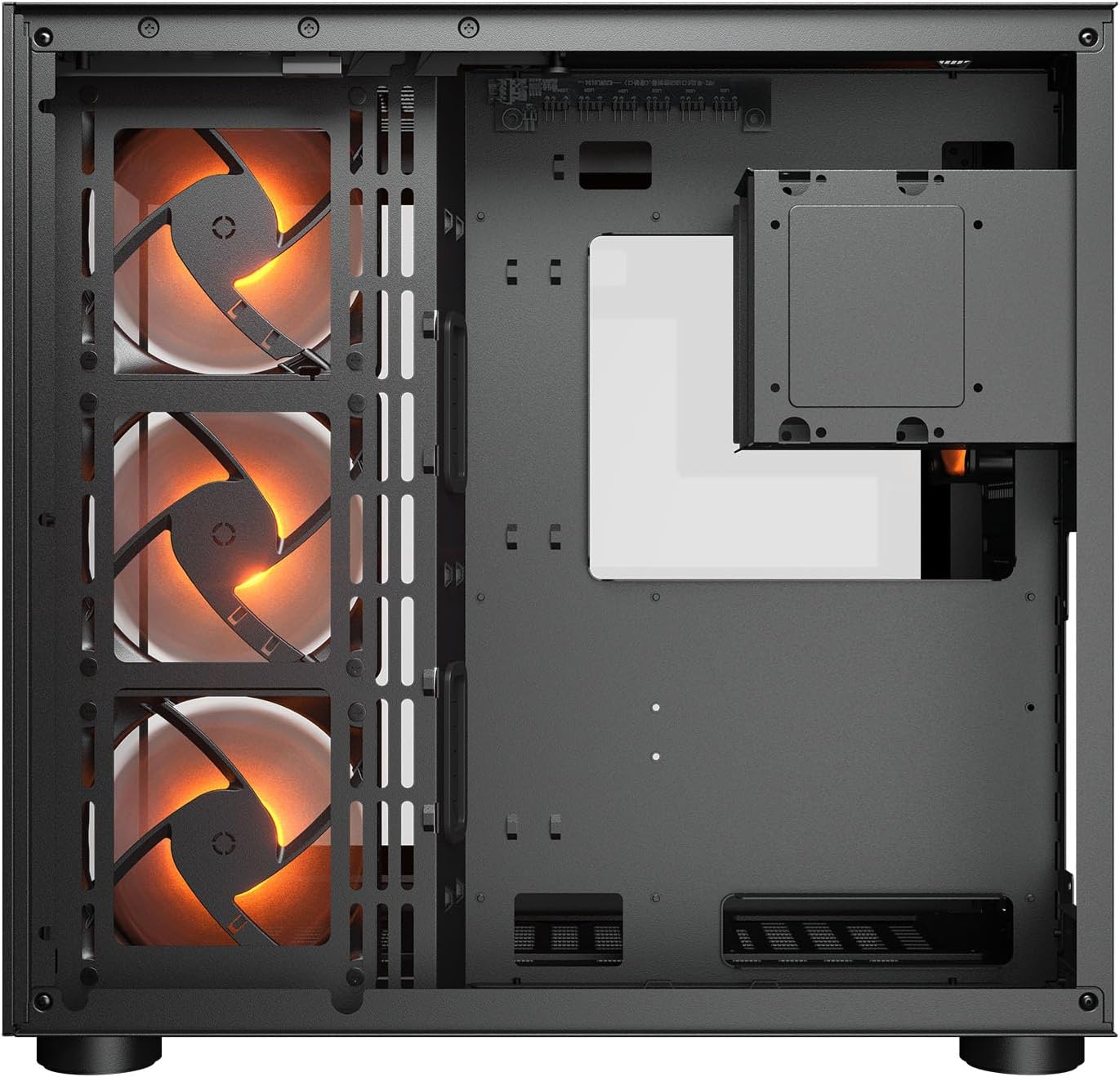
תמונה 2.1: פנימי view illustrating the main chamber for motherboard and GPU installation, with pre-installed side fans.
2.6 התקנת מאוורר ורדיאטור
- The case comes with 3 x 120mm ARGB side fans and 1 x 120mm ARGB rear fan pre-installed.
- Additional fans can be installed at the top (3 x 120mm or 2 x 140mm) and bottom (3 x 120mm or 2 x 140mm).
- Utilize the engineered bottom fan bracket for easier installation of bottom fans.
- For water cooling, radiators up to 360mm can be mounted on the top and 240mm on the side.

Image 2.2: Top internal view, showing potential mounting locations for additional cooling fans or radiators.
2.7 ניהול כבלים
- Route all power and data cables through the cutouts to the secondary chamber.
- נצל את ample space and tie-down points in the secondary chamber to organize cables for optimal airflow and a clean appearance.
2.8 Connecting Front I/O Panel
- Connect the front panel cables (USB 3.2 Type-C, USB Type-A, audio, power, reset, LED) to the corresponding headers on your motherboard.
3. הוראות הפעלה
לאחר שכל הרכיבים מותקנים ומחוברים, ניתן להפעיל את המערכת.
3.1 הפעלה
- ודא שמתג ספק הכוח נמצא במצב 'ON'.
- Press the power button on the front I/O panel of the case.
3.2 בקרת תאורת RGB
- The integrated universal fan hub allows for easy synchronization of ARGB lighting.
- Connect the hub to your motherboard's ARGB header (5V 3-pin) to control lighting effects via motherboard software.
- Alternatively, use the dedicated RGB button on the front I/O panel to cycle through pre-set lighting modes if not connected to a motherboard header.
4. תחזוקה
תחזוקה שוטפת מסייעת להבטיח ביצועים אופטימליים ואורך חיים של רכיבי המחשב שלך.
4.1 ניקוי מסנן האבק
- The COUGAR FV150 RGB features magnetic dust filters on the top and right side, along with a ventilated bottom cover.
- Gently remove the magnetic dust filters.
- Clean them using compressed air or by rinsing with water (ensure they are completely dry before reattaching).
- Periodically clean the ventilated bottom cover.
4.2 ניקיון כללי
- Use a soft, dry cloth to wipe down the exterior surfaces of the case.
- For tempered glass panels, use a glass cleaner and a microfiber cloth to avoid streaks.
- הימנע משימוש בכימיקלים קשים או חומרים שוחקים שעלולים לפגוע בגימור.
5. פתרון תקלות
סעיף זה מספק פתרונות לבעיות נפוצות שאתה עשוי להיתקל בהן.
5.1 המערכת לא נדלקת
- בדיקת ספק כוח: Ensure the power supply unit is properly connected to the wall outlet and the PSU switch is in the 'ON' position.
- חיבורי לוח קדמי: ודא שכבל כפתור ההפעלה מהמארז מחובר כראוי ללוח הקדמי של לוח האם.
- כבלי חשמל פנימיים: Confirm all necessary power cables (24-pin ATX, 8-pin CPU, PCIe for GPU) are securely connected to the motherboard and components.
5.2 Fans Not Spinning or RGB Not Working
- חיבורי מאוורר: Ensure all fan power cables are securely connected to the fan hub or motherboard headers.
- חיבורי RGB: Verify the ARGB cables are correctly connected to the fan hub and the hub is connected to a 5V 3-pin ARGB header on the motherboard.
- Software/Button: If connected to the motherboard, check your motherboard's RGB control software. If not, try pressing the RGB button on the case's I/O panel to cycle modes.
5.3 יציאות USB אינן פועלות
- ראשי USB פנימיים: Confirm that the USB 3.0 and USB Type-C cables from the front I/O panel are correctly plugged into the corresponding headers on your motherboard.
- דרייברים של לוח אם: Ensure you have installed the latest chipset and USB drivers for your motherboard.
6. מפרטים
Detailed technical specifications for the COUGAR FV150 RGB Gaming Case.

Image 6.1: Case dimensions for planning your setup.
| תכונה | מִפרָט |
|---|---|
| שם המוצר | FV150 RGB |
| גורם טופס מקרה | מגדל אמצע |
| תאימות לוח אם | מיני ITX, מיקרו ATX, ATX |
| מידות (B x H x D) | 300 x 400 x 415 מ"מ (11.8 אינץ' x 15.7 אינץ' x 16.3 אינץ') |
| פאנל קלט/פלט | USB 3.2 Gen 2 Type-C x 1, USB-A 3.0 x 2, 4 Pole Headset Audio Jack, RGB Button |
| 3.5" Drive Bay | 2 |
| 2.5" Drive Bay | 1+1 (converted from 3.5" drive bays) |
| חריצי הרחבה | 7+3 |
| תמיכה ב-GPU אנכי | כֵּן |
| Cooling Fan Support (Top) | 3 x 120 מ"מ או 2 x 140 מ"מ |
| Cooling Fan Support (Bottom) | 3 x 120 מ"מ או 2 x 140 מ"מ |
| Cooling Fan Support (Side) | 3 x 120 מ"מ |
| Cooling Fan Support (Rear) | 1 x 120 מ"מ |
| Pre-installed Fans (Side) | 3 x 120mm ARGB (Reversed) |
| Pre-installed Fans (Rear) | 1 x 120mm ARGB |
| Pre-installed Fan Speed | 1000 סל"ד (± 10%) |
| Pre-installed Fan Connector | 5V 3 Pin (ARGB) / 3 Pin (Fan) |
| מספר מקסימלי של מעריצים | 10 |
| Water Cooling Support (Top) | 360mm / 280mm / 240mm |
| Water Cooling Support (Side) | 240 מ"מ / 120 מ"מ |
| Water Cooling Support (Rear) | 120 מ"מ |
| RGB Hub Sync with M/B | כֵּן |
| מקסימום אורך כרטיס מסך | 400 מ"מ (15.7 אינץ') |
| מקסימום גובה מצנן מעבד | 180 מ"מ (7.1 אינץ') |
| מקסימום אורך PSU | 210 מ"מ (8.3 אינץ') |
| חוֹמֶר | מַתֶכֶת |
| משקל פריט | 6.83 קילוגרם |
7. מידע על אחריות
COUGAR products are manufactured to the highest quality standards. This product is covered by a manufacturer's warranty against defects in materials and workmanship. The specific duration and terms of the warranty may vary by region and retailer. Please retain your proof of purchase for warranty claims.
For detailed warranty information, please refer to the official COUGAR webאתר או צרו קשר עם הקמעונאי המקומי שלכם.
8. תמיכה
If you encounter any issues or have questions regarding your COUGAR FV150 RGB Gaming Case that are not covered in this manual, please contact COUGAR customer support.
- בקרו באתר הרשמי של COUGAR webאתר לשאלות נפוצות, הורדות מנהלי התקנים ופרטי יצירת קשר עם התמיכה.
- Contact your retailer for assistance with product returns or exchanges.