
1. הקדמה
The ASUS ZenScreen MB27ACF is a 27-inch 1440P transportable monitor designed to enhance multitasking and productivity. Featuring a QHD (2560 x 1440) IPS panel with a smooth 100Hz refresh rate, it offers a sleek 5.4mm profile and weighs less than 3kg, ensuring effortless portability. This monitor provides versatile stand options, including an integrated carrying handle/kickstand and a height-adjustable C-clamp, allowing for flexible configuration in various environments.

Figure 1: The ASUS ZenScreen MB27ACF monitor showcasinהעיצוב החלקלק והמעמד המשולב שלו.
2. תכונות עיקריות
- 27-inch QHD IPS Display: Large, frameless panel with 2560 x 1440 resolution and wide 178° viewing angles for stunning visuals.
- קצב רענון של 100 הרץ: Provides a smooth viewing experience, reducing motion blur.
- USB-C with 70W Power Delivery: Single-cable solution for video, audio, and power, simplifying connectivity.
- Integrated 2.1-channel Audio: Features a subwoofer for exceptionally well-balanced sound.
- Versatile Stand Options: Includes an integrated carrying handle/kickstand, height-adjustable C-clamp with Z-axis adjustment, and partition hook kit for flexible placement.
- טכנולוגיית טיפוח עיניים: Incorporates Blue Light Filter and Flicker-Free technology to reduce eye strain during extended use.
- עיצוב נייד: Sleek 5.4mm profile and lightweight construction (less than 3kg) for easy transport.
- ידידותי לסביבה: ENERGY STAR-certified energy efficiency and packaged in FSC certified paper.
3. מה בקופסה
ודא שכל הפריטים נמצאים בחבילה:
- ASUS ZenScreen MB27ACF Monitor
- C-Clamp זְרוֹעַ
- כבל USB-C
- כבל HDMI
- מברג בצורת L
- כבל מתח ומתאם
- Partition hook x2

Figure 2: All components included with the ASUS ZenScreen MB27ACF monitor, neatly arranged in the packaging.
4. התקנה
4.1. מבנה פיזי
The ZenScreen MB27ACF offers multiple ways to set up your display:
- מעמד משולב: The monitor features an Ergo Fold-out kickstand that doubles as a carrying handle. It supports the monitor at angles from 12–60° on any flat surface.
- C-Clamp זְרוֹעַ: For more flexible positioning, use the included Ergo C-clamp arm. This arm allows for -5° to 20° tilt, -90° to 90° swivel, -90° to 90° pivot, and extension/retraction adjustments up to 144mm, with a height adjustment range of 0–180mm.
- Partition Hook Kit: The monitor also includes a partition hook kit for hanging the display, offering additional placement options.
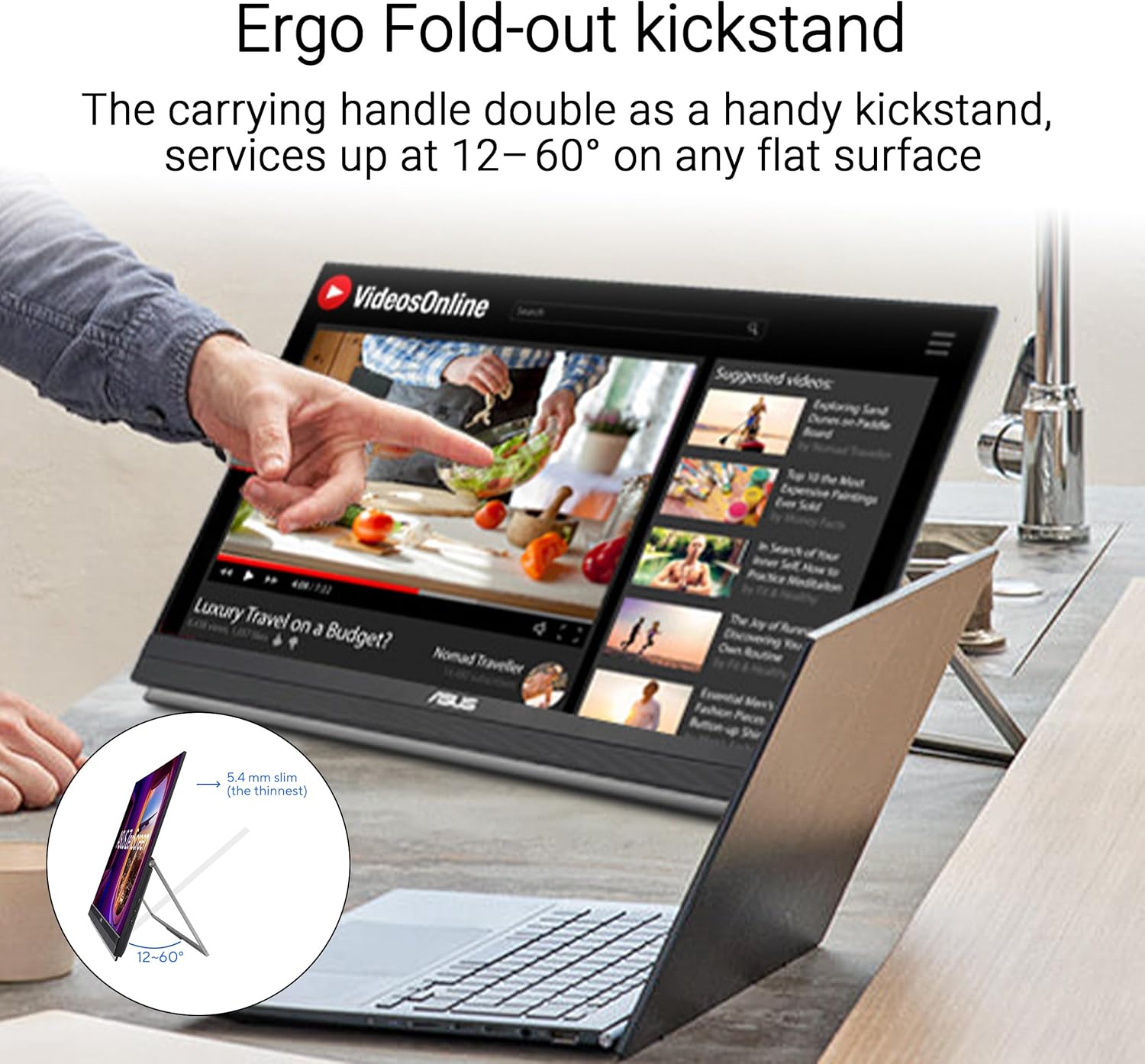
Figure 3: The monitor positioned on its integrated Ergo Fold-out kickstand, suitable for desktop use.
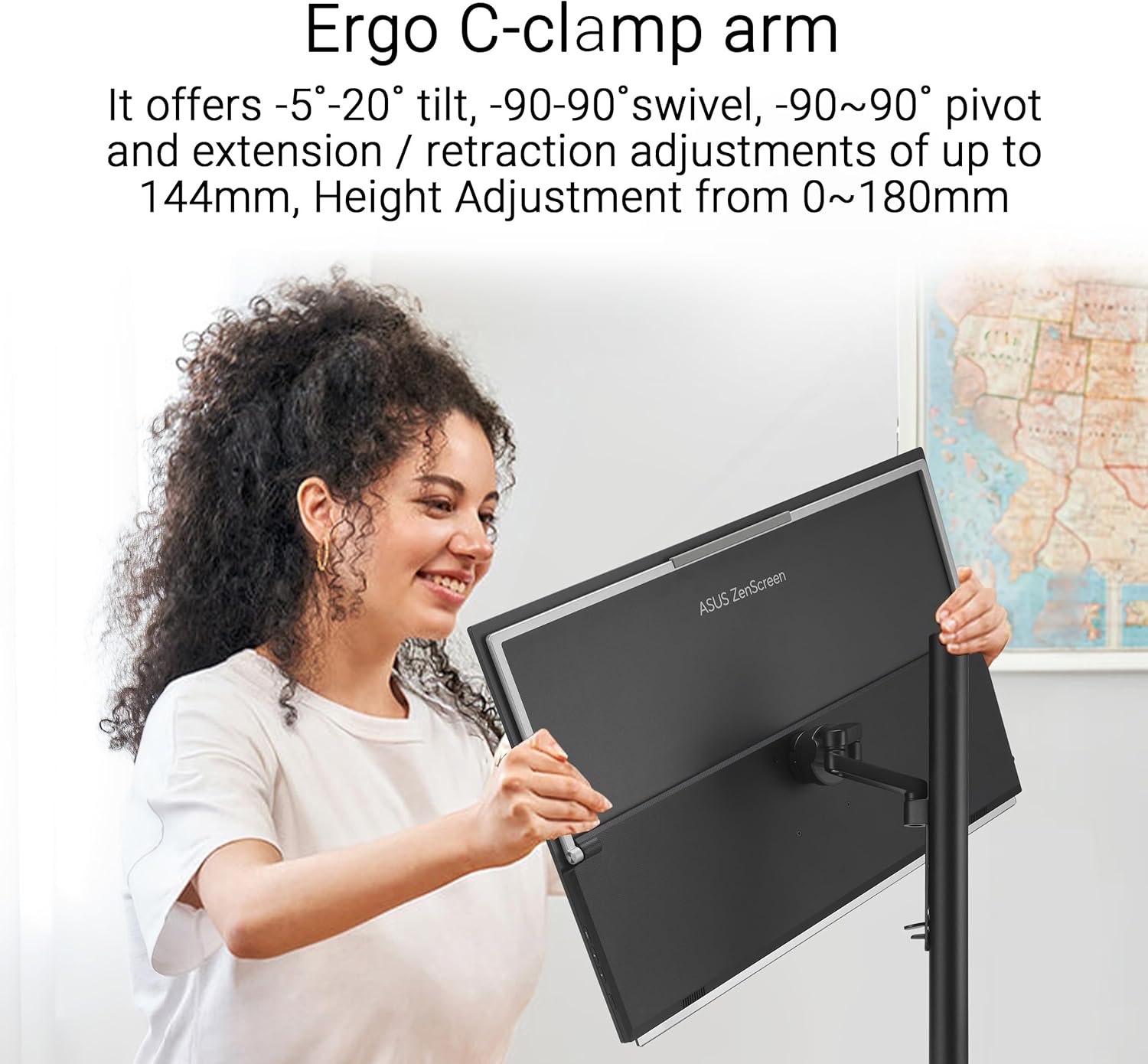
Figure 4: A user adjusting the monitor mounted on the versatile C-clamp arm, demonstrating its range of motion.
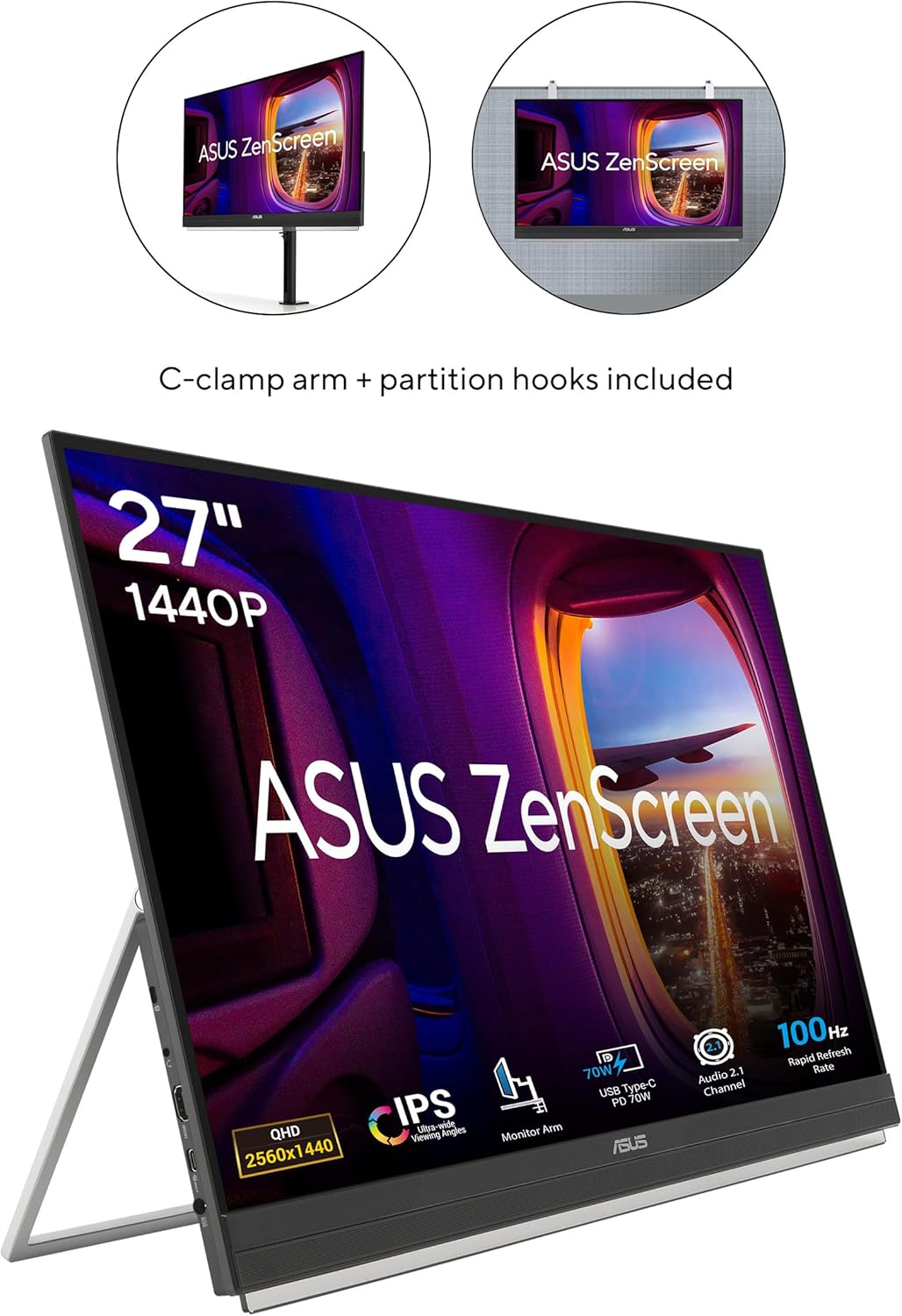
Figure 5: The monitor displayed with both the C-clamp arm and partition hooks, illustrating diverse mounting possibilities.
4.2. קישוריות
The ZenScreen MB27ACF offers hassle-free connections:
- USB-C (עם אספקת חשמל של 70W): Connect your laptop or compatible device using a single USB-C cable for video, audio, and power. Ensure your device supports DisplayPort Alternate Mode (DP Alt Mode) for full functionality.
- HDMI: Use the HDMI port for video input from various devices.
- שקע אוזניות: חבר אוזניות או רמקולים חיצוניים ליציאת שמע.
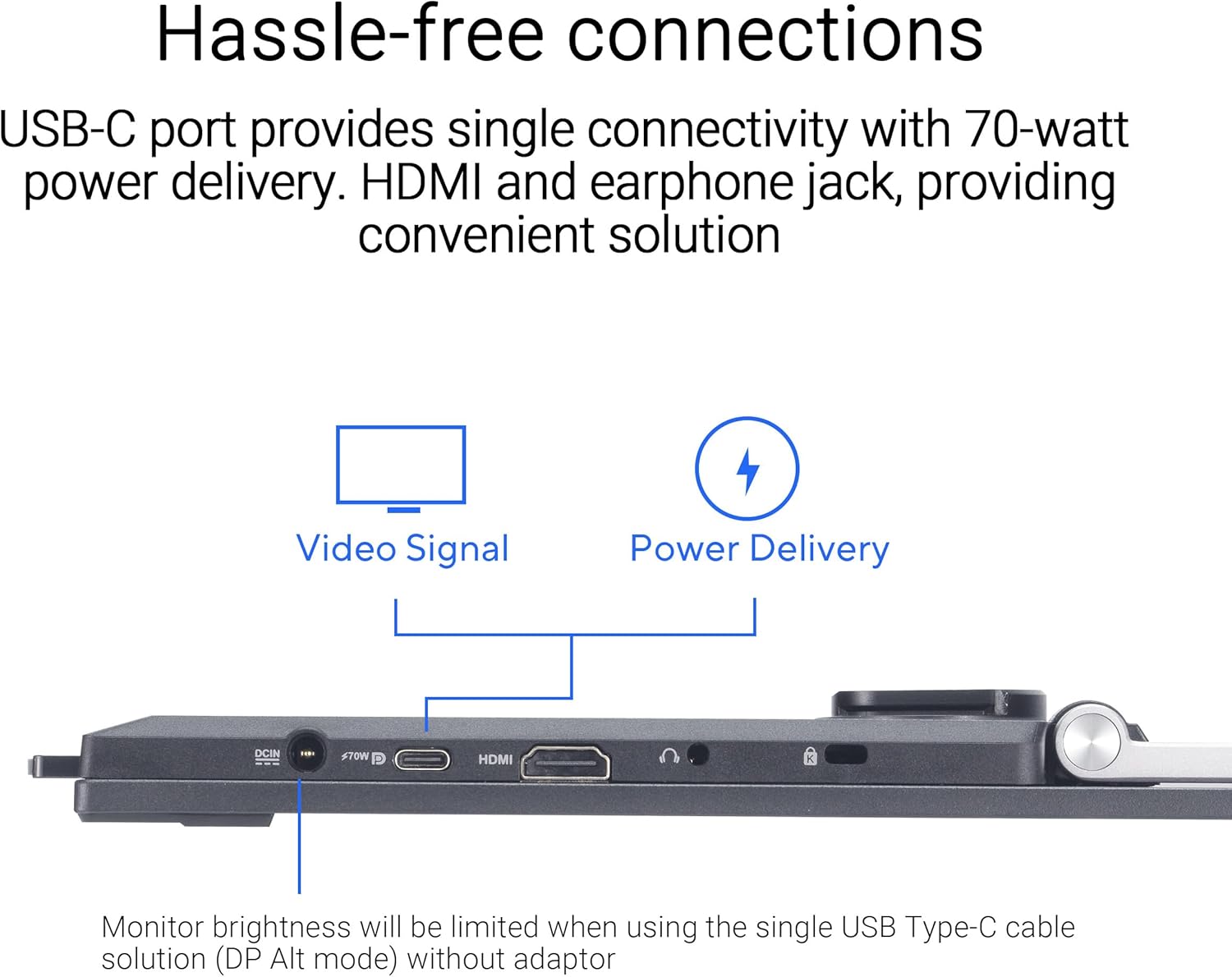
איור 6: תקריב view of the monitor's ports, including USB-C, HDMI, and earphone jack, highlighting the single-cable solution for video and power delivery.
Video 1: Official ASUS guide on how to connect the ZenScreen Portable Monitor to a laptop using a single USB-C cable.
5. הפעלת המוניטור
5.1. הפעלה/כיבוי וניווט בתפריט
The monitor features intuitive buttons for power control and accessing the On-Screen Display (OSD) menu. Use the buttons located on the bottom bezel to navigate settings such as brightness, contrast, color modes, and input selection.
5.2. Display Modes and Orientation
The ZenScreen MB27ACF supports both horizontal (landscape) and vertical (portrait) orientations, automatically adjusting the display when rotated, especially when used with the C-clamp arm. This is ideal for tasks like coding, document review, or graphic design.
5.3. מאפייני טיפוח עיניים
כדי להבטיח נוח viewing during prolonged use, the monitor includes ASUS Eye Care technology:
- מסנן אור כחול: Reduces harmful blue light emissions, which can cause eye strain and fatigue. Multiple filter levels are available through the OSD menu.
- טכנולוגיה ללא הבהוב: מבטל ריצוד מסך, ומספק תחושה נוחה יותר viewניסיון.
Video 2: An official ASUS video demonstrating the benefits of ASUS Eye Care technology, including Blue Light Filter and Flicker-Free features.
5.4. אודיו
The monitor is equipped with powerful 2.1-channel audio, including a subwoofer, delivering rich and balanced sound for both work and entertainment.
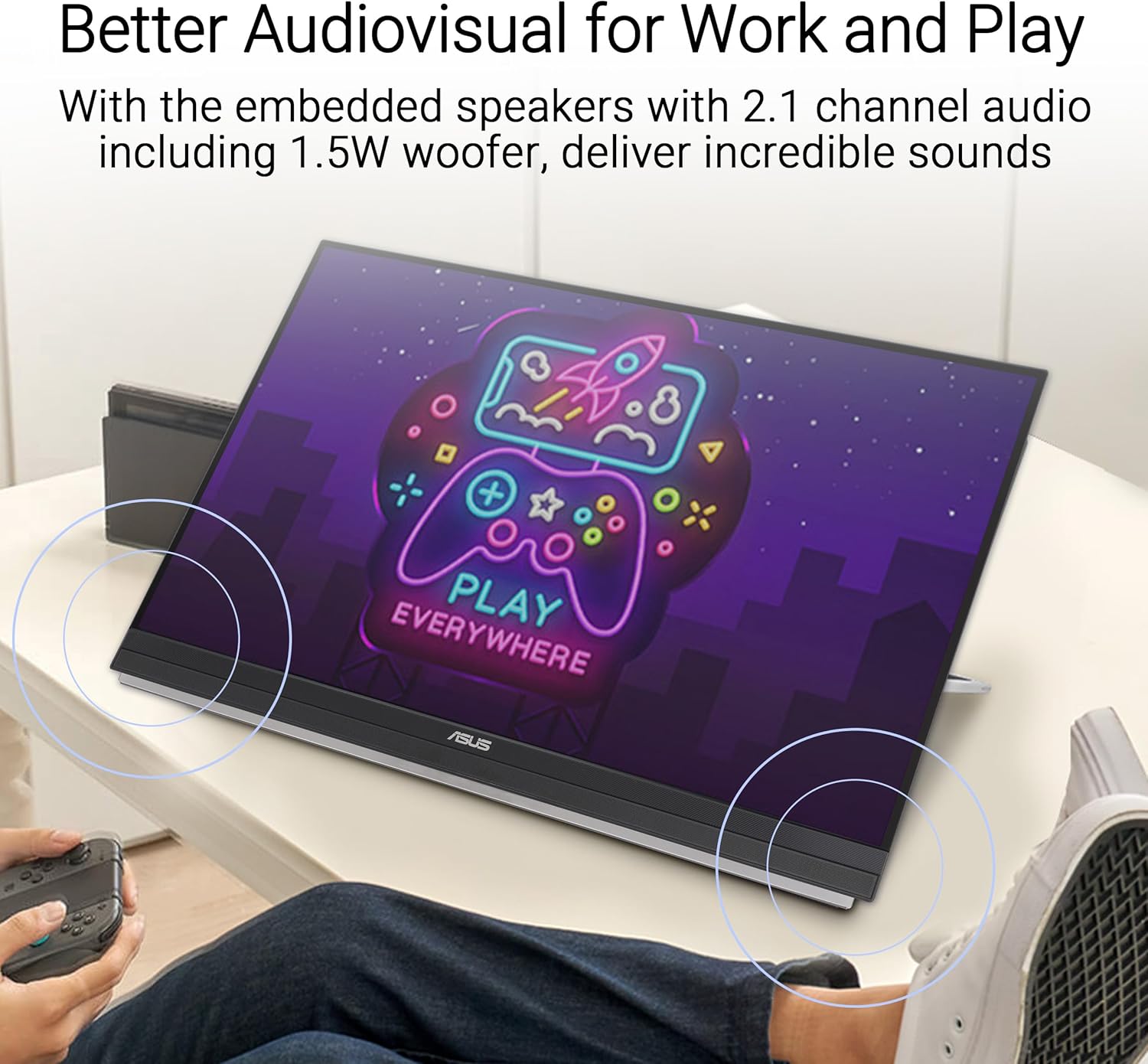
Figure 7: The monitor displaying content with visual indicators for its 2.1-channel audio system, emphasizing its sound capabilities.
6. תחזוקה
6.1. ניקוי הצג
- תמיד כבו את הצג ונתק אותו משקע החשמל לפני ניקויו.
- השתמש קלות במטלית רכה נטולת מוך דampנשטפו במים או בחומר ניקוי מסך עדין ולא שוחק.
- הימנעו משימוש בחומרי ניקוי על בסיס אלכוהול, אמוניה או חומרים שוחקים, מכיוון שאלה עלולים לפגוע במשטח המסך.
- Gently wipe the screen and exterior surfaces. Do not spray liquid directly onto the screen.
6.2. אחסון וטיפול
- When transporting the monitor, use the provided carrying handle or ensure it is securely packed in a protective case to prevent damage.
- הימנעו מהנחת חפצים כבדים על הצג או מהפעלת לחץ מוגזם עליו.
- אחסן את הצג במקום קריר ויבש, הרחק מאור שמש ישיר וטמפרטורות קיצוניות.
7. פתרון תקלות
7.1. No Signal/Black Screen
- Ensure the USB-C or HDMI cable is securely connected to both the monitor and your device.
- Verify that your laptop's USB-C port supports DisplayPort Alternate Mode (DP Alt Mode) if using a single USB-C connection.
- Check if your laptop's display settings are configured to extend or duplicate the display to the external monitor.
- Try connecting the monitor to a different device or using a different cable to rule out cable or source issues.
7.2. בעיות חשמל
- If the monitor is not powering on, ensure the power adapter is correctly connected to both the monitor and a working power outlet.
- When using USB-C for power, confirm your device can supply sufficient power (70W PD). If not, use the dedicated power adapter.
7.3. Display Quality Issues
- If the image is blurry or distorted, check the display resolution settings on your connected device and ensure they match the monitor's native QHD (2560 x 1440) resolution.
- Adjust brightness, contrast, and color settings via the OSD menu to optimize image quality.
8. מפרטים
| תכונה | מִפרָט |
|---|---|
| מותג | ASUS |
| מספר דגם | MB27ACF |
| גודל מסך | 27 אינץ' |
| הַחְלָטָה | רזולוציית QHD רחבה 1440p (2560 x 1440 פיקסלים) |
| סוג תצוגה | LCD (IPS) |
| קצב רענון | 100 הרץ |
| זמן תגובה | 5 אלפיות שניות |
| יחס גובה-רוחב | 16:9 |
| משטח המסך | דָהוּי |
| בְּהִירוּת | 1027.8 lm |
| יחס ניגודיות | 1,500:1 (סטטי) |
| Viewזווית | 178 מעלות |
| קישוריות | HDMI, USB, USB Type-C (70W PD) |
| שֶׁמַע | 2.1-channel with Subwoofer, Earphone Jack |
| תכונות מיוחדות | Blue Light Filter, Eye Care, Flicker-Free, Portable |
| מידות פריט (D x W x H) | 11.9" D x 24.1" W x 29.8" H |
| משקל פריט | 10.6 פאונד |
| סוג הרכבה | 75 x 75 (VESA compatible) |
9. אחריות ותמיכה
9.1. מידע על אחריות
The ASUS ZenScreen MB27ACF monitor comes with a אחריות יצרן לשנה. Please retain your proof of purchase for warranty claims. For detailed terms and conditions, refer to the warranty card included in your product packaging or visit the official ASUS support webאֲתַר.
9.2. תמיכת לקוחות
For technical assistance, product inquiries, or service requests, please contact ASUS Customer Support through their official website or the contact information provided in your product documentation. Online resources, including FAQs and driver downloads, are also available.