
1. התקנה
1.1. תכולת החבילה
ודא שכל הרכיבים נמצאים בחבילה:
- AUSDOM 108-Key Wireless Keyboard
- AUSDOM Wireless Mouse
- מקלט USB (מאוחסן בעכבר)
- כבל טעינה USB-C
- מדריך למשתמש
1.2. Connecting the Combo
- אתר את מקלט ה-USB: The 2.4GHz USB receiver is conveniently stored in a compartment on the underside of the wireless mouse. Gently slide open the battery cover to access it.
- הכנס את המקלט: Plug the USB receiver into an available USB port on your computer (PC, laptop, or tablet). The system will automatically detect and install the necessary drivers.
- הפעלה של התקנים: Ensure both the keyboard and mouse are switched to the 'ON' position. The power switch for the keyboard is located on its top edge, and for the mouse, it is on the underside.

1.3. Charging the Combo
Both the keyboard and mouse are equipped with built-in rechargeable Lithium Polymer batteries. Use the provided USB-C cable to charge them.
- Connect the USB-C end of the cable to the charging port on the keyboard (located on the top edge) or the mouse (located on the front).
- Connect the USB-A end of the cable to a powered USB port on your computer or a USB wall adapter.
- A full charge takes approximately 2 hours and provides up to 300 hours of standby time.

2. הוראות הפעלה
2.1. תכונות המקלדת
The AUSDOM KAM200X keyboard features a full-size 108-key layout, including a dedicated numeric keypad and various function keys for enhanced productivity.
- Mechanical-Feel Keys: Experience tactile feedback similar to mechanical keyboards, combined with quiet scissor-switch mechanisms and a short 3.8mm key travel for comfortable and precise typing.
- Multimedia and Shortcut Keys: Utilize dedicated media controls (volume, play/pause) and app-switching shortcuts for streamlined workflow. Refer to the user manual for a complete list of function key combinations.
- OS Switching: Easily switch between Windows and macOS layouts using specific function key combinations (e.g., Fn + P for Windows, Fn + O for Mac).


2.2. תכונות עכבר
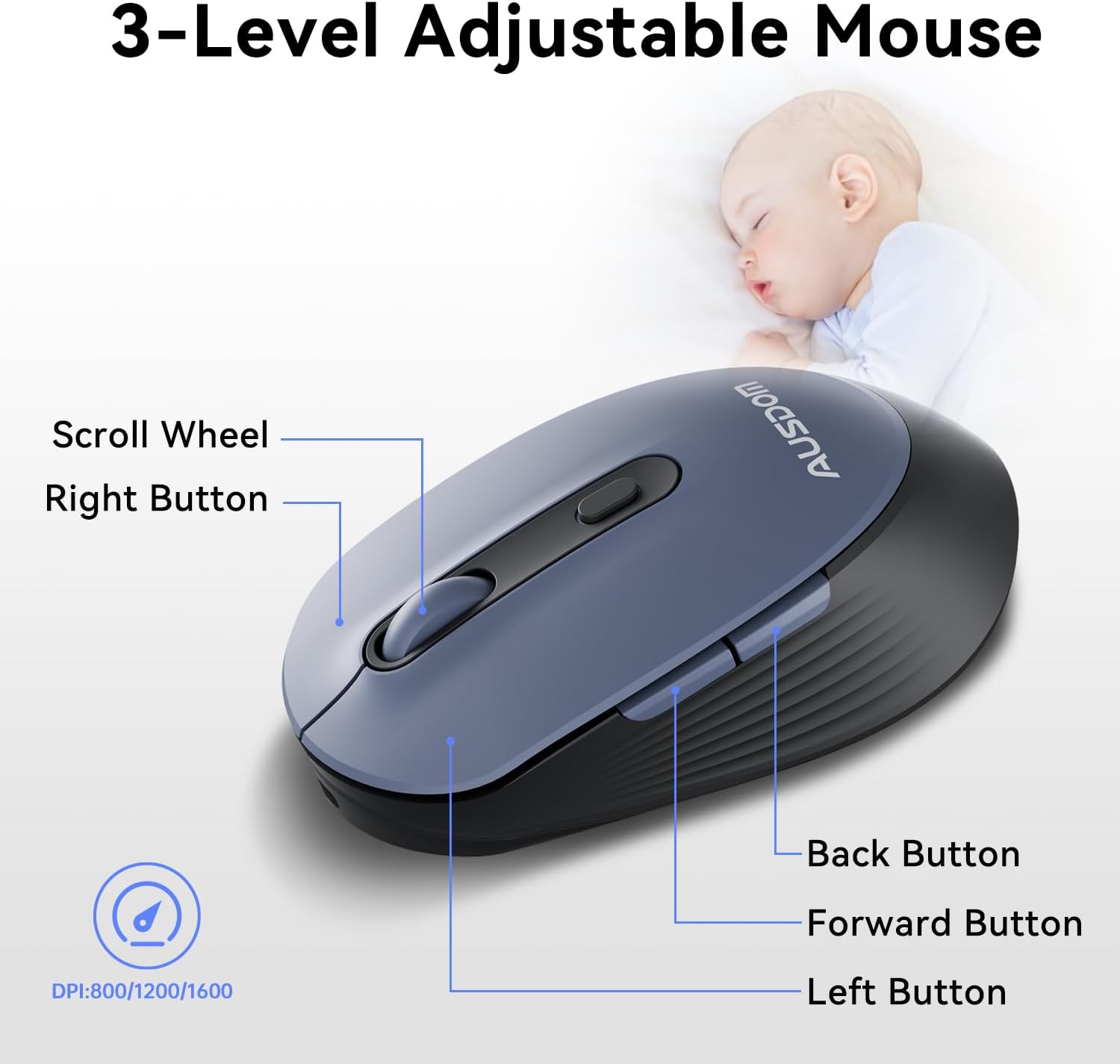
The ergonomic wireless mouse is designed for comfortable use and precise control.
- DPI מתכוונן: Cycle through 3 DPI levels (800, 1200, 1600) using the dedicated DPI button to adjust cursor sensitivity for different tasks.
- כפתורי קדימה/אחורה: Utilize the side buttons for quick navigation in web דפדפנים ויישומים.
- קליקים שקטים: The mouse features silent click buttons to minimize noise in quiet environments.
2.3. תאימות רחבה
The AUSDOM wireless combo is compatible with a broad range of operating systems and devices, ensuring seamless integration into your existing setup.
- מערכות הפעלה: Compatible with Windows XP/ME/Vista/7/8/10/11 and macOS.
- מכשירים: Works instantly with desktops, laptops, and other computers without requiring additional software or drivers.

3. תחזוקה
3.1. ניקיון
To ensure the longevity and optimal performance of your AUSDOM combo, regular cleaning is recommended.
- השתמש במטלית רכה, יבשה ונטולת סיבים כדי לנגב את משטחי המקלדת והעכבר.
- עבור לכלוך עיקש, מעט דחוףampen the cloth with water or a mild cleaning solution, ensuring no liquid enters the device openings.
- הימנעו משימוש בכימיקלים חזקים, חומרי ניקוי שוחקים או ממסים.
3.2. אחסון
When not in use for extended periods, store the keyboard and mouse in a cool, dry place away from direct sunlight and extreme temperatures. The USB receiver can be stored inside the mouse to prevent loss.
4. פתרון תקלות
4.1. בעיות חיבור
- בדיקת מקלט: Ensure the USB receiver is firmly plugged into a working USB port on your computer.
- הפעלה: ודא שגם המקלדת וגם העכבר נמצאים במצב 'ON'.
- רמת סוללה: Confirm that both devices have sufficient battery charge. Recharge if necessary.
- נסה פורט אחר: Plug the USB receiver into a different USB port on your computer.
4.2. Lag or Unresponsiveness
- הפחתת הפרעות: קרב את המקלדת והעכבר למקלט ה-USB. הימנע מהנחת חפצי מתכת גדולים בין המכשירים למקלט.
- Check for Other Devices: Other 2.4GHz wireless devices might cause interference. Try to minimize their use or move them further away.
- טען מחדש: ודא ששני המכשירים טעונים במלואם.
4.3. Keyboard Specific Issues
- מקשים לא מגיבים: נקו בעדינות את סביבת המקשים הפגועים כדי להסיר כל פסולת.
- פלט מקש שגוי: Check your computer's operating system settings to ensure the correct keyboard layout is selected.
4.4. Mouse Specific Issues
- Erratic Cursor: Clean the optical sensor on the underside of the mouse. Ensure you are using the mouse on a suitable, non-reflective surface.
- התאמת DPI: Press the DPI button on the top of the mouse to cycle through the 800/1200/1600 DPI settings.
5. מפרט מוצר
| תכונה | מִפרָט |
|---|---|
| מותג | אוסדום |
| מספר דגם | KAM200X |
| מידות המוצר | 17.44 x 5.31 x 0.79 אינץ' |
| משקל פריט | 1.8 פאונד |
| סוללות | נדרשות 2 סוללות ליתיום פולימר (כלולות) |
| טכנולוגיית קישוריות | 2.4Ghz אלחוטי |
| תכונות מיוחדות | Lightweight, Rechargeable, Scissor Switch, Wireless |
| מכשירים תואמים | מחשב נייד, מחשב אישי, טאבלט |
6. מידע על אחריות
For detailed warranty information regarding your AUSDOM KAM200X Wireless Keyboard and Mouse Combo, please refer to the official documentation included in your product packaging or visit the manufacturer's official webאתר. תנאי האחריות עשויים להשתנות בהתאם לאזור ולמוצר.
7. תמיכת לקוחות
If you encounter any issues or have questions about your AUSDOM KAM200X Wireless Keyboard and Mouse Combo, please contact AUSDOM customer support through their official channels. You can often find support contact information, FAQs, and additional resources on the AUSDOM Store Page או הפקיד שלהם webאֲתַר.