
1. מידע בטיחות חשוב
אנא קרא בעיון את כל ההוראות לפני השימוש במוצר זה. שמור מדריך זה לעיון עתידי.
- אין לחסום פתחי אוורור. יש לוודא זרימת אוויר מספקת סביב המקרן.
- אל תחשוף את המקרן לגשם או לחות כדי למנוע שריפה או התחשמלות.
- השתמש רק בתוספות/אביזרים שצוינו על ידי היצרן.
- נתק את המקרן מהחשמל במהלך סופות ברקים או כאשר אינו בשימוש למשך תקופות ארוכות.
- הפנה כל טיפול לצוות שירות מוסמך.
2. תכולת החבילה
ודא שכל הפריטים נמצאים בחבילה שלך:
- WEWATCH S3 4K Portable Projector
- שְׁלַט רָחוֹק
- כבל חשמל
- כבל HDMI
- מדריך למשתמש
3. המוצר נגמרview
Familiarize yourself with the components and ports of your WEWATCH S3 projector.

תמונה: חזית view of the WEWATCH S3 4K Portable Projector, showcasinהעיצוב והעדשה החלקלקים שלו.
3.1. יציאות וחיבורים
המקרן כולל מגוון יציאות לקישוריות רב-תכליתית:

תמונה: אחורי view of the WEWATCH S3 projector, highlighting its various input and output ports including LAN, USB, HDMI, and audio jacks.
- רשת רשת (x1): עבור חיבור רשת קווית.
- USB (x2): For connecting USB drives or other USB devices.
- HDMI (2x): For connecting external devices like laptops, gaming consoles, or streaming sticks.
- AU (Audio Out x1): לחיבור התקני שמע חיצוניים.
- AX (Audio In x1): לכניסת שמע.
4. התקנה
Follow these steps to set up your projector for the first time:
- מיקום: Place the projector on a stable, flat surface or mount it securely. Ensure it is positioned to project onto a suitable screen or wall.
- חיבור חשמל: חבר את כבל החשמל לכניסת החשמל של המקרן ולאחר מכן לשקע חשמל.
- הפעלה: לחץ על לחצן ההפעלה במקרן או בשלט הרחוק כדי להפעיל את המכשיר.

Image: The WEWATCH S3 projector set up in a living room environment, projecting an image onto a screen, demonstrating typical home usage.
5. הוראות הפעלה
5.1. מערכת הפעלה אנדרואיד TV
The WEWATCH S3 features an integrated Android TV system, providing direct access to popular streaming applications.

Image: A person using the remote control to navigate the Android TV interface projected onto a large screen, showing various streaming app icons like Prime Video, YouTube, and Netflix.
- ניווט: Use the remote control's directional buttons and OK button to navigate the Android TV interface.
- שימוש באפליקציה: For optimal experience with certain applications (e.g., Netflix, YouTube), it is recommended to switch the remote control to mouse mode. After using the application, switch back to normal mode.
6. קישוריות
6.1. Wi-Fi Connection (2.4G + 5G)
Connect your projector to a wireless network for internet access and screen mirroring.
- Navigate to the Wi-Fi settings in the Android TV menu.
- בחר את הרשת הרצויה והזן את הסיסמה.
- The projector supports both 2.4G and 5G Wi-Fi bands for fast and stable connections.
6.2. חיבור Bluetooth
Connect external Bluetooth speakers or headphones for enhanced audio, or use the projector as a Bluetooth speaker.

Image: A smartphone wirelessly connected to the WEWATCH S3 projector, demonstrating the 2.4G/5G Wi-Fi and Bluetooth dual-channel capabilities for seamless content streaming.
- עבור להגדרות Bluetooth.
- התאם עם מכשיר ה-Bluetooth שלך.
- The projector can also function as a standalone Bluetooth speaker when connected to a phone.
6.3. חיבורי HDMI ו-USB
חבר התקנים חיצוניים דרך יציאות HDMI או USB.
- Insert the HDMI cable into one of the projector's HDMI ports and the other end into your device (e.g., laptop, game console).
- Insert a USB drive into a USB port to access media files.
7. תכונות עיקריות
7.1. פוקוס אלקטרוני
Adjust the image clarity easily using the remote control.

Image: A hand holding the projector's remote control, pointing to the F+/F- buttons used for electronic focus adjustment, with a clear projected image of a tiger cub.
- השתמש ב- F+ ו F- buttons on the remote control to fine-tune the focus until the image is sharp.
7.2. 4-Point Keystone Correction
Correct distorted images to achieve a perfectly rectangular projection, regardless of the projector's angle.
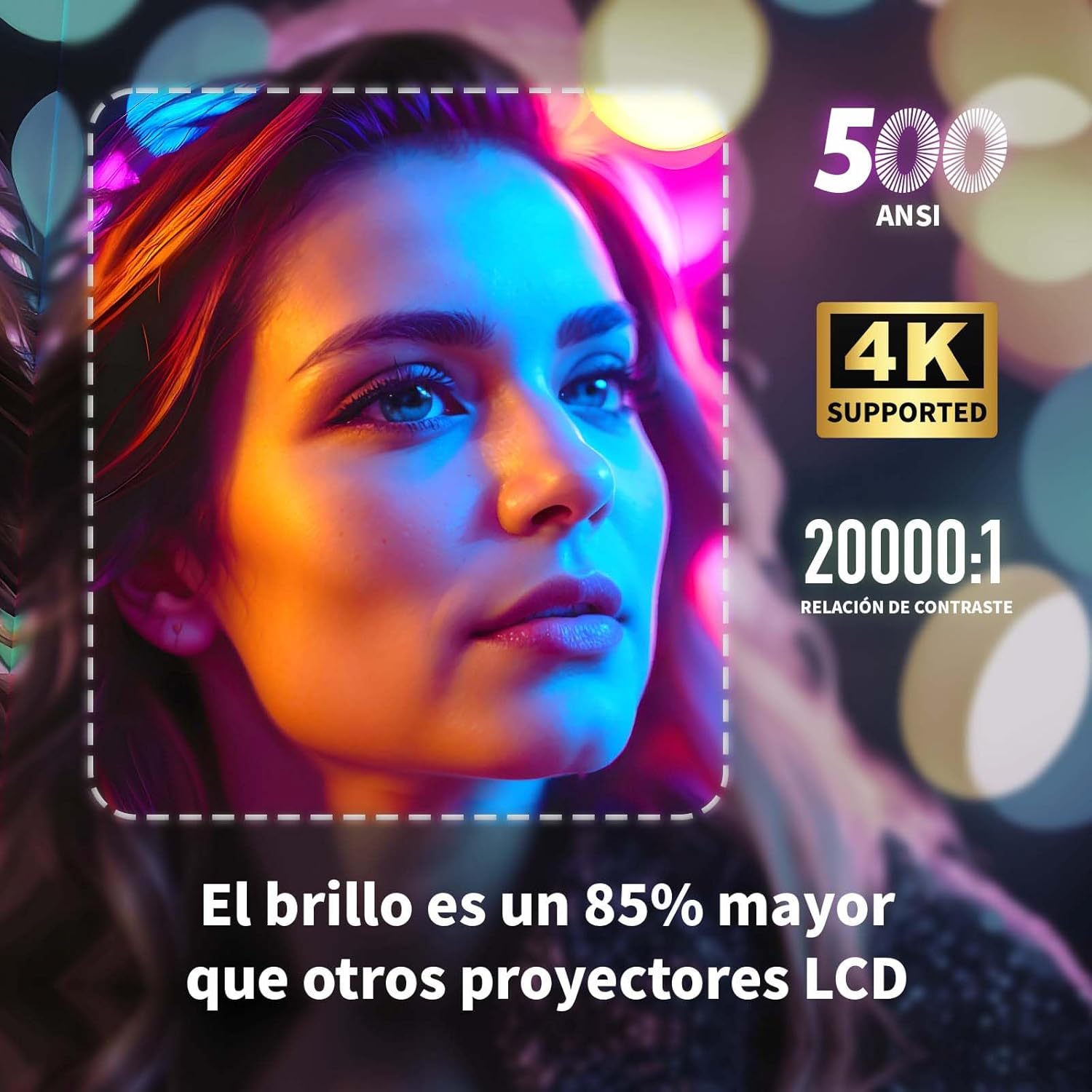
Image: A projected image of a woman's face with a dotted outline demonstrating how 4-point keystone correction adjusts the image to be perfectly rectangular, even when projected at an angle.
- Access the keystone correction settings in the menu to adjust each corner of the image independently.
- The projector also supports automatic vertical keystone correction.
7.3. פונקציית זום
כוונן את גודל התמונה מבלי להזיז את המקרן.

Image: A visual representation of the projector's zoom function, showing how the image size can be reduced from 100% to 50% without physically moving the projector.
- The zoom function allows you to reduce the image size from 100% to 80%.
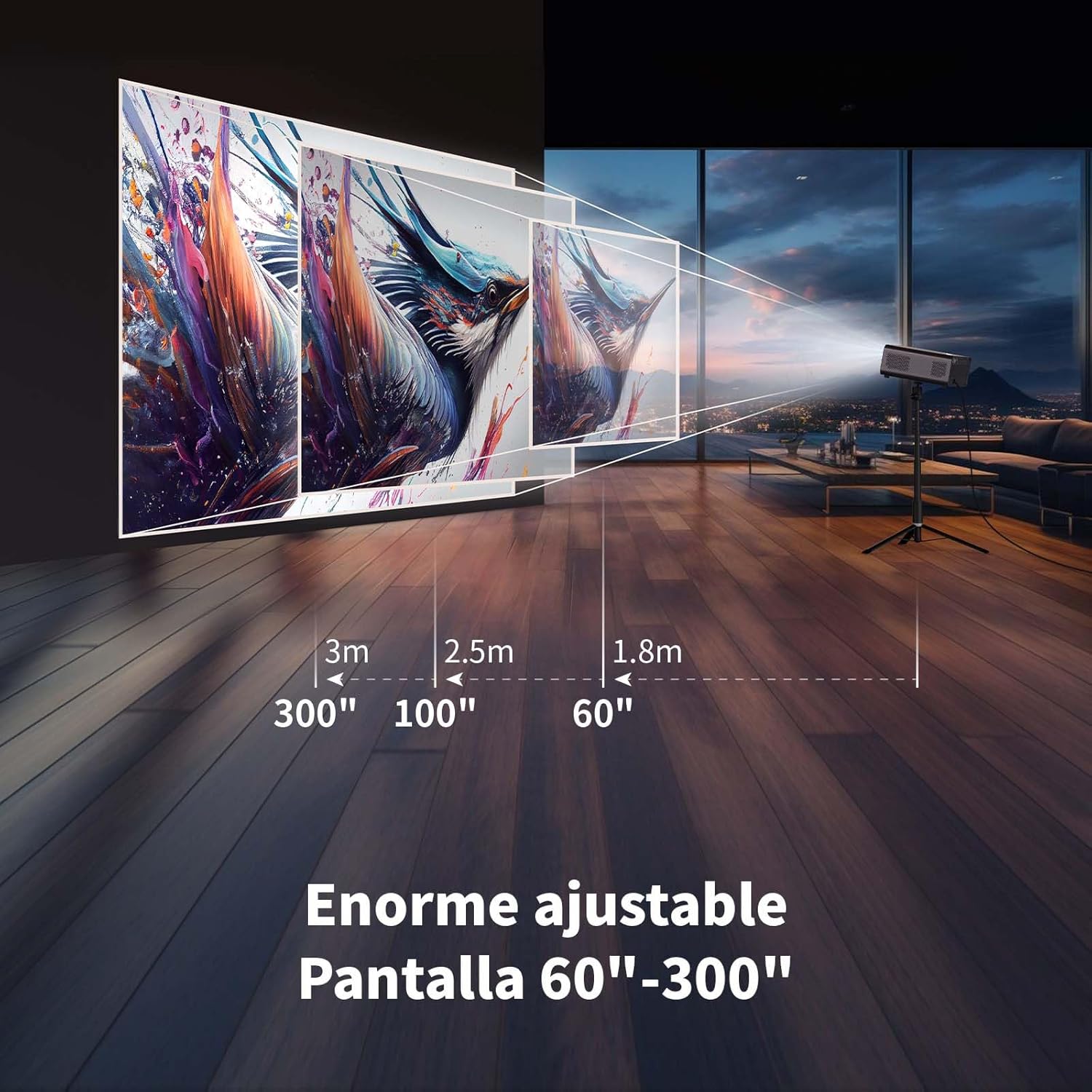
7.4. Large Screen Projection
חוויה סוחפת viewing with a large adjustable screen size.

Image: A large projected image of an astronaut on a snowboard, illustrating the 300-inch screen capability of the projector in a home cinema setting.
- The projector can produce an adjustable screen size from 60 inches to 300 inches, suitable for various viewסביבות.
8. תחזוקה
8.1. Dust-Proof Design and Cleaning
The projector features a dust-proof design with a hidden dust box to prevent dust accumulation.
תמונה: תקריב view of the projector's hidden dust box, showing the filter inside, and an illustration of airflow, emphasizing the importance of regular cleaning to prevent dust from entering the device.
- Regularly clean the dust box to maintain optimal performance and prevent dust from affecting the image quality.
- השתמש במטלית רכה ויבשה כדי לנקות את החלק החיצוני של המקרן.
- אין להשתמש בחומרי ניקוי נוזליים או באירוסולים.
9. פתרון תקלות
אם נתקלת בבעיות עם המקרן שלך, עיין בבעיות הנפוצות ובפתרונות הבאים:
| בְּעָיָה | פתרון אפשרי |
|---|---|
| אין תמונה מוקרנת | Check power connection. Ensure input source is correctly selected (HDMI, USB, etc.). Verify lens cap is removed. |
| התמונה מטושטשת | Adjust electronic focus using the F+/F- buttons on the remote. Ensure the projection surface is flat. |
| התמונה מעוותת (צורת טרפז) | Use 4-point keystone correction in the settings menu to adjust the image corners. Check for automatic vertical correction. |
| אין קול | Check volume settings on the projector and connected device. Ensure external speakers are properly connected or Bluetooth is paired. |
| בעיות חיבור Wi-Fi | Ensure Wi-Fi is enabled. Re-enter Wi-Fi password. Restart the projector and router. Try connecting to a different Wi-Fi band (2.4G or 5G). |
10. מפרטים
Key technical specifications for the WEWATCH S3 Projector:
- מותג: אנחנו צופים
- מספר דגם: S3
- צֶבַע: אפור מעושן
- סוג מוצר: מקרן נייד
- בְּהִירוּת: 500 ANSI לומן
- Native Display Resolution: 1920 x 1080 (Full HD)
- רזולוציית תצוגה מקסימלית: 3840 x 2160 (תמיכה ב-4K)
- יחס ניגודיות: 20000:1
- סוג תצוגה: LED
- טכנולוגיית קישוריות: Bluetooth, Ethernet, HDMI, USB, Wi-Fi (2.4G/5G)
- מאפיינים מיוחדים: Wi-Fi Compatible, Digital Keystone Correction, Built-in Speaker, Auto Focus, Portable
- מכשירים תואמים: Speaker, Laptop, Smartphone, Tablet
- מידות המוצר: 24.3L x 24.9W x 10.5H סנטימטרים
- שימושים מומלצים: Home Cinema, Video Games, Professional, Education
11. אחריות ותמיכה
The WEWATCH S3 Projector comes with a manufacturer's warranty to ensure your peace of mind.
- אחריות יצרן: 2 שנים
- For technical support or warranty claims, please refer to the contact information provided with your purchase documentation or visit the official WEWATCH webאֲתַר.