
1. הקדמה
This manual provides detailed instructions for the HOU Keyboard Case designed for the iPad Pro 13-inch M5/M4 models. Please read this manual carefully before use to ensure proper operation and to maximize the product's lifespan.
1.1 תאימות
כיסוי מקלדת זה תוכנן במיוחד עבור iPad Pro 13-inch M5/M4 (2025 models). Compatible iPad models include: A2925, A2926, A3007.
Important: This case is NOT compatible with iPad Air 13 (M2) 2024 (models A2898, A2899, A2900) or iPad Pro 12.9-inch (2017-2022) (6th/5th/4th/3rd/2nd/1st generation).
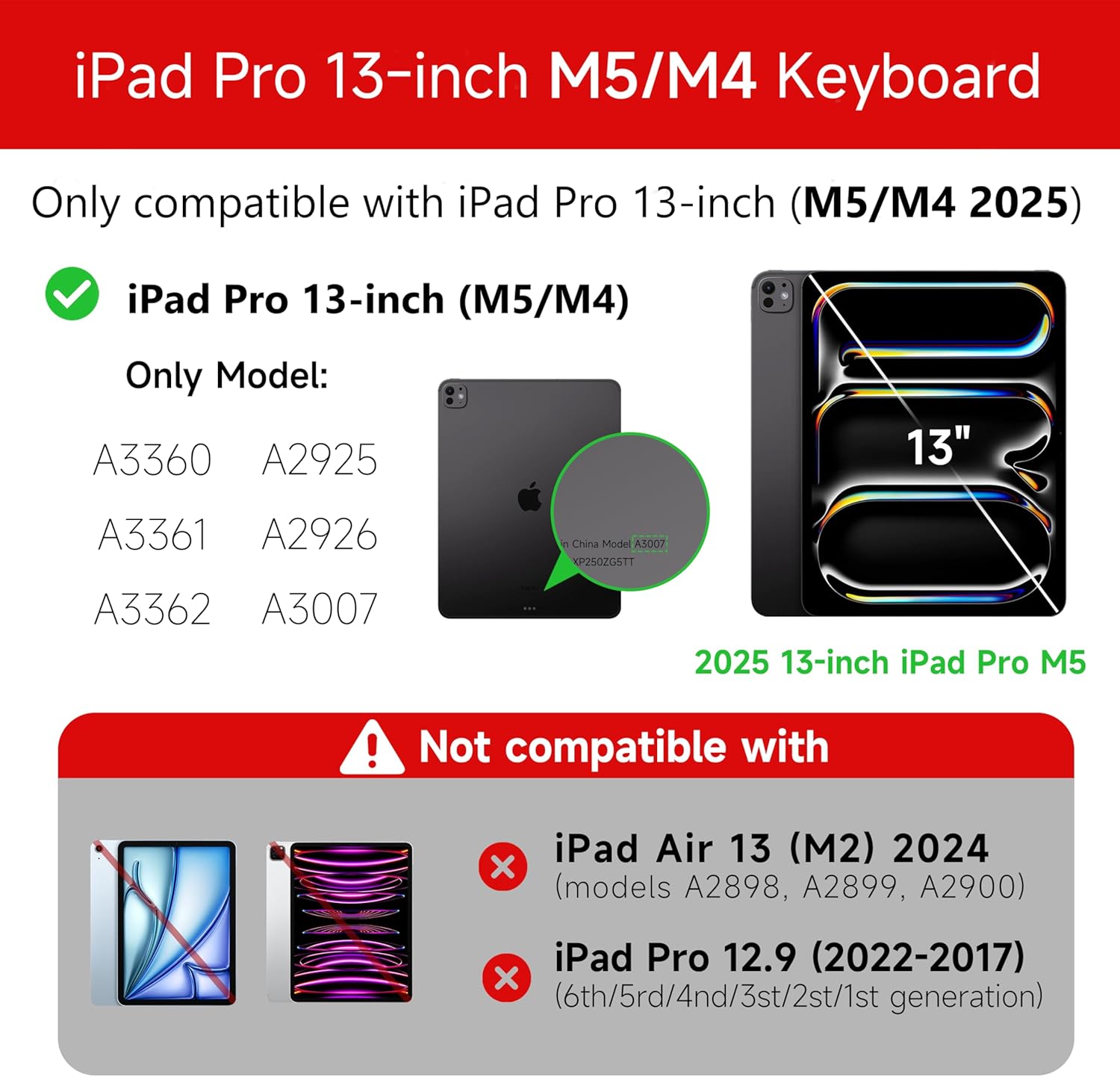
Figure 1: Compatibility details for the HOU iPad Pro 13-inch Keyboard Case.
2. התקנה
2.1 טעינת המקלדת
Before initial use, fully charge the keyboard. Connect the provided USB-C cable to the charging port on the keyboard and to a power source. The charging indicator light will show the charging status.
- יציאת טעינה: סוג-C
- זמן טעינה: Approximately <2 hours
- קיבולת סוללה: 500mAh
2.2 חיבור ה-iPad Pro שלך
The keyboard case features a magnetic design for secure attachment. Align your iPad Pro 13-inch with the magnetic back panel of the case. The strong magnets will securely hold your iPad in place, providing stability.

Figure 2: Magnetic attachment for secure iPad placement.
2.3 חיבור בלוטות'
To connect the keyboard to your iPad Pro via Bluetooth:
- ודא שהמקלדת טעונה ודלוקה.
- באייפד שלך, עבור אל הגדרות > Bluetooth והפעל את הבלוטות'.
- במקלדת, לחצו והחזיקו את Fn + Control + R for 3 seconds until the indicator light flashes, indicating pairing mode.
- On your iPad, select the keyboard from the list of available devices (e.g., "HOU Keyboard").
- לאחר החיבור, נורית החיווי במקלדת תפסיק להבהב.
After the initial connection, the keyboard should automatically reconnect to your iPad when both devices are powered on and Bluetooth is enabled.
3. הוראות הפעלה
3.1 מתכוונן Viewזוויות
The keyboard case features a floating design that allows for angle adjustment up to 135 degrees. The keyboard base opens at a 45-degree angle, providing enhanced stability for various viewing and typing positions.
איור 3: מתכוונן viewזווית סיבוב של עד 135 מעלות.
3.2 פונקציית תאורה אחורית
The keyboard features an adaptive backlight with 7 different colors and 3 adjustable brightness levels. This allows for comfortable typing in various lighting conditions, including low-light environments.

Figure 4: Keyboard backlight in use for typing at night.
משטח עקיבה רב-מגע 3.3
The integrated multi-touch trackpad supports full-area press and various swipe gestures, transforming your iPad into a laptop-like experience. It provides responsive controls for scrolling, dragging, input, and media control.
Adjusting Trackpad Sensitivity: You can adjust the trackpad sensitivity directly from your iPad's settings to match your personal preference.
- עבור אל הגדרות באייפד שלך.
- נווט אל נְגִישׁוּת.
- Find and adjust מעקב אחר רגישות.

Figure 5: Multi-touch trackpad functionality and sensitivity adjustment.
3.4 מקשי קיצור
The keyboard includes a series of shortcut keys to boost productivity. Refer to the keyboard layout for specific functions.
4. תחזוקה
The exterior of the keyboard case is made from a semi-silicone material, which is wear-resistant and designed to resist fingerprints and stains, making it easy to clean.
- To clean, gently wipe the surface with a soft, damp בַּד.
- Avoid using harsh chemicals or abrasive materials, as these may damage the finish.
- Ensure the charging port and keys are free from dust and debris.
5. פתרון תקלות
5.1 המקלדת לא מתחברת דרך בלוטות'
- ודא שהמקלדת טעונה במלואה.
- ודא ש-Bluetooth מופעל באייפד שלך.
- Re-enter pairing mode on the keyboard by pressing and holding Fn + Control + R למשך 3 שניות.
- Forget the device in your iPad's Bluetooth settings and attempt to pair again.
- הפעל מחדש את האייפד ואת המקלדת.
5.2 Trackpad Lag or Unresponsiveness
- This can sometimes occur due to Bluetooth connectivity. Try turning the keyboard off and then back on.
- Ensure there are no obstructions between the keyboard and the iPad that might interfere with the Bluetooth signal.
- Check for any available iPadOS updates, as software improvements can sometimes resolve connectivity issues.
5.3 תאורת רקע לא עובדת
- ודא שהסוללה של המקלדת טעונה מספיק.
- Check the keyboard's function keys for backlight control (usually a dedicated key or Fn combination).
6. מפרטים
| תכונה | פְּרָט |
|---|---|
| מותג | HOU |
| מכשירים תואמים | 2025 (M4/M5) iPad Pro 13-inch (A2925/A2926/A3007) |
| טכנולוגיית קישוריות | בלוטות' 5.2 |
| תיאור מקלדת | Multi-functional with Trackpad |
| שימוש מומלץ | אִישִׁי |
| תכונות מיוחדות | Trackpad, Backlit, Hot Keys & Media Keys, Rechargeable, Lightweight |
| צֶבַע | לָבָן |
| צבעי תאורה אחורית | 7 צבעי RGB |
| מידות המוצר (L x W x H) | 32 x 24.2 x 2.7 ס"מ |
| חוֹמֶר | Aluminum, Metal, ABS, Polyurethane (PU), Semi-silicone |
| משקל פריט | 1.1 קילוגרם |
| מקור כוח | מופעל על סוללה |
| קיבולת סוללה | ~500mAh |
| זרם הפעלה | <10mA |
| זמן המתנה | ≥ 30 ימים |
| מרחק פעולה | ≤10 מ' |
7. תמיכה
For any questions or further assistance, please contact the seller directly through your Amazon account:
- היכנס לחשבון אמזון שלך.
- Go to "Order History".
- Locate your order for the HOU iPad Pro 13-inch Keyboard Case.
- לחץ על "צור קשר עם המוכר".