
1. המוצר נגמרview
The ProtoArc Foldable Bluetooth Keyboard (XK01) and Ergonomic Vertical Mouse (EM11) combo offers a portable and comfortable solution for your computing needs. The keyboard features a full-size layout with a numeric keypad and multi-device Bluetooth connectivity, while the ergonomic mouse promotes a natural wrist position to reduce fatigue.

Image 1.1: ProtoArc Foldable Bluetooth Keyboard and Ergonomic Mouse setup, illustrating multi-device capability.
תכונות עיקריות:
- Folding Full-size Wireless Keyboard (XK01): 105-key layout with numeric keypad (Dimensions: 15.19 x 4.68 inch). Features non-slip pads for stability.
- Wireless Ergonomic Mouse (EM11): Designed with an extended wrist rest for a natural, relaxed hand position, reducing fatigue compared to standard mice.
- קישוריות מרובת מכשירים: Both devices can sync with up to 3 devices simultaneously via Bluetooth channels, allowing easy switching between Windows, Mac OS, iOS, or Android devices.
- נטענת ונייד: The keyboard has a built-in 210 mAh battery with 5 months standby time. The mouse has a built-in 500mAh Li-Ion battery. Both are rechargeable via Type-C.
- עיצוב עמיד: Keyboard features aluminum hinges tested for 100,000 folding actions.
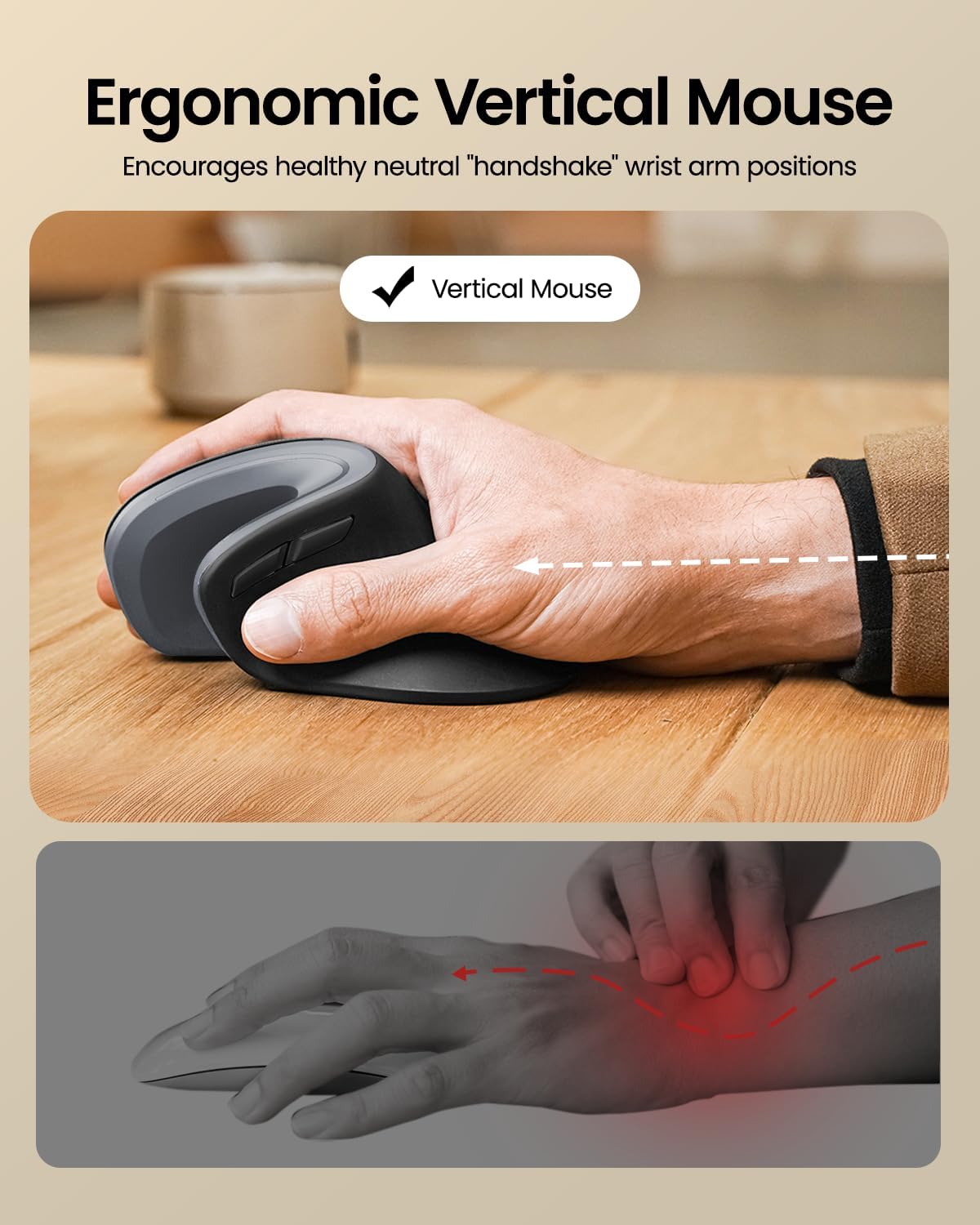
Image 1.2: Ergonomic design of the ProtoArc Vertical Mouse, promoting a healthy wrist position.

Image 1.3: The 58° angle of the ergonomic mouse for a natural handshake position.
2. הגדרה וצימוד
Follow these steps to set up and pair your ProtoArc Foldable Bluetooth Keyboard and Ergonomic Mouse with your devices.
2.1. Keyboard Setup (XK01)
- פתיחת המקלדת: Gently unfold the keyboard until it lies flat. The magnetic hinges will secure it in place.
- הפעלה: Locate the power switch (usually on the side or back) and slide it to the 'ON' position. An indicator light will illuminate.
- היכנסו למצב התאמה: Press and hold one of the Bluetooth channel keys (e.g., BT1, BT2, or BT3) for a few seconds until the corresponding indicator light flashes rapidly. This indicates the keyboard is in pairing mode.
- Connect on Your Device: On your computer, tablet, or smartphone, go to Bluetooth settings. Select "ProtoArc Keyboard" (or similar name) from the list of available devices. Follow any on-screen prompts to complete pairing.
- החלף התקנים: To switch between paired devices, simply press the corresponding Bluetooth channel key (BT1, BT2, or BT3).

Image 2.1: The keyboard's durable folding mechanism.
2.2. Mouse Setup (EM11)
- הפעלה: אתר את מתג ההפעלה בתחתית העכבר והחלק אותו למצב 'ON'.
- היכנסו למצב התאמה: Press the Bluetooth pairing button (usually on the bottom) for a few seconds until the indicator light flashes.
- Connect on Your Device: On your computer, tablet, or smartphone, go to Bluetooth settings. Select "ProtoArc Mouse" (or similar name) from the list of available devices. Follow any on-screen prompts to complete pairing.
- התאמה למספר מכשירים: The mouse also supports multi-device pairing. Refer to the specific instructions in the included user manual for detailed steps on pairing with multiple devices.
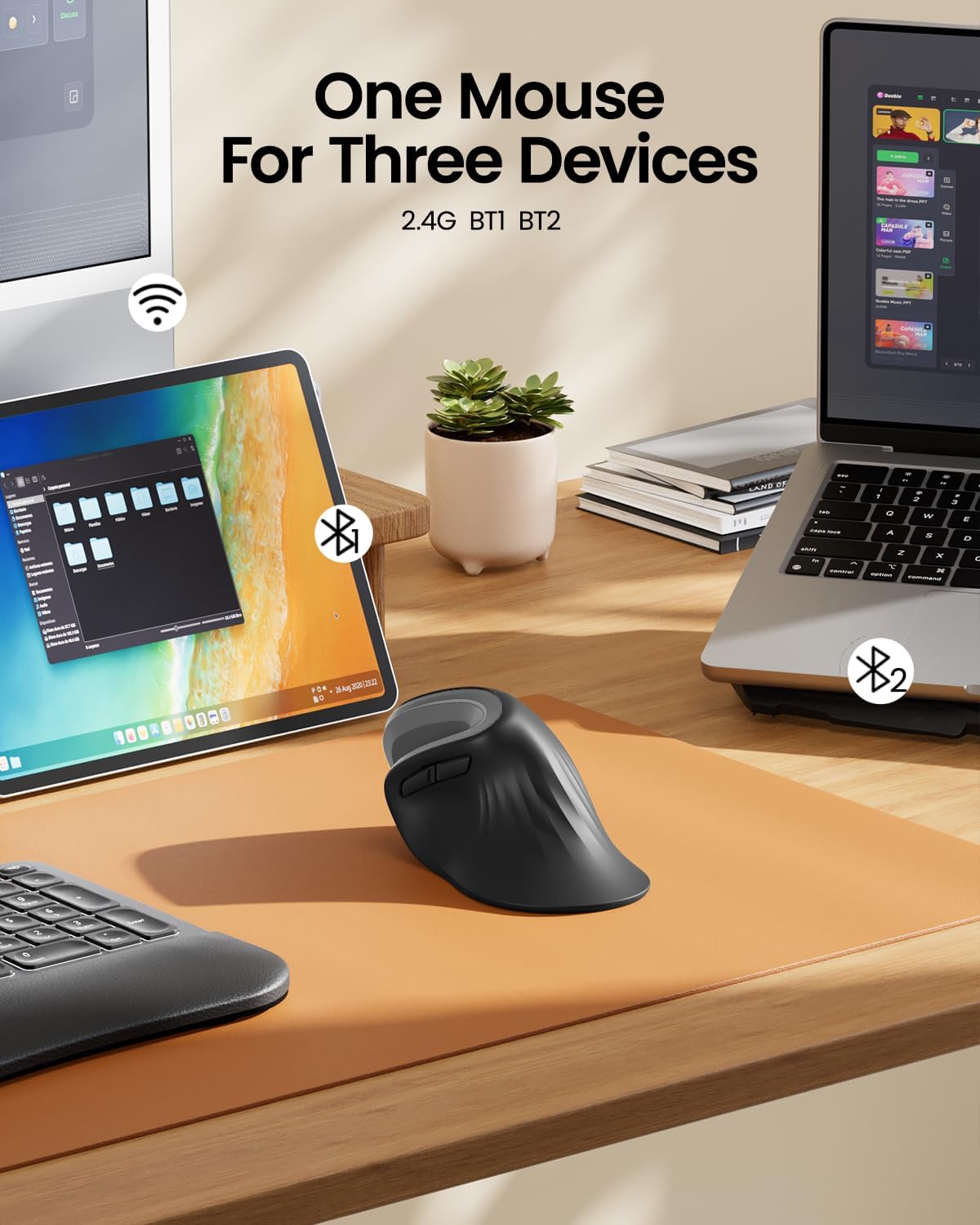
Image 2.2: The ergonomic mouse's ability to connect to three devices.
3. הוראות הפעלה
3.1. Keyboard Usage (XK01)
- הַקלָדָה: The full-size QWERTY layout with scissor-switch keys provides a comfortable and responsive typing experience.
- לוח מקשים נומרי: השתמש במקלדת המספרי המשולבת להזנת נתונים יעילה.
- מקשי פונקציה: Use the Fn key in combination with other keys for various shortcuts and media controls. Refer to the keyboard's key legends for specific functions.
- Backlight (if applicable): If your keyboard model includes backlighting, use the designated key combination (often Fn + a specific key) to adjust brightness or toggle the backlight on/off.

Image 3.1: Scissor switch keys for comfortable typing.
3.2. Mouse Usage (EM11)
- אחיזה ארגונומית: Hold the mouse with your hand in a natural "handshake" position, allowing your forearm and wrist to remain relaxed.
- כפתורים: The mouse features standard left/right click buttons, a scroll wheel, and additional programmable buttons for enhanced productivity.
- התאמת DPI: Adjust the mouse sensitivity (DPI) using the dedicated DPI button, typically located near the scroll wheel, to suit your preference.
4. תחזוקה וטעינה
4.1. טעינה
- מִקלֶדֶת: Connect the provided Type-C charging cable to the keyboard's charging port (Image 4.1) and a USB power source. The charging indicator light will show charging status. A full charge provides approximately 5 months of standby time.
- עַכְבָּר: Connect the provided Type-C charging cable to the mouse's charging port (Image 4.2) and a USB power source. The mouse has a 500mAh Li-Ion battery.

Image 4.1: Keyboard charging port and stable hinge.

Image 4.2: Ergonomic mouse charging via Type-C.
4.2. ניקיון
To clean your devices, power them off and use a soft, dry, lint-free cloth. For stubborn dirt, slightly dampשטפו את המטלית במים. הימנעו משימוש בכימיקלים חזקים או בחומרים שוחקים.
5. פתרון תקלות
- המכשיר לא מתחבר: Ensure both the keyboard and mouse are powered on and in pairing mode. Check your device's Bluetooth settings to ensure Bluetooth is enabled and the correct device is selected. Try restarting both the peripheral and your host device.
- השהיה או ניתוק: Ensure there are no obstructions between the peripheral and your device. Move closer to your device. Check battery levels and recharge if necessary.
- מקשים לא מגיבים: Check if the keyboard is powered on and connected. If specific keys are not working, try cleaning around them.
- סמן העכבר לא זז: Ensure the mouse is powered on and connected. Check the surface you are using the mouse on; a non-reflective, even surface is ideal.
If you encounter persistent issues, please refer to the "Warranty and Support" section for contact information.
6. מפרטים
| תכונה | מִפרָט |
|---|---|
| מותג | ProtoArc |
| צֶבַע | אָפוֹר |
| טכנולוגיית קישוריות | בלוטות' |
| מכשירים תואמים | Tablet, Smartphone, Laptop (Windows, macOS, iOS, Android) |
| סוג מקלדת | Folding Full-size Wireless Keyboard (XK01) with 105 keys, numeric keypad |
| פריסת מקלדת | QWERTY |
| סוג עכבר | Ergonomic Vertical Mouse (EM11) |
| כיוון יד | אמבידקסטרואי |
| מקור כוח | מופעל על ידי סוללה (ניתן לטעינה באמצעות סוג-C) |
| סוללת מקלדת | 210 mAh (5 months standby) |
| סוללת עכבר | 500mAh Li-Ion |
7. אחריות ותמיכה
ProtoArc products come with a standard manufacturer's warranty. For detailed warranty information, product support, or troubleshooting assistance, please contact ProtoArc customer service.
- תמיכה בדוא"ל: support@protoarc.com
- Webאֲתַר: www.protoarc.com