
1. הקדמה
The Canon PIXMA TS3750i is a compact, affordable, and user-friendly multifunction inkjet printer designed for home and small office use. It offers versatile functionalities including printing, copying, and scanning. This printer supports wireless connectivity, enabling convenient operation from various devices, and features borderless photo printing. It is also compatible with the PIXMA Print Plan for automated ink delivery.
2. מידע בטיחות
אנא קרא את כל הוראות הבטיחות לפני השימוש במדפסת כדי להבטיח הפעלה בטוחה ותקינה. שמור מדריך זה לעיון עתידי.
- אין להציב את המדפסת במקומות לא יציבים.
- Keep the printer away from water or moisture.
- השתמשו רק בכבל החשמל המצורף למדפסת.
- אל תנסה לפרק או לשנות את המדפסת.
- נתק את המדפסת משקע החשמל לפני ניקויה או אם לא נעשה בה שימוש למשך תקופה ממושכת.
3. תכולת החבילה
ודא שכל הפריטים הבאים כלולים בחבילה שלך:
- מדפסת קנון PIXMA TS3750i
- ראשי דיו (סט ראשוני)
- כבל חשמל
- Setup CD-ROM (for Windows only)
- מדריכים ומסמכים אחרים
4. התקנה
4.1 פריקה ומיקום
- הוצא את המדפסת מאריזתה והסר את כל סרטי ההגנה וחומרי האריזה.
- Place the printer on a stable, flat surface with adequate space around it for ventilation and operation.
4.2 חיבור מתח
- Connect the supplied power cable to the printer's power input.
- חבר את הקצה השני של כבל החשמל לשקע בקיר.
- לחץ על לחצן ההפעלה כדי להפעיל את המדפסת.
4.3 התקנת מחסנית דיו
- Open the printer's top cover to access the cartridge holder.
- הסר את סרט המגן ממחסניות הדיו.
- הכנס את מחסניות הדיו הצבעוניות והשחורות לחריצים המתאימים להן עד שיינעלו במקומן בנקישה.
- סגור את המכסה העליון.
4.4 טעינת נייר
- פתח את תומך הנייר ומשוך החוצה את מגש פלט הנייר.
- Load paper (e.g., A4, photo paper) into the rear paper tray, ensuring it is aligned with the paper guides.
- כוונן את מכווני הנייר כך שיתאימו לרוחב הנייר.
4.5 תוכנה והגדרה אלחוטית
For initial setup and to enable wireless printing, follow these steps:
- עבור PC: Insert the Setup CD-ROM (Windows only) and follow the on-screen instructions to install drivers and software.
- For PC/Mac/Mobile: בקר בקנון website for your region and download the latest drivers and the Canon PRINT Inkjet/SELPHY app.
- Follow the instructions within the software or app to connect the printer to your Wi-Fi network. The printer supports one-touch wireless connectivity for easier setup.
- For mobile devices, ensure your device is connected to the same Wi-Fi network as the printer.
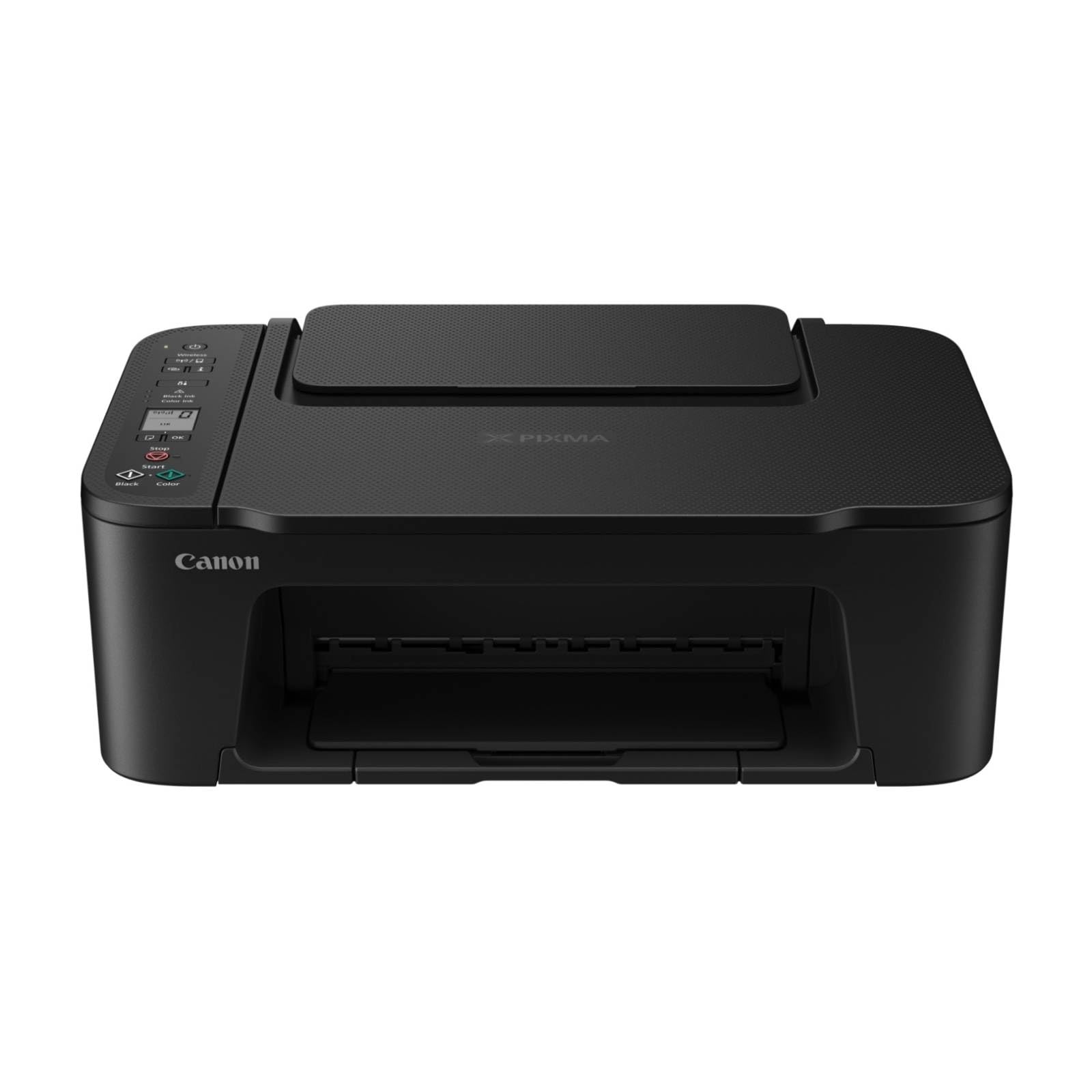
איור 1: חזית view of the Canon PIXMA TS3750i printer, showing its compact design and control panel.
5. הוראות הפעלה
5.1 הדפסת מסמכים ותמונות
- ודא שהמדפסת דולקת ומחוברת למכשיר שלך (דרך Wi-Fi או USB).
- טען את סוג וגודל הנייר המתאימים במגש הנייר האחורי.
- פתחו את המסמך או התמונה שברצונכם להדפיס במחשב או במכשיר הנייד שלכם.
- בחר את אפשרות ההדפסה מהאפליקציה שלך.
- In the print dialog, select the Canon PIXMA TS3750i as your printer. Adjust settings such as paper size, media type, print quality, and borderless printing (for photos up to 12.7 x 18 cm).
- לחץ על "הדפס".
5.2 העתקת מסמכים
- הרם את מכסה הסורק.
- הנח את המסמך כשפניו כלפי מטה על משטח הזכוכית של הסורק, ויישר אותו עם סימן היישור.
- סגור את מכסה הסורק בעדינות.
- On the printer's control panel, press the Black button for a monochrome copy or the Color button for a color copy.
- To make multiple copies (up to 20), press the desired copy button repeatedly for the number of copies needed.
5.3 סריקת מסמכים ותמונות
- Ensure the printer is connected to your computer or mobile device.
- הנח את המסמך או התמונה כשפניו כלפי מטה על משטח הזכוכית של הסורק.
- On your computer, open the scanning software (e.g., Canon IJ Scan Utility) or on your mobile device, open the Canon PRINT Inkjet/SELPHY app.
- Select the scan option and adjust settings such as document type, resolution, and destination folder.
- התחל את הסריקה. התמונה הסרוקה תישמר במיקום שציינת.
5.4 הדפסה וסריקה ניידות
The Canon PIXMA TS3750i supports printing and scanning directly from smartphones and tablets using the Canon PRINT Inkjet/SELPHY app or Apple AirPrint. Ensure your mobile device and printer are connected to the same Wi-Fi network.
- Canon PRINT Inkjet/SELPHY App: Download and install the app from your device's app store. Use the app to select photos or documents for printing, or to initiate scans directly to your mobile device.
- אפל אייר פרינט: For iOS devices, you can print directly from AirPrint-enabled applications without installing additional drivers. Select the print option from the app and choose your PIXMA TS3750i printer.
- Wi-Fi PictBridge: Connect directly to compatible cameras for photo printing.
6. תחזוקה
6.1 ניקוי המדפסת
- חִיצוֹנִי: נגבו את החלק החיצוני של המדפסת בעזרת מטלית רכהamp, מטלית נטולת סיבים. אין להשתמש בחומרי ניקוי שוחקים או ממסים.
- זכוכית הסורק: נקו בעדינות את זכוכית הסורק בעזרת מטלית רכה ונטולת סיבים רטובה בכמות קטנה של חומר ניקוי זכוכית. ודאו שלא יישארו שאריות.
- ראש הדפסה: If print quality declines (e.g., streaks, faded colors), perform a print head cleaning from the printer's utility software on your computer or through the Canon PRINT Inkjet/SELPHY app.
6.2 החלפת מחסניות דיו
- When an ink cartridge is low or empty, a message will appear on the printer's display or in the software.
- Open the printer's top cover. The cartridge holder will move to the replacement position.
- לחץ על המחסנית הריקה כדי לשחרר אותה, ולאחר מכן משוך אותה החוצה.
- Unpack the new Canon genuine ink cartridge and remove the protective tape.
- הכנס את המחסנית החדשה לחריץ הנכון עד שהיא תיכנס במקומה בנקישה.
- סגור את המכסה העליון. המדפסת תבצע תהליך אתחול.
6.3 ניקוי חסימות נייר
- If a paper jam occurs, an error message will appear.
- כבה את המדפסת ונתק את כבל החשמל.
- Carefully open the printer covers (top cover, rear cover if applicable) to locate the jammed paper.
- Gently pull the jammed paper out in the direction of the paper path. Avoid tearing the paper.
- ודא שכל פיסות הנייר הקרועות הוסרו.
- סגור את כל המכסים, חבר את כבל החשמל והפעל את המדפסת.
7. פתרון תקלות
Refer to the following common issues and their solutions. For more detailed troubleshooting, consult the Canon support webאֲתַר.
- Printer is not turning on: ודא שכבל החשמל מחובר היטב הן למדפסת והן לשקע חשמלי תקין.
- Cannot print:
- Check if the printer is powered on and connected to your device (Wi-Fi or USB).
- Verify that ink cartridges are installed correctly and have sufficient ink.
- ודא שהנייר טעון כהלכה במגש הנייר.
- Restart your computer/mobile device and the printer.
- Check printer drivers and software for updates.
- איכות הדפסה ירודה:
- בצע ניקוי ראש ההדפסה ובדיקת חרירי ההדפסה מתוכנית השירות של המדפסת.
- ודא שאתה משתמש במחסניות דיו מקוריות של קנון.
- Check print settings for appropriate paper type and print quality.
- בעיות חיבור אלחוטי:
- Ensure the printer and your device are on the same Wi-Fi network.
- Restart your wireless router, printer, and device.
- Re-run the wireless setup process.
- Check for any firewall settings blocking communication.
- נייר תקוע: Follow the instructions in Section 6.3 to clear any jammed paper.
8. מפרטים
| שם הדגם | PIXMA TS3750i |
| טכנולוגיית הדפסה | הזרקת דיו |
| פונקציות | הדפס, העתק, סריקה |
| טכנולוגיית קישוריות | USB, Wi-Fi |
| מהירות הדפסה מרבית (מונוכרום) | 7.7 עמודים לדקה |
| מהירות הדפסה מרבית (צבע) | 4 עמודים לדקה |
| פלט מדפסת | צֶבַע |
| הדפסה דופלקס | כֵּן |
| גודל מדיה מקסימלי | A4 |
| תמיכה בגודל גיליון | A4, A5, B5, Custom (Width 89 mm - 215.9 mm, Length 127 mm - 676 mm) |
| קיבולת קלט מקסימלית | 60 גיליונות |
| סוג סורק | מיטה שטוחה |
| מקסימום עותקים לכל ריצה | 20 |
| מכשירים תואמים | מחשבים ניידים, מחשב אישי, סמארטפונים, טאבלטים |
| תכונות מיוחדות | Borderless printing, Lightweight, Auto Power On, Display screen |
| מידות המוצר (D x W x H) | 32.7 x 43.5 x 14.5 ס"מ |
| משקל המוצר | 4.19 ק"ג |
| צריכת חשמל | 9 וואט |
9. אחריות ותמיכה
This Canon PIXMA TS3750i printer comes with a standard manufacturer's warranty. Please refer to the warranty card included in your package for specific terms and conditions, including warranty period and coverage details.
For technical support, product registration, driver downloads, and additional troubleshooting resources, please visit the official Canon support website for your region. You can also find contact information for customer service there.
- תמיכה מקוונת: www.canon.com/support (Please replace with your regional Canon support link)
- רישום המוצר: Registering your product helps Canon provide you with better service and support.