
1. הקדמה
This manual provides essential information for the proper setup, operation, and maintenance of your FUNYET 2-in-1 Laptop Tablet. Please read this manual thoroughly before using the device to ensure optimal performance and longevity. Keep this manual for future reference.
2. המוצר נגמרview
2.1 תכולת החבילה
- FUNYET 2-in-1 Laptop Tablet
- מקלדת ניתנת להסרה
- מתאם מתח AC
- מדריך למשתמש (מסמך זה)
2.2 פריסת המכשיר ויציאות
Familiarize yourself with the various ports and buttons on your device.

תְמוּנָה: צַד view of the FUNYET 2-in-1 Laptop Tablet illustrating the location of the power button, volume control, two Type-C ports, and Micro HDMI port.
- לחצן הפעלה: לחץ לחיצה ממושכת כדי להפעיל/לכבות או להעיר/להשכיב את המכשיר.
- בקרת עוצמת הקול: מתאים את עוצמת הקול של המערכת.
- Type-C (Full-featured): תומך בהעברת נתונים, פלט וידאו ואספקת חשמל.
- Type-C (Charging and Data Transfer): Primarily for charging the device and data transfer.
- מיקרו HDMI: Connects to external displays.
2.3 תכונות עיקריות
- מעבד: Intel 12th Gen Celeron N100 (up to 3.4 GHz, 4 cores, 4 threads).
- זֵכֶר: זיכרון RAM DDR5 בנפח 16 ג'יגה-בייט לריבוי משימות יעיל.
- אִחסוּן: 512GB SSD for fast boot times and ampלאחסון.
- לְהַצִיג: 14-inch 1920 x 1200 IPS Touchscreen.
- קישוריות: Wi-Fi 6 (802.11ax) ו-Bluetooth 5.2.
- מצלמות: 2MP Front Camera and 5MP Rear Camera.
- מִקלֶדֶת: Detachable, backlit keyboard.
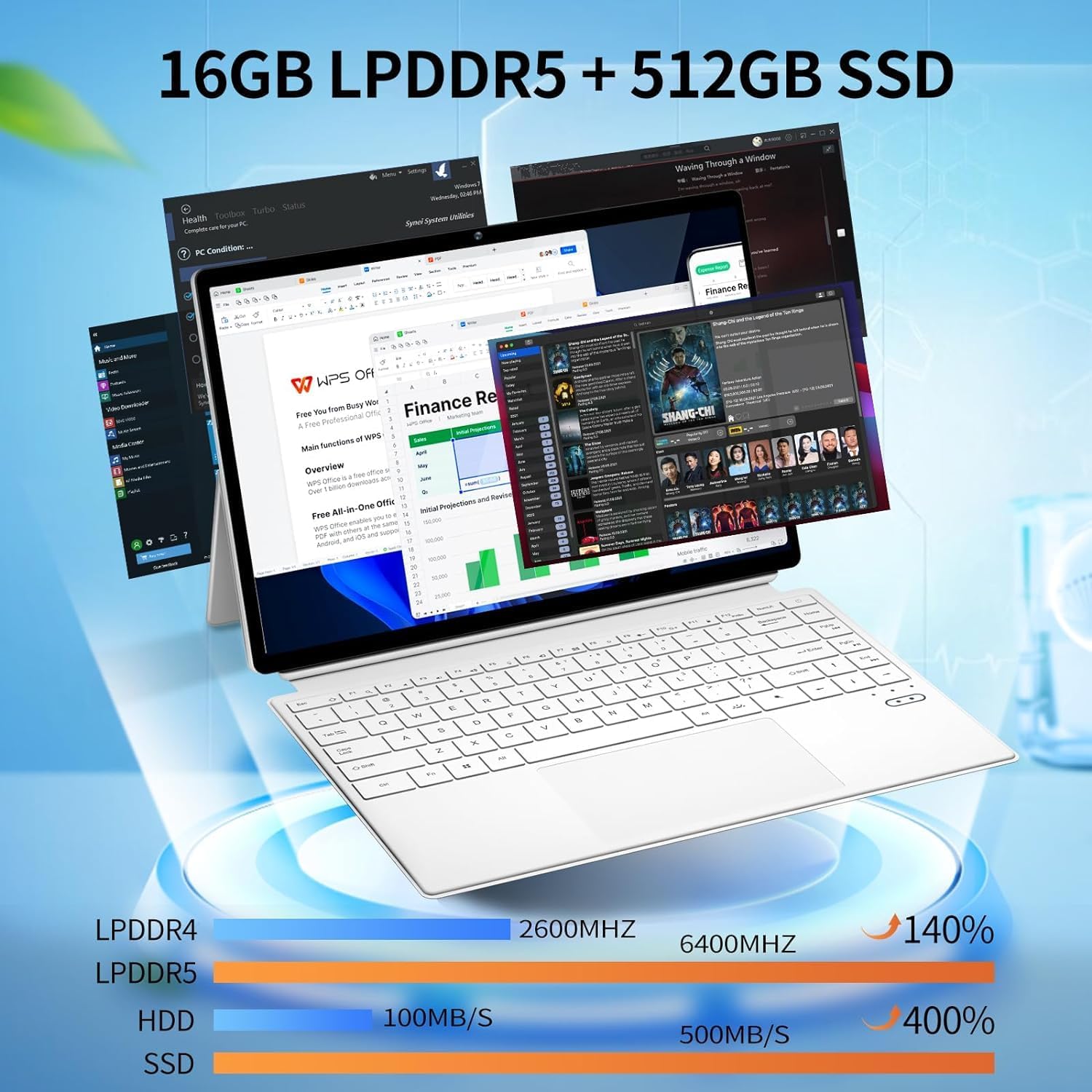
תְמוּנָה: The device displaying multiple open applications, illustrating its multitasking capabilities with 16GB LPDDR5 RAM and 512GB SSD.
3. התקנה
3.1 טעינה ראשונית
Before first use, connect the AC power adapter to the device's charging Type-C port and a power outlet. Charge the device until the battery is full. The battery indicator will show charging status.
3.2 Attaching and Detaching the Keyboard
The keyboard connects magnetically to the tablet. Align the magnetic connectors on the tablet and keyboard until they snap into place. To detach, gently pull the tablet away from the keyboard.
3.3 Adjusting the Kickstand
The integrated kickstand allows for various viewing angles. Extend the kickstand from the back of the tablet and adjust it to your desired position. Ensure the kickstand is fully extended and stable to prevent the device from tipping.

תְמוּנָה: Visual guide demonstrating the correct method for deploying the device's kickstand for stable use, alongside examples of incorrect positioning.
3.4 אתחול ראשון והתקנת Windows
Press and hold the Power Button until the screen turns on. Follow the on-screen instructions to complete the Windows 11 Pro setup, including language selection, network connection, and user account creation.
4. הוראות הפעלה
4.1 הפעלה/כיבוי ומצב שינה
- הפעלה: לחץ והחזק את לחצן ההפעלה למשך מספר שניות.
- כיבוי: From Windows, go to Start > Power > Shut down. Alternatively, press and hold the Power Button, then select 'Shut down' from the options.
- מצב שינה: Briefly press the Power Button to enter or exit sleep mode.
4.2 שימוש במסך המגע
The 14-inch display supports multi-touch gestures. Use your fingers to navigate, tap, swipe, pinch-to-zoom, and interact with applications.
4.3 שימוש במקלדת ובמשטח המגע
When the keyboard is attached, it functions as a standard laptop keyboard. The integrated touchpad supports multi-touch gestures for navigation. The keyboard features backlighting for use in low-light conditions.

תְמוּנָה: תקריב view of the detachable backlit keyboard, showing the key layout and touchpad.
4.4 חיבור ציוד היקפי
- התקני USB-C: Connect compatible USB-C devices to the Type-C ports for data transfer or external display output (if full-featured).
- תצוגה חיצונית: Use the Micro HDMI port to connect to an external monitor or TV. An appropriate adapter may be required.
4.5 קישוריות אלחוטית
- Wi-Fi: Access network settings in Windows to connect to available Wi-Fi 6 networks.
- בלוטות': Pair Bluetooth devices such as headphones, mice, or keyboards through Windows Bluetooth settings.

תְמוּנָה: The device in use, highlighting its wireless capabilities (Wi-Fi 6, Bluetooth 5.2) and integrated cameras (2MP front, 5MP rear).
4.6 שימוש במצלמה
The device includes a 2MP front camera and a 5MP rear camera. Use the built-in Camera application in Windows to take photos, record videos, or participate in video calls.
5. תחזוקה
5.1 ניקוי
השתמשו במטלית רכה ונטולת סיבים כדי לנקות את המסך והמשטחים החיצוניים. במקרה של סימנים עקשניים,ampשטפו את המטלית מעט במים או בחומר ניקוי המתאים למסכים. הימנעו מכימיקלים חזקים או מחומרים שוחקים.
5.2 טיפול בסוללה
כדי להאריך את חיי הסוללה:
- הימנע מטמפרטורות קיצוניות.
- אין לפרוק את הסוללה לחלוטין לעתים קרובות.
- If storing the device for an extended period, charge it to about 50-70%.

תְמוּנָה: An illustration of the 38Wh battery capacity and estimated usage times: 10 hours for daily use, 6-8 hours for video playback (Wi-Fi off), and 4 hours for video playback (Wi-Fi on).
5.3 עדכוני תוכנה
Regularly check for and install Windows updates to ensure system stability, security, and access to the latest features. Go to Start > Settings > Windows Update.
5.4 ניהול אחסון
מעת לעת מחדשview and manage your storage space. Delete unnecessary files, הסר את ההתקנה של יישומים שאינם בשימוש, ושקול אחסון ענן עבור יישומים גדולים fileכדי לשמור על ביצועים אופטימליים.
6. פתרון תקלות
- המכשיר לא נדלק: Ensure the device is charged. Connect the AC adapter and try again. If unresponsive, press and hold the power button for 15-20 seconds to perform a hard reset.
- המקלדת לא מגיבה: Ensure the keyboard is securely attached. Check if the keyboard's power is on (if it has a separate power switch or indicator). Re-attach the keyboard.
- בעיות קישוריות Wi-Fi: Check if Wi-Fi is enabled in Windows settings. Restart your router and the device. Ensure you are within range of a Wi-Fi network.
- ביצועים איטיים: Close unnecessary applications. Check for background processes consuming resources. Ensure sufficient free storage space. Run a system scan for malware.
- Screen not rotating: Ensure auto-rotation is enabled in Windows settings (Action Center).
7. מפרטים
| תכונה | מִפרָט |
|---|---|
| שם הדגם | FUNYET-2-IN-1-LAPTOP-TABLET-1 |
| מעבד | Intel Celeron N100 (12th Gen) |
| אַיִל | 16 GB DDR5 |
| אִחסוּן | SSD 512 גיגה-בייט |
| גודל מסך | 14 אינץ' |
| רזולוציית מסך | 1920 x 1200 פיקסלים |
| מַעֲרֶכֶת הַפעָלָה | Windows 11 Pro |
| סוג אלחוטי | 802.11ax (Wi-Fi 6) |
| בלוטות' | בלוטות' 5.2 |
| מצלמה קדמית | 2 מגה פיקסל |
| מצלמה אחורית | 5 מגה פיקסל |
| משקל פריט | 5.37 פאונד |
| מידות המוצר | 12.5 x 8.4 x 0.4 אינץ' |
| צֶבַע | לָבָן |
8. אחריות ותמיכה
FUNYET offers a החלפה חינם תוך 30 יום וכן א תיקון חינם לשנה service for all its products. For any questions or assistance regarding your FUNYET 2-in-1 Laptop Tablet, please contact FUNYET support. We aim to respond within 24 hours.
For support, please visit the official FUNYET store or contact customer service through your purchase platform.