
1. הקדמה
The Keychron K17 Max is an ultra-slim wireless mechanical keyboard designed for enhanced productivity and gaming. It features a compact 96% layout, QMK firmware, and supports multiple connection modes including 2.4 GHz, Bluetooth, and wired USB Type-C. This manual provides detailed instructions for setting up, operating, maintaining, and troubleshooting your K17 Max keyboard.

Image 1.1: The Keychron K17 Max keyboard highlighting its key features such as Launcher Web Configurator, ultra-slim design, 2.4 GHz & Bluetooth connectivity, macOS & Windows compatibility, 1000 Hz Polling Rate, Numpad, Acoustic Foam, and Double-Shot PBT Keycaps.
2. התקנה
2.1 תכולת החבילה
ודא שכל הפריטים נמצאים בחבילה שלך:
- 1x Keychron K17 Max Fully Assembled Keyboard
- 1x כבל מסוג A ל-C
- מתאם הרחבה אחד עבור מקלט 2.4 GHz
- 1x מקלט מסוג A 2.4 GHz
- 1x חולץ כובע מפתחות

Image 2.1: Illustration of the included accessories: keyboard, USB-C cable, 2.4 GHz receiver, and keycap puller.
2.2 טעינת המקלדת
Connect the provided USB Type-A to Type-C cable to the keyboard's USB-C port and the other end to a power source (e.g., computer USB port or USB wall adapter). The charging indicator light will show the charging status.
2.3 מצבי חיבור
ה-K17 Max תומך בשלושה סוגי חיבור:
- אלחוטי 2.4 גיגה-הרץ: For high-performance gaming with a 1000 Hz polling rate. Insert the 2.4 GHz receiver into your computer's USB-A port. Use the extension adapter if needed for better signal.
- Bluetooth 5.1: Connect up to three devices and switch between them seamlessly. Enable Bluetooth on your device and pair with the keyboard.
- חוטי (USB סוג-C): Connect the keyboard directly to your computer using the provided USB-C cable.

Image 2.2: The keyboard illustrating its three connection modes: 2.4 GHz, Bluetooth 5.1, and USB Wired.
2.4 מתג מערכת הפעלה
Locate the OS toggle switch on the side of the keyboard. Switch it to the appropriate position for your operating system (Windows/Android or Mac/iOS) to ensure correct key mapping.

Image 2.3: Close-up of the multi-OS toggle switch on the side of the keyboard, indicating settings for Windows and macOS.
3. הוראות הפעלה
3.1 הקלדה בסיסית
The K17 Max features a standard QWERTY layout with a 96% form factor, including a numeric keypad. Keys are designed for a comfortable typing experience with low-profile Gateron mechanical brown switches.
בקרת תאורה אחורית RGB 3.2
The keyboard features customizable RGB backlighting. Use the dedicated function keys or the Keychron Launcher web app to cycle through various lighting effects, adjust brightness, and change colors.

Image 3.1: The Keychron K17 Max keyboard displaying its customizable RGB backlights in a desk setup.
3.3 QMK Firmware and Keychron Launcher
The K17 Max runs on QMK open-source firmware, allowing for advanced customization. Use the Keychron Launcher web app to remap keys, create macros, and configure lighting effects. This web-based tool requires no installation and provides regular updates.
- Access the Keychron Launcher via your web דפדפן.
- Connect your keyboard via USB-C to your computer.
- Follow the on-screen instructions to customize your keyboard settings.
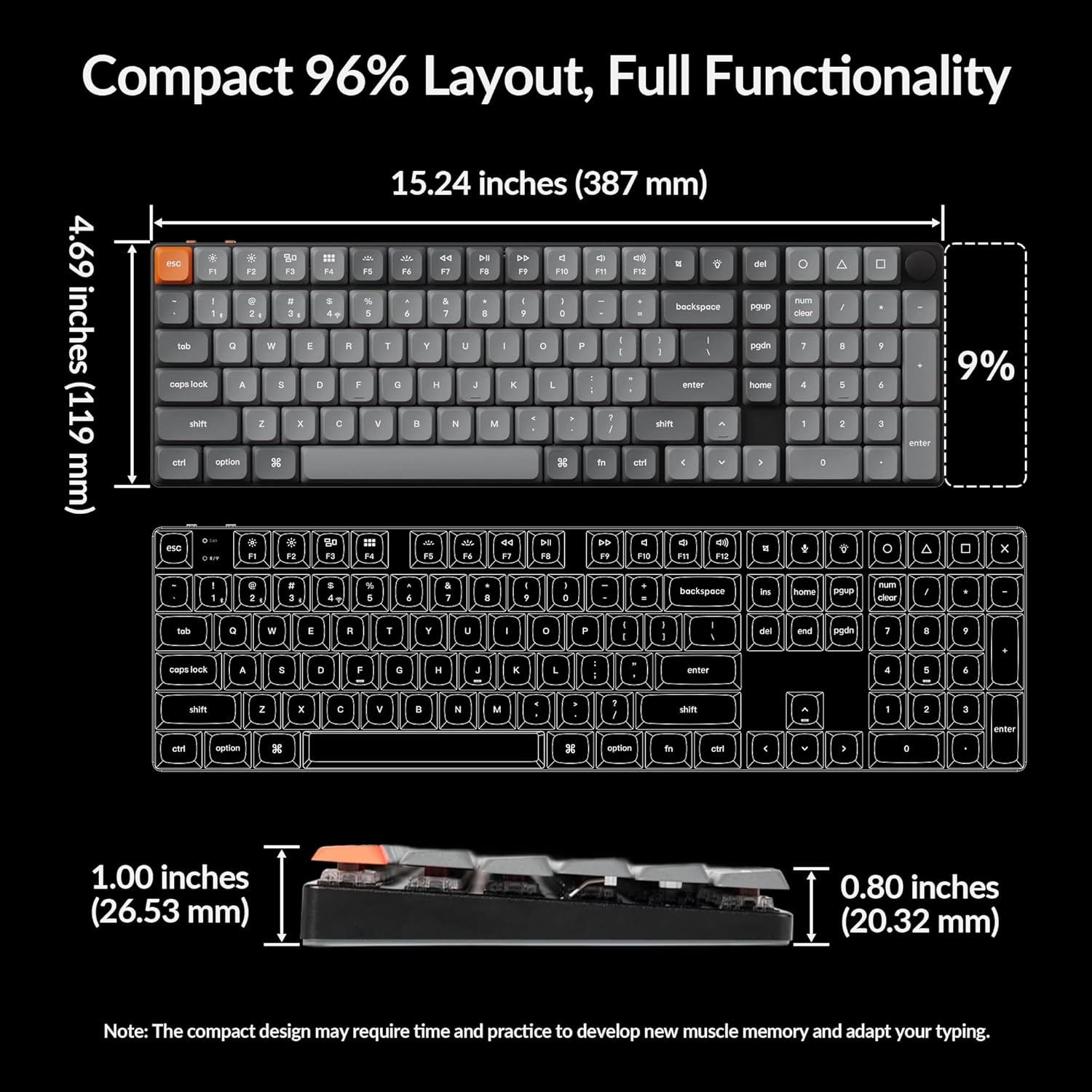
Image 3.2: Screenshot of the Keychron Launcher Web App interface on a laptop, showing key remapping and customization options for the K17 Max.
4. תחזוקה
4.1 ניקוי המקלדת
כדי לנקות את המקלדת, נתקו אותה מכל מקורות החשמל. השתמשו במטלית רכה ונטולת סיבים ונגבו אותה קלות.ampשטוף במים או בתמיסת ניקוי עדינה. לאבק ולכלוך בין מכסי המקשים, השתמש באוויר דחוס. הימנע מריסוס נוזלים ישירות על המקלדת.
4.2 טיפול בכיסוי המקשים
The K17 Max features durable double-shot PBT keycaps. If you need to remove keycaps for cleaning or replacement, use the provided keycap puller to avoid damage. Gently pull the keycap straight up.

תמונה 4.1: תקריב view of the low-profile double-shot PBT keycaps, highlighting their LSA profile and durable construction.
5. פתרון תקלות
5.1 בעיות קישוריות
- 2.4 GHz: Ensure the receiver is securely plugged in and the keyboard is in 2.4 GHz mode. Try a different USB port or use the extension adapter to position the receiver closer to the keyboard.
- בלוטות': Ensure Bluetooth is enabled on your device and the keyboard is in Bluetooth pairing mode. Forget the device on your computer and re-pair if connection fails.
- קווית: Check the USB-C cable connection at both ends. Try a different USB-C cable or port.
5.2 מקשים אינם מגיבים
- ודא שהמקלדת דולקת ומחוברת.
- Check the OS switch is set correctly for your system.
- If specific keys are not working, gently remove the keycap with the keycap puller and inspect for any obstructions.
- Perform a factory reset if issues persist (refer to Keychron support for specific instructions).
5.3 בעיות תאורה אחורית
- Ensure the backlight is enabled and brightness is adjusted.
- Check settings in the Keychron Launcher web אפליקציה.
5.4 עדכוני קושחה
Regularly check the Keychron website or the Keychron Launcher web app for firmware updates to ensure optimal performance and access to new features. Follow the provided instructions carefully during the update process.
6. מפרטים
| תכונה | פְּרָט |
|---|---|
| מותג | Keychron |
| מספר דגם | K17 מקסימום |
| מַעֲרָך | 96% (100 מקשים) |
| קישוריות | אלחוטי 2.4 גיגה-הרץ, בלוטות' 5.1, USB Type-C קווי |
| מתגים | Low-Profile גייטרון מכני חום |
| מפתחות מפתחות | PBT כפול |
| תאורה אחורית | RGB |
| קצב סקר (2.4 גיגה-הרץ) | 1000 הרץ |
| מערכת הפעלה תואמת | macOS, חלונות, לינוקס, אנדרואיד, iOS |
| חוֹמֶר | אלומיניום, פלסטיק |
| מקור כוח | Rechargeable Battery, USB Powered |
| מידות (בערך) | 15.24 אינץ' (387 מ"מ) x 4.69 אינץ' (119 מ"מ) |

Image 6.1: Detailed dimensions of the Keychron K17 Max keyboard, illustrating its compact 96% layout.

תמונה 6.2: תקריב view of the low-profile Gateron mechanical brown switches beneath the keycaps.
7. אחריות ותמיכה
7.1 מידע אחריות
The Keychron K17 Max keyboard comes with a 1-year limited warranty from the date of purchase. This warranty covers manufacturing defects under normal use. It does not cover damage caused by misuse, accidents, unauthorized modifications, or normal wear and tear.
7.2 תמיכת לקוחות
For technical assistance, warranty claims, or further inquiries, please visit the official Keychron website or contact their customer support team. You can find contact information and FAQs on the Keychron support page.
מפתחות רשמי Webאֲתַר: www.keychron.com