
מָבוֹא
This manual provides essential information for the proper setup, operation, and maintenance of your ONN 24-inch FHD Gaming Monitor, model 100027813. Please read this manual thoroughly before using the product to ensure optimal performance and safety. This monitor is designed to deliver a high-quality gaming experience with its 1080p resolution, 165Hz refresh rate, 1ms response time, and FreeSync technology.
מידע בטיחות
יש להקפיד תמיד על אמצעי הזהירות הבאים כדי למנוע נזק לצג ולהבטיח את בטיחות המשתמש:
- אין לחשוף את הצג לגשם או לחות כדי למנוע סכנת שריפה או התחשמלות.
- אל תפתח את הצג גasinז. אין חלקים בפנים הניתנים לתיקון על ידי המשתמש. יש לפנות לכל טיפול וטיפול באנשי שירות מוסמכים.
- הנח את הצג על משטח יציב ושטוח כדי למנוע ממנו ליפול.
- ודא אוורור נאות סביב הצג. אין לחסום פתחי אוורור.
- השתמשו רק במתאם החשמל המצורף לצג.
- נתק את הצג משקע החשמל במהלך סופות ברקים או כאשר אינו בשימוש למשך תקופות ארוכות.
תוכן החבילה
ודא שכל הפריטים נמצאים בחבילה:
- ONN 24-inch FHD Gaming Monitor
- מעמד למוניטור (בסיס וצוואר)
- מתאם מתח
- DisplayPort Cable (6 ft)
- כבל HDMI (6 מטר)
- מדריך למשתמש (מסמך זה)

Image: Retail box of the ONN 24-inch Gaming Monitor, highlighting key features like 165Hz, 1ms response time, DisplayPort, HDMI, and Adaptive-Sync.
הגדרה
1. הרכבת המעמד
- הוציאו בזהירות את רכיבי הצג והמעמד מהאריזה.
- Attach the stand neck to the stand base. Secure it with the provided screw, if applicable.
- Align the assembled stand with the mounting slot on the back of the monitor. Gently push until it clicks into place or secure with screws as per the design.
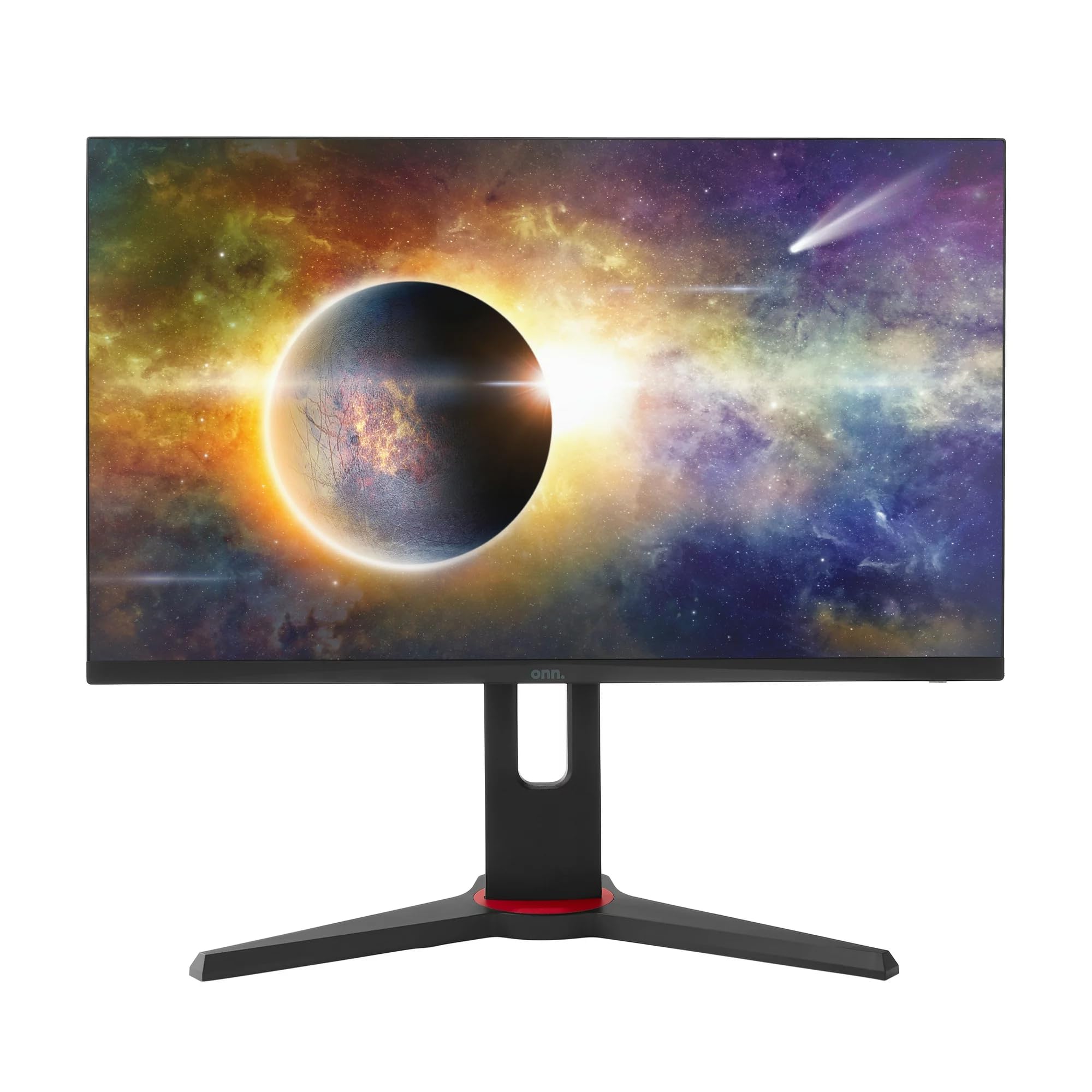
תמונה: חזית view of the ONN 24-inch Gaming Monitor, fully assembled with its stand.

תמונה: אחורי view of the ONN 24-inch Gaming Monitor, illustrating the stand attachment and cable management area.
2. חיבור כבלים
Locate the input ports on the back of your monitor:
- כּוֹחַ: חבר את ספק הכוח לכניסת החשמל של הצג ולאחר מכן לשקע חשמל.
- קלט וידאו: Connect one end of the provided DisplayPort or HDMI cable to the corresponding port on your computer's graphics card and the other end to the monitor. The monitor supports 2 HDMI inputs and 1 DisplayPort input.
- פלט שמע (אופציונלי): If your monitor has a 3.5mm audio jack, you can connect external speakers or headphones.

תמונה: תקריב view of the monitor's rear ports, including HDMI 1, HDMI 2, DisplayPort (DP), and power input.
3. הפעלה ראשונית
- ודא שכל הכבלים מחוברים היטב.
- Press the power button on the monitor (usually located on the back or bottom right).
- The monitor should display the ONN logo and then search for an input signal.
- If no image appears, ensure your computer is powered on and the correct input source is selected on the monitor (see Operating section).
פועל
1. הפעלה/כיבוי
Press the power button to turn the monitor on or off. The power indicator light will show the monitor's status (e.g., blue for on, amber for standby).
2. ניווט בתפריט תצוגה על המסך (OSD)
Your monitor features an OSD menu for adjusting various settings. Typically, buttons on the back or bottom of the monitor control the OSD:
- לחצן תפריט: פותח את תפריט ה-OSD.
- כפתורי ניווט (למעלה/למטה/שמאלה/ימינה): משמש לניווט בין אפשרויות התפריט.
- כפתור בחירה/כניסה: מאשר בחירה או כניסה לתפריט משנה.
- לחצן יציאה: יציאה מהתפריט הנוכחי או מתפריט המסך.
3. התאמת הגדרות
הגדרות מפתח שניתן לכוונן דרך תפריט המסך כוללות:
- ניגוד בהירות: כוונן את הבהירות הכוללת ואת ההבדל בין אזורים בהירים וכהים.
- הגדרות צבע: שינוי טמפרטורת צבע, גמא ורמות RGB בודדות.
- מקור קלט: בחירה ידנית בין כניסות HDMI 1, HDMI 2 או DisplayPort.
- קצב רענון: Ensure your graphics card and monitor are set to 165Hz for the smoothest experience. This is usually configured in your operating system's display settings.
- זמן תגובה: Adjust the monitor's response time setting (e.g., 1ms) for reduced motion blur in fast-paced games.
- טכנולוגיית FreeSync: Enable FreeSync in the OSD menu and in your AMD graphics card settings to synchronize the monitor's refresh rate with your GPU's frame rate, eliminating screen tearing and stuttering.
- מצבי תמונה: Select from preset modes optimized for different content (e.g., Standard, Game, Movie, Text).

Image: The ONN 24-inch Gaming Monitor displayed in a typical desk setup, connected to a laptop with gaming peripherals.
תַחזוּקָה
ניקוי הצג
- נתק תמיד את הצג לפני הניקוי.
- השתמש קלות במטלית רכה נטולת מוך דampנשטפו במים או בחומר ניקוי מסך עדין ולא שוחק.
- אין לרסס חומר ניקוי ישירות על המסך. יש למרוח אותו תחילה על המטלית.
- הימנעו משימוש בכימיקלים חזקים, רפידות שוחקות או ממסים.
אִחסוּן
אם מאחסנים את הצג לתקופה ממושכת, נתק את כל הכבלים, ארז אותו באריזתו המקורית (אם קיימת) ואחסן אותו במקום קריר ויבש הרחק מאור שמש ישיר וטמפרטורות קיצוניות.
פתרון בעיות
אם נתקלת בבעיות עם הצג שלך, עיין בבעיות הנפוצות ובפתרונות הבאים:
| בְּעָיָה | פתרון אפשרי |
|---|---|
| אין תמונה על המסך |
|
| Image is flickering or distorted |
|
| אין קול (אם משתמשים ברמקולים של המוניטור/יציאת שמע) |
|
| Monitor not reaching 165Hz |
|
מפרטים
Detailed technical specifications for the ONN 24-inch FHD Gaming Monitor (Model 100027813):
| תכונה | מִפרָט |
|---|---|
| מספר דגם | 100027813 |
| גודל מסך | 24 אינץ' |
| הַחְלָטָה | רזולוציית FHD 1080p (1920x1080) |
| קצב רענון | 165 הרץ |
| זמן תגובה | 1 אלפיות שניות |
| טכנולוגיית תצוגה | IPS |
| סנכרון אדפטיבי | FreeSync |
| יחס גובה-רוחב | 16:9 |
| יחס ניגודיות | 2000:1 |
| משטח המסך | Matte, Anti-glare with low blue light setting |
| קישוריות | 2 x HDMI, 1 x DisplayPort |
| מידות המוצר (D x W x H) | 61.3 x 11.3 x 37.3 ס"מ |
| משקל פריט | 6.1 ק"ג |
| צֶבַע | שָׁחוֹר |
| סוג הרכבה | הרכבה בשולחן העבודה |
| שימושים ספציפיים | Entertainment, Gaming |
אַחֲרָיוּת
This ONN 24-inch FHD Gaming Monitor is a renewed product. Warranty terms and conditions for renewed products may vary. Please refer to the specific warranty information provided by the seller or retailer at the time of purchase. It is recommended to retain your proof of purchase for any warranty claims.
תְמִיכָה
For technical assistance, troubleshooting beyond this manual, or warranty inquiries, please contact the retailer or the Amazon Renewed support channel where the product was purchased. Have your model number (100027813) and proof of purchase ready when contacting support.