
המוצר נגמרview
The TP-Link Archer MR505 is a 4G+ Cat6 AC1200 Wireless Dual Band Gigabit Router designed to provide reliable internet connectivity. This router supports dual-band Wi-Fi (2.4 GHz and 5 GHz) and features Gigabit Ethernet ports for high-speed wired connections. It is compatible with 4G+ Cat6 networks, offering mobile broadband access.

איור 1: חזית view of the Archer MR505 router.
איור 2: צד view of the Archer MR505 router.
תוכן החבילה
ודא שכל הפריטים נמצאים בחבילה שלך:
- נתב TP-Link Archer MR505
- מתאם מתח
- מדריך התקנה מהירה
- כבל אתרנט RJ45

Figure 3: Key features and components of the Archer MR505.
הוראות התקנה
Follow these steps to set up your Archer MR505 router:
- הכנס כרטיס SIM: Locate the SIM card slot on the router. Insert your 4G/LTE SIM card into the slot until it clicks into place. Ensure the SIM card is a normal data SIM for optimal compatibility. Some data-only SIM cards may require specific configurations or may not be fully compatible.
- חבר חשמל: Connect the provided power adapter to the router's power port and then plug it into a power outlet. The router will power on automatically.
- המתן לאתחול: Allow a few minutes for the router to boot up and establish a connection to the 4G/LTE network. The LED indicators on the front panel will show the connection status.
- חיבור Wi-Fi ראשוני:
- Find the default Wi-Fi network name (SSID) and password printed on the label at the bottom of the router.
- חבר את המחשב או המכשיר הנייד שלך לרשת Wi-Fi זו.
- ניהול נתב גישה:
- פתח א web הדפדפן והזן את כתובת הניהול המוגדרת כברירת מחדל (למשל, http://tplinkwifi.net or http://192.168.1.1).
- התחבר באמצעות שם המשתמש והסיסמה המוגדרים כברירת מחדל (בדרך כלל admin/admin or specified on the label).
- הגדר הגדרות רשת: Follow the on-screen Quick Setup wizard to configure your internet connection, change the Wi-Fi network name (SSID), and set a strong, unique password for both your Wi-Fi and router management interface.
- Tether App Setup (Optional): Download the TP-Link Tether app from your device's app store. The app provides an intuitive way to manage your router settings from your smartphone or tablet.
- External Antenna (Optional): If using external antennas (not included), connect them to the designated ports on the back of the router. You may need to manually enable external antenna usage through the router's web ממשק או אפליקציית Tether.
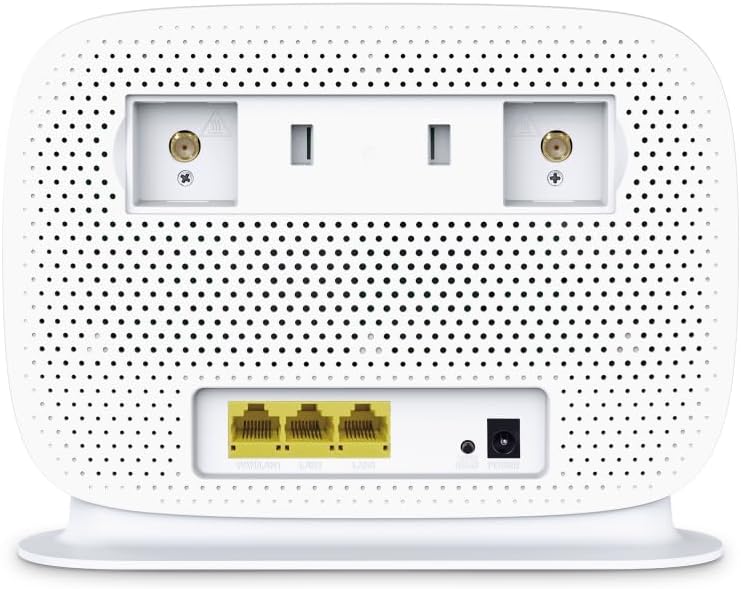
Figure 4: Rear panel of the Archer MR505 with ports and SIM slot.

Figure 5: Archer MR505 in various usage scenarios.
הוראות הפעלה
The Archer MR505 provides robust wireless and wired connectivity:
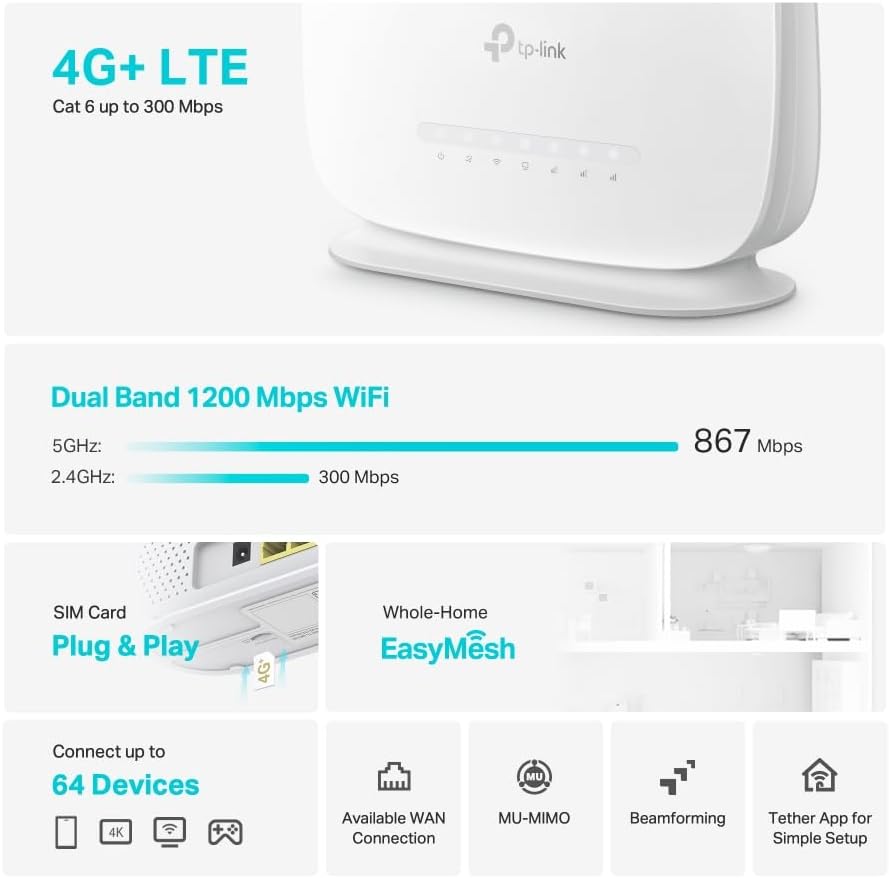
- Wi-Fi עם פס כפול: The router operates on both 2.4 GHz and 5 GHz bands, offering speeds up to 300 Mbps and 867 Mbps respectively, for a total of AC1200 Wi-Fi.
- 4G+ Cat6 Connectivity: Enjoy mobile broadband speeds up to 300 Mbps download and 300 Mbps upload (maximum upstream data transfer rate).
- יציאות Gigabit Ethernet: Four Gigabit LAN ports (1000 Mbps) are available for high-speed wired connections to devices like computers, gaming consoles, or smart TVs. One port can also function as a WAN port for traditional broadband connections.
- קיבולת מכשיר: The router can support connectivity for up to 64 devices simultaneously.
- חיבור חכם: This feature automatically assigns devices to the best available Wi-Fi band (2.4 GHz or 5 GHz) for optimized performance.
- תאימות EasyMesh: The Archer MR505 is compatible with TP-Link EasyMesh, allowing you to create a seamless whole-home mesh Wi-Fi network by adding compatible range extenders.
- טכנולוגיות מתקדמות: Features like MU-MIMO and Beamforming enhance Wi-Fi efficiency and range, especially for multiple connected devices.
- בִּטָחוֹן: The router supports WPA3 encryption for enhanced network security.

Figure 6: Versatile connectivity and speed capabilities.

Figure 7: Whole-Home EasyMesh integration.
תַחזוּקָה
To ensure optimal performance and security of your router:
- עדכוני קושחה: בדוק באופן קבוע אם קיימים עדכוני קושחה אחרונים מהמוצר הרשמי של TP-Link והתקן אותם. website or via the Tether app. Firmware updates often include security patches and performance improvements.
- סיסמאות מאובטחות: Use strong, unique passwords for your Wi-Fi network and router management interface. Change them periodically.
- מיקום פיזי: מקם את הנתב במיקום מרכזי, הרחק ממכשולים וממקורות הפרעות (למשל, מיקרוגלים, טלפונים אלחוטיים) כדי למקסם את כיסוי ה-Wi-Fi.
- ניקוי: Keep the router clean and free from dust. Ensure ventilation holes are not blocked.
- הפעלה מחדש מעת לעת: Restarting the router occasionally can help resolve minor network issues and improve performance.
פתרון בעיות
If you encounter issues with your Archer MR505 router, consider the following:
- No Internet Connection via 4G/LTE:
- ודא שכרטיס ה-SIM שלך מוכנס כהלכה ומופעל.
- Verify that your SIM card is a normal data SIM. Some data-only SIM cards may require specific APN settings or might not be fully compatible. Contact your mobile service provider for details.
- Check the 4G/LTE signal strength indicated by the router's LEDs. If the signal is weak, try repositioning the router or consider using external antennas (if supported and configured).
- הפעל מחדש את הנתב ואת המכשירים המחוברים שלך.
- בעיות חיבור Wi-Fi:
- Ensure your device is within the router's Wi-Fi range.
- ודא שאתה משתמש בסיסמת ה-Wi-Fi הנכונה.
- If a device frequently connects and disconnects, try restarting that specific device.
- בדוק אם יש הפרעות ממכשירים אלקטרוניים אחרים.
- מהירות אינטרנט איטית:
- Check your 4G/LTE signal strength. Weak signal can significantly reduce speed.
- Ensure no other applications or devices are consuming excessive bandwidth.
- If using Wi-Fi, try connecting to the 5 GHz band for faster speeds, if your device supports it.
- בצע בדיקת מהירות כדי לאשר את המהירות בפועל שאתה מקבל.
- אין גישה לדף ניהול הנתב:
- Ensure your device is connected to the router's network (either via Wi-Fi or Ethernet cable).
- Verify you are entering the correct management address (e.g., http://tplinkwifi.net).
- נסה לנקות את המטמון של הדפדפן שלך או להשתמש בדפדפן אחר.
מפרטים
| מותג | TP-Link |
| שם הדגם | Archer MR505 |
| תקן אלחוטי | 802.11ac (Wi-Fi 5) |
| מחלקה להקת תדרים | דו-פס (2.4 גיגה-הרץ ו-5 גיגה-הרץ) |
| קצב נתונים של Wi-Fi | Up to 300 Mbps (2.4 GHz), Up to 867 Mbps (5 GHz) - AC1200 Total |
| מהירות 4G+ Cat6 | Up to 300 Mbps Download, Up to 300 Mbps Upload |
| יציאות Ethernet | 4 x Gigabit LAN Ports (1000 Mbps), 1 x WAN/LAN Port |
| סוג אנטנה | Internal (External antenna support available) |
| פרוטוקול אבטחה | WPA3 |
| שיטת בקרה | App (TP-Link Tether) |
| מכשירים תואמים | Laptop, Personal Computer, Smart Television, Smartphone, Tablet |
| קלט כוח | 12 וולט |
| משקל פריט | 0.93 קילוגרם |
| רכיבים כלולים | Archer MR505, Power Adapter, Quick Installation Guide, RJ45 Ethernet Cable |
אחריות ותמיכה
למידע על אחריות, אנא עיינו בכרטיס האחריות המצורף למוצר שלכם או בקרו באתר הרשמי של TP-Link. website for your region. Support resources, including FAQs, firmware downloads, and contact information, are available on the TP-Link support website and through the TP-Link Tether app.
TP-Link הרשמי Webאֲתַר: https://www.tp-link.com
אפליקציית Tether של TP-Link: Available on iOS App Store and Google Play Store.