
1. הקדמה
The Atomos Shinobi II is a versatile 5-inch HDMI 4K monitor designed for filmmakers and content creators. It features an HDR touchscreen, extended battery life, and a lightweight design, focusing on common settings that require on-the-fly adjustments. This manual provides detailed instructions for setting up, operating, and maintaining your Shinobi II monitor.

Image: Atomos Shinobi II highlighting its slimmer, brighter design and camera control capabilities.
2. המוצר נגמרview
The Shinobi II monitor is engineered for optimal performance and ease of use. Its compact and robust construction ensures reliability in various shooting environments.
2.1 תכונות עיקריות
- 5-inch HDR Display: High-brightness 1500 nits screen for clear outdoor viewing.
- 4K HDMI Monitoring: Supports HDMI signals up to 4Kp30.
- ממשק מסך מגע: Intuitive control for settings and monitoring tools.
- קישוריות USB-C: Versatile power and camera control options.
- חיי סוללה ארוכים: Designed for all-day operation on a single battery.
- עיצוב קל משקל: Enhanced portability for on-the-go productions.
2.2 רכיבים פיזיים
Familiarize yourself with the physical layout and connections of your Shinobi II monitor:
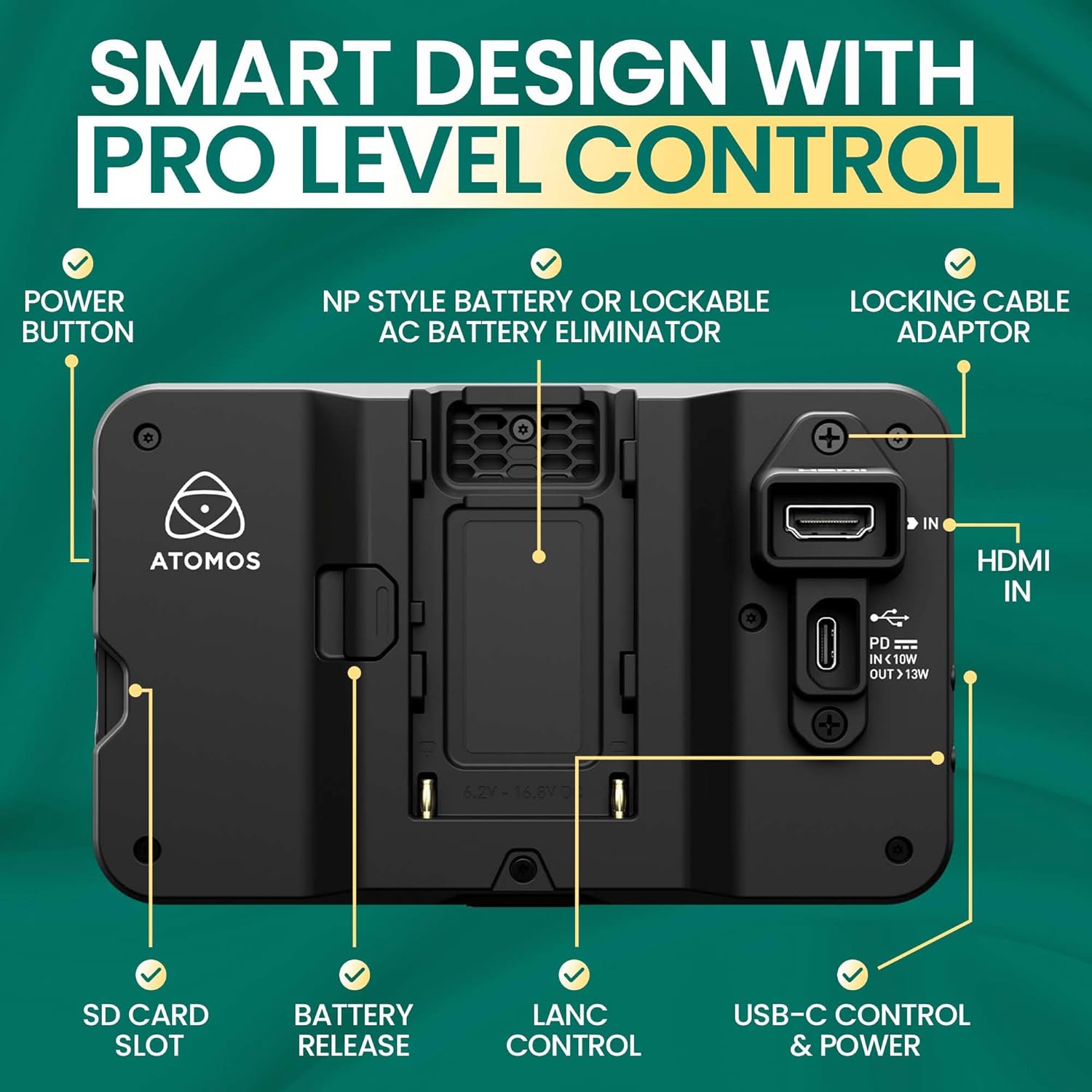
תמונה: אחורי view of the Shinobi II monitor, detailing the power button, NP-style battery slot, locking cable adapter, HDMI IN, USB-C control & power, LANC control, battery release, and SD card slot.
- לחצן הפעלה: ממוקם בצד להדלקה/כיבוי המכשיר.
- NP-Style Battery Slot: Accommodates standard NP-F type batteries for portable power.
- כניסת HDMI: Connects to your camera for video input.
- USB-C Control & Power: Provides power delivery and camera control capabilities.
- LANC Control: For remote camera control (future firmware releases may support more vendors).
- חריץ לכרטיס SD: For loading LUTs and firmware updates.
- שקע אוזניות: עבור ניטור שמע.
- יציאה מרוחקת: For additional remote control options.
3. התקנה
3.1 הפעלת הצג
The Shinobi II can be powered using NP-F style batteries or via USB-C Power Delivery.
- התקנת סוללה: Slide a compatible NP-F battery into the battery slot on the rear of the monitor until it clicks securely into place.
- כוח USB-C: Connect a USB-C PD compatible power source to the USB-C port. This port can also power/charge your camera.
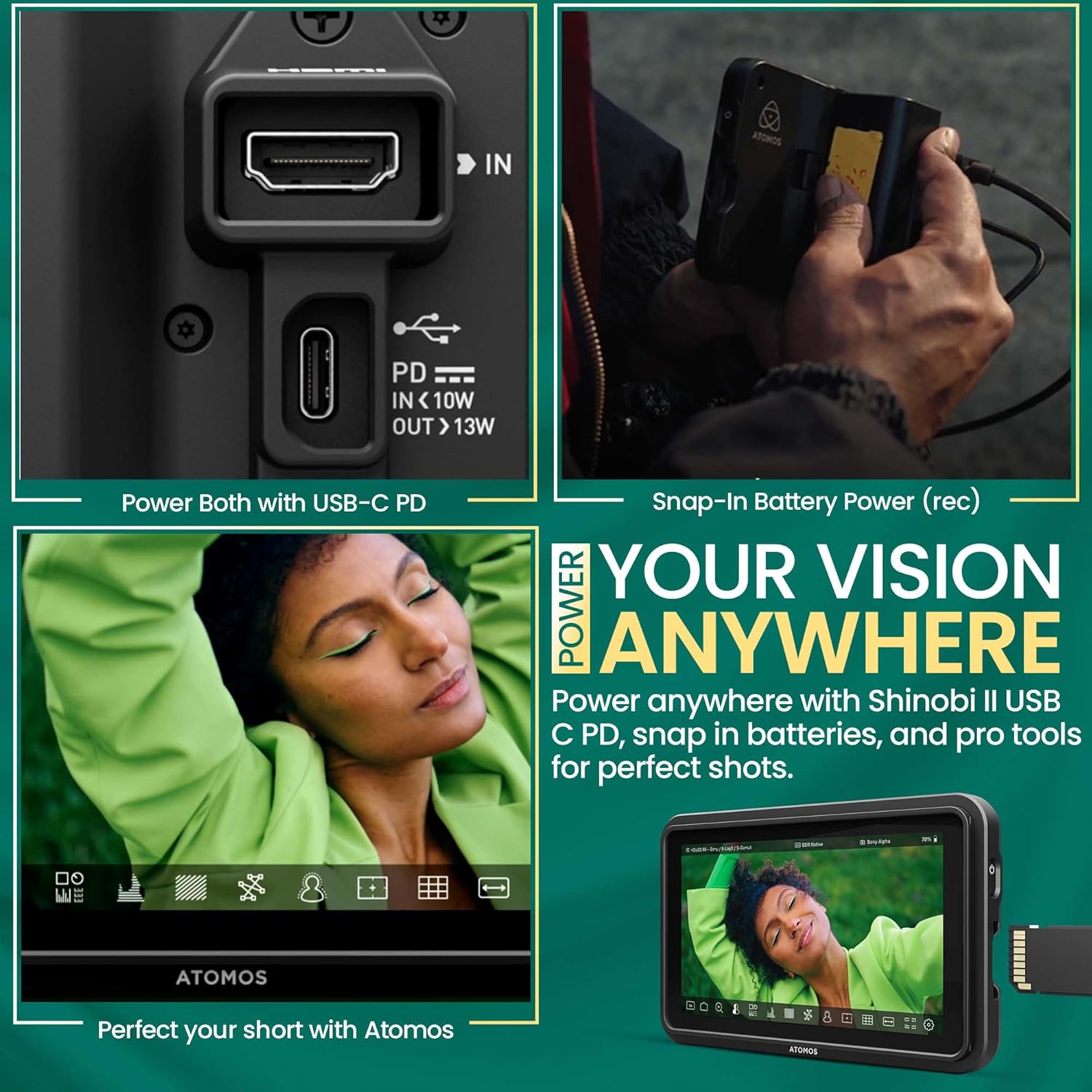
Image: A hand connecting a USB-C cable to the Shinobi II, demonstrating power options and battery use.
3.2 Connecting to Your Camera
Use an HDMI cable to connect your camera to the Shinobi II monitor.
- Connect one end of an HDMI cable to your camera's HDMI output port.
- חבר את הקצה השני של כבל ה-HDMI ל- HDMI IN port on the Shinobi II monitor.
- Ensure both devices are powered on. The monitor should automatically detect the input signal.
4. הפעלת המוניטור
The Shinobi II features an intuitive touchscreen interface for easy navigation and control.
4.1 בקרות בסיסיות
- הפעלה/כיבוי: Press and hold the power button on the side of the monitor.
- ניווט במסך מגע: Tap, swipe, and pinch to navigate menus and adjust settings.
4.2 כלי ניטור
The Shinobi II offers a suite of professional monitoring tools to ensure accurate exposure and focus.
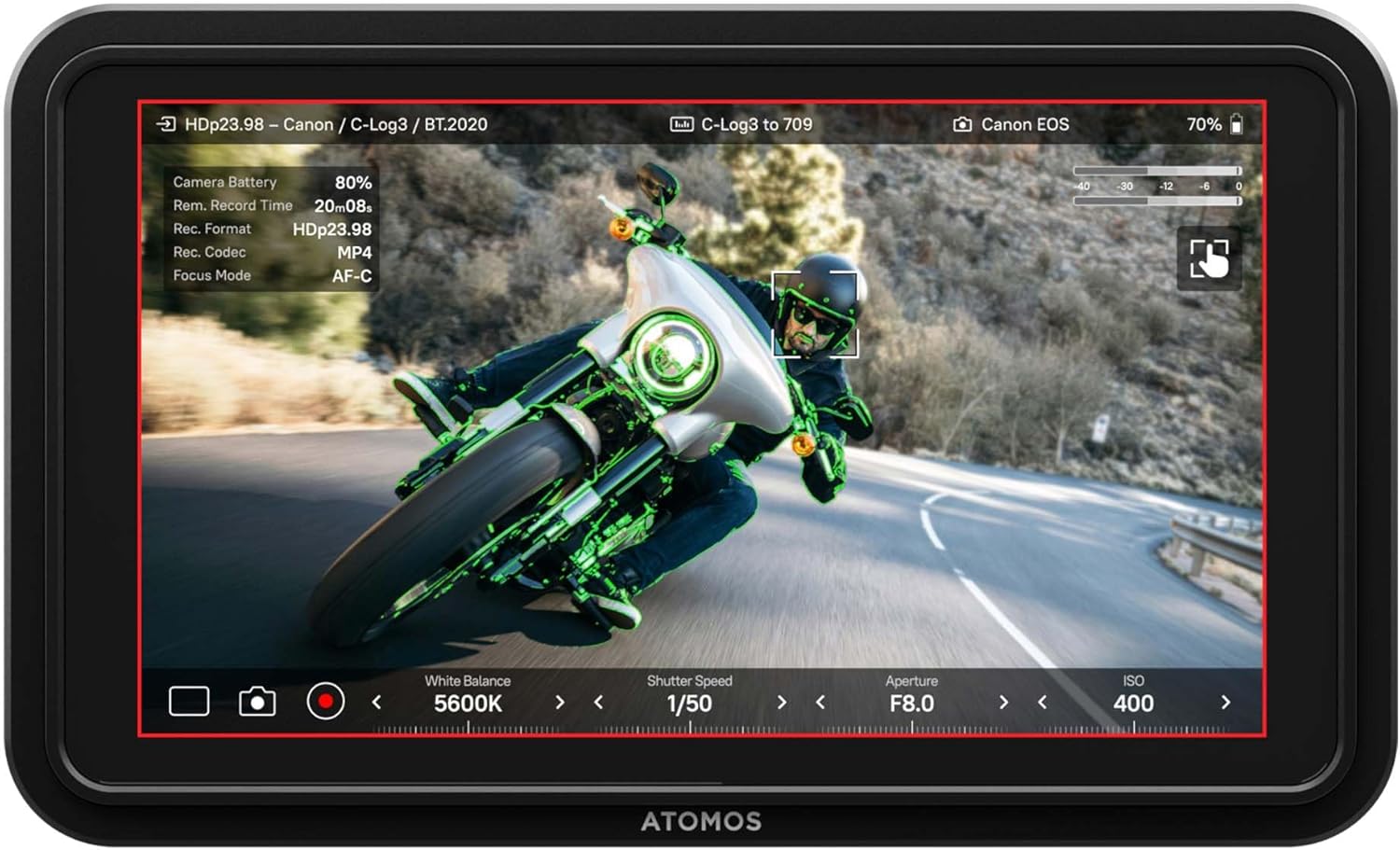
Image: The Shinobi II display showing various camera parameters like White Balance, Shutter Speed, Aperture, and ISO, along with monitoring overlays.
- Analysis Mode: Access waveform, histogram, and vectorscope tools for detailed image analysis.
- Built-in LUTs: מִרֹאשׁview your look with up to 8 customizable LUTs. Load additional LUTs via the SD card slot.
- Frame Guides: Utilize various frame guides for precise composition for social media or cinematic productions.
- On-Screen Sliders: Adjust white balance, lens aperture, shutter speed, and ISO directly from the touchscreen.
4.3 בקרת מצלמה
The Shinobi II supports camera control for various mirrorless and DSLR cameras via USB-C and LANC, allowing for immediate and responsive access to camera settings.

Image: The Shinobi II monitor mounted on a camera, illustrating quick white balance adjustments, precise aperture, shutter, and ISO control for real-time shooting.
Video: An official product guide for the Atomos Shinobi II, demonstrating its features and functionality.
Video: A demonstration of the Atomos Shinobi II's touch focus capability.
5. תחזוקה
Proper care and maintenance will extend the life of your Shinobi II monitor.
- ניקוי: Use a soft, lint-free cloth to clean the screen and body. For stubborn smudges, a screen-safe cleaning solution can be applied to the cloth (not directly to the screen).
- אִחסוּן: Store the monitor in a dry, cool place away from direct sunlight and extreme temperatures. Use a protective case during transport.
- עדכוני קושחה: Regularly check the Atomos website for the latest firmware updates to ensure optimal performance and access new features. Updates can typically be loaded via the SD card slot.
6. פתרון תקלות
If you encounter issues with your Shinobi II, refer to the following common solutions:
- אין קליטה: Ensure the HDMI cable is securely connected to both the camera and the monitor. Verify that the camera's HDMI output is active and configured correctly.
- המסך לא נדלק: Check battery charge or USB-C power connection. Ensure the power button is pressed and held for a few seconds.
- מסך מגע לא מגיב: Restart the monitor. If the issue persists, check for available firmware updates.
- התחממות יתר: Ensure proper ventilation around the monitor. Avoid prolonged use in direct sunlight or hot environments.
- Image Ghosting/Artifacts: Verify HDMI cable quality and connection. Check camera output settings and monitor input settings for compatibility.
For persistent issues, contact Atomos customer support.
7. מפרטים
| תכונה | מִפרָט |
|---|---|
| מספר דגם | SHINOBI2 |
| גודל מסך | 5 אינץ' |
| הַחְלָטָה | 1920 x 1080 (FHD 1080p) |
| בהירות תמונה | 1500 ניטים |
| יחס ניגודיות תמונה | 1000:1 |
| יחס גובה-רוחב | 16:9 |
| יציאות קלט | HDMI, USB-C (Power/Control), LANC |
| יציאות פלט | שקע אוזניות |
| מקור כוח | NP-F Batteries, USB-C PD (12V batteries required) |
| מידות המוצר | 5.12 x 7.87 x 3.15 אינץ' |
| משקל פריט | 7.4 אונקיות |
8. אחריות ותמיכה
Atomos products are designed for reliability and performance. For warranty information, product registration, and technical support, please visit the official Atomos website or contact their customer service department. Keeping your product registered ensures you receive the latest news and information about Atomos updates.
לסיוע נוסף, בקר בכתובת: www.atomos.com/support