
ShanWan Q36-XPS-KABRILAN
ShanWan Bluetooth Gamepad Keychain Sized Mini Controller User Manual
Model: Q36-XPS-KABRILAN
1. הקדמה
This manual provides comprehensive instructions for the ShanWan Bluetooth Gamepad Keychain Sized Mini Controller. Please read this manual carefully before use to ensure proper operation and to maximize your gaming experience. This device is designed for use with Android phones and tablets, PS4/Slim/Pro, iPhone, iPad, Nintendo Switch, and Windows PCs.
2. המוצר נגמרview
The ShanWan Mini Controller is a compact and versatile gamepad designed for portability and multi-platform compatibility. It features 17 buttons and a D-Pad, all within a keychain-sized form factor.
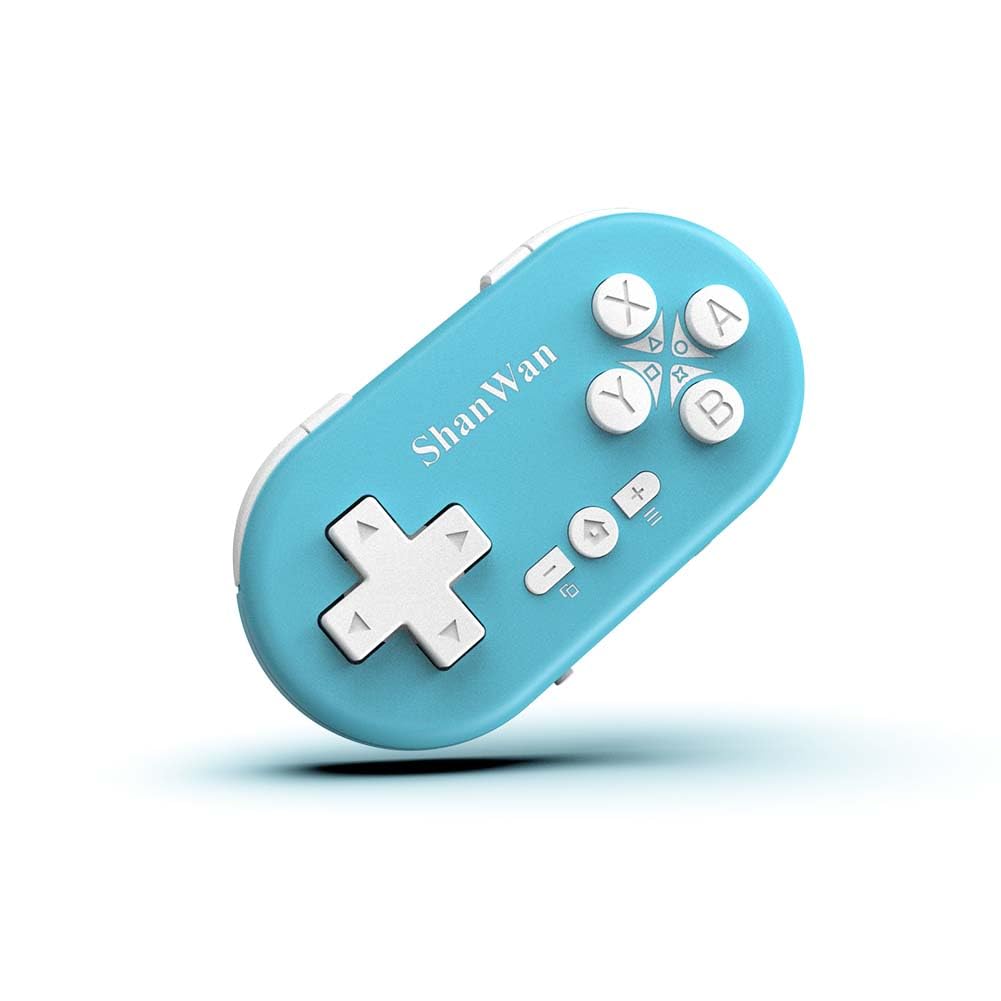
Figure 2.1: ShanWan Mini Bluetooth Gamepad, showcasinהעיצוב הקומפקטי ופריסת הכפתורים שלו.

Figure 2.2: Dimensions of the ShanWan Mini Bluetooth Gamepad, measuring 2.83 inches in length, 1.57 inches in width, and 0.55 inches in thickness.
2.1 תכולת החבילה
- ShanWan Bluetooth Gamepad Keychain Sized Mini Controller
- כבל טעינה USB
- מדריך למשתמש (מסמך זה)
3. מפרטים
| תכונה | פְּרָט |
|---|---|
| מספר דגם | Q36-XPS-KABRILAN |
| קישוריות | Bluetooth אלחוטי |
| תְאִימוּת | Android, iOS, Windows, Nintendo Switch, PlayStation 4 |
| קיבולת סוללה | סוללת ליתיום פולימר 180mAh (כלולה) |
| זמן טעינה | כשעה 1 |
| זמן הפעלה | עד 5-6 שעות |
| טווח אלחוטי | עד 10 מטר (33 רגל) |
| מידות המוצר | 2.83 x 1.57 x 0.55 אינץ' |
| משקל פריט | 1.44 אונקיות (כ-41 גרם) |
| תכונות מיוחדות | Gyroscope motion sensing, One-button wake-up function |
4. הגדרה וצימוד
4.1 טעינת הבקר
Before first use, fully charge the controller. Connect the provided USB charging cable to the controller's charging port and the other end to a USB power source (e.g., computer, USB wall adapter). The charging indicator light will show the charging status and turn off when fully charged. A full charge typically takes about 1 hour.
4.2 הפעלה/כיבוי
- הפעלה: Press and hold the Home button (usually the button with a house icon) for a few seconds until the indicator lights turn on.
- כיבוי: Press and hold the Home button for approximately 5 seconds until the indicator lights turn off. The controller will also automatically power off after a period of inactivity to conserve battery.
4.3 Bluetooth Pairing Instructions
The controller supports multiple platforms. Ensure the mode switch on the controller is set to the correct platform before pairing.
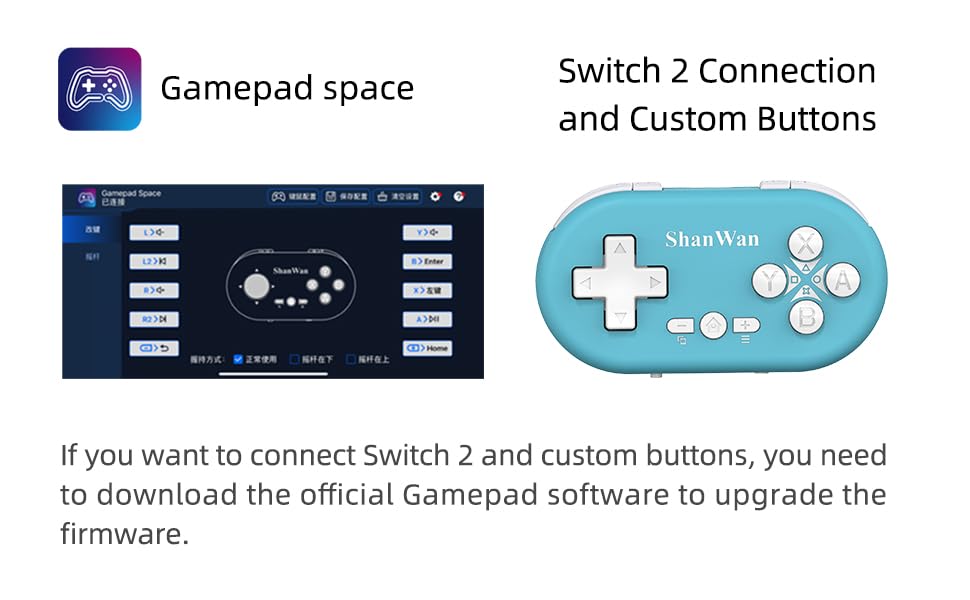
Figure 4.1: The mode switch on the controller, allowing selection between X (Xbox/PC), S (Switch), and P (PlayStation) modes for multi-device compatibility.
4.3.1 צימוד עם נינטנדו סוויץ'
- בנינטנדו סוויץ' שלכם, נווטו לתפריט הבית.
- Select "Controllers" then "Change Grip/Order".
- Set the controller's mode switch to "S" (Switch mode).
- Press and hold the "Pair" button on the controller until the indicator lights begin to blink rapidly.
- The Switch will detect the controller. Once paired, the LED indicator on the controller will remain solid, and the controller will be displayed on the Switch host screen.

Figure 4.2: Visual guide for connecting the controller to a Nintendo Switch, showing menu navigation and the pairing button location.
4.3.2 Pairing with Android/iOS Devices
- Set the controller's mode switch to the appropriate mode (e.g., "X" for Android, or a specific iOS mode if available, refer to device-specific instructions).
- On your Android or iOS device, go to Bluetooth settings.
- ודא ש- Bluetooth מופעל.
- Press and hold the "Pair" button on the controller until the indicator lights blink rapidly.
- Select "ShanWan Controller" or a similar name from the list of available devices on your phone/tablet.
- לאחר החיבור, נורית החיווי בבקר תידלק באופן קבוע.
4.3.3 Pairing with PS4
- Set the controller's mode switch to "P" (PlayStation mode).
- On your PS4, go to "Settings" > "Devices" > "Bluetooth Devices".
- Press and hold the "Pair" button on the controller until the indicator lights blink rapidly.
- Select "ShanWan Controller" or a similar name from the list of available devices on your PS4.
- לאחר החיבור, נורית החיווי בבקר תידלק באופן קבוע.
4.3.4 Pairing with Windows PC
- Set the controller's mode switch to "X" (Xbox/PC mode).
- במחשב Windows שלך, עבור אל "הגדרות" > "מכשירים" > "Bluetooth והתקנים אחרים".
- Ensure Bluetooth is enabled and click "Add Bluetooth or other device".
- בחר "בלוטות'".
- Press and hold the "Pair" button on the controller until the indicator lights blink rapidly.
- Select "ShanWan Controller" or a similar name from the list of available devices.
- לאחר החיבור, נורית החיווי בבקר תידלק באופן קבוע.
5. הוראות הפעלה
5.1 פונקציות כפתורים
The controller features standard gamepad buttons. Their specific function may vary slightly depending on the platform and game.
- D-Pad: קלט כיווני.
- כפתורי A, B, X, Y: כפתורי פעולה.
- כפתורי L1, L2, R1, R2: כפתורי כתף והדק.
- כפתור בית: Power on/off, return to home screen (platform dependent).
- כפתורי פלוס (+) / מינוס (-): Start/Select or menu functions.
- לחצן התאמה: יוזם צימוד Bluetooth.
5.2 תכונות מיוחדות
5.2.1 One-Button Wake-Up Function
After initial pairing, you can wake up the controller and reconnect it to the last paired device by simply pressing the Home button. This feature allows for quick resumption of gameplay.
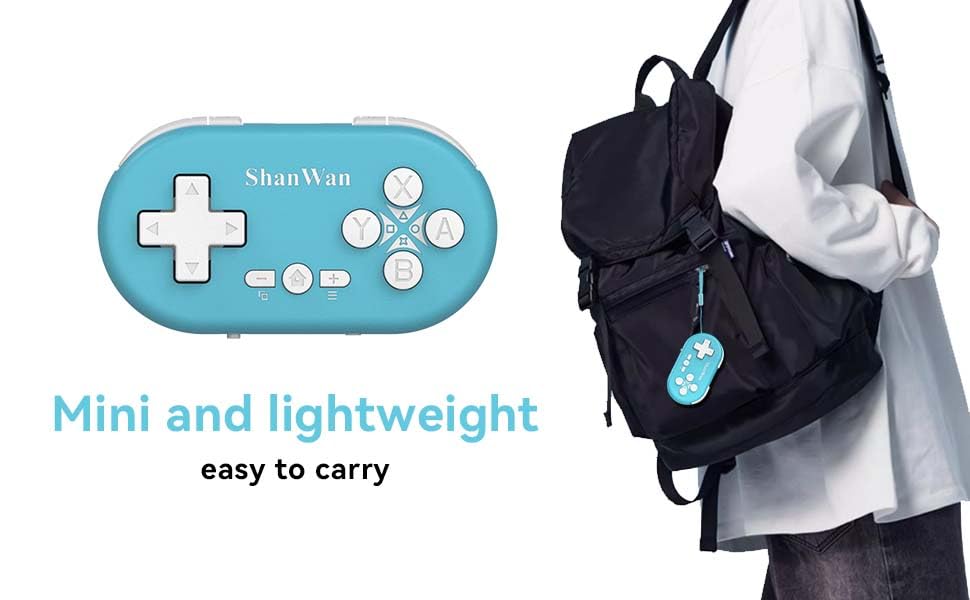
Figure 5.1: Illustration of the one-button wake-up function, highlighting the Home button used to quickly reactivate the controller.
5.2.2 Gyroscope Motion Sensing
The controller is equipped with a gyroscope for motion sensing effects, providing an immersive gaming experience in supported games, particularly on platforms like Nintendo Switch.
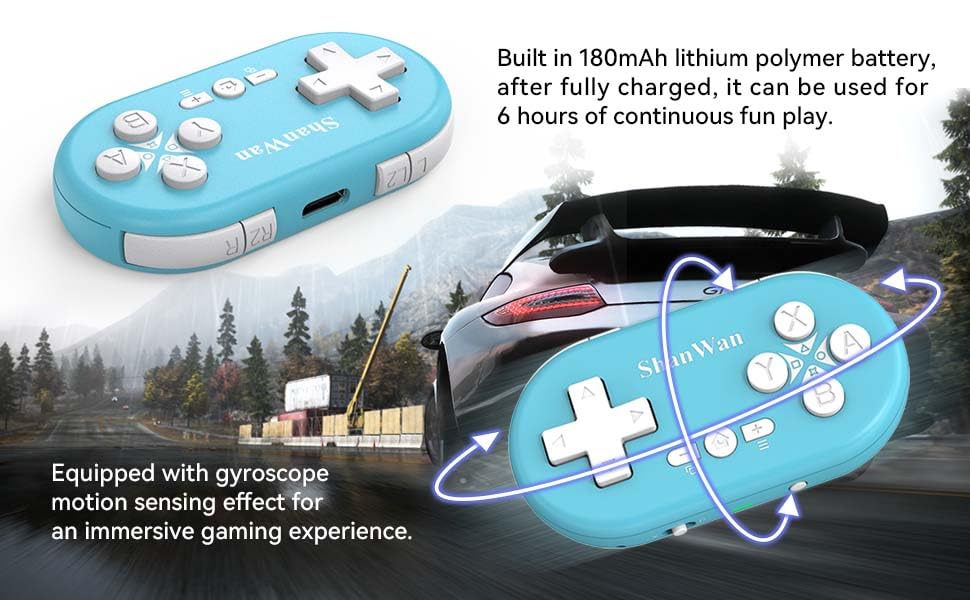
Figure 5.2: Visual representation of the gyroscope motion sensing effect, showing the controller being tilted to influence in-game actions.
5.2.3 Firmware Upgrade for Switch 2 and Custom Buttons
For compatibility with Switch 2 and to customize button mappings, it may be necessary to download the official Gamepad software and upgrade the controller's firmware. Refer to the manufacturer's official webאתר לתוכנה והוראות עדכניות.

Figure 5.3: Screenshot illustrating the "Gamepad Space" software interface, used for firmware upgrades and custom button configurations, particularly for Switch 2 compatibility.
6. תחזוקה
- ניקוי: השתמשו במטלית רכה ויבשה לניקוי הבקר. הימנעו משימוש בכימיקלים חזקים או בחומרים שוחקים.
- אִחסוּן: יש לאחסן את הבקר במקום קריר ויבש, הרחק מאור שמש ישיר וטמפרטורות קיצוניות.
- טיפול בסוללה: כדי להאריך את חיי הסוללה, הימנעו מפריקה מלאה של הסוללה לעתים קרובות. טען את הבקר באופן קבוע, גם אם אינו בשימוש למשך פרקי זמן ממושכים.
- הימנע מהשפעה: אין להפיל את הבקר ואל תחשוף אותו לפגיעות חזקות, שכן הדבר עלול לגרום נזק לרכיבים הפנימיים.
7. פתרון תקלות
7.1 Controller Does Not Power On
- ודא שהבקר טעון במלואו. חבר אותו למקור חשמל ואפשר לו להיטען במשך 15 דקות לפחות לפני שתנסה להפעיל אותו שוב.
- Verify that the charging cable and power source are functioning correctly.
7.2 Unable to Pair Controller
- Ensure the controller is in pairing mode (indicator lights blinking rapidly).
- Check that the mode switch on the controller is set to the correct platform (S for Switch, X for Android/Windows, P for PS4).
- Make sure Bluetooth is enabled on your device (Switch, phone, PC, PS4).
- Move the controller closer to the device you are trying to pair with.
- Remove any previous pairings of the controller from your device's Bluetooth settings and try pairing again.
- הפעל מחדש את הבקר ואת המכשיר שלך.
7.3 השהיית קלט או ניתוקים
- Ensure the controller is within the 10-meter wireless range of your device.
- מזער הפרעות ממכשירים אלחוטיים אחרים (נתבים Wi-Fi, התקני Bluetooth אחרים).
- Ensure the controller is fully charged. Low battery can affect connection stability.
- נסה לחבר מחדש את הבקר למכשיר שלך.
- Update the controller's firmware if available (refer to Section 5.2.3).
7.4 Buttons Not Responding Correctly
- Test the controller on a different game or application to determine if the issue is game-specific.
- ודא שהקושחה של הבקר מעודכנת.
- Perform a factory reset if possible (refer to manufacturer's support for specific instructions, as this model may not have a dedicated reset button).
8. אחריות ותמיכה
ShanWan products are designed for reliability and performance. For warranty information, technical support, or further assistance, please visit the official ShanWan webאתר או צרו קשר עם שירות הלקוחות שלהם. שמרו את קבלת הרכישה כהוכחת קנייה לתביעות אחריות.
Official ShanWan Store: ShanWan Store on Amazon
9. מידע נוסף
The ShanWan Mini Controller's compact and lightweight design makes it highly portable, allowing users to carry it easily and enjoy gaming on the go.

Figure 9.1: The ShanWan Mini Bluetooth Gamepad attached to a backpack, illustrating its keychain-sized portability and ease of transport.

Figure 9.2: The ShanWan Mini Bluetooth Gamepad being used outdoors with a portable screen, demonstrating its ease of transport and use anywhere.
Ask a question about this manual
Ask about setup, troubleshooting, compatibility, parts, safety, or missing instructions. Manuals+ will review the question and use this page’s manual context to help answer it.