
1. הקדמה
This manual provides essential information for the proper setup, operation, and maintenance of your Gawfolk 34-inch UWQHD 144Hz Curved Gaming Monitor, Model GF340A. Please read this manual thoroughly before using the product to ensure optimal performance and safety.
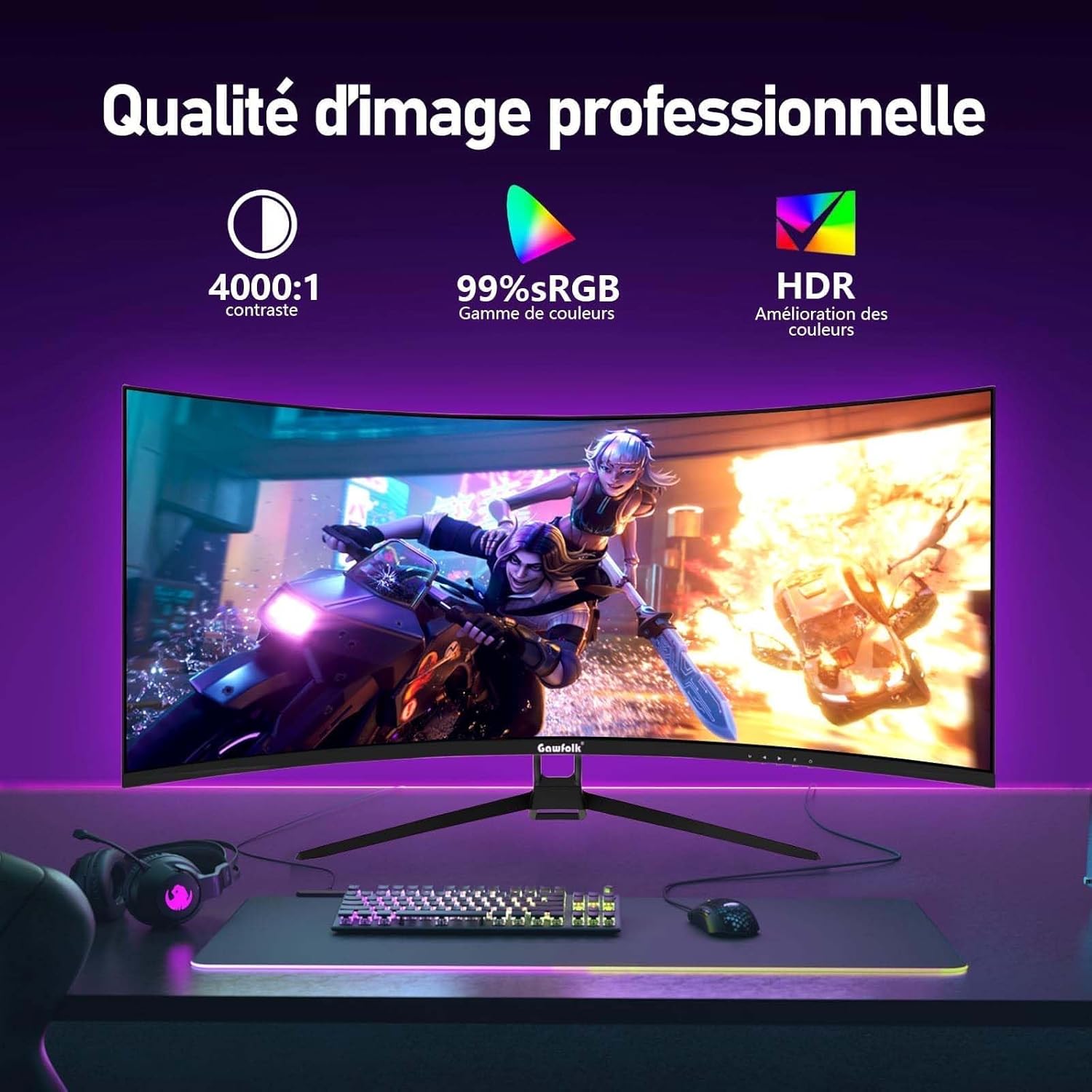
The Gawfolk GF340A is a 34-inch ultrawide (21:9) curved gaming monitor featuring a 1500R curvature for an immersive viewing experience. It offers a UWQHD (3440x1440) resolution, a high refresh rate of 144Hz, and supports Adaptive Sync technology to minimize screen tearing and stuttering. With HDR support, 4000:1 contrast ratio, and 99% sRGB color gamut, it delivers vibrant and detailed visuals. The monitor also incorporates low blue light and flicker-free technologies for enhanced eye comfort during extended use.
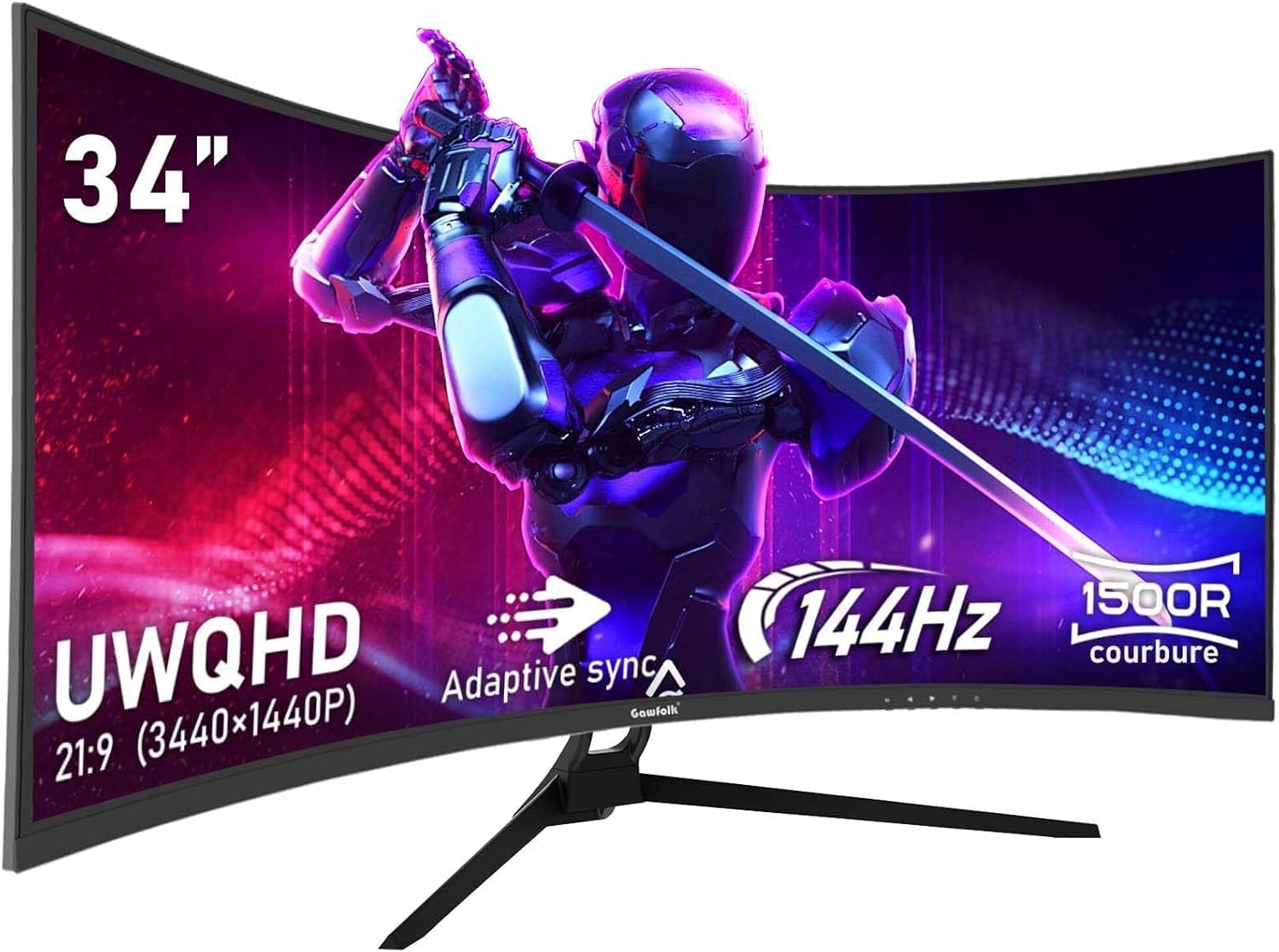
Figure 1: Gawfolk 34-inch UWQHD 144Hz Curved Gaming Monitor.
2. מידע בטיחות
- קרא בעיון את כל ההוראות לפני השימוש בצג.
- אין לחשוף את הצג לגשם או לחות כדי למנוע סכנת שריפה או התחשמלות.
- אל תפתח את הצג גasinז. אין חלקים בפנים הניתנים לתיקון על ידי המשתמש. יש לפנות לכל טיפול וטיפול באנשי מקצוע מוסמכים.
- הנח את הצג על משטח יציב ושטוח כדי למנוע ממנו ליפול.
- ודא אוורור נאות סביב הצג. אין לחסום פתחי אוורור.
- השתמש רק במתאם החשמל ובכבלים המצורפים לצג.
- נתק את תקע החשמל מהשקע אם לא תשתמש בצג למשך תקופה ממושכת.
- הימנעו מהצבת הצג בקרבת מקורות חום או באור שמש ישיר.
- Handle the screen with care. Avoid applying pressure or sharp objects to the display panel.
3. תכולת החבילה
אנא בדקו את תוכן האריזה בעת הוצאת המוצר מהאריזה. אם חסרים פריטים או פריטים פגומים, צרו קשר עם הספק שלכם.
- Gawfolk 34-inch UWQHD 144Hz Curved Gaming Monitor (GF340A)
- מעמד למוניטור (בסיס וצוואר)
- מתאם חשמל וכבל חשמל
- כבל DisplayPort (DP)
- כבל HDMI
- מדריך למשתמש (מסמך זה)
- ברגים להרכבת המעמד
4. התקנה
4.1 הרכבת המעמד
- הוציאו בזהירות את הצג מאריזתו, תוך שמירה על הגנה על המסך.
- חבר את צוואר המעמד לפאנל הצג באמצעות הברגים המצורפים.
- Attach the stand base to the stand neck, securing it with the thumb screw or screws provided.
- הנח את הצג המורכב על משטח יציב ושטוח.
איור 2: אחורי view of the monitor, showing stand attachment area and input ports.
4.2 כבלים חיבור
- חיבור חשמל: Connect the power cable to the power adapter, then connect the adapter to the monitor's power input and a wall outlet.
- חיבור וידאו:
- For optimal performance (144Hz refresh rate), connect the monitor to your computer's graphics card using the supplied כבל DisplayPort (DP).
- לחלופין, השתמש ב- כבל HDMI. Note that HDMI connections support up to 100Hz refresh rate on this monitor.
- When connecting to gaming consoles like PS5 or Xbox, the maximum supported resolution is 1920x1080 at 60Hz.
- חיבור אודיו: If desired, connect external speakers or headphones to the 3.5mm audio output jack on the monitor.
4.3 הרכבה של VESA
The monitor supports VESA 75x75mm mounting. To mount the monitor on a wall or an articulating arm, remove the stand and attach the VESA-compatible mount (sold separately) to the designated holes on the back of the monitor.
5. הוראות הפעלה
5.1 הפעלה/כיבוי
לחץ על לחצן ההפעלה, הממוקם בדרך כלל בתחתית או בגב הצג, כדי להפעיל או לכבות את הצג. נורית חיווי ההפעלה תידלק כאשר הצג דולק.
5.2 תפריט תצוגה על המסך (OSD).
The OSD menu allows you to adjust various monitor settings. Typically, there are buttons or a joystick on the back or bottom of the monitor to navigate the OSD.
- לחצן תפריט: פותח את תפריט ה-OSD.
- לחצני ניווט: משמש למעבר בין אפשרויות התפריט (למעלה/למטה, שמאלה/ימינה).
- כפתור בחירה/כניסה: מאשר בחירה או כניסה לתפריט משנה.
- לחצן יציאה: יציאה מהתפריט הנוכחי או מתפריט המסך.
5.3 התאמת הגדרות תצוגה
Common settings you can adjust via the OSD include:
- ניגוד בהירות: כוונן את הבהירות הכוללת ואת ההבדל בין אזורים בהירים וכהים.
- הגדרות צבע: התאם את טמפרטורת הצבע, גמא ורמות RGB בודדות.
- מקור קלט: בחירה ידנית בין כניסות DisplayPort ו-HDMI.
- קצב רענון: Ensure your computer's display settings are configured to 144Hz (via DP) or 100Hz (via HDMI) for optimal performance. The monitor's default refresh rate is 60Hz.
- סנכרון אדפטיבי: Enable this feature in the OSD and your graphics card settings to synchronize the monitor's refresh rate with your GPU's frame rate, preventing screen tearing.
- HDR: Enable High Dynamic Range for enhanced contrast and color depth.
- מצב אור כחול נמוך: Activates a filter to reduce blue light emissions, promoting eye comfort.
- ללא הבהוב: The monitor uses DC dimming technology to eliminate screen flickering, reducing eye strain.
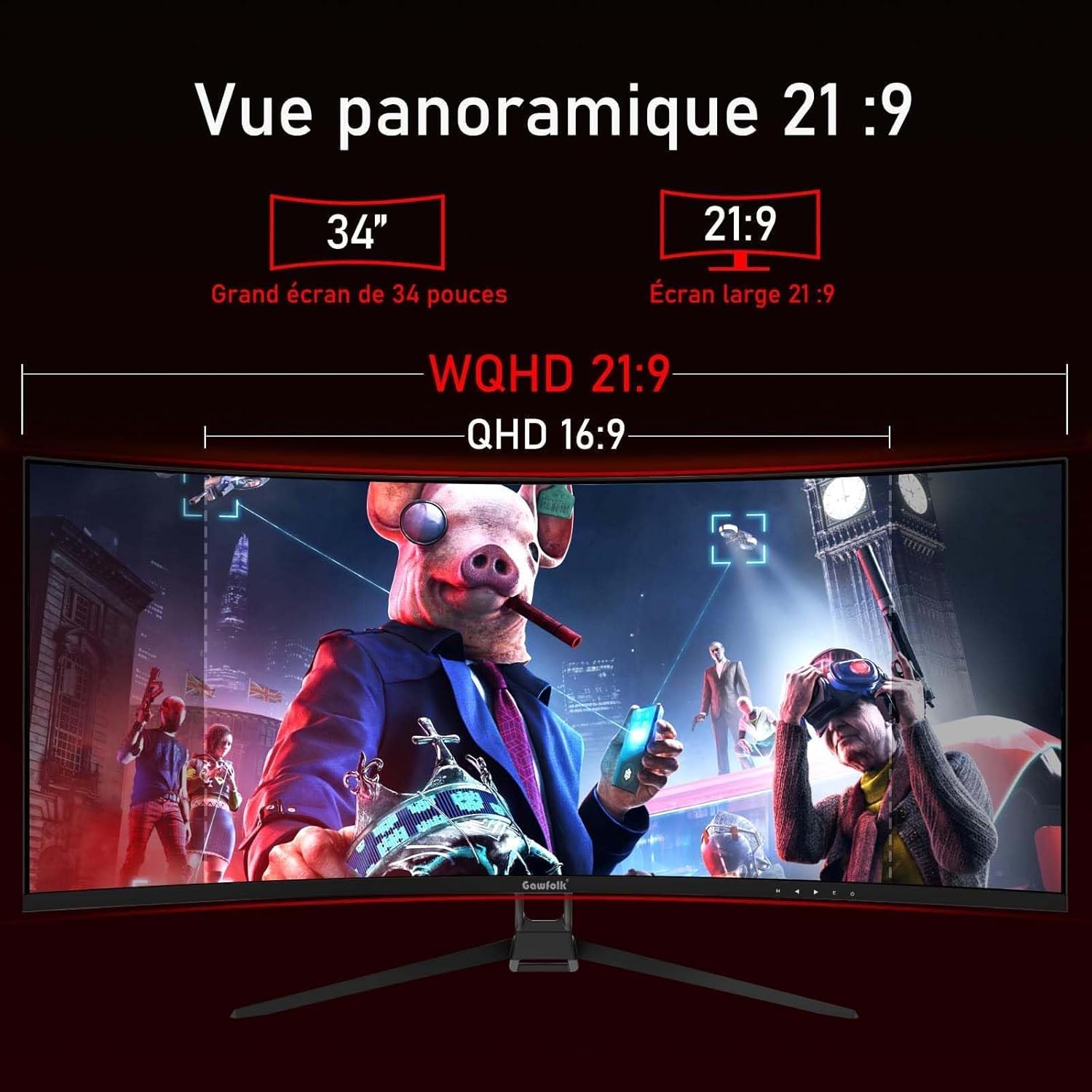
Figure 3: Illustration of 144Hz refresh rate and Adaptive Sync feature.

Figure 4: Visual representation of image quality features like contrast, sRGB, and HDR.
6. תחזוקה
- ניקוי המסך:
- כבה את הצג ונתק את כבל החשמל.
- נגב בעדינות את המסך עם מטלית רכה נטולת מוך.
- עבור סימנים עקשניים, דampנגבו את המטלית קלות במים או בחומר ניקוי מסך עדין ולא שוחק. אין לרסס את חומר הניקוי ישירות על המסך.
- ניקוי ה-Casing: השתמשו במטלית רכה ויבשה כדי לנגב את הצג.asinז. הימנעו משימוש בחומרי ניקוי חזקים או שוחקים.
- אִחסוּן: אם מאחסנים את הצג לתקופה ממושכת, נתקו אותו מהחשמל וכסו אותו כדי להגן עליו מפני אבק.
7. פתרון תקלות
| בְּעָיָה | סיבה אפשרית | פִּתָרוֹן |
|---|---|---|
| אין תמונה על המסך | Monitor not powered on; video cable loose or disconnected; incorrect input source selected. | Ensure power cable is connected and monitor is on. Check video cable connections. Select correct input source via OSD. |
| תמונה מהבהבת או מעוותת | Video cable issue; refresh rate mismatch; graphics driver outdated. | Check video cable. Ensure refresh rate is set correctly in OS display settings. Update graphics drivers. Enable Adaptive Sync. |
| Incorrect resolution or refresh rate | OS display settings not configured correctly. | Go to your computer's display settings and set the resolution to 3440x1440 and refresh rate to 144Hz (for DP) or 100Hz (for HDMI). |
| הצבעים נראים מכובסים או שגויים | Color settings in OSD or OS are incorrect; HDR not enabled. | Adjust color settings in the OSD. Ensure HDR is enabled in both monitor OSD and OS display settings if desired. |
| אין שמע מהאוזניות/רמקולים | Audio cable not connected; volume too low; incorrect audio output selected in OS. | Check audio cable connection. Adjust volume. Select monitor's audio output in your computer's sound settings. |
8. מפרטים
| תכונה | פְּרָט |
|---|---|
| מספר דגם | GF340A |
| גודל מסך | 34 אינץ' |
| סוג פאנל | VA (יישור אנכי) |
| עַקמוּמִיוּת | 1500R |
| הַחְלָטָה | UWQHD (3440 x 1440 Pixels) |
| יחס גובה-רוחב | 21:9 (2.35:1) |
| קצב רענון | 144 Hz (DisplayPort), 100 Hz (HDMI) |
| זמן תגובה | 4 מילישניות |
| יחס ניגודיות | 4000:1 |
| בְּהִירוּת | 300 nits (typical) / 350 (from specs) |
| סולם צבעים | 99% sRGB |
| Viewזווית | 178 מעלות (אופקי/אנכי) |
| תכונות מיוחדות | Adaptive Sync (FreeSync Premium), HDR, Low Blue Light, Flicker-Free |
| קישוריות | DisplayPort, HDMI (x2), 3.5mm Audio Out |
| תאימות VESA Mount | 75 x 75 מ"מ |
| Dimensions (P x L x H) | 19P x 80.7L x 46.8H סנטימטרים |
| מִשׁקָל | 5.2 קילוגרם |
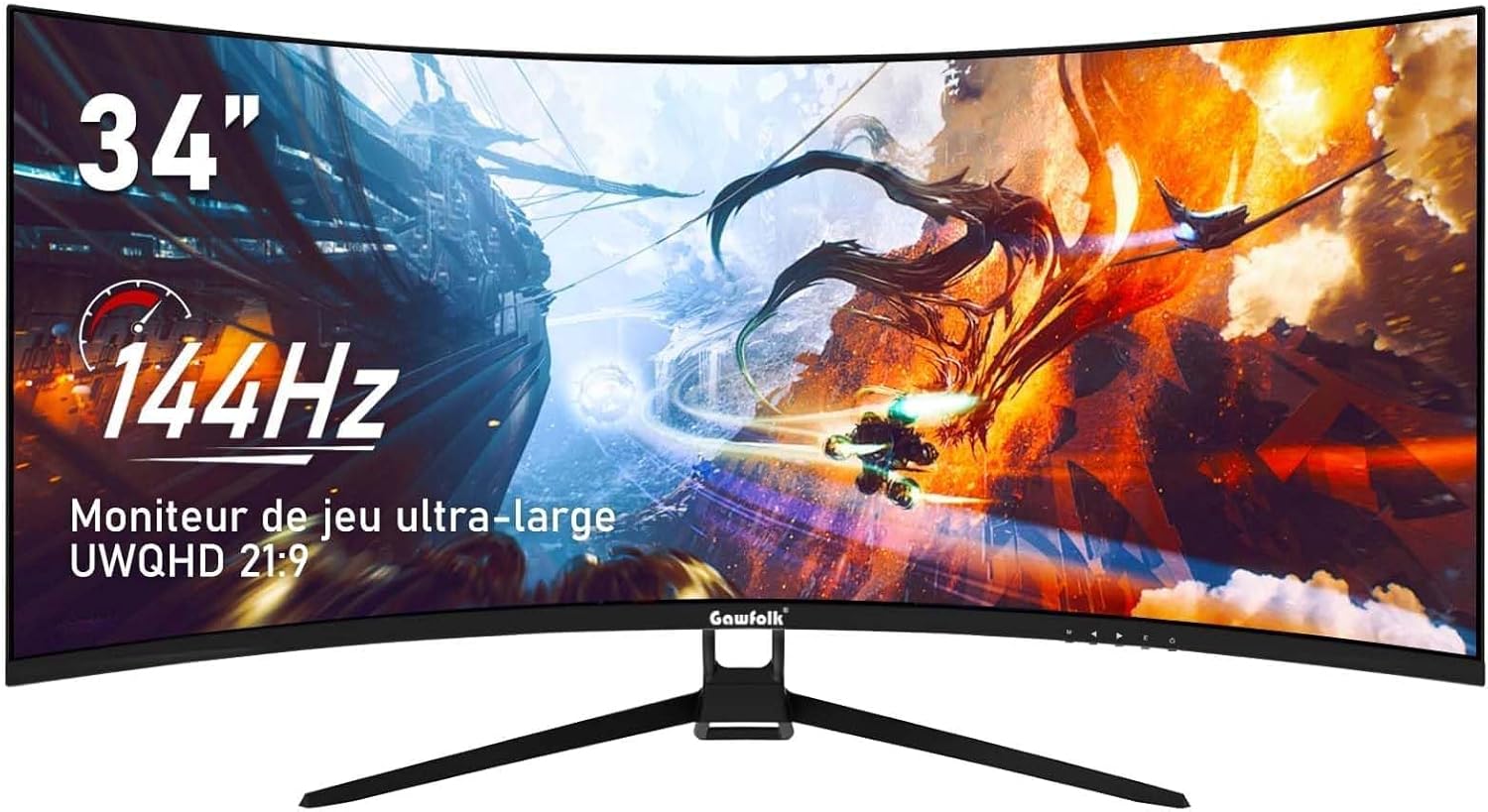
Figure 5: The 21:9 ultrawide aspect ratio provides an expansive panoramic view.
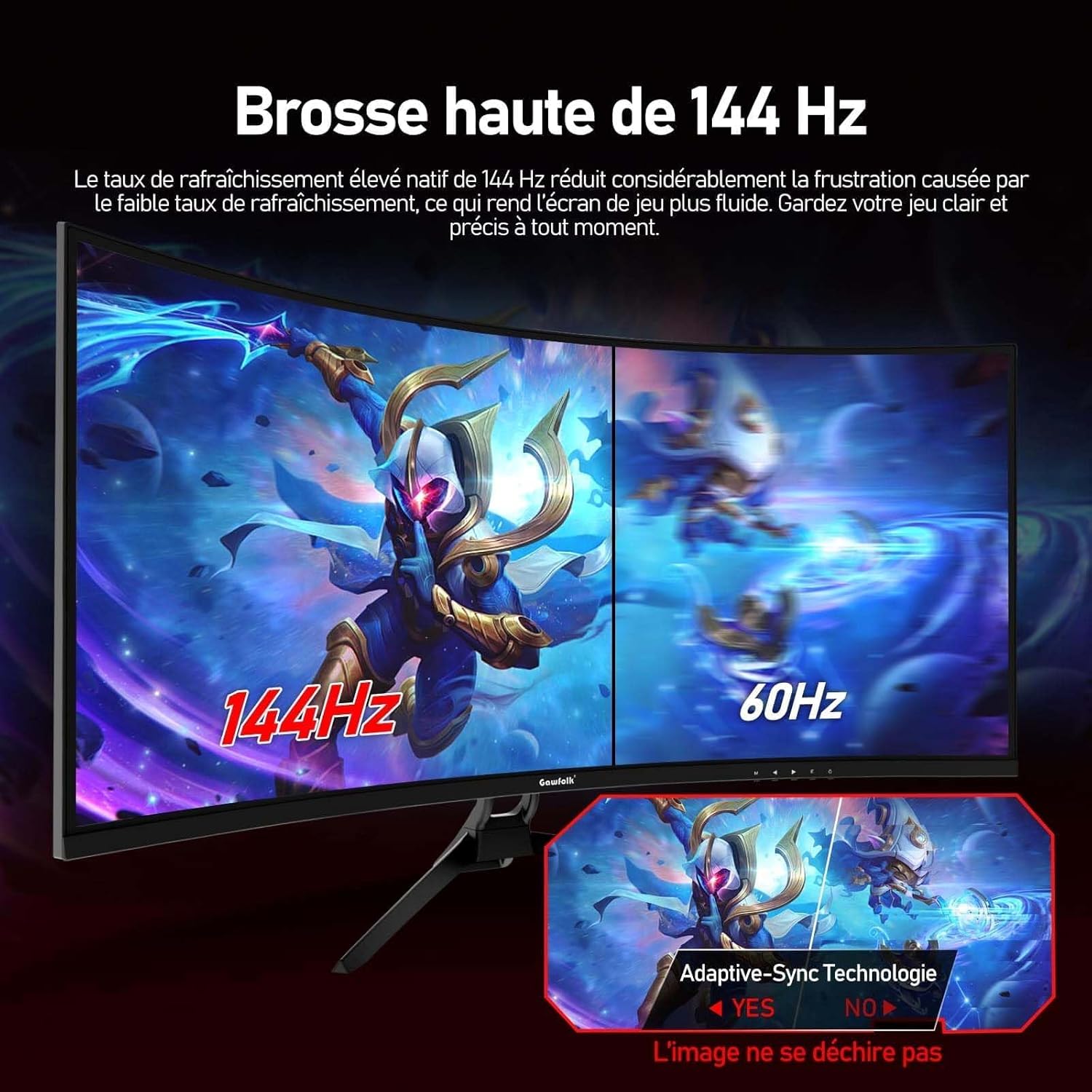
Figure 6: The 1500R curvature and wide 178-degree viewing angles enhance immersion.
9. אחריות ותמיכה
Gawfolk offers a 12-month worry-free warranty service for this monitor. If you have any questions or encounter any issues during the use of your monitor, please do not hesitate to contact our customer support. Refer to your purchase documentation or the official Gawfolk webהאתר לפרטי יצירת קשר.