
1. הקדמה
Thank you for choosing the Zelotes Wireless Trackball Mouse. This ergonomic device is designed to provide comfort and efficiency for various computing tasks, reducing wrist and arm strain. It offers versatile connectivity options, including 2.4 GHz wireless and Bluetooth, allowing seamless switching between up to three devices. This manual provides detailed instructions for setup, operation, maintenance, and troubleshooting to ensure you get the most out of your new trackball mouse.

Image: The Zelotes F33 Wireless Trackball Mouse, showcasing its ergonomic design and trackball.
2. תכונות מוצר
- עיצוב ארגונומי: Utilizes a trackball for cursor movement, minimizing wrist and arm motion. Features an innovative adjustable angle (0° to 18°) with a removable aluminum alloy base for natural palm positioning and reduced fatigue during prolonged use.
- קישוריות רב-מצבית: Supports both 2.4 GHz USB wireless and Bluetooth connections. Connects simultaneously to three devices (one via USB, two via Bluetooth) and allows seamless switching between them.
- סוללה נטענת מובנית: Equipped with a 730mAh rechargeable Lithium-ion battery and includes a USB charging cable. The mouse can be used while charging.
- DPI מתכוונן: Offers 5 adjustable DPI settings: 800, 1200, 1600, 2400, and 4800 DPI, allowing you to customize cursor sensitivity to your preference.
- 8 לחצנים ניתנים לתכנות: Includes standard left/right click, scroll wheel, and dedicated forward/back side buttons for enhanced navigation and file הַנהָלָה.
- תאורת LED: Features vibrant LED lighting with 16.8 million color options, which can be turned off if desired.
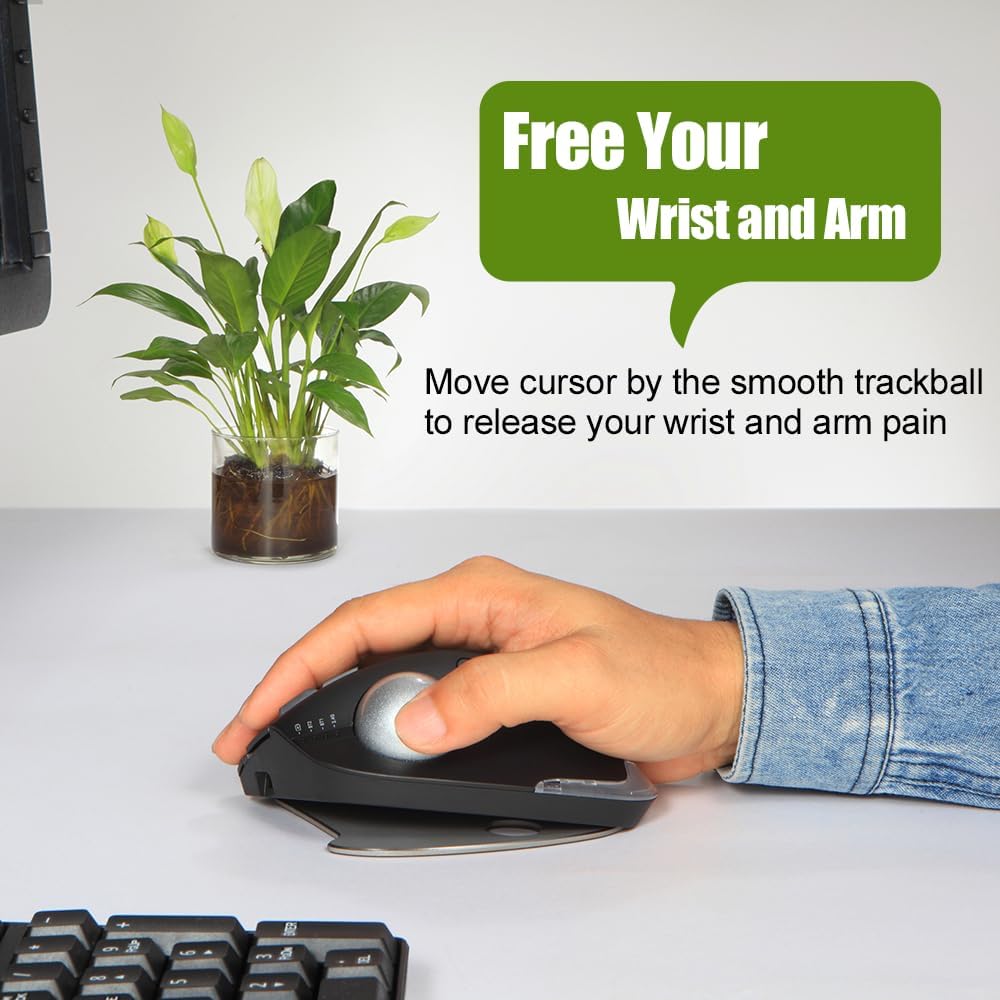
Image: A hand resting comfortably on the trackball mouse, illustrating how it helps free the wrist and arm from strain.

Image: The trackball mouse demonstrating its adjustable angles (0° and 18°) for personalized comfort.
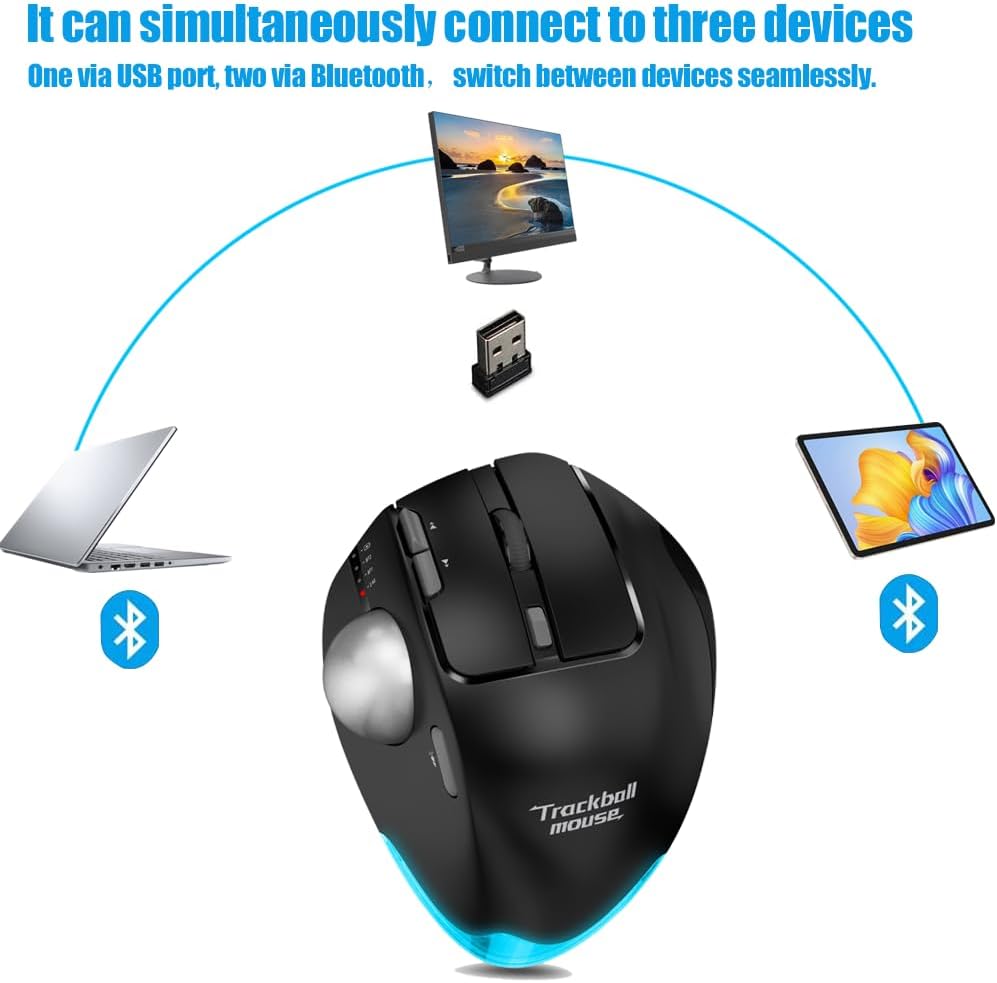
Image: Diagram showing the trackball mouse simultaneously connected to a laptop (Bluetooth), desktop (USB), and tablet (Bluetooth).

Image: The trackball mouse being charged via a USB cable, with an indicator showing its 730mAh battery capacity.

Image: The trackball mouse displaying its customizable LED lighting in various colors.
3. תכולת החבילה
אנא בדקו את החבילה עבור הפריטים הבאים:
- Zelotes Wireless Trackball Mouse (F33)
- USB Receiver (stored in the mouse's battery compartment)
- כבל טעינה USB
- מדריך למשתמש (מסמך זה)
4. התקנה
4.1 טעינה ראשונית
For optimal performance, fully charge the mouse before first use.
- חבר את כבל הטעינה USB המצורף לשקע הטעינה בחזית העכבר.
- חבר את הקצה השני של כבל ה-USB למקור מתח USB (למשל, יציאת USB של המחשב, מתאם USB לקיר).
- The charging indicator light will illuminate. Once fully charged, the light may change color or turn off (refer to mouse indicators for specific behavior).
4.2 2.4 GHz Wireless Connection
מצב זה משתמש במקלט ה-USB המצורף לחיבור אלחוטי יציב.
- אתר את מקלט ה-USB, שבדרך כלל מאוחסן בחריץ בתחתית העכבר.
- חבר את מקלט ה-USB ליציאת USB זמינה במחשב שלך.
- הפעל את העכבר באמצעות מתג ההפעלה בתחתית.
- Switch the mouse to 2.4G mode (indicated by a specific light or switch position, refer to mouse markings). The mouse should automatically connect to your computer.
4.3 חיבור בלוטות' (BT1 / BT2)
The mouse supports two independent Bluetooth connections.
- הפעל את העכבר.
- Switch the mouse to either BT1 or BT2 mode using the mode switch on the mouse. The corresponding indicator light will blink, indicating pairing mode.
- במכשיר שלך (מחשב, טאבלט, סמארטפון), עבור אל הגדרות Bluetooth וחפש מכשירים חדשים.
- Select "Zelotes F33" (or similar name) from the list of available devices to pair.
- Once paired, the indicator light will become solid. Repeat for a second Bluetooth device using the other BT mode (BT2 if you used BT1 first).
4.4 מעבר בין מכשירים
To switch between connected devices (2.4G, BT1, BT2), simply use the mode switch button on the mouse. The mouse will seamlessly transition control to the selected device.
5. הוראות הפעלה
התאמת 5.1 DPI
The mouse features a dedicated DPI button to cycle through sensitivity settings.
- Press the DPI button (usually located near the scroll wheel or trackball) to change the cursor speed.
- The available DPI settings are 800, 1200, 1600, 2400, and 4800.
- Observe the indicator lights or on-screen feedback (if supported by your OS) to confirm the current DPI setting.
5.2 פונקציות כפתורים
The Zelotes F33 mouse has 8 buttons with default functions:
- לחיצה שמאלית: בחירה סטנדרטית.
- מקש ימני: תפריט הקשר.
- גלגל גלילה: Vertical scrolling; press for middle click.
- כפתורי קדימה/אחורה: נווט web דפים או תיקיות.
- לחצן DPI: Adjust cursor sensitivity.
- לחצן החלפת מצב: Switch between 2.4G, BT1, and BT2 modes.
- כדור עקיבה: Move the cursor by rotating the trackball with your thumb.
Note: Some buttons may be programmable via software (not included) for custom functions depending on your operating system.
5.3 כוונון זווית ארגונומי
The mouse comes with a removable aluminum alloy base that allows you to adjust its angle for improved comfort.
- Gently detach the base from the bottom of the mouse.
- Reattach the base in the desired orientation to achieve either a 0° (flat) or 18° (tilted) angle.
- Ensure the base is securely attached before use.
6. תחזוקה
6.1 Trackball Cleaning Guide
Regular cleaning of the trackball ensures smooth and precise cursor movement.
- שלב 1: The trackball can be pushed out from the trackball socket at the bottom of the mouse.
- שלב 2: Remove the trackball and gently clean the trackball socket with a cotton cloth.
- שלב 3: Place the trackball back into the mouse to complete the cleaning process.

Image: A visual guide demonstrating the three steps to disassemble and clean the trackball for smoother operation.

Image: The trackball separated from the mouse, showing the socket for cleaning.
* If the surface of the trackball needs cleaning, gently wipe it with water and allow it to air dry. Avoid using chemical agents.
6.2 ניקיון כללי
Wipe the exterior of the mouse with a soft, dry, or slightly damp בַּד. אין להשתמש בכימיקלים קשים או בחומרי ניקוי שוחקים.
6.3 טיפול בסוללה
כדי להאריך את חיי הסוללה, הימנעו מפריקה מלאה של העכבר לעתים קרובות. טען אותו כאשר מופיע מחוון סוללה חלשה.
7. פתרון תקלות
| בְּעָיָה | סיבה אפשרית | פִּתָרוֹן |
|---|---|---|
| עכבר לא מגיב / סמן לא יציב | Low battery; Trackball dirty; Connection issue; USB receiver not plugged in (2.4G mode) | Charge the mouse; Clean the trackball and socket (refer to Section 6.1); Re-pair Bluetooth or re-insert USB receiver; Ensure correct mode is selected. |
| לא ניתן להתחבר באמצעות Bluetooth | Mouse not in pairing mode; Device Bluetooth off; Already connected to max devices | Ensure mouse is in BT1/BT2 pairing mode (blinking light); Turn on Bluetooth on your device; Disconnect from another device if necessary. |
| עכבר לא נטען | Cable faulty; Power source issue; Charging port damaged | Try a different USB cable; Use a different USB port or power adapter; Contact customer support if port is damaged. |
| כפתורים לא עובדים | Software conflict; Physical damage | Restart your computer; Test on another device; Contact customer support. |
8. מפרטים
| תכונה | מִפרָט |
|---|---|
| מותג | zelotes |
| שם הדגם | F-33 (F33) |
| צֶבַע | שָׁחוֹר |
| טכנולוגיית קישוריות | Bluetooth, 2.4 GHz USB Wireless |
| טכנולוגיית חישת תנועה | כדור עקיבה |
| מספר כפתורים | 8 |
| הגדרות DPI | 800/1200/1600/2400/4800 |
| כיוון יד | יָמִינָה |
| סוג סוללה | ליתיום-יון |
| קיבולת סוללה | 730 מיליאמפר/שעה (בערך) |
| נטענת | כֵּן |
| מערכות הפעלה תואמות | Win11, Win10, Win8, Win7, Mac OS, Chrome OS, Android 5.0 or later |
| מכשירים תואמים | Personal computer, Tablet, Smartphone, Game console |
| תכונות מיוחדות | Programmable button, Ergonomic design, LED light, Rechargeable, Adjustable angle (0°/18°) |
9. אחריות ותמיכה
Zelotes products are manufactured to high-quality standards. For information regarding warranty coverage, technical support, or service inquiries, please refer to the warranty card included with your product or visit the official Zelotes webאתר. אנא שמור את הוכחת הרכישה שלך לצורך תביעות אחריות.