
מָבוֹא
This manual provides detailed instructions for the Keychron K10 Max Wireless Custom Mechanical Keyboard. It covers initial setup, operational procedures, maintenance, and troubleshooting to ensure optimal performance and user experience.
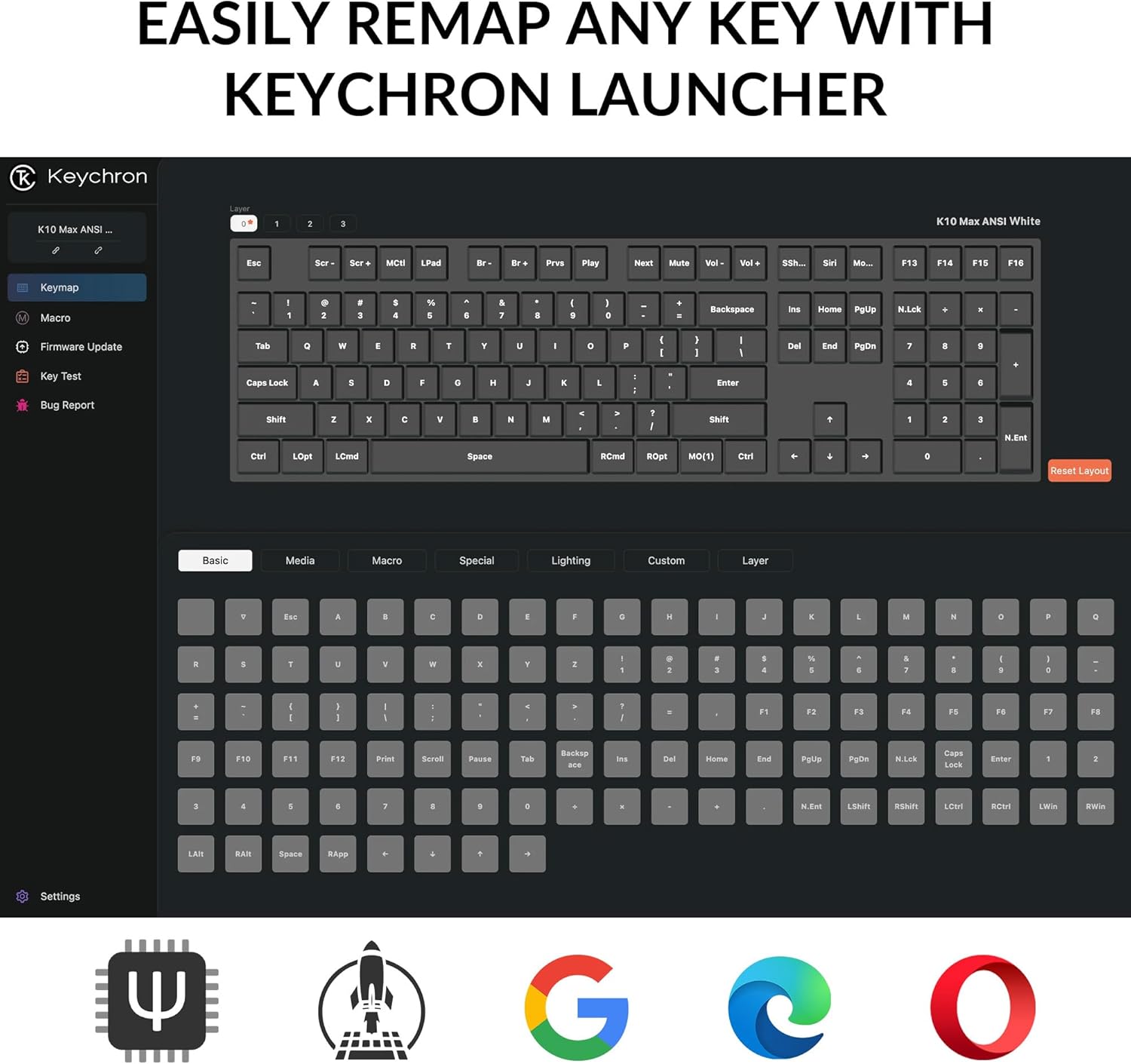
Image: The Keychron K10 Max keyboard positioned on a desk, demonstrating its full-size layout in a typical workspace setup with a laptop and tablet.
הגדרה
תוכן החבילה
ודא שכל הפריטים נמצאים בחבילה:
- Keychron K10 Max מקלדת מכנית אלחוטית
- כבל מסוג A ל-C
- Type-A 2.4GHz Receiver
- מתאם הרחבה למקלט
- חולץ מקש-מתג
- Hex Key & Screwdriver
- מקשים נוספים עבור מערכת ההפעלה Windows

Image: An illustration detailing the contents of the Keychron K10 Max package, including the keyboard, cables, receiver, tools, and extra keycaps.
חיבור ראשוני
The K10 Max supports three connection modes: 2.4 GHz wireless, Bluetooth 5.1, and wired USB-C.
- חיבור קווי: Connect the keyboard to your device using the provided Type-A to Type-C cable. The keyboard will automatically switch to wired mode.
- חיבור אלחוטי 2.4 GHz:
- Plug the Type-A 2.4GHz receiver into an available USB port on your computer.
- Ensure the keyboard's mode switch (located on the back/side) is set to 2.4 GHz.
- The keyboard should connect automatically. This mode offers a fast 1000 Hz polling rate for gaming.
- חיבור Bluetooth:
- Set the keyboard's mode switch to Bluetooth.
- On your device (computer, phone, tablet), search for Bluetooth devices and select "Keychron K10 Max".
- The keyboard can connect to up to three devices via Bluetooth 5.1. Use Fn + 1, Fn + 2, or Fn + 3 to switch between paired devices.

Image: The Keychron K10 Max keyboard highlighting its versatile connectivity options: USB Wired, 2.4GHz wireless, and Bluetooth 5.1.
תאימות מערכת הפעלה
The K10 Max is fully optimized for both macOS and Windows. A toggle switch is located on the back/side of the keyboard to select the appropriate operating system mode. Extra keycaps for Windows are included for a seamless experience.

תמונה: מפורט view of the keyboard's side switch, indicating settings for Windows and macOS compatibility, along with the USB-C port.
הוראות הפעלה
QMK Firmware and Keychron Launcher
The K10 Max utilizes QMK open-source firmware, allowing for extensive customization. The Keychron Launcher is a web-based application that enables key remapping, macro creation, and firmware updates. Access the Keychron Launcher via your web browser to personalize your keyboard settings.

Image: A visual representation of the Keychron Launcher application, demonstrating its key remapping functionality for customizing keyboard layouts.
מתגים הניתנים להחלפה חמה
The keyboard features hot-swappable Keychron Super Banana switches, allowing you to change switches without soldering. This enables customization of typing feel and sound. The switches are designed with a transparent top housing for enhanced backlight effects.

Image: A close-up shot illustrating the hot-swappable feature, with a keycap and switch removed to show the underlying mechanism.
PBT Keycaps and Backlighting
The K10 Max comes with double-shot PBT keycaps, offering a comfortable feel and excellent oil resistance for durability. The keyboard features south-facing white LED backlighting, which enhances visibility and ensures compatibility with most aftermarket keycaps.

תמונה: מפורט view of the OSA Profile Double-Shot PBT Keycaps, highlighting their texture and design on the keyboard.

Image: The Keychron K10 Max keyboard with its south-facing white backlight activated, showcasing the illumination of the keys.
תַחזוּקָה
ניקוי המקלדת
To clean your keyboard, first disconnect it from all power sources. Use a soft, lint-free cloth lightly dampened with water or a mild cleaning solution. For cleaning between keycaps, a can of compressed air can be used to remove dust and debris. Avoid spraying liquids directly onto the keyboard.
החלפת מתגים ומקשים
The K10 Max features hot-swappable switches. Use the provided keycap-switch puller to carefully remove keycaps and switches. When inserting new switches, ensure the pins are straight and align correctly with the sockets to prevent damage. Apply gentle, even pressure until the switch is fully seated.

Image: An exploded diagram illustrating the internal layers and components of the Keychron K10 Max keyboard, from keycaps to the bottom case.
פתרון בעיות
בעיות קישוריות
- ניתוק 2.4 GHz / בלוטות':
- ודא שהמקלדת טעונה.
- Verify the mode switch on the keyboard is set to the correct connection type (2.4 GHz or Bluetooth).
- For 2.4 GHz, ensure the receiver is securely plugged into a USB port.
- עבור Bluetooth, ודא ש-Bluetooth מופעל במכשיר שלך ושהמקלדת מקושרת. נסה לבצע את הקישור מחדש במידת הצורך.
- Move the keyboard closer to the receiver or Bluetooth device to rule out interference.
- חיבור קווי לא זוהה:
- ודא שכבל ה-USB-C מחובר במלואו הן למקלדת והן למכשיר שלך.
- נסה יציאת USB או כבל אחר.
Key Not Registering
- If a specific key is not registering, it may indicate an issue with the switch.
- Carefully remove the keycap and then the switch using the provided puller.
- בדוק את פיני המתג לאיתור כיפופים או נזקים. ישר בעדינות אם הם עקומים.
- Reinsert the switch, ensuring it is properly seated.
- If the issue persists, try swapping the problematic switch with a known working switch from another key to determine if the switch itself is faulty.
עדכוני קושחה
Regularly check for firmware updates via the Keychron Launcher web application. Updates can resolve bugs and introduce new features. Follow the instructions provided within the Keychron Launcher for a safe update process.
מפרטים
| תכונה | פְּרָט |
|---|---|
| שם הדגם | Keychron K10 Max |
| מַעֲרָך | 100% Full-Size (108 Keys) |
| קישוריות | אלחוטי 2.4 גיגה-הרץ, בלוטות' 5.1, USB-C קווי |
| שיעור סקרים | 1000 Hz (2.4 GHz and Wired) / 90 Hz (Bluetooth Mode) |
| מתגים | Keychron Super Banana (Tactile), Hot-swappable (3-pin & 5-pin MX mechanical switches) |
| מפתחות מפתחות | OSA Double-shot PBT Keycaps |
| תאורה אחורית | South-facing White LED (Single Color) |
| גלגול N-Key (NKRO) | כֵּן |
| מערכת הפעלה תואמת | macOS, Windows, Linux |
| חומר מסגרת | ABS |
| מידות | 17.61 x 5.5 אינץ' (447.37 מ"מ x 139.82 מ"מ) |
| מִשׁקָל | 1530 g ± 10 g (3.37 lb ± 0.02 lb) |
| MCU | ARM Cortex-M4 32-bit STM32F402 (זיכרון פלאש של 256KB) |
מידע על אחריות
Keychron products are covered by a manufacturer's warranty against defects in materials and workmanship. For specific warranty terms and conditions, please refer to the official Keychron webאתר או צור קשר עם תמיכת הלקוחות. שמור את הוכחת הרכישה שלך לצורך תביעות אחריות.
תמיכת לקוחות
For further assistance, technical support, or to access the latest drivers and firmware, please visit the official Keychron support page:
ייתכן שתמצאו גם משאבים מועילים ופורומים קהילתיים ב-Keychron webאֲתַר.