
Docooler Transparent Wireless Dual-Mode Mouse
Docooler Transparent Wireless Dual-Mode Mouse User Manual
Model: Transparent Wireless Dual-Mode Mouse
מָבוֹא
This user manual provides comprehensive instructions for the Docooler Transparent Wireless Dual-Mode Mouse. It covers product features, setup, operation, maintenance, and troubleshooting to ensure optimal performance and user experience. Please read this manual carefully before using the product.
תוכן החבילה
עם פתיחת החבילה, אנא ודא שכל הפריטים הבאים כלולים:
- 1 x Docooler Transparent Wireless Dual-Mode Mouse
- 1 x כבל טעינה מסוג C
- 1 x USB Dongle (2.4G Receiver)
- מדריך למשתמש אחד (מסמך זה)
תכונות המוצר
The Docooler Transparent Wireless Dual-Mode Mouse offers advanced features for enhanced productivity and gaming:
- קישוריות דו-מצבית: Supports both 2.4G wireless and Bluetooth 5.0 for versatile connection options.
- עיצוב שקוף: Unique transparent casing with visible internal components and RGB lighting.
- DPI מתכוונן: Three-level DPI settings (800/1200/1600) for precise cursor control.
- RGB Water-Cooled Lights: Dynamic RGB lighting effects for aesthetic appeal.
- Magnetic PC Cover: Easy access to the USB dongle and secure closure.
- סוללה נטענת: סוללה מובנית של 400mAh עם טעינה מסוג Type-C.
- תצוגת רמת סוללה: Integrated indicator for real-time power monitoring.
- One-Button Switching: Seamless transition between connected devices.

תְמוּנָה: The Docooler Transparent Wireless Mouse showcasing its vibrant RGB water-cooled lighting. The transparent design allows visibility of the internal components, enhancing its unique aesthetic.
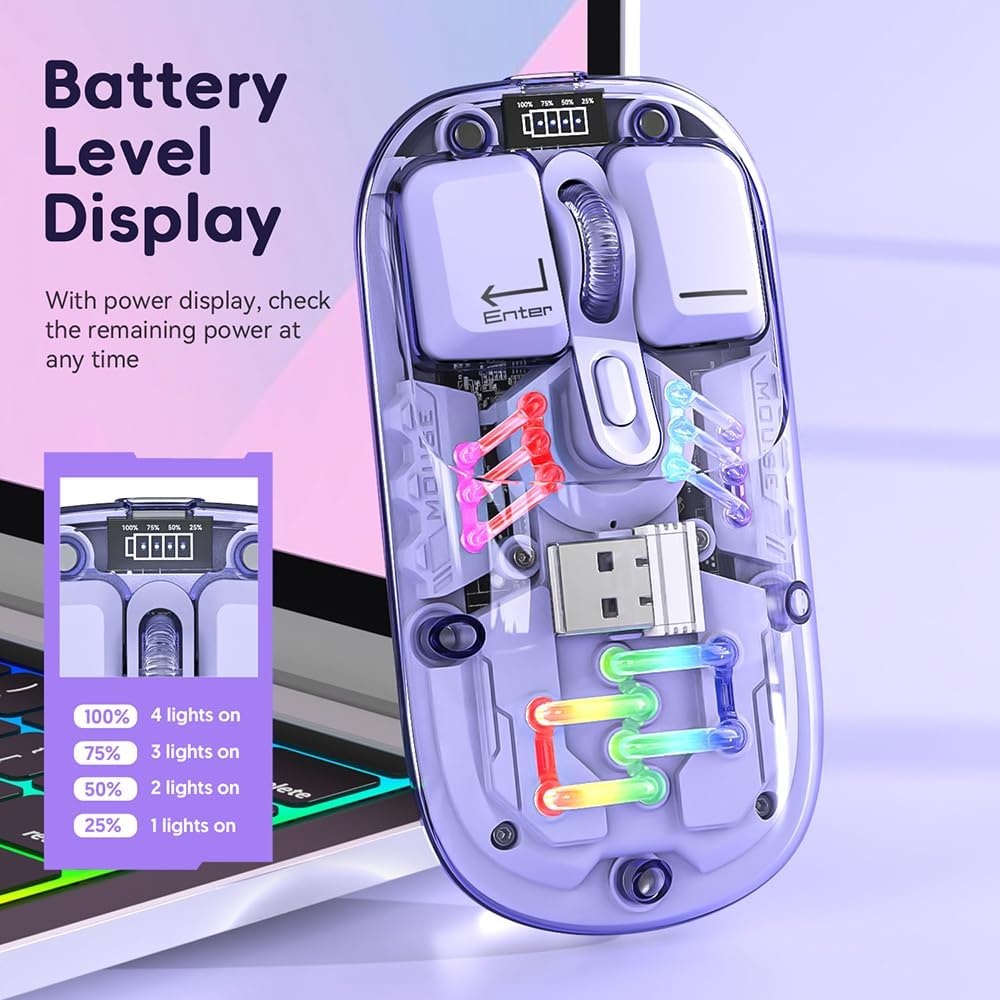
תְמוּנָה: תקריב view of the Docooler Transparent Wireless Mouse highlighting its battery level display. The display shows the remaining power with four indicator lights representing 100%, 75%, 50%, and 25% charge levels.

תְמוּנָה: The Docooler Transparent Wireless Mouse demonstrating its strong magnetic adsorption design. The top cover can be easily removed and reattached, ensuring the USB dongle is securely stored and accessible.
הגדרה
טעינת העכבר
Before first use, it is recommended to fully charge the mouse. Use the provided Type-C charging cable.
- Connect the Type-C end of the charging cable to the mouse's charging port.
- חבר את קצה ה-USB-A של כבל הטעינה למקור מתח USB (למשל, יציאת USB של המחשב, מתאם USB לקיר).
- The battery indicator lights will show charging progress. A full charge typically takes 2-3 hours.

תְמוּנָה: The Docooler Transparent Wireless Mouse connected via its Type-C charging port, illustrating the charging process. The image highlights the convenience of Type-C charging and indicates a typical charging time of 2-3 hours.
חיבור העכבר
The mouse supports two connection modes: 2.4G Wireless and Bluetooth (BT).
מצב אלחוטי 2.4G
- Locate the USB dongle inside the mouse, under the magnetic cover.
- הסר את דונגל ה-USB וחבר אותו ליציאת USB זמינה במחשב שלך.
- הסט את מתג המצב בתחתית העכבר למצב "2.4G".
- העכבר אמור להתחבר אוטומטית למחשב שלך.
System Requirements for 2.4G: Windows XP, Windows 7, Windows 8, Windows 10 and above, Android 4.4 and above, iOS 13 or later, MacOS X 10.5 or later, Linux Kernel 2.6+2, Chrome OS.
מצב בלוטות' (BT).
- החלק את מתג המצב בתחתית העכבר למצב "BT".
- Press and hold the left, middle (scroll wheel), and right buttons simultaneously for 3 seconds to enter Bluetooth pairing mode. The mouse's lights may flash to indicate pairing mode.
- במכשיר שלך (מחשב, טאבלט, סמארטפון), פתח את הגדרות ה-Bluetooth וחפש מכשירים חדשים.
- Select "BT5.0" from the list of available devices to pair.
- Once paired, the mouse's lights will stabilize, and it will be ready for use.
System Requirements for Bluetooth: Windows 8, Windows 10, Android 5.0 and above, iOS 13 and above, macOS X 10.10 and above. Requires BT 4.0 or later BT adapter.
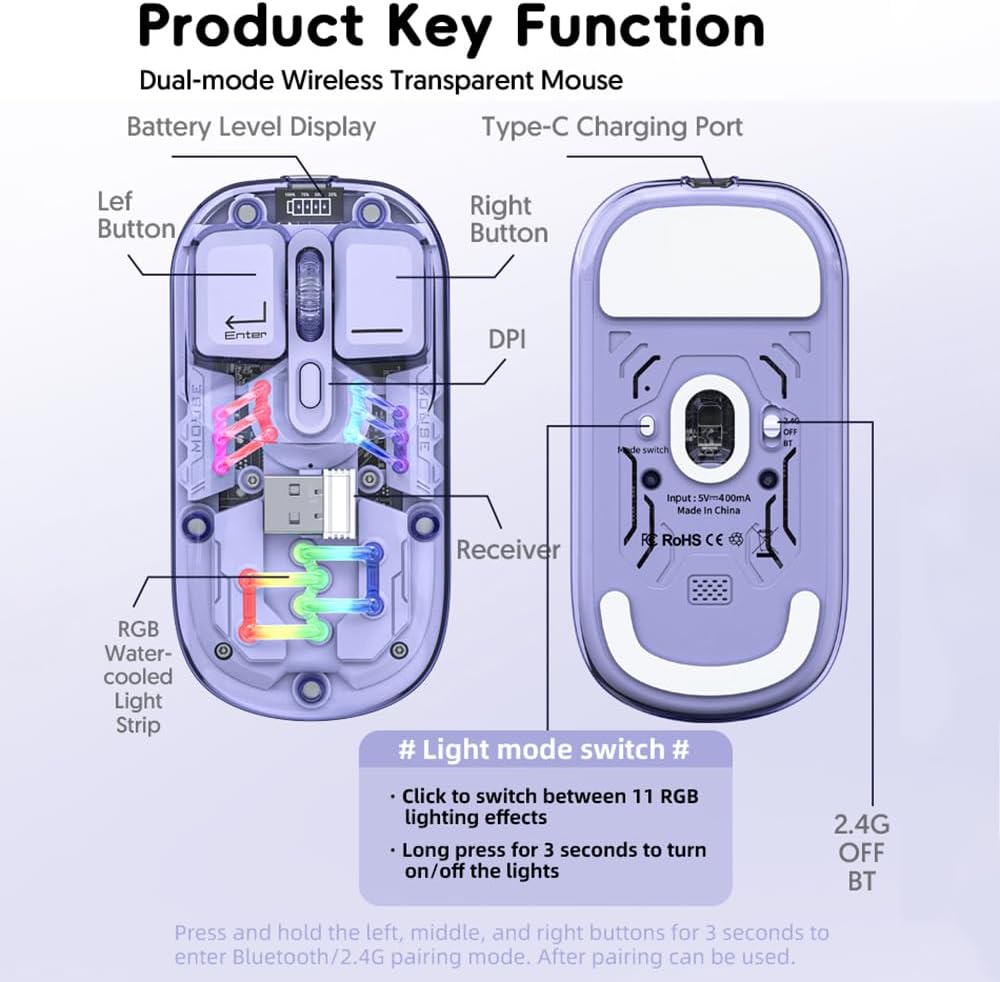
תְמוּנָה: A detailed diagram illustrating the key functions and connection points of the Docooler Transparent Wireless Mouse. It shows the left and right buttons, DPI button, Type-C charging port, receiver storage, RGB light strip, and the mode switch (2.4G/OFF/BT) on the bottom. Instructions for light mode switching and pairing are also visible.
הוראות הפעלה
התאמת DPI
The mouse features three adjustable DPI levels: 800, 1200 (default), and 1600. To cycle through DPI settings, press the DPI button located on the top of the mouse, near the scroll wheel. Each press will switch to the next DPI level.
בקרת תאורה RGB
The mouse is equipped with RGB water-cooled lights. To control the lighting effects:
- אפקטים של תאורת מתג: Click the dedicated light mode switch button (as indicated in the "Product Key Function" diagram) to cycle through 11 different RGB lighting effects.
- הדלק/כיבוי אורות: Long press the light mode switch button for 3 seconds to turn the RGB lights on or off.
מצב חיסכון בחשמל
To conserve battery life, the mouse enters different sleep states when inactive:
- שינה קלה: After 60 seconds of no operation, the mouse enters a light sleep state.
- שינה עמוקה: After 10 minutes of no operation, the mouse enters a deep sleep state.
- תתעורר: To wake the mouse from any sleep state, simply move the mouse or press any button.
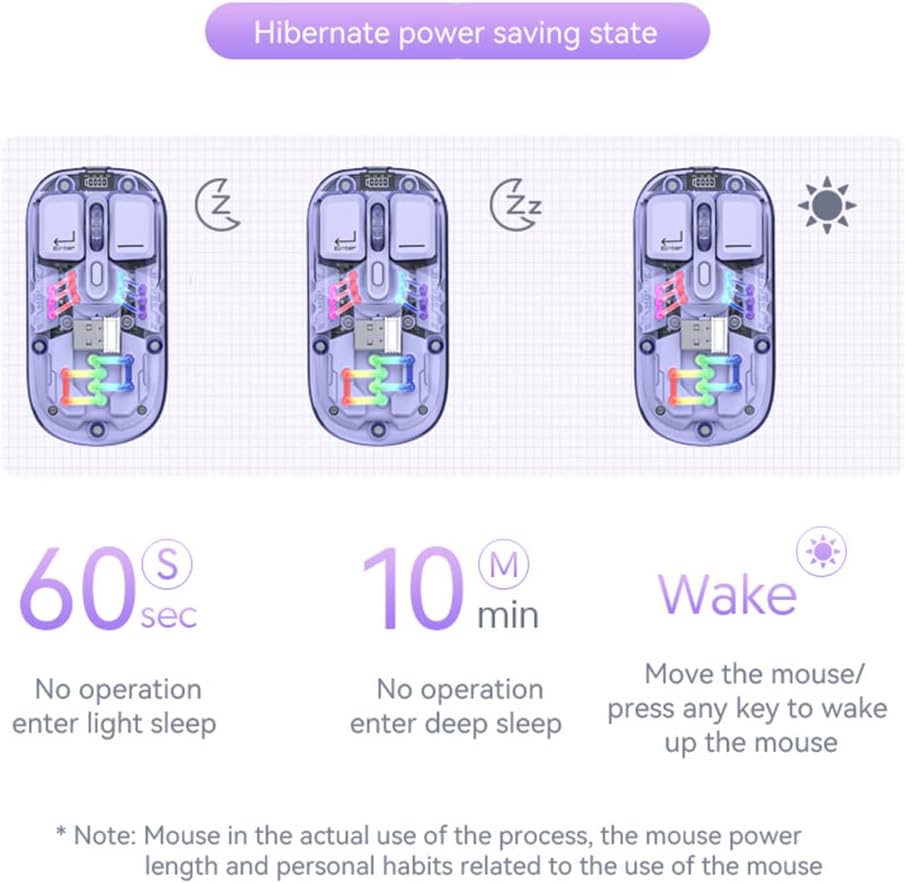
תְמוּנָה: A visual representation of the Docooler Transparent Wireless Mouse's hibernate power saving states. It illustrates that the mouse enters light sleep after 60 seconds of inactivity, deep sleep after 10 minutes, and can be woken by moving the mouse or pressing any key.
מפרטים
Detailed technical specifications for the Docooler Transparent Wireless Dual-Mode Mouse:
| תכונה | מִפרָט |
|---|---|
| צבעים אופציונליים | Purple, Yellow, White, Black, Pink |
| רמות DPI | 800 / 1200 (ברירת מחדל) / 1600 |
| טעינה כרךtage/נוכחי | DC 5V / ≤400mA |
| קיבולת סוללה | 400mAh |
| מצב טעינה | סוג-C |
| מצב שידור | Wireless 2.4G / Bluetooth (BT) |
| גרסת בלוטות' | 5.0 |
| שם בלוטות' | BT5.0 |
| כרך עבודהtage | 3.3V - 4.2V |
| Working Current (Light On) | ≤25mA |
| Working Current (Light Off) | ≤8mA |
| מידות המוצר | 113.5 x 58 x 25 ±2mm (4.47 x 2.28 x 0.1 inches) |
| משקל המוצר | Approx. 70g (including 2g receiver) / 2.47 ounces |
| Compatible OS (2.4G) | Windows XP/7/8/10+, Android 4.4+, iOS 13+, MacOS X 10.5+, Linux Kernel 2.6+, Chrome OS |
| Compatible OS (BT) | Windows 8/10, Android 5.0+, iOS 13+, macOS X 10.10+ (BT 4.0+ adapter required) |

תְמוּנָה: A summary table of the Docooler Transparent Wireless Mouse's key product parameters, including BT version, connection method, DPI range, mouse size, product weight, battery capacity, voltage, system support, available colors, and version type.

תְמוּנָה: A technical drawing illustrating the precise dimensions of the Docooler Transparent Wireless Mouse, showing its length (113mm), width (58mm), and height (25mm).
פתרון בעיות
If you encounter issues with your Docooler Transparent Wireless Dual-Mode Mouse, please refer to the following common solutions:
- עכבר לא מגיב:
- Ensure the mouse is charged. Connect it to a power source using the Type-C cable.
- Check the mode switch on the bottom of the mouse. Make sure it's set to the correct mode (2.4G or BT) for your connection.
- For 2.4G mode, ensure the USB dongle is securely plugged into your computer's USB port. Try a different USB port.
- For Bluetooth mode, ensure Bluetooth is enabled on your device and the mouse is paired. Try re-pairing the mouse (hold left, middle, right buttons for 3 seconds).
- הפעל מחדש את המחשב/המכשיר שלך.
- תנועת הסמן אינה יציבה או איטית:
- Adjust the DPI setting by pressing the DPI button on the mouse.
- ודא שהעכבר נמצא על משטח נקי ולא מחזיר אור.
- Check for low battery. Charge the mouse if necessary.
- RGB lights are off or not changing:
- Long press the light mode switch button for 3 seconds to toggle the lights on/off.
- Click the light mode switch button to cycle through different lighting effects.
- ודא שיש מספיק סוללה בעכבר.
- צימוד Bluetooth נכשל:
- ודא שה-Bluetooth של המכשיר שלך מופעל וניתן לגילוי.
- Make sure the mouse is in Bluetooth pairing mode (lights flashing after holding left, middle, right buttons).
- Check if your device meets the Bluetooth system requirements (BT 4.0 or later adapter).
- Remove any previous pairings of "BT5.0" from your device's Bluetooth list and try pairing again.
תַחזוּקָה
To ensure the longevity and optimal performance of your Docooler Transparent Wireless Dual-Mode Mouse, follow these maintenance guidelines:
- ניקוי: השתמש במטלית רכה ויבשה כדי לנגב את משטח העכבר. במקרה של לכלוך עיקש, נגבו מעטampשטפו את המטלית במים. הימנעו משימוש בכימיקלים חזקים, חומרי ניקוי שוחקים או ממסים.
- אִחסוּן: When not in use for extended periods, store the mouse in a cool, dry place. Ensure the USB dongle is securely stored within the mouse's magnetic compartment.
- טיפול בסוללה: Avoid fully discharging the battery frequently. Charge the mouse regularly to maintain battery health. Do not expose the mouse to extreme temperatures.
- טיפול: Avoid dropping the mouse or subjecting it to strong impacts, as this can damage internal components.
אחריות ותמיכה
Docooler products are designed for reliability and performance. This product comes with a standard manufacturer's warranty against defects in materials and workmanship. For specific warranty terms and conditions, please refer to the warranty card included in your product packaging or visit the official Docooler webאֲתַר.
If you require technical support or have questions not covered in this manual, please contact Docooler customer service through the retailer where you purchased the product or via the contact information provided on the official Docooler webאֲתַר.
Ask a question about this manual
Ask about setup, troubleshooting, compatibility, parts, safety, or missing instructions. Manuals+ will review the question and use this page’s manual context to help answer it.