
1. הקדמה
This manual provides detailed instructions for setting up, operating, maintaining, and troubleshooting your ASUS RT-BE82U BE6500 Dual-Band WiFi 7 Router. Please read this manual thoroughly before using the device to ensure optimal performance and safety.
תכונות עיקריות:
- Ultrafast WiFi 7 (802.11be) dual-band speeds up to 6500 Mbps.
- Five 2.5GbE Ports for optimized wired connectivity.
- Smart AiMesh Extendable Network for whole-home seamless roaming.
- Multi-link Operation for stable internet connections and efficient data transfers.
- Commercial-Grade AiProtection Pro powered by Trend Micro for advanced network security.
- Advanced Parental Controls for managing internet activity.
2. תכולת החבילה
ודא שכל הפריטים נמצאים בחבילה שלך:
- נתב ASUS RT-BE82U
- כבל RJ-45
- מתאם מתח
- מדריך להתחלה מהירה
- תעודת אחריות
3. התקנה והתקנה
Follow these steps to set up your ASUS RT-BE82U router:
- פירוק הנתב: הוציאו בזהירות את הנתב ואת כל האביזרים מהאריזה.
- חבר את האנטנות: Ensure all four external antennas are securely attached and positioned for optimal signal.
- התחבר לאינטרנט:
- Connect one end of the provided RJ-45 cable to the WAN port (blue) on the back of the RT-BE82U router.
- חבר את הקצה השני של כבל RJ-45 ליציאת ה-LAN של המודם שלך.
- הפעלה: Connect the power adapter to the router's DC-IN port and then plug it into a power outlet. Press the power button to turn on the router.
- Initial Configuration (via ASUS Router App):
- Download the ASUS Router app from your mobile device's app store (available on iOS and Android).
- Open the app and follow the on-screen instructions to detect and configure your new router. This includes setting up your Wi-Fi network name (SSID) and password.
- אמת חיבור: Once setup is complete, check the LED indicators on the front of the router. The WAN, 2.4GHz, and 5GHz LEDs should be solid white, indicating a successful connection.

איור 3.1: חזית view of the ASUS RT-BE82U BE6500 Dual-Band WiFi 7 Router with antennas extended.

איור 3.2: אחורי view showing the 2.5GbE WAN, 2.5GbE LAN ports, USB WAN, DC-IN, Power button, and Reset button.
4. הפעלת הנתב שלך
4.1. Network Management via ASUS Router App
The ASUS Router app provides comprehensive control over your network. You can:
- מעקב אחר תעבורת רשת והתקנים מחוברים.
- Manage Wi-Fi settings for 2.4GHz and 5GHz bands.
- הגדר רשתות אורחים עבור מבקרים.
- Configure advanced security features like AiProtection Pro.
- Implement parental controls to manage internet access for family members.

Figure 4.1: ASUS Router App interface for managing parental controls and network settings.
4.2. מערכת AiMesh
The RT-BE82U supports ASUS AiMesh technology, allowing you to create a whole-home mesh Wi-Fi system by adding compatible ASUS routers. This extends coverage and eliminates Wi-Fi dead zones, providing seamless roaming throughout your home.
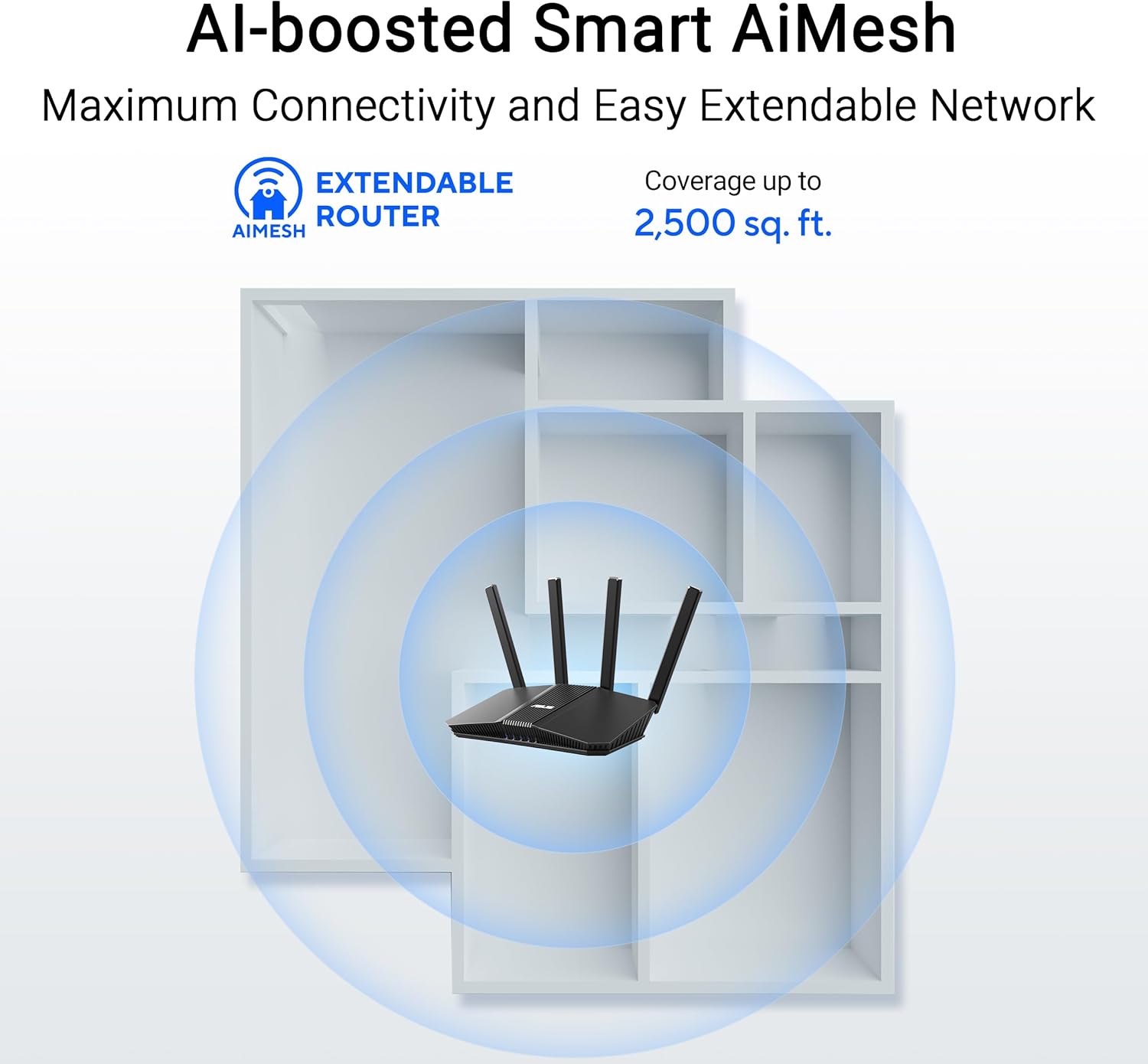
Figure 4.2: AiMesh system extending Wi-Fi coverage up to 2,500 sq. ft.
4.3. Advanced Network Security
The router includes AiProtection Pro, a commercial-grade network security suite. This feature provides real-time network protection against internet threats, malicious websites, and intrusion prevention. It also offers a one-tap security scan and Safe Browsing features.

Figure 4.3: AiProtection Pro interface within the ASUS Router App.
5. תחזוקה
כדי להבטיח את אורך החיים והביצועים האופטימליים של הנתב שלכם, יש לשקול את טיפי התחזוקה הבאים:
- עדכוני קושחה: Regularly check for and install firmware updates via the ASUS Router app or the web ממשק. עדכונים כוללים לעתים קרובות תיקוני אבטחה ושיפורי ביצועים.
- מיקום: Place the router in a central location, away from obstructions and other electronic devices that may cause interference. Ensure good airflow around the device to prevent overheating.
- ניקוי: Keep the router clean and free of dust. Use a soft, dry cloth to wipe the exterior. Do not use liquid cleaners.
- הפעלה מחדש מעת לעת: A periodic restart (e.g., once a month) can help clear temporary issues and refresh network performance.
6. פתרון תקלות
אם נתקלת בבעיות עם הנתב שלך, נסה את שלבי פתרון הבעיות הבאים:
- אין חיבור אינטרנט:
- בדוק את כל חיבורי הכבלים (WAN, LAN, חשמל) כדי לוודא שהם מאובטחים.
- הפעל מחדש את המודם ולאחר מכן את הנתב.
- ודא שחיבור ספק שירותי האינטרנט (ISP) שלך פעיל.
- מהירות Wi-Fi איטית:
- Ensure your devices are connected to the 5GHz band for faster speeds, if supported.
- צמצם הפרעות על ידי הרחקת הנתב ממכשירים אלקטרוניים אחרים.
- בדוק אם יש יישומים עתירי רוחב פס הפועלים ברקע.
- Consider adding an AiMesh node to extend coverage if you have dead zones.
- לא ניתן לגשת להגדרות הנתב:
- ודא שהמכשיר שלך מחובר לרשת ה-Wi-Fi של הנתב או באמצעות כבל Ethernet.
- נסה לגשת לנתב web interface using the default IP address (e.g., 192.168.1.1) or via the ASUS Router app.
- איפוס למפעל: If all else fails, perform a factory reset. Locate the Reset button on the back of the router (refer to Figure 3.2), press and hold it for 5-10 seconds until the power LED blinks, then release. This will restore the router to its default settings.
7. מפרטים
| תכונה | פְּרָט |
|---|---|
| מותג | ASUS |
| שם הדגם | RT-BE82U |
| מחלקה להקת תדרים | Dual-Band |
| תקן תקשורת אלחוטית | 802.11be (WiFi 7), 802.11ac, 802.11ax, 802.11n |
| קצב העברת נתונים | עד 6500 מגה-ביט לשנייה (5764 מגה-ביט לשנייה בתדר 5 גיגה-הרץ, 688 מגה-ביט לשנייה בתדר 2.4 גיגה-הרץ) |
| מספר יציאות | 5 (Five 2.5GbE Ports) |
| סוג אנטנה | Fixed (4 Antennas) |
| פרוטוקול אבטחה | AiProtection, VPN, Let's Encrypt, DNS-over-TLS, SSH, Security Scan, Firewall, WPS support, WPA/WPA2/WPA3-Personal, WPA/WPA2-Enterprise, WPS |
| AiMesh Support | Yes (Extendable Router) |
| מידות (L x W x H) | אורך 5.8 אינץ', רוחב 3.8 אינץ', גובה 9.3 אינץ' |
| משקל פריט | 1.1 פאונד |
8. מידע על אחריות
The ASUS RT-BE82U BE6500 Dual-Band WiFi 7 Router comes with a אחריות לשנה. Please refer to the included Warranty Card in your package for detailed terms and conditions, including information on service and support.
9. תמיכה
For further assistance, technical support, or to download the latest drivers and firmware, please visit the official ASUS support website or use the ASUS Router app. You can also find additional resources and FAQs on the ASUS webאֲתַר.
תמיכה של ASUS Webאֲתַר: www.asus.com/support/
אפליקציית הנתב של ASUS: Available on the Apple App Store and Google Play Store.