
1. הקדמה
The Yesido TV12 Gaming TV Box is a versatile device designed to transform your television into a smart entertainment hub. It combines 4K media streaming capabilities with extensive gaming emulation, offering a comprehensive entertainment experience. This manual provides essential information for setting up, operating, maintaining, and troubleshooting your device.
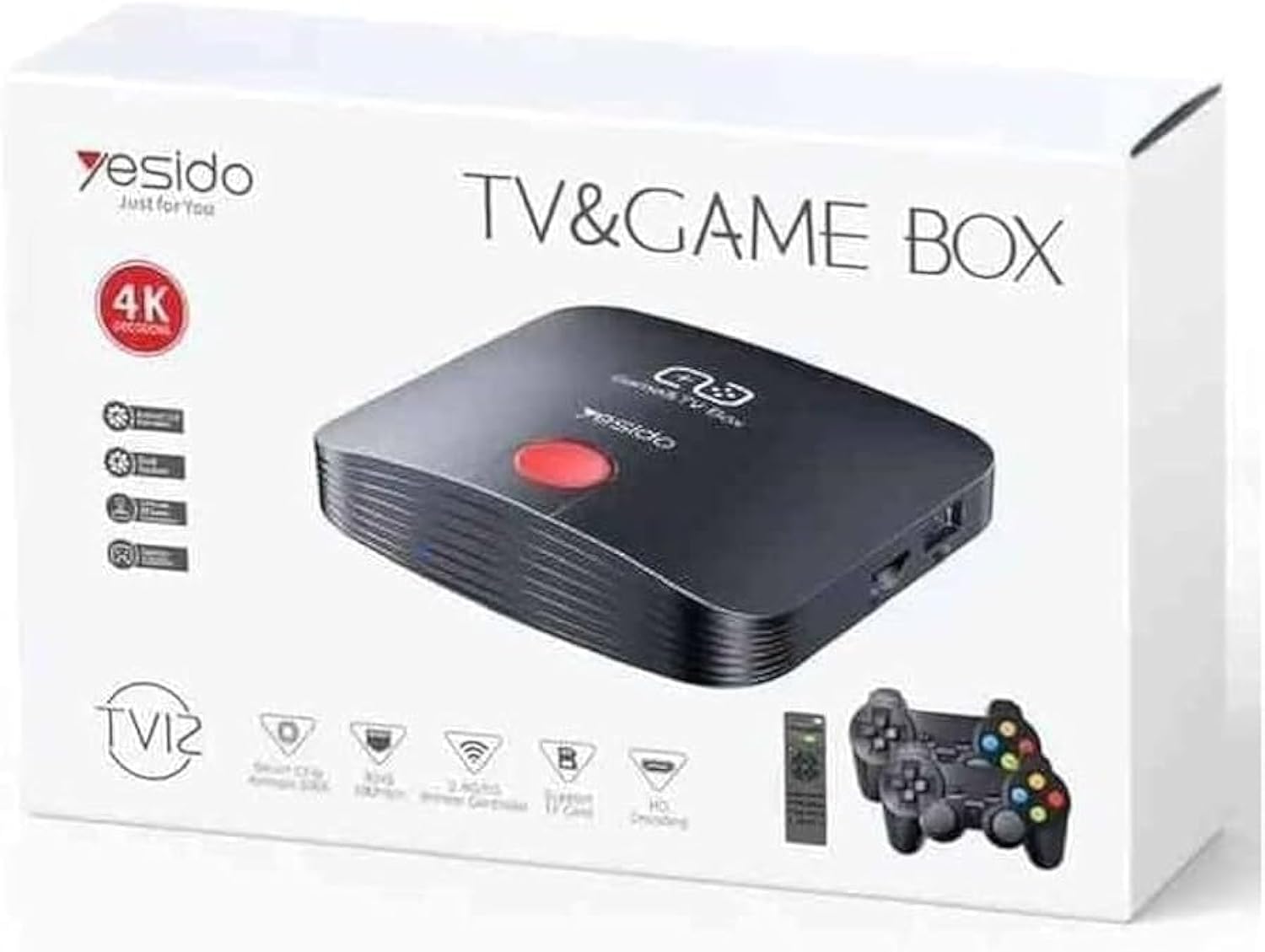
Image 1.1: The Yesido TV12 Gaming TV Box and included game controllers.
2. המוצר נגמרview
The Yesido TV12 is a high-tech smart TV box that supports high-definition 4K resolution, allowing you to enjoy movies and TV shows with stunning clarity. It features an Amlogic S905 smart chip and runs on an Android 12.0 dual system. The device is equipped with 2GB RAM and 16GB internal storage, facilitating multitasking and storage of your favorite media and games. A powerful Mali-G31 MP2 GPU ensures smooth performance for demanding games.
תכונות עיקריות:
- 4K HD Resolution Support (1080P to 4K)
- Android 12.0 Dual System
- Amlogic S905 Smart Chip
- Mali-G31 MP2 GPU
- 2GB RAM and 16GB Storage
- Supports over 10,000 game emulations (14 types)
- Integrated 2.4G/5G Wi-Fi and 100Mbps RJ45 Ethernet
- Compatible with popular streaming services (Netflix, Hulu, Amazon Prime Video, Disney+)
- Voice-controlled remote for easy navigation
- Compatible with two game controllers
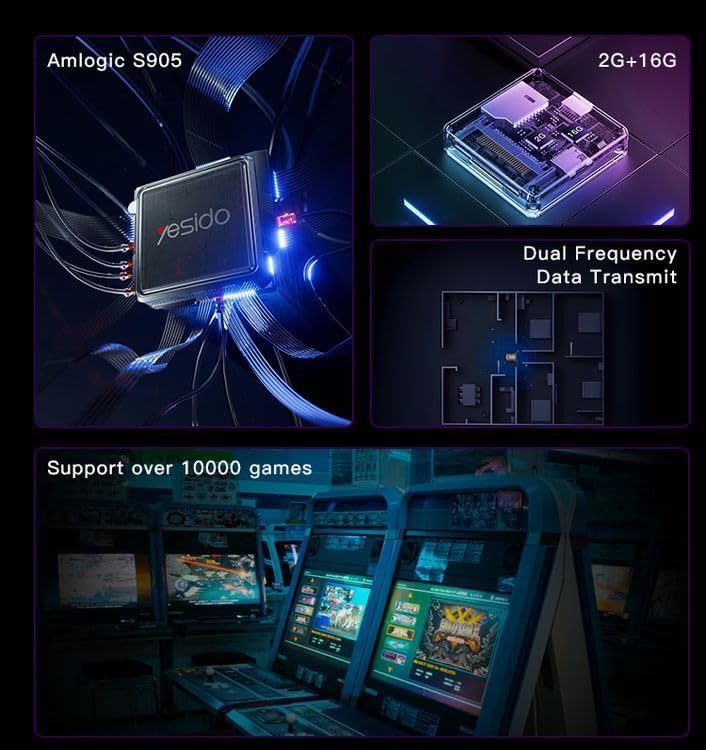
Image 2.1: Internal architecture highlighting the Amlogic S905 chip, memory, and data transmission capabilities.
3. מדריך התקנה
3.1 פתיחת האריזה ורכיבים
הוציאו בזהירות את כל הפריטים מהאריזה. ודאו שהרכיבים הבאים קיימים:
- Yesido TV12 Gaming TV Box
- מתאם מתח
- כבל HDMI
- שְׁלַט רָחוֹק
- Game Controllers (quantity may vary)
- מדריך למשתמש (מסמך זה)
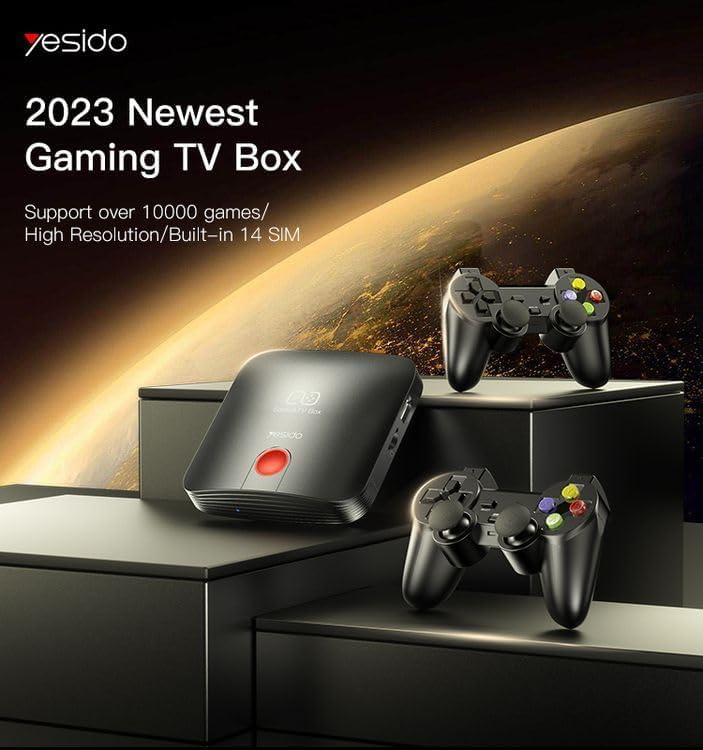
Image 3.1: The TV Box and game controllers, ready for setup.
3.2 חיבור לטלוויזיה שלך
- Connect one end of the HDMI cable to the HDMI port on the Yesido TV12.
- חבר את הקצה השני של כבל ה-HDMI לכניסת HDMI זמינה בטלוויזיה שלך. שים לב למספר כניסת ה-HDMI (לדוגמה, HDMI 1, HDMI 2).
3.3 הפעלה
- Connect the power adapter to the DC IN port on the TV Box.
- חבר את מתאם החשמל לשקע בקיר.
- הפעילו את הטלוויזיה ובחרו את כניסת ה-HDMI המתאימה באמצעות שלט הטלוויזיה.
- The TV Box will automatically power on and display the boot-up screen.
3.4 חיבור רשת
For internet access, you can connect via Wi-Fi or Ethernet.
- Wi-Fi: Navigate to Settings > Network > Wi-Fi. Select your network from the list, enter the password, and connect.
- אתרנט: Connect an Ethernet cable from your router to the RJ45 port on the TV Box. The connection should be established automatically.
3.5 Remote Control and Gamepad Pairing
The included remote control is typically pre-paired. If not, or if pairing gamepads:
- Ensure batteries are inserted correctly into the remote/gamepad.
- For Bluetooth gamepads, go to Settings > Connected Devices > Pair new device and follow the on-screen instructions.
4. הוראות הפעלה
4.1 ניווט בממשק
Use the remote control to navigate the Android 12.0 interface. The directional buttons move the cursor, the OK button selects, and the Back button returns to the previous screen. The Home button returns to the main launcher screen.
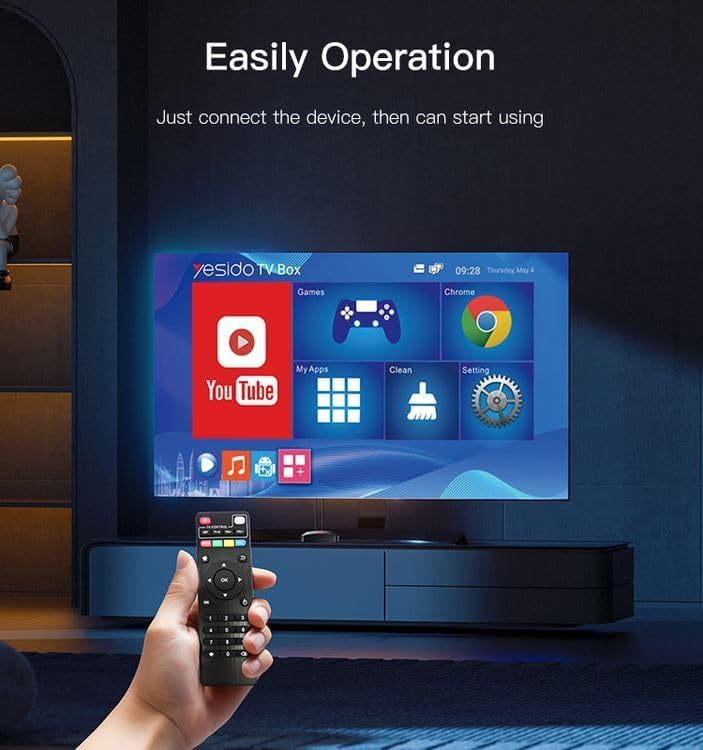
Image 4.1: Navigating the Yesido TV Box interface with the remote control.
4.2 מדיה בסטרימינג
The TV Box supports various streaming applications. Pre-installed apps like YouTube are available, and you can download more from the app store (e.g., Netflix, Hulu, Amazon Prime Video, Disney+).
- Select the desired streaming app from the home screen or 'My Apps' section.
- היכנס עם אישורי החשבון שלך.
- עיין ובחר תוכן לצפייה.
4.3 משחקים
The Yesido TV12 is designed for gaming, supporting over 10,000 game emulations. Connect your game controllers as described in Section 3.5.
- Access the 'Games' or 'Emulator' section from the home screen.
- Select your desired game or emulator.
- Use the connected game controllers for an immersive gaming experience.

Image 4.2: The wireless gamepads compatible with the TV Box.
4.4 שליטה קולית
If your remote control supports voice input, press the voice button and speak your commands or search queries. This allows for hands-free content search and device control.
5. תחזוקה
5.1 ניקוי ההתקן
To maintain optimal performance and appearance, regularly clean the TV Box:
- נתק את המכשיר משקע החשמל לפני הניקוי.
- השתמש במטלית רכה ויבשה כדי לנגב את המשטחים החיצוניים.
- Do not use liquid cleaners, aerosols, or abrasive materials, as they may damage the device.
5.2 עדכוני תוכנה
Keep your device's software updated to ensure the best performance and access to new features:
- Connect the TV Box to the internet.
- Navigate to Settings > About > System Update.
- פעל לפי ההנחיות שעל המסך כדי לבדוק ולהתקין עדכונים זמינים.
5.3 ניהול אחסון
With 16GB of internal storage, managing your space is important:
- עבור אל הגדרות > אחסון כדי view שימוש באחסון.
- Uninstall unused applications or delete unnecessary fileכדי לפנות מקום.
- The device supports TF cards for expandable storage.
6. פתרון תקלות
6.1 אין כוח
- ודא שמתאם החשמל מחובר היטב לממיר הטלוויזיה ולשקע חשמל תקין.
- נסה שקע חשמל אחר.
6.2 No Signal / No Display
- ודא שכבל ה-HDMI מחובר היטב גם לממיר הטלוויזיה וגם לטלוויזיה.
- ודא שהטלוויזיה שלך מוגדרת למקור קלט HDMI הנכון.
- נסה כבל HDMI אחר או יציאת HDMI אחרת בטלוויזיה שלך.
6.3 בעיות חיבור לרשת
- Wi-Fi: Check if your Wi-Fi router is working correctly. Re-enter the Wi-Fi password in Settings > Network.
- אתרנט: Ensure the Ethernet cable is properly connected to both the TV Box and the router.
- הפעל מחדש את הנתב ואת ממיר הטלוויזיה.
6.4 השלט רחוק אינו מגיב
- בדוק והחלף את הסוללות בשלט רחוק.
- ודא שאין חסימות בין השלט לממיר הטלוויזיה.
- Re-pair the remote control if necessary (refer to Section 3.5).
6.5 Game Performance Issues
- Close any background applications to free up RAM.
- ודא שיש מספיק מקום אחסון זמין.
- For online games, check your internet connection stability.
7. מפרטים
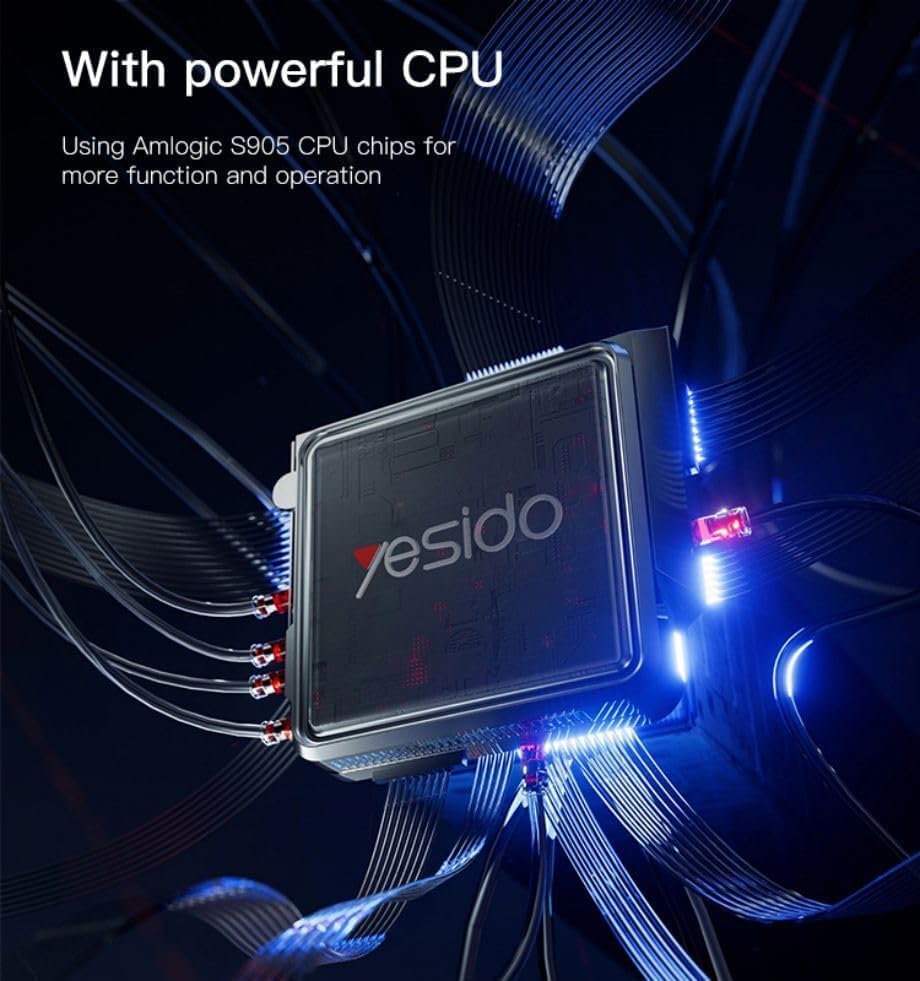
Image 7.1: The powerful Amlogic S905 CPU at the core of the TV Box.
| תכונה | תֵאוּר |
|---|---|
| שם מותג | יסידו |
| שם הדגם | TV12 |
| מַעֲרֶכֶת הַפעָלָה | Android 12.0 Dual System |
| מעבד | Amlogic S905 |
| GPU | Mali-G31 MP2 |
| RAM מותקן | 2 ג'יגה-בייט |
| קיבולת אחסון זיכרון | 16 ג'יגה-בייט |
| רזולוציית פלט וידאו | 1080P to 4K |
| טכנולוגיית קישוריות | HDMI, Wi-Fi (2.4G/5G), RJ45 (100Mbps) |
| סוג מחבר | HDMI |
| שירותי אינטרנט נתמכים | Netflix, Hulu, Amazon Prime Video, Disney+ |
| מכשירים תואמים | טֵלֶוִיזִיָה |
| רכיבים כלולים | TV Box, Controllers |
| צֶבַע | שָׁחוֹר |
| משקל פריט | 1200 גרם |
| מידות המוצר (L x W x H) | 20 x 5 x 10 ס"מ |
8. אחריות ותמיכה
8.1 מידע אחריות
The Yesido TV12 Gaming TV Box comes with a standard manufacturer's warranty. Please refer to the warranty card included in your product packaging for specific terms, conditions, and duration. Keep your proof of purchase for warranty claims.
8.2 תמיכת לקוחות
If you encounter any issues not covered in this manual or require further assistance, please contact Yesido customer support. Contact details can typically be found on the product packaging, the official Yesido webאתר, או דף התמיכה של הקמעונאי שלך.