
1. הקדמה
This manual provides instructions for the NYXI Striker Retro Mechanical Gaming Keyboard (Model: CA01). This keyboard features multi-device connectivity, hot-swappable switches, RGB backlighting, and a customizable display screen. It is compatible with Windows, macOS, and iOS systems.

Image 1.1: The NYXI Striker Retro Mechanical Gaming Keyboard, showcasing its GameCube-inspired design and full layout.
2. תכולת החבילה
ודא שכל הפריטים נמצאים בחבילה:
- NYXI Striker Retro Mechanical Gaming Keyboard
- פולר Keycap
- כבל USB (USB-C ל-USB-A)
- Additional Switches (5x Red, 5x Blue)
- 2.4GHz Wireless Receiver (stored in keyboard compartment)

Image 2.1: All components included with the NYXI Striker Retro Mechanical Gaming Keyboard.
3. המוצר נגמרview
The NYXI Striker keyboard features a 97-key layout with several distinct components:
- מקשי מפתח: Dual-color keycaps for a comfortable typing experience.
- מתגים מכניים: Hot-swappable switches for customization.
- תאורת RGB אחורית: תאורת RGB לכל מקש עם אפקטים שונים.
- מסך תצוגה: A pixelated dot matrix screen for animations and status.
- רולר נפח: A dedicated roller for audio adjustment.
- מתג קישוריות: Located on the side/back for switching between wired, 2.4G, and Bluetooth modes.
- יציאת USB-C: לחיבור קווי וטעינה.
- 2.4GHz Receiver Compartment: A dedicated slot to store the wireless receiver.
- רגליים מתכווננות: שלוש שניותtage tilt stands for ergonomic positioning.

תמונה 3.1: למעלה view of the keyboard, showing the full key layout and integrated display screen.

תמונה 3.2: צד פרוfile של המקלדת.

Image 3.3: Location of the 2.4GHz wireless receiver compartment.

Image 3.4: Three-level adjustable tilt stand for ergonomic comfort.
4. התקנה
4.1 טעינה ראשונית
Before first use, connect the keyboard to a USB power source using the provided USB-C cable to ensure it is fully charged. The keyboard can be used while charging in wired mode.
4.2 מצבי קישוריות
The NYXI Striker keyboard supports three connection modes: Bluetooth 5.0, 2.4GHz wireless, and USB wired. Use the switch located on the keyboard to select your desired mode.
- מצב USB חוטי:
- Set the mode switch on the keyboard to the wired (USB) position.
- חבר את קצה ה-USB-C של הכבל למקלדת ואת קצה ה-USB-A למחשב.
- מערכת ההפעלה שלך תזוהה אוטומטית עם המקלדת.
- מצב אלחוטי 2.4GHz:
- Retrieve the 2.4GHz USB receiver from its compartment on the keyboard.
- Set the mode switch on the keyboard to the 2.4G wireless position.
- חבר את מקלט ה-USB 2.4GHz ליציאת USB זמינה במחשב שלך.
- המקלדת אמורה להתחבר אוטומטית.
- מצב בלוטות' 5.0:
- העבר את מתג המצב במקלדת למצב Bluetooth.
- The keyboard supports up to 5 Bluetooth channels. Press Fn + 1/2/3/4/5 to select a Bluetooth channel. The display screen will indicate the selected channel.
- כדי להיכנס למצב התאמה, לחץ והחזק Fn + 1/2/3/4/5 for 3-5 seconds until the indicator light flashes rapidly or the display screen shows a pairing icon.
- במכשיר שלך (מחשב, טאבלט, טלפון), עבור אל הגדרות Bluetooth וחפש מכשירים חדשים.
- Select "NYXI Striker" from the list of available devices to pair.
- Once paired, the indicator light will become solid, and the display screen will confirm the connection.

Image 4.1: Compatible operating systems for the keyboard.
5. הוראות הפעלה
5.1 הפעלה/כיבוי
The keyboard powers on automatically when connected via USB or when a wireless mode is selected and the battery has charge. To conserve battery, ensure the keyboard is switched off when not in use for extended periods.
5.2 Switching Between Devices/Modes
To switch between connected Bluetooth devices, press Fn + 1/2/3/4/5 to select the desired paired channel. To switch between wired, 2.4G, and Bluetooth modes, use the physical switch on the keyboard.
5.3 בקרת תאורת רקע RGB
The keyboard features 22 RGB lighting modes. Use the following key combinations to control the backlighting:
- Fn + Ctrl שמאלי: מעבר בין אפקטים שונים של תאורת RGB.
- Fn + חץ למעלה/למטה: התאם את רמות הבהירות.
- Fn + חץ שמאלה/ימינה: Adjust lighting effect speed.

Image 5.1: RGB Hybrid Underglow lighting in action.
5.4 Display Screen Operation
The integrated display screen can show various animations and status indicators. Use the NYXI Driver App for advanced customization of the display screen content.
רולר 5.5 נפחים
Rotate the dedicated roller on the top right of the keyboard to adjust the system volume. Pressing the roller typically mutes/unmutes audio.
6. תכונות עיקריות
The NYXI Striker keyboard is designed with several advanced features to enhance your user experience:
- חיבור למכשירים מרובים: Supports Bluetooth 5.0, 2.4GHz wireless, and USB wired modes. It also features a built-in five-channel mode for seamless switching between multiple devices (Windows, Android, macOS, iOS, iPad systems).
- Hot-Swappable and Gasket Structure: The keyboard supports hot-swappable switches, allowing for easy replacement without soldering. Its gasket structure, constructed with PC+ABS material, provides a soft and elastic typing feel, reducing noise and improving overall acoustics.
- Personalized Aesthetics: Features 22-color RGB backlighting with various glow modes and effects. The display screen supports 4 dynamic matrix display modes, which can be customized further via software.
- NYXI Driver App - Macro Customization: A dedicated software application allows for extensive macro customization, key remapping, and lighting management. This app supports wired, 2.4G, and Bluetooth connections for flexible setup.
- עיצוב נוחות: Integrates a precision volume roller, anti-slip silicone pads for stability, and a three-stage tilt stand for adjustable ergonomic comfort during extended use.

Image 6.1: Gasket structure for enhanced typing experience.

Image 6.2: Hot-swappable PCB for easy switch replacement.
6.1 Using the NYXI Driver App
The NYXI Driver App provides advanced customization options for your keyboard. Download the application from the official NYXI webאֲתַר.
- התאמה אישית של מאקרו: Create and assign complex macros to keys.
- הגדרות תאורה: Fine-tune RGB effects, colors, and animations.
- Display Screen Customization: Upload custom images or animations to the dot matrix display.

Image 6.3: NYXI Driver App interface for macro customization.
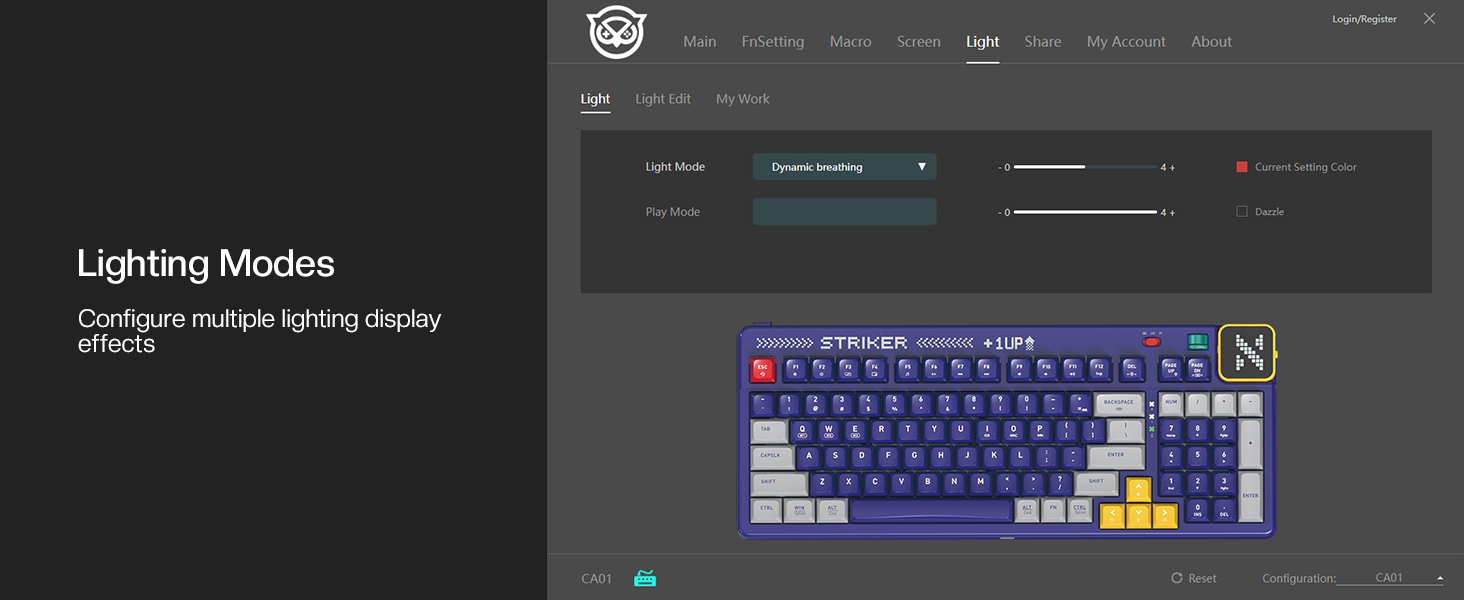
Image 6.4: NYXI Driver App interface for lighting mode configuration.

Image 6.5: NYXI Driver App interface for dot matrix screen customization.
7. תחזוקה
7.1 ניקוי
- השתמש במטלית רכה ויבשה כדי לנגב את משטח המקלדת.
- For deeper cleaning, use the provided keycap puller to remove keycaps and clean dust or debris with compressed air.
- Avoid using harsh chemicals or abrasive materials that could damage the keyboard finish or keycap legends.
7.2 אחסון
Store the keyboard in a cool, dry place away from direct sunlight and extreme temperatures. If storing for an extended period, ensure the keyboard is fully charged and then powered off.
8. פתרון תקלות
- המקלדת לא מגיבה:
- Ensure the keyboard is powered on and the correct connectivity mode (wired, 2.4G, or Bluetooth) is selected.
- For wireless modes, check battery level. Recharge if necessary.
- For 2.4GHz, ensure the receiver is properly plugged into a USB port.
- For Bluetooth, ensure it is paired correctly and the selected channel (Fn + 1-5) matches the paired device. Try re-pairing.
- נסה להתחבר דרך USB במצב קווי כדי לשלול בעיות אלחוטיות.
- RGB lights not working/displaying correctly:
- Ensure RGB is enabled (check the NYXI Driver App if installed).
- מעבר בין מצבי תאורה באמצעות Fn + Ctrl שמאלה.
- כוונן את הבהירות באמצעות Fn + חץ למעלה.
- מפתחות לא נרשמים:
- If a specific key is not working, the switch might be faulty. Utilize the hot-swappable feature to replace the switch with one of the spares provided.
- ודא שאין לכלוך מתחת למכסה המקשים או למתג.
- Connectivity issues (lag, disconnections):
- For wireless modes, ensure the keyboard is within range of the receiver/device and there are no significant obstructions.
- מזער הפרעות ממכשירים אלחוטיים אחרים.
- Ensure the keyboard's battery is sufficiently charged.
If issues persist, please refer to the Warranty & Support section for further assistance.
9. מפרטים
| תכונה | פְּרָט |
|---|---|
| מספר דגם | CA01 |
| טכנולוגיית קישוריות | אלחוטי 2.4G, בלוטות' 5.0, USB-C קווי |
| תיאור מקלדת | מֵכָנִי |
| מספר מפתחות | 97 מפתחות |
| מכשירים תואמים | macOS, Windows 7 or later, iOS |
| תכונות מיוחדות | Backlit (RGB), Customizable Display Keys, Gasket Structure, Hot-Swappable |
| תמיכה בצבעי תאורה אחורית של מקלדת | RGB (22 מצבים) |
| סִגְנוֹן | NGC Retro |
| מידות המוצר | מידות 38.91 x 15.44 x 3.3 ס"מ (אורך 15.32 אינץ' x רוחב 6.08 אינץ' x גובה 1.3 אינץ') |
| משקל פריט | 3.56 פאונד (1.61 ק"ג) |
| יַצרָן | NYXI |
10. אחריות ותמיכה
10.1 מידע אחריות
NYXI products are covered by a limited warranty against defects in materials and workmanship. Please refer to the official NYXI webבאתר או במסמכי הרכישה שלך לקבלת תנאי האחריות הספציפיים, כולל פרטי משך הזמן והכיסוי.
10.2 תמיכת לקוחות
For technical assistance, troubleshooting, or warranty claims, please contact NYXI customer support through their official website. You may need to provide your product model number (CA01) and proof of purchase.
Thank you for choosing the NYXI Striker Retro Mechanical Gaming Keyboard.