
1. הקדמה
This manual provides instructions for the Varmilo Koi 73 JIS Keyboard with Sakura Switches (Model: VMMA73A039SAKURA). This keyboard features a unique design inspired by traditional Chinese Koi fish and water elements, combined with a modern aesthetic. It is a compact 65% size keyboard with a Japanese Industrial Standard (JIS) layout, designed for both functionality and portability. The keyboard is equipped with Cherry-style stabilizers for a stable typing experience.
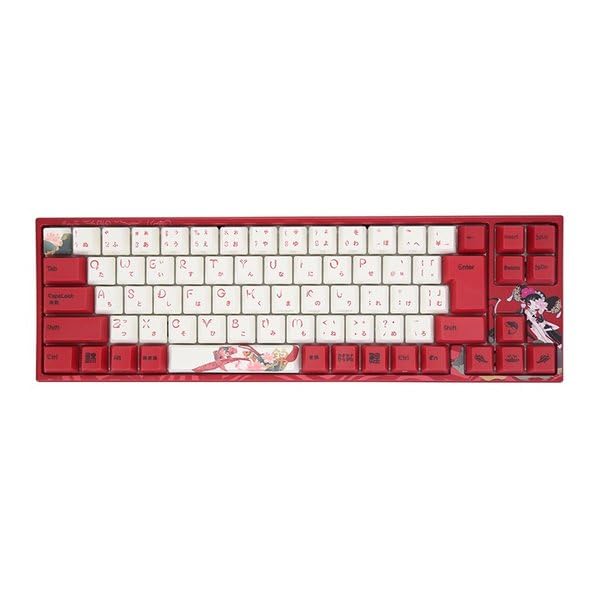
Image: Varmilo Koi 73 JIS Keyboard overview.
2. תכונות עיקריות
- Unique Koi Design: Features vibrant koi fish illustrations and a red aesthetic, developed in collaboration with illustrator Li Huan.
- JIS Layout: 73-key Japanese Industrial Standard layout for specific regional input needs.
- Compact 65% Size: Optimizes desk space while retaining essential function and arrow keys.
- Customizable Switches: Offers a choice of Varmilo mechanical electrostatic capacity switches to suit individual typing preferences.
- Cherry-Style Stabilizers: Ensures consistent and stable key presses, especially for larger keys.
- קישוריות USB: Reliable wired connection for stable performance.
3. מדריך התקנה
3.1 תכולת החבילה
לפני שתתחילו, אנא ודאו שכל הפריטים נמצאים בחבילה:
- Varmilo Koi 73 JIS Keyboard
- כבל USB
- מדריך למשתמש (מסמך זה)
3.2 חיבור המקלדת
To connect your Varmilo Koi 73 keyboard to your computer, follow these steps:
- אתר את יציאת ה-USB-C בגב המקלדת.
- חבר קצה אחד של כבל ה-USB המצורף ליציאת ה-USB-C של המקלדת.
- חבר את הקצה השני של כבל ה-USB ליציאת USB זמינה במחשב שלך.
- מערכת ההפעלה שלך אמורה לזהות את המקלדת באופן אוטומטי.
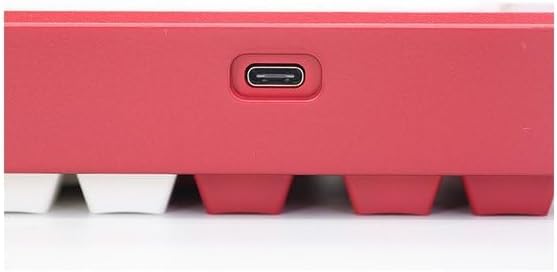
Image: USB-C port for keyboard connection.
3.3 Driver Installation (Optional)
For advanced customization and optimal performance, it is recommended to install the Varmilo driver software. This software allows you to remap keys, adjust performance settings, and customize lighting effects.
Video: This video demonstrates the driver installation process and software usage for Varmilo keyboards. While it features the Muse65 model, the steps for driver installation and basic software navigation are generally applicable to other Varmilo keyboards like the Koi 73.
Please visit the official Varmilo website for the latest driver downloads specific to your keyboard model. Follow the on-screen instructions during installation.
4. הוראות הפעלה
4.1 פונקציות מקשים בסיסיות
The Varmilo Koi 73 keyboard features a standard JIS layout. Most keys function as labeled. For special functions, refer to the combination keys below.
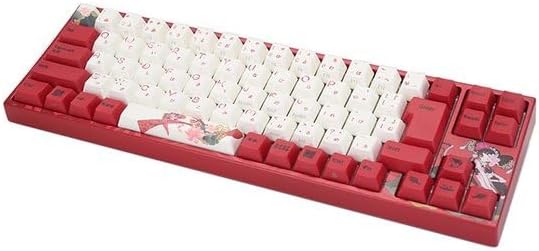
תמונה: מעלview of the Varmilo Koi 73 JIS Keyboard layout.
4.2 צירופי מקשי פונקציה (Fn)
Since this is a 73-key layout, some functions are accessed via the Fn key. Hold down the Fn key and press the corresponding key to activate its secondary function. Common Fn combinations include:
- Fn + F1-F12: Multimedia controls (e.g., volume, play/pause).
- מקשי Fn + חצים: Page Up/Down, Home/End (specific to model, refer to keycap legends).
- מקש Fn + Win: נועל/פותח את מקש Windows.

Image: Left side keys, often used with Fn for additional functions.
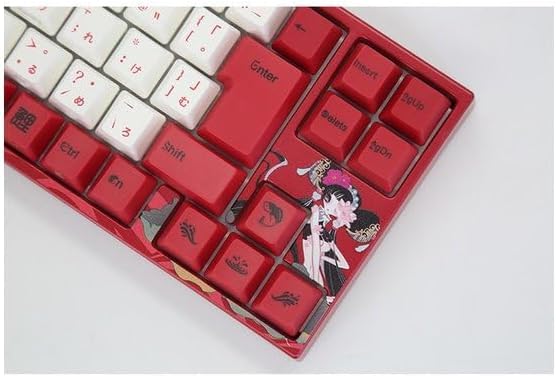
Image: Right side keys, including navigation and utility keys.
4.3 אפקטי תאורה
The Varmilo Koi 73 keyboard supports various RGB lighting effects. You can cycle through different modes and adjust brightness using specific key combinations. Refer to your keyboard's specific keycap legends or the driver software for detailed lighting controls.
Video: This video showcases various RGB lighting effects on a Varmilo keyboard. While the model shown is Muse65, it provides a general idea of the dynamic lighting capabilities available on Varmilo keyboards, including the Koi 73.
5. תחזוקה וטיפול
Proper maintenance ensures the longevity and optimal performance of your Varmilo Koi 73 keyboard.
- ניקוי מכסי מקשים: Gently remove keycaps using a keycap puller. Clean the keycaps with a soft cloth dampשטפו בסבון עדין ומים. ודאו שהם יבשים לחלוטין לפני חיבורם מחדש.
- ניקוי גוף המקלדת: השתמשו במטלית רכה ויבשה כדי לנגב את גוף המקלדת. במקרה של לכלוך עיקש, נגבו מעטamp cloth with a small amount of isopropyl alcohol can be used. Avoid excessive moisture.
- הסרת אבק: השתמש באוויר דחוס כדי להסיר אבק ופסולת בין המקשים.
- הימנע מנוזלים: הרחיקו נוזלים מהמקלדת כדי למנוע נזק.
- טיפול בכבלים: אין לכופף או לעקם את כבל ה-USB יתר על המידה.
6. פתרון תקלות
If you encounter issues with your Varmilo Koi 73 keyboard, try the following solutions:
- המקלדת לא מגיבה:
- ודא שכבל ה-USB מחובר היטב הן למקלדת והן למחשב.
- נסה לחבר את המקלדת ליציאת USB אחרת במחשב שלך.
- הפעל מחדש את המחשב.
- אם משתמשים ברכזת USB, נסה לחבר אותה ישירות למחשב.
- מפתחות לא נרשמים:
- בדוק אם יש פסולת או חפצים זרים מתחת למכסי המקשים.
- If specific keys are not working, consider reinstalling the keyboard driver.
- בעיות תאורה:
- Ensure the keyboard driver is installed and up to date.
- Use the Fn key combinations or driver software to adjust lighting modes and brightness.
- מקש Windows נעול:
- לִלְחוֹץ מקש Fn + Win כדי להפעיל את נעילת מקש Windows.
If the problem persists, please contact Varmilo customer support for further assistance.
7. מפרטים
| מותג | ורמילו |
| מספר דגם | VMMA73A039SAKURA |
| פריסת מקלדת | 73-key JIS (Japanese Industrial Standard) |
| קישוריות | USB חוטי |
| סוג מתג | Mechanical (Linear) |
| מכשירים תואמים | מחשב נייד |
| מידות המוצר | 34.2 ס"מ (L) x 34.2 ס"מ (W) x 5.1 ס"מ (H) |
| רכיבים כלולים | כבל USB |
8. אחריות ותמיכה
Varmilo products typically come with a manufacturer's warranty. Please refer to the warranty card included with your product or visit the official Varmilo webבאתר לקבלת תנאי האחריות המפורטים.
For technical support, driver downloads, or further inquiries, please visit the official Varmilo support page or contact their customer service.
Official Varmilo Webאֲתַר: www.varmilo.com