
1. הקדמה
The FAUOSWUK WS043AP is an industrial Human Machine Interface (HMI) touch screen designed for seamless integration with Programmable Logic Controllers (PLCs) and intelligent controllers. It features a 3-inch TFT LCD screen, an ARM9 processor, and high-precision touch technology, ensuring reliable performance in industrial environments.

Figure 1: FAUOSWUK Industrial HMI Touch Screen WS043AP.
תכונות עיקריות:
- Highly Precise Touch Technology: Equipped with an ARM9 processor for high touch precision and excellent anti-interference capabilities.
- Long-lasting Backlit Display: Features a backlit display with an extended LED lifespan of up to 20,000 hours for enhanced visibility.
- Easy Communication Protocol: Supports data download and automatic display configuration, simplifying setup without complex programming.
- Fast and Stable Performance: Operates with low power consumption, ensuring fast running speed and reliable performance.
- יישומים מגוונים: Ideal for various PLC or intelligent controllers with communication ports in industrial settings.

Figure 2: HMI Touch Screen highlighting ARM9 processor and stable performance.
2. מפרטים
Detailed technical specifications for the WS043AP Industrial HMI Touch Screen are provided below:
| תכונה | מִפרָט |
|---|---|
| דֶגֶם | WS043AP |
| לְהַצִיג | 4.3 אינץ 'TFT LCD מסך |
| הַחְלָטָה | 480x272 PX |
| צֶבַע | 260,000 צבעים |
| בְּהִירוּת | 400 תקליטורים/מ"ר |
| תאורה אחורית | LED (Lifespan: 20,000 hours) |
| מסך מגע | 4-wire industrial resistive (External hardness 4H) |
| מעבד | 32 bit 240MHz ARM9 |
| זֵכֶר | 128M NAND FLASH |
| RTC | Integrated real-time clock |
| אתרנט | אַף לֹא אֶחָד |
| יציאת USB | 1 USB 2.0 Device port, 1 USB 2.0 Host port |
| הורדת תוכנית | USB download, U disk download and data transfer |
| תקשורת טורית | COM1 (9-pin D-type male connector) supports RS232, RS485, or RS422 |
| כוח מדורג | 24V DC (Working range ±15%) |
| הגנת כוח | הגנה מפני ברקים |
| הַתאָמָה | CE, RoHS (EN61000-6-2:2005, EN61000-6-4:2007) |
| Lightning Resistance | ±4KV |
| דופק קבוצתי | ±4KV |
| Contact Electrostatic | 4KV |
| פריקת אוויר | 8KV |
| טמפרטורת עבודה | -20 ℃ עד 50 ℃ |
| טמפרטורת אחסון | -40 ℃ עד 70 ℃ |
| לחות סביבה | 10-90% RH (לא מתעבה) |
| עמידות בפני הלם | 10-25 Hz (X, Y, Z 2G for 30 minutes) |
| מחלקת הגנה | Front panel: IP65 (with flat panel installation), Rear fuselage: IP20 |
| מידות כוללות | 140 מ"מ (5.5 אינץ') x 98 מ"מ (3.9 אינץ') |
| גודל חיתוך פאנל | Approx. 130mm (5.1in) x 80mm (3.1in) |
| חוֹמֶר | ABS, PU |
| משקל פריט | 12.3 אונקיות |

איור 3: אחורי view of the HMI Touch Screen with dimensions and port details.
3. תכולת החבילה
ודא שכל הפריטים המפורטים להלן כלולים בחבילה שלך:
- 1 x Industrial HMI Touch Screen (WS043AP)
- 2 סוגרי הרכבה
- 2 x ברגי הרכבה
- 1 x Power Cable Terminal
- 1 x Discharge Cable
- 1 x USB Cable (Type may vary)

Figure 4: HMI Touch Screen with all included accessories.

Figure 5: USB cables (new and old types) that may be included.
4. התקנה
Follow these steps to properly install and set up your HMI Touch Screen:
4.1 הרכבת לוח
- Prepare a panel cutout according to the specified dimensions (approx. 130mm x 80mm).
- הכנס את יחידת HMI לתוך הפתח מלפנים.
- Secure the HMI unit using the provided mounting brackets and screws from the rear of the panel. Ensure a snug fit to maintain IP65 front panel protection.
4.2 חיבורי חיווט
Refer to the rear panel diagram (Figure 3) for port locations.
- חיבור חשמל: Connect the 24V DC power supply to the power cable terminal. Ensure correct polarity (+/-) and that the voltage is within the working range of ±15%.
- תקשורת טורית: Connect your PLC or intelligent controller to the COM1 port using an appropriate RS232, RS485, or RS422 cable.
- חיבורי USB: The USB 2.0 Device port is used for program download from a computer. The USB 2.0 Host port supports U disk for data transfer and program updates.
4.3 הפעלה ראשונית
Once all connections are secure, apply power to the unit. Observe the indicator lights:
- PWR: מציין מצב כוח.
- הפעלה: מציין מצב תפעולי.
- COM: Indicates serial communication activity.
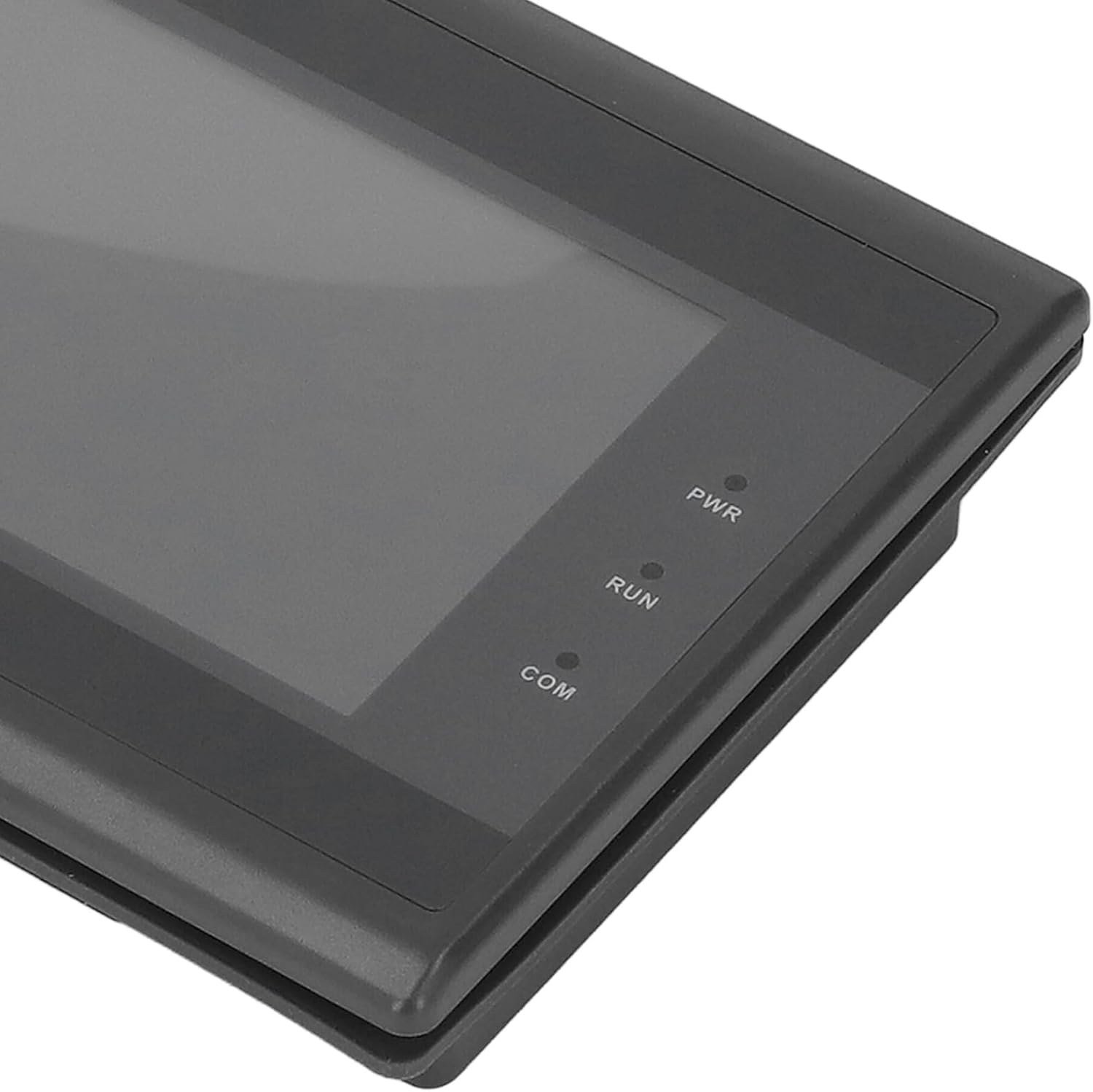
Figure 6: Close-up of PWR, RUN, and COM indicator lights.
5. הוראות הפעלה
The WS043AP HMI Touch Screen is designed for straightforward operation. Once powered on and connected to your controller, it will display the configured interface.
5.1 אינטראקציה עם מסך מגע
Interact with the HMI by touching the screen directly. The resistive touch technology ensures precise input. Use a stylus or a gloved finger for optimal performance in industrial environments.
איור 7: תקריב view of the HMI's 3-inch TFT LCD screen.
5.2 הורדת ותצורת תוכנית
The HMI supports data download and automatic display configuration. This eliminates the need for complex programming directly on the device. Typically, configuration software on a PC is used to create the HMI interface, which is then downloaded to the device via the USB 2.0 Device port or a U disk connected to the USB 2.0 Host port.
6. תחזוקה
Proper maintenance ensures the longevity and optimal performance of your HMI Touch Screen.
- ניקוי: השתמש רך, דamp מטלית לניקוי המסך ו-casing. Avoid abrasive cleaners, solvents, or harsh chemicals that could damage the display or housing.
- סְבִיבָה: Operate and store the device within the specified temperature and humidity ranges to prevent damage. Avoid direct sunlight and excessive dust.
- חיבורים: Periodically check all cable connections for tightness and signs of wear.
7. פתרון תקלות
If you encounter issues with your HMI Touch Screen, refer to the following common problems and solutions:
| בְּעָיָה | סיבה אפשרית | פִּתָרוֹן |
|---|---|---|
| המסך ריק | No power, faulty power cable, or unit not turned on. | Check power connections, ensure 24V DC supply, and verify the PWR indicator light is on. |
| Touch input unresponsive | Screen calibration issue, physical damage, or software error. | Restart the device. If the issue persists, check for physical damage. Re-download the HMI program if necessary. |
| שגיאת תקשורת עם PLC | Incorrect wiring, wrong communication protocol settings, or faulty cable. | Verify serial cable connections. Ensure the HMI and PLC communication settings (baud rate, parity, data bits) match. Check the COM indicator light for activity. |
| Display flickering or distorted | Power supply instability, environmental interference, or internal fault. | Ensure stable power supply. Check for strong electromagnetic interference sources. If the problem continues, contact support. |
8. אחריות ותמיכה
FAUOSWUK products are manufactured to high-quality standards. This product comes with a standard manufacturer's warranty against defects in materials and workmanship.
For warranty claims, technical support, or service inquiries, please contact your retailer or the official FAUOSWUK customer support channel. Please have your product model number (WS043AP) and purchase information ready when contacting support.