
1. הקדמה
Welcome to the instruction manual for your new Xiaomi Curved Gaming Monitor G34WQi. This guide provides essential information for the safe and optimal setup, operation, and maintenance of your monitor. Please read this manual thoroughly before use to ensure you get the best experience from your device.
The Xiaomi G34WQi features a 34-inch UWQHD (3440x1440) ultrawide curved display with a 1500R curvature, designed to provide an immersive viewing experience. It boasts a high 180Hz refresh rate and a rapid 1ms response time (MPRT) for smooth, fluid gameplay. With FreeSync Premium technology, it minimizes screen tearing and stuttering. The monitor also offers a wide color gamut (95% DCI-P3, 100% sRGB) and a low blue light mode for eye comfort.
2. התקנה
2.1 תכולת החבילה
לפני ההרכבה, אנא ודא שכל הרכיבים נמצאים:
- צג גיימינג קעור של שיאומי G34WQi
- מעמד למסך (בסיס וזרוע)
- מתאם חשמל וכבל
- כבל DisplayPort
- כבל HDMI
- מדריך למשתמש
2.2 הרכבת המעמד
- הנח בזהירות את הצג כשפניו כלפי מטה על משטח רך ונקי כדי למנוע שריטות.
- Attach the stand arm to the back of the monitor using the provided screws. Ensure it is securely fastened.
- Connect the stand base to the arm and tighten the thumb screw at the bottom of the base.
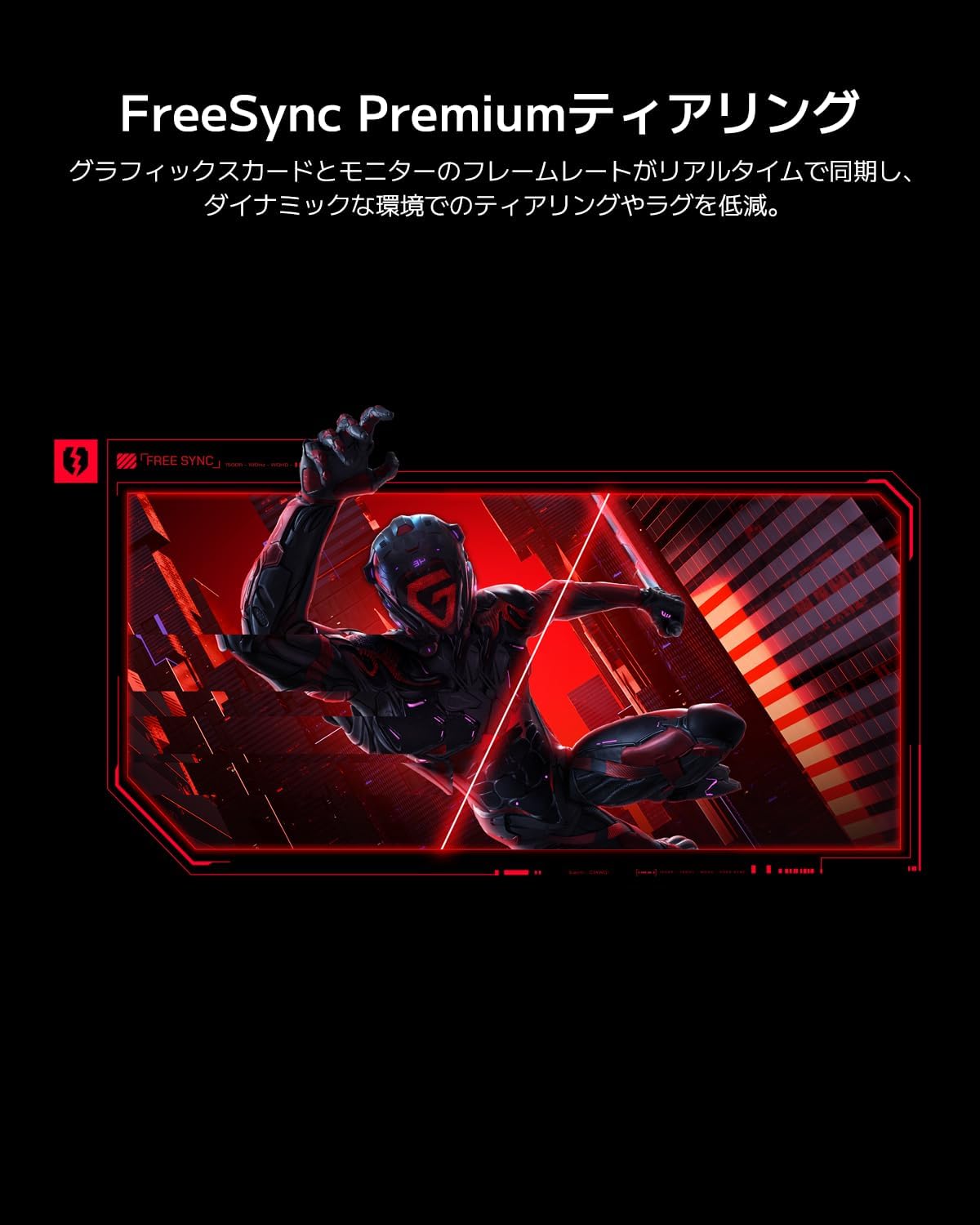
Image: The Xiaomi G34WQi monitor securely mounted on its adjustable stand.
2.3 כבלים חיבור
חבר את הכבלים הדרושים ליציאות האחוריות של הצג:
- כבל חשמל: חבר את ספק הכוח לשקע החשמל של הצג, לאחר מכן חבר את כבל החשמל לשקע בקיר.
- DisplayPort (Recommended for Gaming): For optimal performance, including 180Hz refresh rate and FreeSync Premium, connect the DisplayPort cable from your computer's graphics card to the monitor's DisplayPort input.
- HDMI: Alternatively, connect an HDMI cable from your computer to one of the monitor's HDMI inputs. Note that HDMI may have limitations on refresh rate at UWQHD resolution compared to DisplayPort.
- יציאת קול: במידת הצורך, חבר רמקולים חיצוניים או אוזניות לשקע פלט השמע 3.5 מ"מ.

תמונה: אחורי view of the monitor highlighting the input ports for connectivity.
2.4 הפעלה ראשונית
After connecting all cables, press the power button, usually located on the back or bottom of the monitor, to turn it on. The monitor should automatically detect the input signal. If not, you may need to manually select the input source using the OSD menu.
3. הוראות הפעלה
3.1 הפעלה/כיבוי
Press the power button to turn the monitor on or off. A status indicator light will show the monitor's power state.
3.2 תפריט תצוגה על המסך (OSD).
The OSD menu allows you to adjust various monitor settings. It is typically controlled by a joystick or a set of buttons located on the back or bottom of the monitor.
ניווט:
- לחץ על הג'ויסטיק/לחצן המרכז כדי לפתוח את תפריט המסך.
- Move the joystick (up/down/left/right) or use the directional buttons to navigate through menu options.
- Press the joystick/center button again to select an option or confirm a setting.
- Move the joystick left or press a dedicated 'Back' button to exit a sub-menu or the OSD.
3.3 הגדרות מפתח
- ניגוד בהירות: התאם את ההגדרות הללו כך שיתאימו לך viewסביבה.
- הגדרות צבע: Fine-tune color temperature, gamma, and saturation. The monitor supports 95% DCI-P3 and 100% sRGB for accurate color reproduction.
- קצב רענון: Ensure your refresh rate is set to 180Hz in both the monitor's OSD and your computer's display settings for the smoothest experience.
- זמן תגובה: The monitor offers a 1ms MPRT (Moving Picture Response Time). This can often be adjusted in the OSD, sometimes referred to as 'Overdrive' or 'Response Speed'.
- FreeSync Premium: Enable FreeSync Premium in the OSD menu and in your AMD graphics card settings to synchronize the monitor's refresh rate with your GPU's frame rate, eliminating screen tearing and stuttering.

Image: Visual representation of FreeSync Premium preventing screen tearing.
- מצב אור כחול נמוך: Activate this mode to reduce blue light emissions, which can help reduce eye strain during prolonged use.

Image: The monitor displaying content with low blue light mode enabled for eye protection.
4. תחזוקה
4.1 ניקוי המסך
כדי לנקות את המסך, נגבו אותו בעדינות בעזרת מטלית רכה ונטולת סיבים. במקרה של סימנים עקשניים, נגבו קלותampשטפו את המטלית במים או בחומר ניקוי מיוחד למסכים. לעולם אל תרסס נוזל ישירות על המסך.
4.2 Cleaning the Monitor Body
Use a soft, dry cloth to wipe the monitor's body. Avoid using abrasive cleaners or solvents, as they can damage the surface.
4.3 טיפול כללי
- הימנעו מהנחת חפצים כבדים על הצג או על הכבלים שלו.
- הרחק את הצג מאור שמש ישיר, מקורות חום ולחות מוגזמת.
- ודא אוורור נאות סביב הצג כדי למנוע התחממות יתר.
5. פתרון תקלות
אם נתקלת בבעיות עם הצג שלך, עיין בבעיות הנפוצות ובפתרונות הבאים:
5.1 אין חשמל / אין תצוגה
- בדוק אם כבל החשמל מחובר היטב הן לצג והן לשקע החשמל.
- Verify that the power adapter is functioning correctly.
- Press the power button on the monitor to ensure it is turned on.
5.2 אין אות
- Ensure the video cable (DisplayPort or HDMI) is securely connected to both the monitor and your computer's graphics card.
- בדוק אם המחשב שלך דלוק ואינו במצב שינה.
- Use the OSD menu to manually select the correct input source (e.g., DisplayPort 1, HDMI 1).
- Try a different video cable or port on your graphics card/monitor to rule out a faulty connection.
5.3 Flickering or Tearing Screen
- Ensure FreeSync Premium is enabled in both the monitor's OSD and your graphics card settings.
- ודא שמנהלי ההתקן של כרטיס המסך שלך מעודכנים.
- Check the video cable. Some users have reported better stability with DisplayPort cables for high resolutions and refresh rates compared to HDMI.
- If using multiple monitors, ensure your system can handle the combined load, as some configurations might cause instability.
5.4 Incorrect Resolution or Refresh Rate
- Go to your computer's display settings (e.g., Windows Display Settings, NVIDIA Control Panel, AMD Radeon Software) and set the resolution to 3440x1440 and the refresh rate to 180Hz.
- Ensure you are using a DisplayPort cable, as some HDMI versions may not support UWQHD at 180Hz.
5.5 Image Reflection
- The monitor has a non-glare (VA) panel, but reflections can still occur in brightly lit environments. Adjust the monitor's position or room lighting to minimize reflections.
6. מפרטים
| תכונה | מִפרָט |
|---|---|
| מותג | שיאומי |
| מספר דגם | G34WQi |
| גודל מסך | 34 אינץ' |
| הַחְלָטָה | UWQHD (3440 x 1440 pixels) |
| יחס גובה-רוחב | 21:9 |
| עַקמוּמִיוּת | 1500R |
| סוג פאנל | VA (Non-glare) |
| קצב רענון | 180 הרץ |
| זמן תגובה | 1 ms (MPRT) |
| סולם צבעים | 95% DCI-P3, 100% sRGB |
| קישוריות | HDMI, DisplayPort, 3.5mm Audio Out |
| כוח כרךtage | 12 וולט |
| מידות המוצר (D x W x H) | 99.1 x 18.8 x 46 ס"מ (בקירוב) |
| משקל המוצר | 6.9 ק"ג |
| סוג הרכבה | מתקן קיר (תואם VESA) |
7. מידע על אחריות
This Xiaomi Curved Gaming Monitor G34WQi comes with a אחריות יצרן לשנה. Please retain your proof of purchase for warranty claims. For detailed terms and conditions, refer to the warranty card included in your product packaging or visit the official Xiaomi support webאֲתַר.
8. תמיכה
For further assistance, technical support, or service inquiries, please contact Xiaomi customer service:
- תמיכה טלפונית: 0120-767-378 (Reception hours: 9:00-18:00, excluding year-end and New Year holidays)
- תמיכה בדוא"ל: service.jp@support.mi.com
You can also visit a Xiaomi Service Center for in-person support:
Xiaomi Service Center Akihabara Store
Address: 4-6-7 Kanda Sakumacho, Chiyoda-ku, Tokyo
Business Hours: 10:00-19:00
Closed: Wednesdays
(Last reception is at 18:00)

Image: A collection of Xiaomi products, showcasing the brand's commitment to smart living.