
1. המוצר נגמרview
The ASUS ROG Ally is a powerful portable gaming handheld designed to deliver a console-like experience with the versatility of a Windows 11 PC. It features a 7-inch 120Hz touchscreen IPS display, an AMD Ryzen Z2 A processor, 16GB of LPDDR5X RAM, and a 512GB SSD, making it suitable for a wide range of PC games on the go.
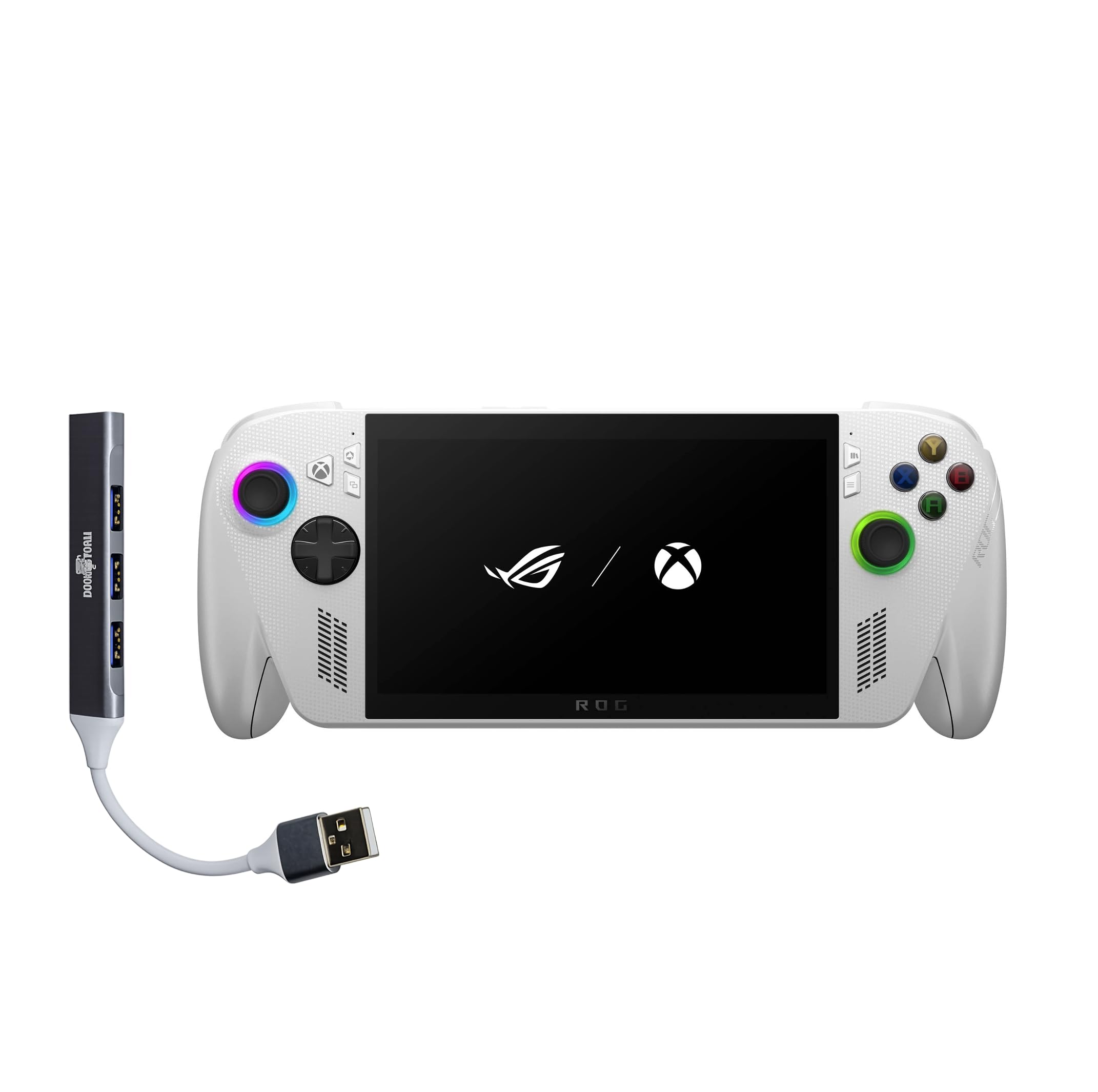
Figure 1: ASUS ROG Ally Gaming Handheld.
2. מה בקופסה
Upon unboxing your ASUS ROG Ally, ensure all components are present:
- כף יד ASUS ROG Ally Gaming
- מתאם מתח
- תיעוד (מדריך התחלה מהירה, כרטיס אחריות)

Figure 2: Included items in the ROG Ally package.
3. פריסת המכשיר ובקרות
Familiarize yourself with the physical layout and controls of your ROG Ally for optimal gaming and navigation.
חֲזִית View
- 7-inch IPS Touchscreen Display: Main interface for visuals and touch input.
- ג'ויסטיק שמאלי: לצורך תנועה וניווט.
- D-Pad: קלט כיווני.
- כפתור Xbox: Accesses Xbox Game Bar and other Xbox features.
- ג'ויסטיק ימני: For camera control and navigation.
- כפתורי A/B/X/Y: כפתורי פעולה סטנדרטיים.
- רמקולים קדמיים: פלט אודיו סטריאו.

איור 3: חזית view of the ROG Ally, highlighting the display and primary controls.
רֹאשׁ View
- Power Button/Fingerprint Scanner: Powers the device on/off and provides secure login.
- שקע שמע 3.5 מ"מ: לחיבור אוזניות או התקני שמע חיצוניים.
- חריץ כרטיס MicroSD: לאחסון הניתן להרחבה.
- פתחי חום: For cooling the internal components.
- לחצני עוצמת הקול למעלה / למטה: מכוונן את עוצמת השמע.
- מחוון LED: Displays device status (e.g., charging, power on).
- יציאות USB-C (x2): For charging, data transfer, and external device connectivity (one supports Thunderbolt).
- R1/R2/L1/L2 Buttons: כפתורי כתף והדק למשחקים.

איור 4: למעלה view of the ROG Ally, showing various ports and buttons.
אֲחוֹרִי View
- Rear Grips: Contoured for comfortable handling during extended play sessions.
- Rear Vents: Additional ventilation for cooling.

איור 5: אחורי view of the ROG Ally, highlighting ergonomic grips.
4. התקנה
הפעלה ראשונית והתקנת Windows 11
- Connect the power adapter to the ROG Ally and a power outlet.
- לחץ והחזק את כפתור הפעלה until the device powers on.
- פעל לפי ההוראות שעל המסך כדי להשלים את הגדרת Windows 11 Home, כולל הגדרות שפה, אזור ורשת.
- Set up your Microsoft account and create a user profile.
מתחבר ל-Wi-Fi
During the initial Windows setup, you will be prompted to connect to a Wi-Fi network. If you need to connect later:
- הקש על סמל רשת בשורת המשימות.
- בחר את רשת ה-Wi-Fi הרצויה מהרשימה.
- הזינו את סיסמת הרשת אם תתבקשו והקישו על לְחַבֵּר.
Fingerprint Sensor Setup
For secure and quick login, set up the integrated fingerprint sensor:
- עבור אל הגדרות > חשבונות > אפשרויות כניסה.
- לִבחוֹר זיהוי טביעת אצבע (Windows Hello) ופעל לפי ההוראות שעל המסך כדי לרשום את טביעת האצבע שלך.
5. Operating Your ROG Ally
חווית משחק
The ROG Ally provides a versatile gaming experience, allowing access to various platforms.
- Xbox Game Bar Integration: Launch Game Bar with a tap of the Xbox button to access game-related features, social interactions, and performance monitoring.
- Game Libraries: Play titles natively from platforms like Xbox Game Pass, Steam, Epic Games, and other Windows game stores.
- תכונות תצוגה: The 7-inch 120Hz display with FreeSync Premium variable refresh rate ensures smooth gameplay and reduces screen tearing. With 500 nits of brightness, the display offers vivid and immersive visuals.

Figure 6: The 7-inch 1080p 120Hz display provides ultra-smooth graphics.
מצבי ביצועים
The ROG Ally is powered by an ultra-efficient AMD Ryzen Z2 A processor, offering console-caliber performance. You can adjust performance modes through the Armoury Crate SE software to balance power consumption and gaming fidelity.

Figure 7: The AMD Ryzen Z2 A processor ensures powerful performance.
ניהול סוללות
The device features a 60Whrs battery for extended gaming sessions. It supports fast charging, allowing you to reach 50% charge from 0% in approximately 30 minutes.

Figure 8: The 60Wh battery provides longer playtime.
6. מפרטים
| תכונה | פְּרָט |
|---|---|
| פּלַטפוֹרמָה | Windows 11 Home |
| מעבד | AMD Ryzen Z2 A |
| גרָפִיקָה | AMD RDNA 2 Graphics |
| לְהַצִיג | 7" 120Hz Touchscreen IPS Display, 1080p, 500 nits, Gorilla Glass |
| זֵכֶר | 16GB LPDDR5X 6400MHz RAM |
| אִחסוּן | 512GB PCIe Gen4 M.2 2280 SSD (Upgradable) |
| קישוריות אלחוטית | Wi-Fi 6E MT7922, Bluetooth 5.4 |
| התקן קלט | Gamepad, Fingerprint Sensor |
| סוֹלְלָה | 60Whrs |
| צֶבַע | לָבָן |
| משקל פריט | 1.47 lbs (approx. 2 Pounds) |
7. תחזוקה
טיפול כללי וניקיון
- השתמש במטלית רכה ויבשה כדי לנקות את החלק החיצוני של המכשיר.
- עבור המסך, השתמשו במטלית מיקרופייבר המיועדת במיוחד למכשירי אלקטרוניקה. הימנעו מכימיקלים חזקים.
- Keep the device away from liquids, excessive dust, and extreme temperatures.
עדכוני תוכנה
Regularly check for and install Windows 11 updates to ensure optimal performance, security, and compatibility with the latest games and applications.
- עבור אל הגדרות > עדכון Windows.
- נְקִישָׁה בדוק אם יש עדכונים ולהתקין את כל העדכונים הזמינים.
8. פתרון תקלות
בעיות נפוצות ופתרונות
- התחממות יתר של המכשיר: Ensure the device's air vents are not blocked. Avoid placing it on soft surfaces like blankets during use. Consider adjusting performance modes to a lower setting if prolonged high-intensity gaming causes excessive heat.
- חיי סוללה קצרים: Battery life can vary significantly based on game intensity and performance settings. For longer sessions, keep the device plugged into the power adapter. Adjusting screen brightness and performance modes can also extend battery life.
- Game Compatibility/Performance: Ensure your Windows 11 and graphics drivers are up to date. Adjust in-game graphics settings to match the device's capabilities for optimal performance.
- פקדים לא מגיבים: Restart the device. Check for any software conflicts or driver issues.
9. סרטוני מוצר
ROG Xbox Ally X Review
סרטון 1: סקירה מפורטתview of the ROG Xbox Ally X, showcasing its features, design, and performance. This video provides an in-depth look at the device's capabilities and user experience.
Amazingly Powerful Mobile Device
Video 2: A user's perspective on the ROG Ally, highlighting its portability, power, and suitability for various gaming titles, including PC games and emulators.
10. אחריות ותמיכה
For warranty information, technical support, or service inquiries, please refer to the official ASUS support channels. The product typically includes a manufacturer's warranty, details of which can be found in the documentation provided with your device or on the official ASUS webאֲתַר.
- תמיכה מקוונת: בקרו באתר התמיכה הרשמי של ASUS website for FAQs, driver downloads, and troubleshooting guides.
- צור קשר עם התמיכה: Refer to your product documentation for regional contact numbers for technical assistance.