
1. הקדמה
This manual provides essential information for the safe and efficient use of your ASUS M3702WFAK-WPE007W 27-inch All-in-One PC. Please read these instructions thoroughly before operating the device and retain them for future reference. This document covers setup, operation, maintenance, and troubleshooting.
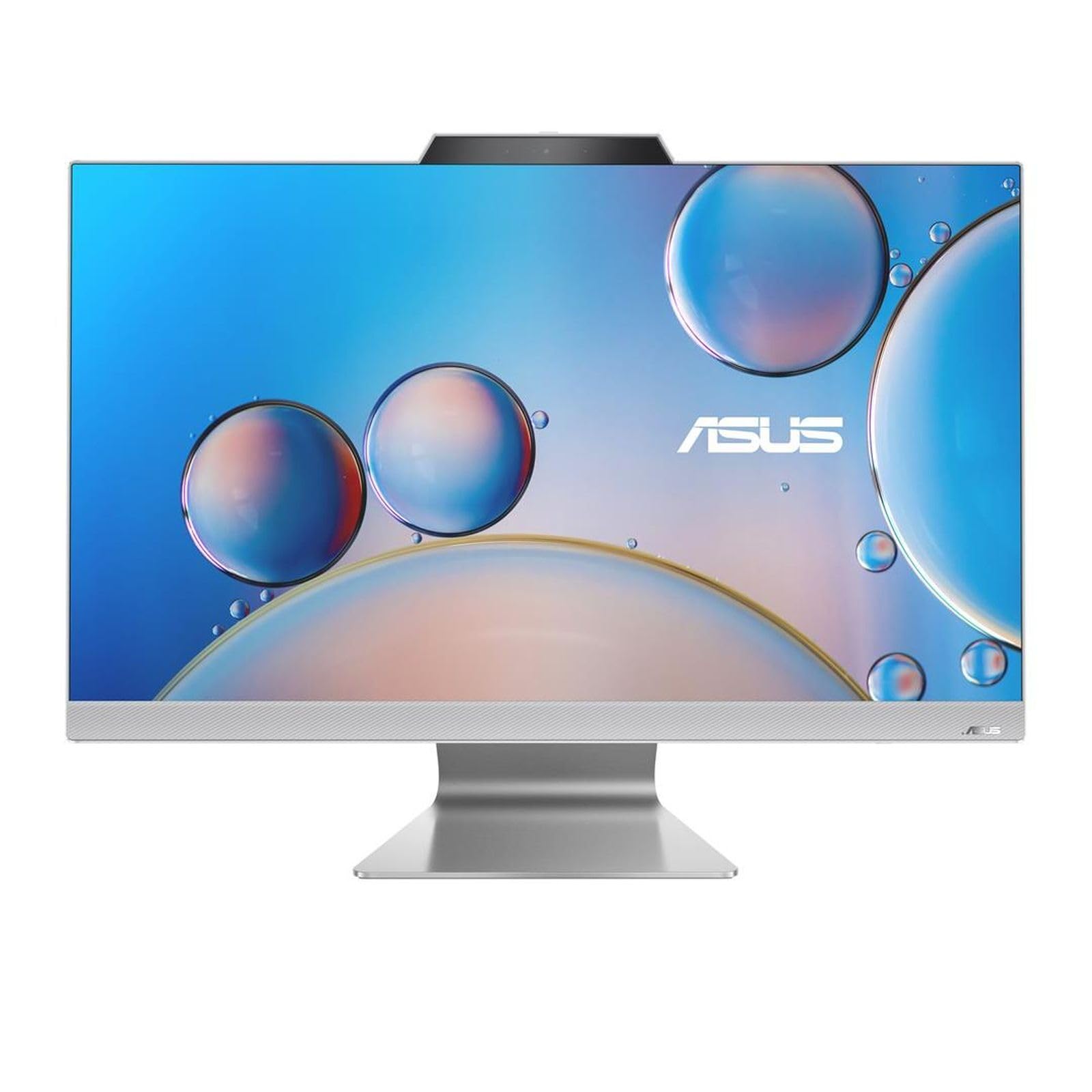
איור 1: חזית view of the ASUS M3702WFAK-WPE007W All-in-One PC, showcasing its 27-inch display and integrated design.
2. התקנה
2.1 פירוק
Carefully remove the All-in-One PC and all accessories from the packaging. Ensure all components listed in the packing list are present. Retain the packaging for future transport or service needs.
2.2 חיבור ציוד היקפי
- חיבור חשמל: Connect the power adapter to the DC-in port on the rear of the PC, then plug the power cord into an electrical outlet.
- מקלדת ועכבר: Connect your USB keyboard and mouse to the available USB ports on the rear or side of the PC. Wireless peripherals may require a USB dongle.
- חיבור רשת (אופציונלי): For a wired network connection, connect an Ethernet cable from your router or modem to the LAN port on the rear of the PC.
- תצוגה חיצונית (אופציונלי): If connecting an external monitor, use an HDMI cable to connect the external display to the HDMI-out port on the PC.

איור 2: צד ימין view of the ASUS All-in-One PC, illustrating accessible USB and audio ports for peripheral connections.

איור 3: אחורי view of the ASUS All-in-One PC, highlighting the power input, HDMI output, and Ethernet port for essential connections.
2.3 הפעלה ראשונית והגדרת מערכת הפעלה
- לחץ על לחצן ההפעלה, הממוקם בדרך כלל בצד או בתחתית המסגרת של הצג.
- Follow the on-screen instructions to complete the Windows 11 operating system setup. This includes selecting language, region, accepting terms, and creating a user account.
- Connect to a Wi-Fi network during setup if a wired connection is not used.
3. הפעלה
3.1 ניהול חשמל
- הפעלה: לחץ על לחצן ההפעלה.
- כיבוי: לחץ על לחצן התחל ב-Windows, לאחר מכן בחר הפעלה > כיבוי.
- הפעל מחדש: לחץ על לחצן התחל ב-Windows, לאחר מכן בחר הפעלה > הפעלה מחדש.
- מצב שינה: Click the Start button in Windows, then select Power > Sleep. The system will enter a low-power state.
3.2 תצוגה ושמע
- התאמת בהירות: Use the function keys on your keyboard (if available) or Windows display settings to adjust screen brightness.
- בקרת עוצמת הקול: Use the volume keys on your keyboard or the volume icon in the Windows taskbar to adjust audio output.
- Connecting Headphones/Microphone: Use the audio jack(s) on the side of the PC for headphones or an external microphone.
3.3 קישוריות רשת
- Wi-Fi: To connect to a wireless network, click the Wi-Fi icon in the Windows taskbar, select your desired network, and enter the password if prompted.
- אתרנט: If an Ethernet cable is connected, the PC will automatically establish a wired network connection.
4. תחזוקה
4.1 ניקוי
- מָסָך: השתמש במטלית רכה נטולת מוך מעט דampנשטף במים או בחומר ניקוי מסך שאינו שוחק. אין לרסס נוזל ישירות על המסך.
- שלדה: נגבו את המשטחים החיצוניים בעזרת מטלית רכה ויבשה. הימנעו משימוש בכימיקלים חזקים או בחומרים שוחקים.
- אוורור: ודאו שפתחי האוורור נקיים מאבק וחסימות כדי למנוע התחממות יתר.
4.2 עדכוני תוכנה
Regularly check for and install operating system updates (Windows Update) and driver updates (via ASUS support website or MyASUS application) to ensure optimal performance and security.
4.3 גיבוי נתונים
מומלץ לגבות באופן קבוע את הנתונים החשובים שלך לכונן חיצוני או לאחסון ענן כדי למנוע אובדן נתונים.
5. פתרון תקלות
- אין כוח:
- Ensure the power adapter is securely connected to both the PC and the electrical outlet.
- ודא ששקע החשמל תקין על ידי חיבור מכשיר אחר.
- אין תצוגה:
- Check if the PC is powered on.
- אם מחובר צג חיצוני, ודא שהוא דולק ומכוון למקור הקלט הנכון.
- אין חיבור אינטרנט:
- For Wi-Fi, ensure Wi-Fi is enabled and you are connected to the correct network with the correct password.
- For Ethernet, ensure the cable is securely connected and your router/modem is working correctly.
- Restart your router/modem and the PC.
- האטת מערכת:
- סגור יישומים מיותרים.
- בדוק אם קיימים עדכוני Windows ממתינים והתקן אותם.
- Run a disk cleanup or defragmentation (for HDD, not SSD).
6. מפרטים
| תכונה | מִפרָט |
|---|---|
| מותג | ASUS |
| מספר דגם (פריט) | 90PT03M1-M00CA0 |
| מספר ליבות | 4 |
| אַיִל | 16 ג'יגה-בייט |
| ממשק כונן קשיח | אתרנט |
| גודל מסך | 27 אינץ' |
| סוג טכנולוגיה אלחוטית | 802.11ac |
| ממשק חומרה | HDMI |
| זמינות חלקי חילוף | מידע לא זמין |
| עדכוני תוכנה מובטחים עד | מידע לא זמין |
| ASIN | B0CTWR22BG |
| תאריך ראשון זמין | 20 באפריל, 2024 |
| יַצרָן | ASUS |
| גודל מטמון | 4 מגה-בייט |
| קיבולת אחסון | 512 ג'יגה-בייט |
| שנת דגם | 2021 |
| קלט ממשק אנושי | כפתורים |
7. אחריות ותמיכה
למידע מפורט על האחריות, אנא עיינו בכרטיס האחריות המצורף למוצר שלכם או בקרו באתר התמיכה הרשמי של ASUS webאתר. תמיכת ASUS website also provides drivers, FAQs, and contact information for technical assistance.
בדרך כלל ניתן למצוא משאבי תמיכה על ידי ביקור www.asus.com/support and searching for your specific model number (M3702WFAK-WPE007W or 90PT03M1-M00CA0).