
1. הקדמה
This manual provides detailed instructions for the setup, operation, and maintenance of your Pisichen 16-inch 1920x1200P Touch Panel Portable Monitor. Please read this manual thoroughly before using the product to ensure proper functionality and to prevent damage.

Image 1.1: The Pisichen 16-inch Portable Monitor, showcasinהתצוגה התוססת והעיצוב הדק שלה.
2. מידע בטיחות
- אין לחשוף את הצג לגשם או לחות כדי למנוע התחשמלות או סכנת שריפה.
- אל תפתח את הצג גasinז. הפנה את כל הטיפולים לצוות מוסמך.
- הימנע מהצבת הצג באור שמש ישיר או ליד מקורות חום.
- Use only the power adapter and cables provided or approved by the manufacturer.
- Clean the screen with a soft, lint-free cloth. Do not use liquid cleaners or aerosol sprays directly on the screen.
3. תכולת החבילה
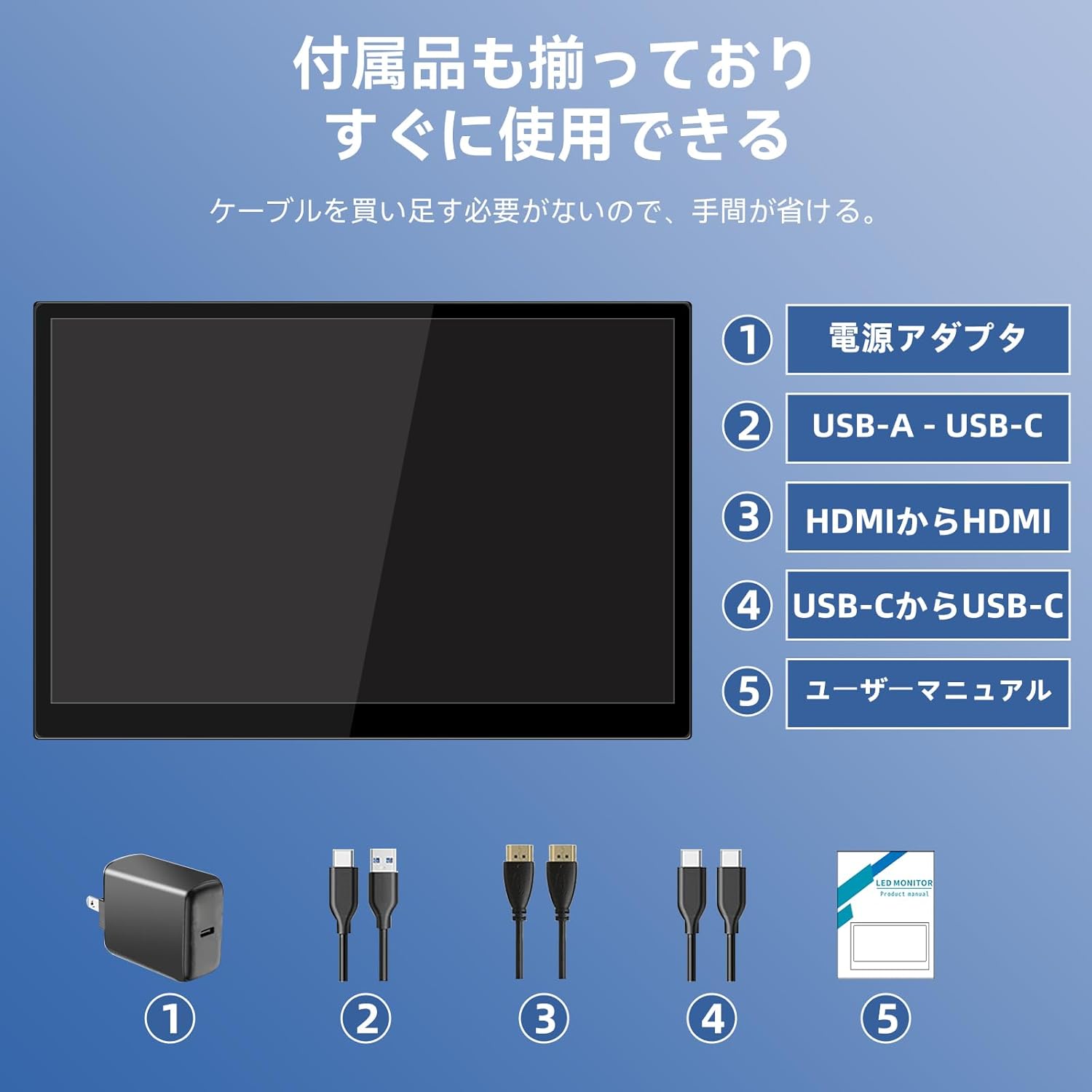
אנא בדקו את החבילה עבור הפריטים הבאים:
- Pisichen 16-inch Portable Monitor
- מתאם מתח
- כבל USB-A ל-USB-C
- כבל HDMI ל- HDMI
- כבל USB-C ל-USB-C
- מדריך למשתמש (מסמך זה)

Image 3.1: All items included in the product package, ready for immediate use.
4. המוצר נגמרview
The monitor features multiple ports for versatile connectivity and control buttons for easy navigation of settings.
4.1. יציאות וכפתורים
תמונה 4.1: מפורט view of the monitor's interfaces, including audio port, USB-C ports, HDMI port, brightness controls, menu/OK button, volume/down button, and USB-A port.
- יציאת שמע 3.5 מ"מ: לחיבור אוזניות או רמקולים חיצוניים.
- USB-C Port 1 (Full-function): Supports power, video, and touch signal transmission.
- USB-C Port 2 (Full-function): Supports power, video, and touch signal transmission.
- יציאת HDMI: For video signal input from devices.
- Brightness Up / Power Button: Short press to increase brightness, long press to power on/off.
- Menu / OK Button: Press to open OSD menu, press again to confirm selection.
- Volume Down / Back Button: Short press to decrease volume, long press to go back in OSD menu.
- USB-A Port (OTG): לחיבור עכבר או מקלדת.
5. התקנה
Follow these steps to connect your portable monitor to various devices.
5.1. Single Cable Connection (USB-C)
For devices with a full-function USB-C port (supporting DisplayPort Alternate Mode and power delivery), a single USB-C to USB-C cable can transmit video, audio, touch signals, and power.
- Connect one end of the USB-C to USB-C cable to a full-function USB-C port on your device (e.g., laptop, smartphone).
- Connect the other end to either USB-C Port 1 or USB-C Port 2 on the monitor.
- The monitor should automatically power on and display the content. Touch functionality will also be active.
5.2. Dual Cable Connection (HDMI + USB-C for Power/Touch)
For devices with an HDMI output, or if your USB-C port does not support power delivery, you will need two cables.
- Connect one end of the HDMI to HDMI cable to your device's HDMI output.
- Connect the other end to the HDMI Port on the monitor.
- Connect the power adapter to one of the monitor's USB-C ports (Port 1 or Port 2) for power.
- For touch functionality, connect the USB-A end of the USB-A to USB-C cable to your device's USB-A port, and the USB-C end to the other available USB-C port on the monitor.

Image 5.1: Illustration of different connection methods: single USB-C cable for power, video, and touch, and dual cable setup using HDMI for video and USB-C for power and touch.
6. הוראות הפעלה
6.1. הפעלה/כיבוי
Long press the Brightness Up / Power Button (5) for approximately 3 seconds to power the monitor on or off.
6.2. תפריט תצוגה על המסך (OSD).
Press the Menu / OK Button (6) to access the OSD menu. Use the Brightness Up / Power Button (5) and Volume Down / Back Button (7) to navigate through options. Press the Menu / OK Button (6) to confirm selections. Long press the Volume Down / Back Button (7) to exit the menu.
6.3. גע בפונקציונליות
The monitor supports 10-point capacitive multi-touch. Ensure a USB connection (via full-function USB-C or USB-A to USB-C cable) is established for touch input to work. The touch screen allows for intuitive interaction, including swiping, writing, and annotating.
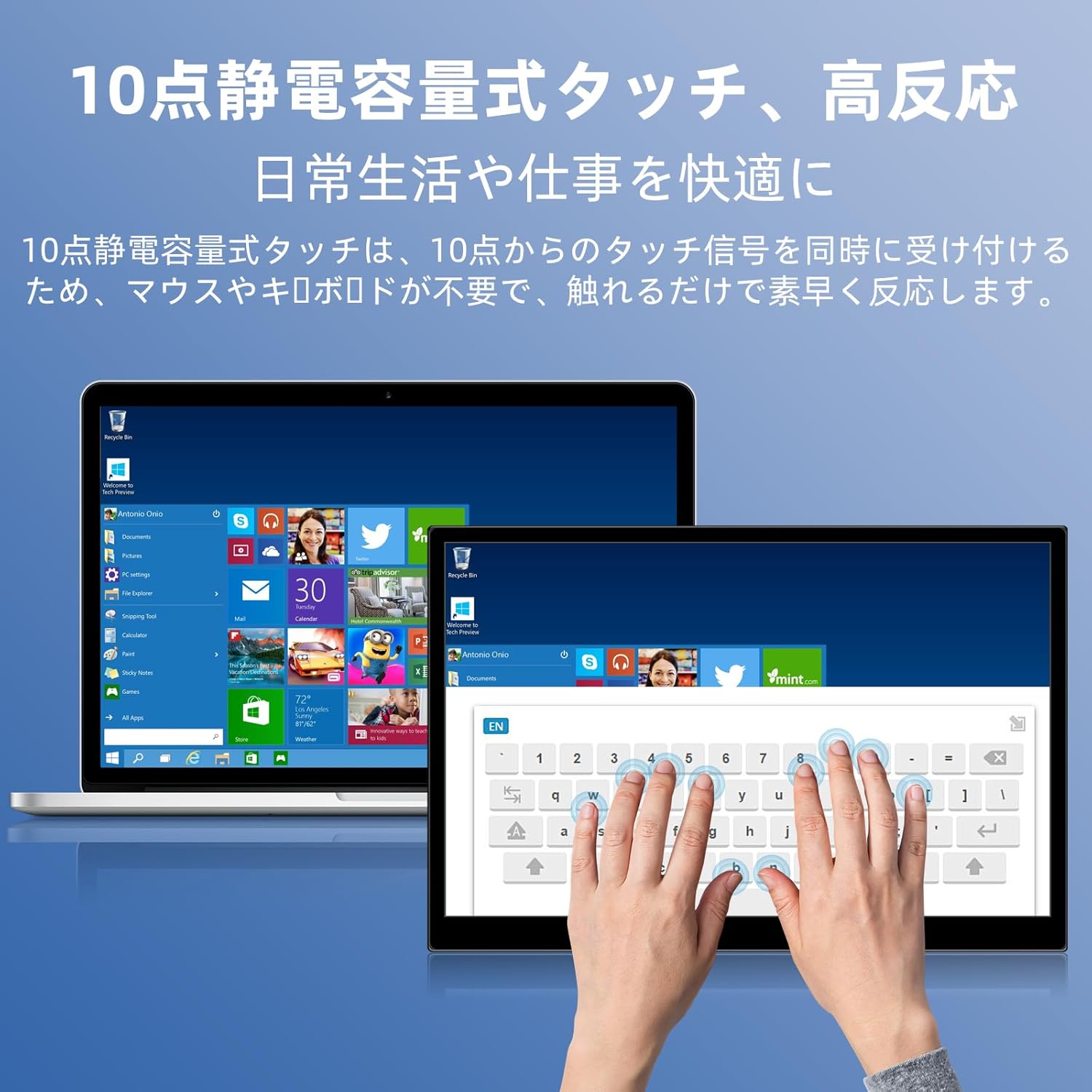
Image 6.1: A user demonstrating the responsive 10-point capacitive touch functionality on the portable monitor, enabling smooth interaction with on-screen content.
6.4. מצבי תצוגה
The monitor supports various display modes when connected to a computer:
- מצב שכפול: Mirrors the content of your primary screen.
- מצב הארכה: Extends your desktop, providing more screen real estate for multitasking.
- מצב מסך שני: משתמש רק בצג הנייד כתצוגה.
6.5. כיוון המסך
The monitor supports both landscape and portrait orientations. You can adjust the display settings on your connected device (e.g., Windows Display Settings, macOS Display Preferences) to change the orientation as needed for different tasks like document viewing or design work.
6.6. HDR Technology
The monitor features HDR (High Dynamic Range) mode, which provides deeper and more realistic colors for an enhanced visual experience. This setting can typically be toggled within the OSD menu or your device's display settings.

תמונה 6.2: דוגמהamples of the monitor's versatility, showing its use for entertainment, mobile productivity, and as an extended display for a home office.
7. תחזוקה
- ניקוי המסך: נגבו בעדינות את המסך בעזרת מטלית רכה, יבשה ונטולת סיבים. במקרה של סימנים עקשניים, נגבו קלותampשטפו את המטלית במים או בחומר ניקוי ספציפי למסכים (יש למרוח על הבד, לא ישירות על המסך).
- ניקוי ה-Casing: השתמשו במטלית רכה ויבשה כדי לנגב את הצג.asinז. הימנעו מחומרי ניקוי שוחקים.
- אִחסוּן: כאשר הצג אינו בשימוש למשך תקופות ממושכות, יש לאחסן אותו במקום קריר ויבש, רצוי באריזתו המקורית או בשרוול מגן.
- ניהול כבלים: הימנעו מכיפוף או פיתול יתר על המידה של כבלים כדי למנוע נזק.
8. פתרון תקלות
| בְּעָיָה | סיבה אפשרית | פִּתָרוֹן |
|---|---|---|
| No display / "No Signal" message | חיבור כבל שגוי, חשמל לא מספיק, מקור קלט שגוי. | Ensure cables are securely connected. Verify the device's USB-C port supports video output. Connect the power adapter if using HDMI or if USB-C power is insufficient. Check OSD menu for correct input source. |
| פונקציית המגע לא עובדת | No USB connection for touch, driver issue (rare). | Ensure the USB-C cable is full-function or that the USB-A to USB-C cable is connected for touch data. Restart the monitor and connected device. |
| מסך מרצד | Unstable power, faulty cable, refresh rate mismatch. | Use the provided power adapter. Try a different cable. Adjust the refresh rate in your device's display settings. |
| Image is distorted or stretched | Incorrect aspect ratio settings. | Adjust the aspect ratio in the OSD menu or your device's display settings to match the monitor's native resolution (1920x1200). |

Image 8.1: Demonstrating the importance of correct aspect ratio settings to avoid image distortion.
9. מפרטים
| תכונה | מִפרָט |
|---|---|
| מותג | פישין |
| מספר דגם | 16QTHCM-1200P |
| גודל מסך | 16 אינץ' |
| הַחְלָטָה | 1920 x 1200 פיקסלים (FHD) |
| סוג פאנל | IPS |
| Viewזווית | 178° |
| קצב רענון | 60 הרץ |
| יחס ניגודיות | 1000:1 |
| בְּהִירוּת | 300 תקליטורים/מ"ר |
| סולם צבעים | 100% sRGB |
| עומק צבע | 16.7 מיליון צבעים |
| מסך מגע | 10-point Capacitive Touch |
| קישוריות | 2x Full-function USB-C 3.1, 1x HDMI, 1x USB-A (OTG), 1x 3.5mm Audio Jack |
| תמיכה ב-HDR | כֵּן |
| תואם VESA Mount | כֵּן |
| מידות מוצר (W x H x D) | 350 x 230 x 10 מ"מ |
| מִשׁקָל | 1.62 ק"ג |
10. אחריות ותמיכה
For warranty information and technical support, please refer to the warranty card included in your product package or contact Pisichen customer service through their official website or the retailer where the product was purchased. Please have your model number (16QTHCM-1200P) and purchase details ready when contacting support.