1. הקדמה
This manual provides detailed instructions for setting up, operating, and maintaining your X-Link AX3000 Dual Band WiFi 6, 4G LTE CAT12 Router. This device is designed to provide high-speed internet connectivity through 4G LTE and advanced WiFi 6 technology, offering a reliable and efficient network solution for homes and small offices.
2. המוצר נגמרview
2.1 תכולת החבילה
- 1x X-Link AX3000 LTE CPE (Router)
- מדריך התחלה מהירה (QSG) אחד
- 1x מתאם חשמל
- כבל אתרנט 1x
2.2 פריסת מכשיר

איור 2.2.1: חזית View of the Router. Shows the X-Link branding and the row of LED indicators for 5G, 2.4G, 4G, and power status.

איור 2.2.2: אחורה View of the Router. Displays two Gigabit Ethernet ports (LAN/WAN) and the power input jack.
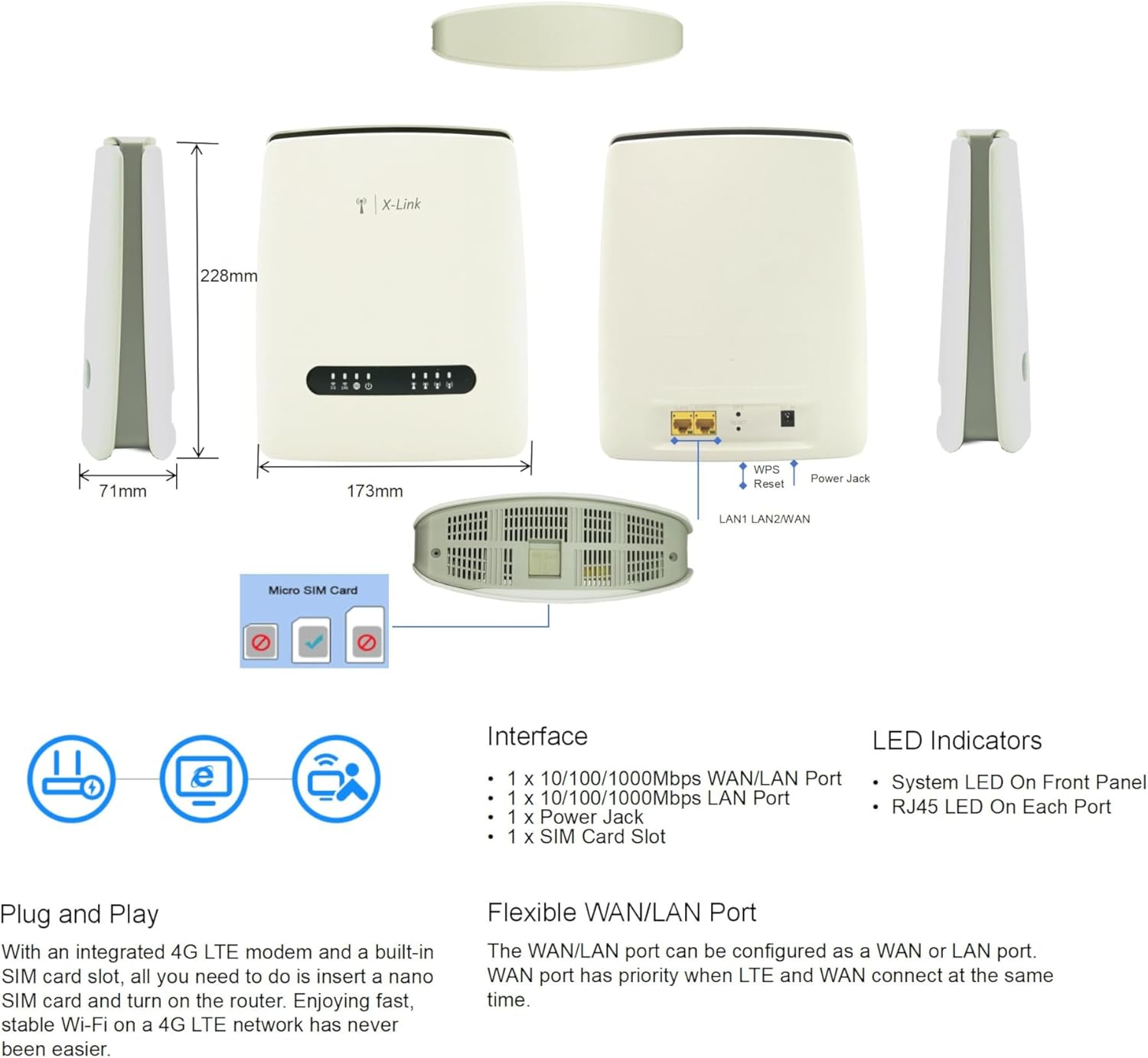
Figure 2.2.3: Router Dimensions, Interfaces, and LED Indicators. Provides a detailed diagram of the device's physical layout, including port labels and LED functions.
2.3 מחווני LED
| מַד | סטָטוּס | תֵאוּר |
|---|---|---|
| 5G | מוצק | 5GHz Wi-Fi is active. |
| 2.4G | מוצק | 2.4GHz Wi-Fi is active. |
| 4G | מוצק | 4G LTE connection is established. |
| כּוֹחַ | מוצק | המכשיר מופעל. |
| Signal Strength (4 bars) | משתנה | Indicates the strength of the 4G LTE signal. More bars mean stronger signal. |
2.4 ממשקים
- יציאת LAN1/WAN: 1 x 10/100/1000Mbps Ethernet port. Can be configured as a WAN or LAN port.
- יציאת LAN2: 1 x יציאת Ethernet 10/100/1000Mbps.
- שקע חשמל: לחיבור מתאם החשמל.
- חריץ לכרטיס SIM: For inserting a Nano SIM card.
- כפתור WPS/איפוס: לחץ לפונקציית WPS; לחץ לחיצה ממושכת לאיפוס להגדרות היצרן.
3. מדריך התקנה
3.1 הכנסת כרטיס ה-SIM
- ודא שהנתב כבוי.
- Locate the SIM card slot on the device (refer to Figure 2.2.3).
- Insert a compatible Nano SIM card into the slot with the gold contacts facing down and the notched corner oriented correctly. Push until it clicks into place.
- כדי להוציא, דחפו בעדינות את כרטיס ה-SIM פנימה שוב עד שיבקיע החוצה.
Note: The router supports Qualcomm Cat12 chipset for high-speed 4G LTE connectivity. Ensure your SIM card is activated and compatible with the router's network bands.
3.2 הפעלת הנתב
- Connect the provided power adapter to the Power Jack on the router.
- חבר את הקצה השני של מתאם החשמל לשקע חשמל.
- The Power LED indicator will light up, and the router will begin to boot. This may take a few minutes.
3.3 חיבור רשת ראשוני
Once the router is powered on and the 4G LED is solid, you can connect your devices:
3.3.1 חיבור אלחוטי (Wi-Fi)
- במכשיר שלך (סמארטפון, מחשב נייד, טאבלט), פתח את הגדרות ה-Wi-Fi.
- חפש the Wi-Fi network name (SSID) printed on the label at the bottom of your router.
- Select the SSID and enter the Wi-Fi password (also found on the router's label).
- המכשיר שלך אמור להיות מחובר כעת לאינטרנט.
3.3.2 חיבור קווי (אתרנט)
- Connect one end of the Ethernet cable to a LAN port on the router (LAN1 or LAN2).
- חבר את הקצה השני של כבל ה-Ethernet ליציאת ה-Ethernet במחשב או בהתקן קווי אחר.
- Your device should automatically obtain an IP address and connect to the internet.
4. מצבי הפעלה
4.1 Router/AP Mode
In Router/AP mode, the X-Link AX3000 converts your 4G LTE cellular connection into a high-speed Wi-Fi network. It acts as the primary internet gateway, providing internet access to all connected wireless and wired devices.
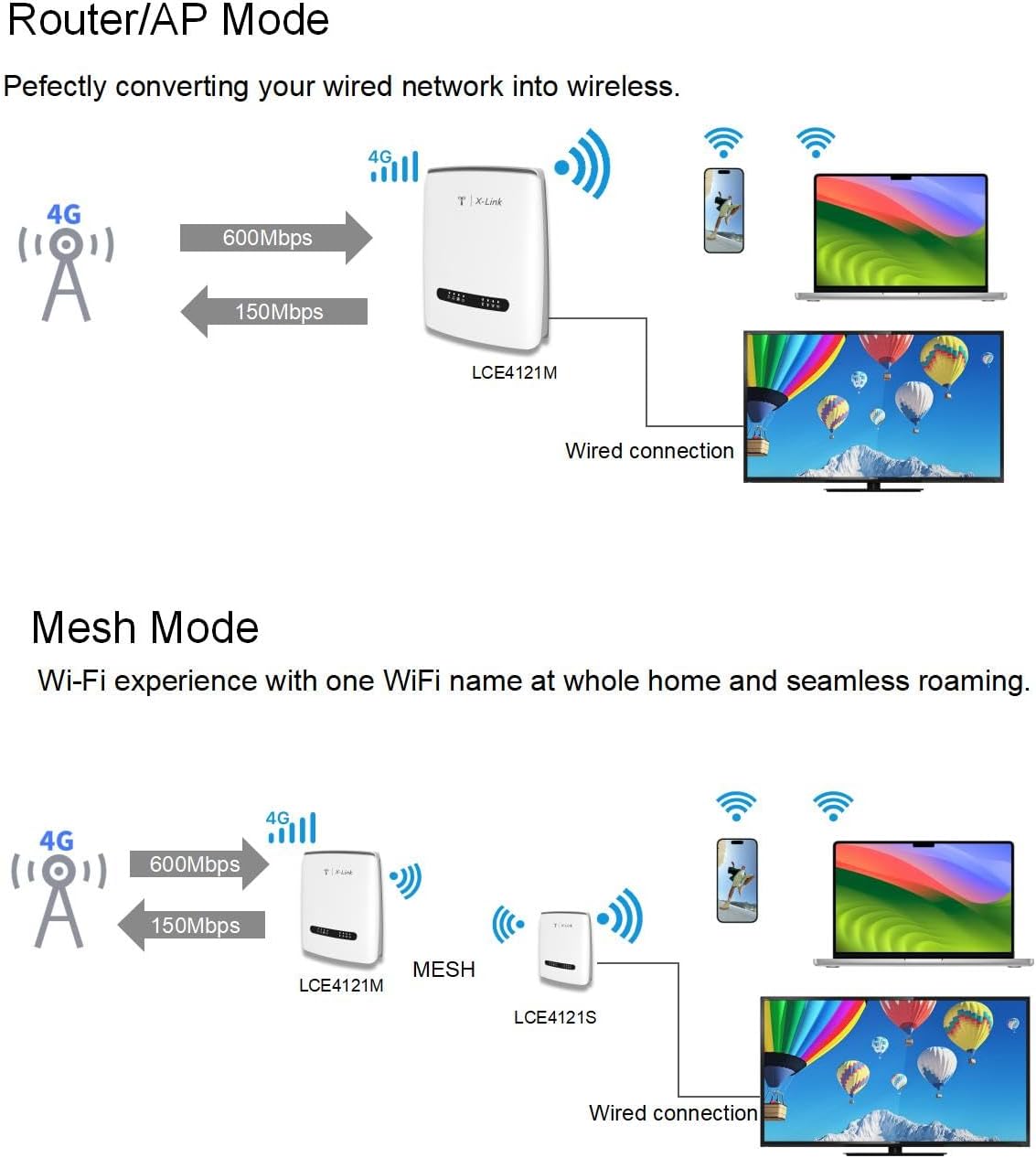
Figure 4.1.1: Router/AP Mode Operation. Shows the router receiving 4G LTE signal and distributing internet via Wi-Fi and wired connections to various devices.
4.2 Mesh Mode
The Mesh capability allows you to expand your Wi-Fi coverage seamlessly throughout your entire home or office. By adding compatible X-Link Mesh routers (sold separately), you can create a unified network with a single Wi-Fi name, eliminating dead zones and ensuring consistent, strong signal coverage.

Figure 4.2.1: Mesh Mode Operation. Depicts multiple X-Link devices working together to provide seamless Wi-Fi coverage across a larger area.

Figure 4.2.2: Router Application Scenarios. Illustrates the router's versatility for use in home, lobby, and office environments, highlighting its broad applicability.
5. תכונות ויתרונות עיקריים
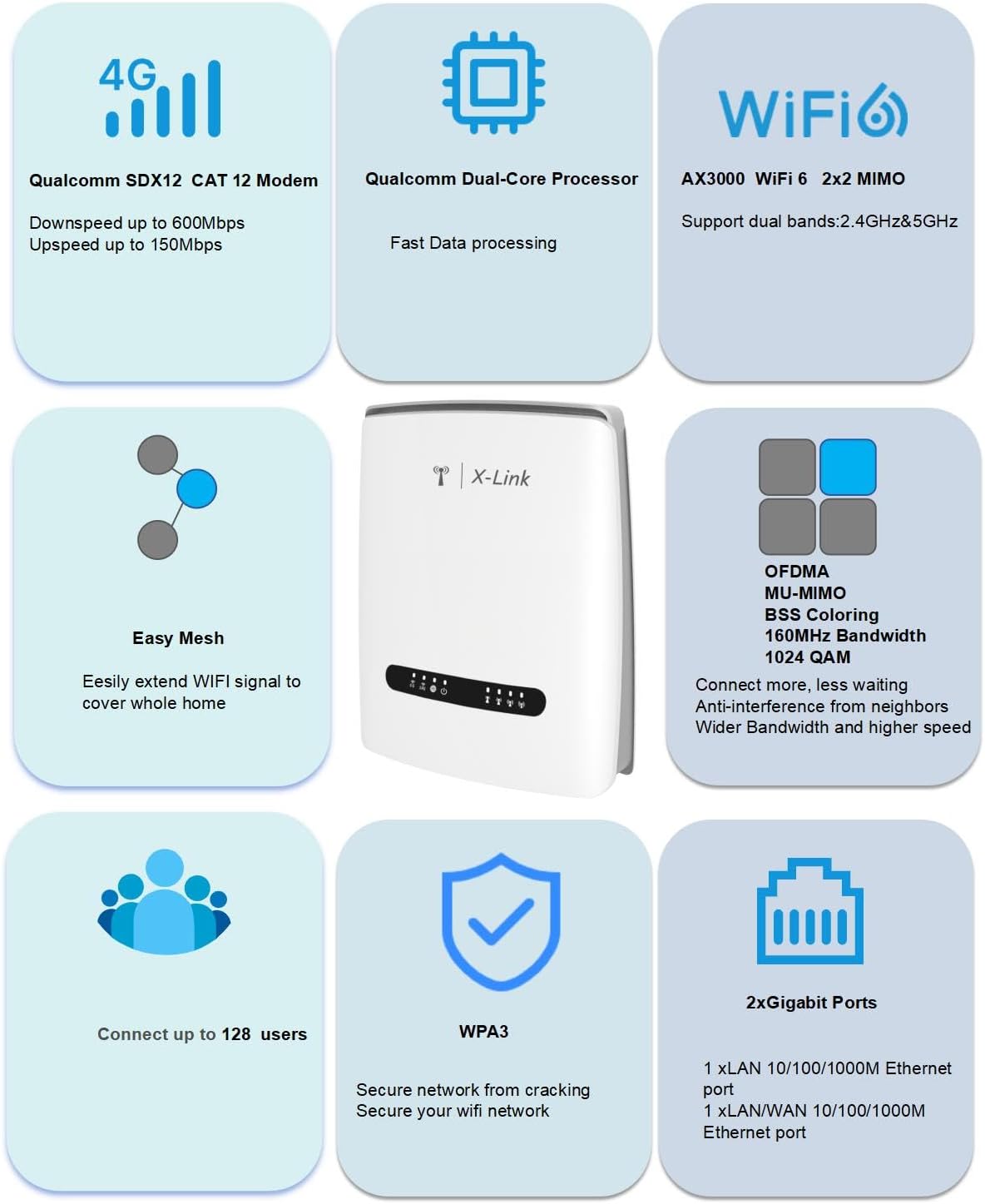
איור 5.0.1: תכונות עיקריות מעלview. Summarizes the main technical advantages of the router, including chipset, Wi-Fi standards, and connectivity options.
- 4G LTE CAT12 Connectivity: Equipped with a Qualcomm Cat12 chipset, offering download speeds up to 600Mbps and upload speeds up to 150Mbps. Ideal for areas without traditional wired broadband.
- Dual-Band WiFi 6 (AX3000): Delivers combined speeds of up to 2976Mbps (2402Mbps on 5GHz and 574Mbps on 2.4GHz) for smoother streaming, gaming, and browsing.
- קיבולת מכשיר גבוהה: Supports stable connections for up to 128 devices simultaneously, leveraging MU-MIMO and OFDMA technologies to improve transmission efficiency and reduce latency.
- יציאות Gigabit Ethernet: Two 1000/100/10Mbps Ethernet ports provide stable and high-speed wired connections for devices like gaming consoles and PCs.
- יכולת רשת: Expand your Wi-Fi coverage by seamlessly integrating with other X-Link Mesh routers, creating a unified network with no dead zones.
- אבטחה משופרת: Supports WPA3 encryption for a secure network, protecting against unauthorized access.

Figure 5.0.2: Next Generation WiFi 6 Performance. Emphasizes the high speeds and benefits of AX3000 WiFi 6 technology for demanding applications like 8K/4K video and gaming.
6. מפרטים
| תכונה | פְּרָט |
|---|---|
| שם הדגם | X-Link 4G AX3000 WiFi 6 Router (LCM4121M) |
| ערכת שבבים | Qualcomm SDx12 (Cat12) |
| 4G LTE Speeds | Download: Up to 600Mbps, Upload: Up to 150Mbps |
| Wi-Fi בתקן | WiFi 6 (802.11ax) |
| מהירות Wi-Fi | AX3000 (2402 מגה-ביט לשנייה בתדר 5GHz, 574 מגה-ביט לשנייה בתדר 2.4GHz) |
| רצועת תדרים | דו-פס (2.4GHz ו-5GHz) |
| יציאות Ethernet | 2 x Gigabit (10/100/1000Mbps) Ethernet Ports (1x LAN/WAN, 1x LAN) |
| סוג כרטיס SIM | ננו סים |
| מקסימום מכשירים | עד 128 |
| מידות | 11.73 x 7.87 x 3.11 אינץ' |
| משקל פריט | 1.94 פאונד |
| תכונות מיוחדות | Mesh Capability, Internet Security, Parental Control, MU-MIMO, OFDMA |
| רכיבים כלולים | 1x LTE CPE, 1x QSG, 1x Power Adapter, 1x Cable |
7. פתרון תקלות
7.1 אין חיבור לאינטרנט
- בדוק את כרטיס ה-SIM: ודא שכרטיס ה-SIM מוכנס כהלכה ומופעל עם תוכנית גלישה.
- בדיקת LED 4G: If the 4G LED is off or blinking, the router may not have a cellular signal. Try relocating the router to an area with better signal strength.
- הפעל מחדש את הנתב: כבה את הנתב, המתן 10 שניות ולאחר מכן הפעל אותו מחדש.
- בדוק את הגדרות ה-APN: גישה לנתב web management interface (usually 192.168.1.1 or similar, check router label) and verify that the APN settings are correct for your mobile carrier.
7.2 מהירות Wi-Fi איטית
- חוזק אות: Ensure your device is close enough to the router for a strong Wi-Fi signal.
- הַפרָעָה: Move the router away from other electronic devices that might cause interference (e.g., microwaves, cordless phones).
- בחירת להקה: For faster speeds, connect to the 5GHz Wi-Fi band if your device supports it.
- יותר מדי מכשירים: While the router supports many devices, excessive simultaneous high-bandwidth usage can impact performance.
- עדכון קושחה: בדוק את הנתב web interface for available firmware updates.
7.3 לא ניתן לגשת לנתב Web מִמְשָׁק
- כתובת IP: Ensure you are using the correct default IP address (e.g., 192.168.1.1). Check the label on the router.
- חיבור קווי: נסה לחבר את המחשב ישירות לראוטר באמצעות כבל Ethernet.
- מטמון דפדפן: נקה את שלך web מטמון ועוגיות של הדפדפן, או נסה דפדפן אחר.
- חומת אש/אנטי-וירוס: השבת זמנית כל תוכנת חומת אש או אנטי-וירוס במחשב שלך שעשויה לחסום את הגישה.
7.4 איפוס להגדרות היצרן
If you encounter persistent issues, you can reset the router to its factory default settings. This will erase all custom configurations (Wi-Fi name, password, etc.).
- With the router powered on, locate the WPS/Reset button (often a small pinhole).
- Use a paperclip or a thin object to press and hold the button for approximately 10 seconds until the LEDs flash.
- שחררו את הכפתור. הנתב יופעל מחדש עם הגדרות ברירת המחדל של היצרן.
8. תחזוקה
- ניקוי רגיל: Keep the router clean and free from dust. Use a soft, dry cloth.
- אוורור: ודאו שהנתב ממוקם באזור מאוורר היטב כדי למנוע התחממות יתר. אין לכסות את פתחי האוורור.
- עדכוני קושחה: בדקו מעת לעת את הוראות היצרן webהאתר או הנתב web interface for firmware updates. Updates can improve performance, add features, and fix bugs.
- מיקום מאובטח: Place the router on a stable surface, away from direct sunlight, heat sources, and moisture.
9. אחריות ותמיכה
For warranty information and technical support, please refer to the warranty card included with your product or visit the official X-Link website. You can also contact X-Link customer service for assistance with product setup, troubleshooting, and general inquiries.
יַצרָן: X-Link
מידע ליצירת קשר: Please refer to the Quick Start Guide or the official X-Link webאתר לקבלת פרטי יצירת הקשר העדכניים ביותר של התמיכה.