
מָבוֹא
This manual provides detailed instructions for the setup, operation, and maintenance of your Prechen 10.1 inch Portable Touchscreen Monitor, Model HD-101. Please read this manual thoroughly before using the device to ensure proper functionality and to prevent damage.
תכונות המוצר
- Portable Touchscreen: This 10.1-inch monitor is compact and lightweight, designed for portability. The touchscreen functionality allows for intuitive navigation and interaction, enhancing productivity on the go.
- High-Resolution IPS Display: Features a 1920x1200 resolution with a 16:10 aspect ratio, delivering clear and vibrant visuals. IPS technology provides wide viewing angles and accurate color reproduction, suitable for various applications.
- קישוריות רב-תכליתית: Equipped with HDMI and USB-C ports, offering flexible connection options. It can be easily connected to Windows PCs, laptops, and gaming consoles like Xbox. Note: USB-C is for touch functionality and power.
- רמקולים משולבים: Built-in speakers provide clear and dynamic audio, eliminating the need for external speakers during media consumption, gaming, or virtual meetings.
- תואם VESA Mount: The monitor supports VESA mounting standards, allowing for attachment to compatible stands or arms for customized workspace setups and comfortable viewזוויות.
הגדרה
תוכן החבילה
ודא שכל הפריטים נמצאים בחבילה:
- Prechen 10.1 inch Portable Touchscreen Monitor
- כבל HDMI
- כבל USB-C ל-USB-C
- USB-A to USB-C Cable (for power/touch)
- מתאם מתח
- מדריך למשתמש (מסמך זה)
חיבור המוניטור
- חיבור חשמל: Connect the provided power adapter to the DC Power Port on the monitor and plug it into a power outlet. Alternatively, if your device supports power delivery, connect a USB-C to USB-C cable to the USB-C (Power & Touch) port for both power and signal.
- חיבור וידאו:
- HDMI: Connect one end of the HDMI cable to the HDMI port on the monitor and the other end to the HDMI output of your computer or device.
- USB-C (DisplayPort Alternate Mode): If your device supports DisplayPort Alternate Mode over USB-C, connect a USB-C to USB-C cable to the USB-C (Power & Touch) port on the monitor and your device. This single cable can provide video, power, and touch functionality.
- פונקציונליות מגע: For touch functionality, ensure the USB-C (Power & Touch) port is connected to your device. If using HDMI for video, you will also need to connect a USB-A to USB-C cable from your device's USB-A port to the monitor's USB-C (Power & Touch) port.
- פלט שמע: If you wish to use external headphones or speakers, connect them to the 3.5mm Audio Port on the monitor.
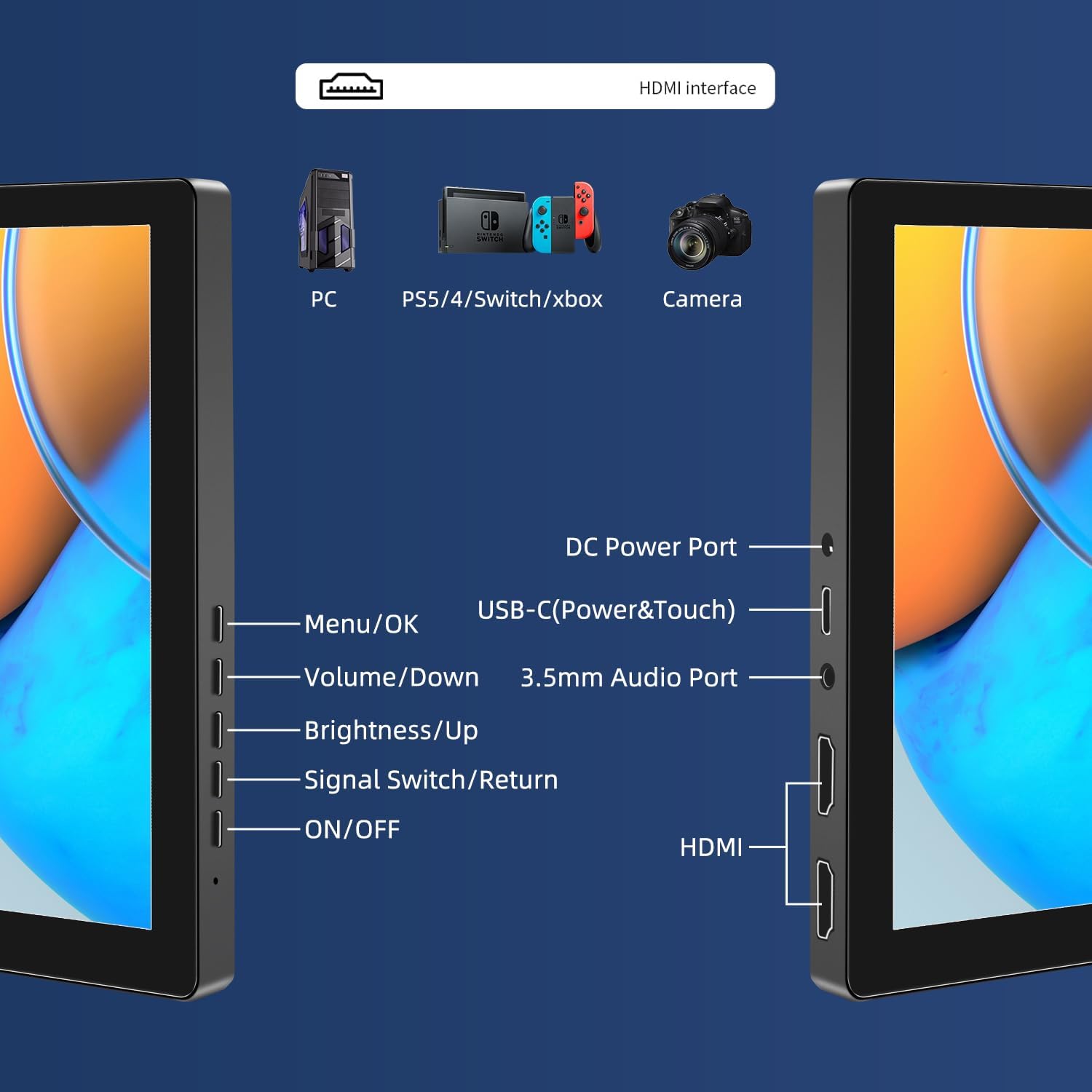
תמונה: מעלview of the monitor's ports including DC Power, USB-C (Power & Touch), 3.5mm Audio, HDMI, and control buttons.
הוראות הפעלה
הפעלה/כיבוי
- To power on the monitor, press the הפעלה/כיבוי לַחְצָן.
- כדי לכבות, לחץ והחזק את המקש הפעלה/כיבוי למשך מספר שניות עד שהמסך יכבה.
שימוש בתפריט המסך (OSD)
תפריט המסך מאפשר לך להתאים הגדרות תצוגה שונות.
- הקש על תפריט / בסדר כפתור כדי לפתוח את תפריט המסך.
- השתמש ב- להנמיך קול ו בהירות/מעלה כפתורים כדי לנווט בין אפשרויות התפריט.
- לִלְחוֹץ תפריט / בסדר כדי לבחור אפשרות או לאשר הגדרה.
- הקש על Signal Switch/Return button to go back to the previous menu or exit the OSD.
Adjusting Display Modes
The monitor supports multiple display modes when connected to a computer:
- מצב שכפול: Displays the same content on both your primary screen and the portable monitor.
- מצב הארכה: מרחיב את שולחן העבודה שלך על פני שני המסכים, ומספק מרחב עבודה גדול יותר.
- מצב מסך שני: משתמש רק בצג הנייד כתצוגה.
These modes are typically configured through your operating system's display settings (e.g., Windows Display Settings, macOS System Preferences).
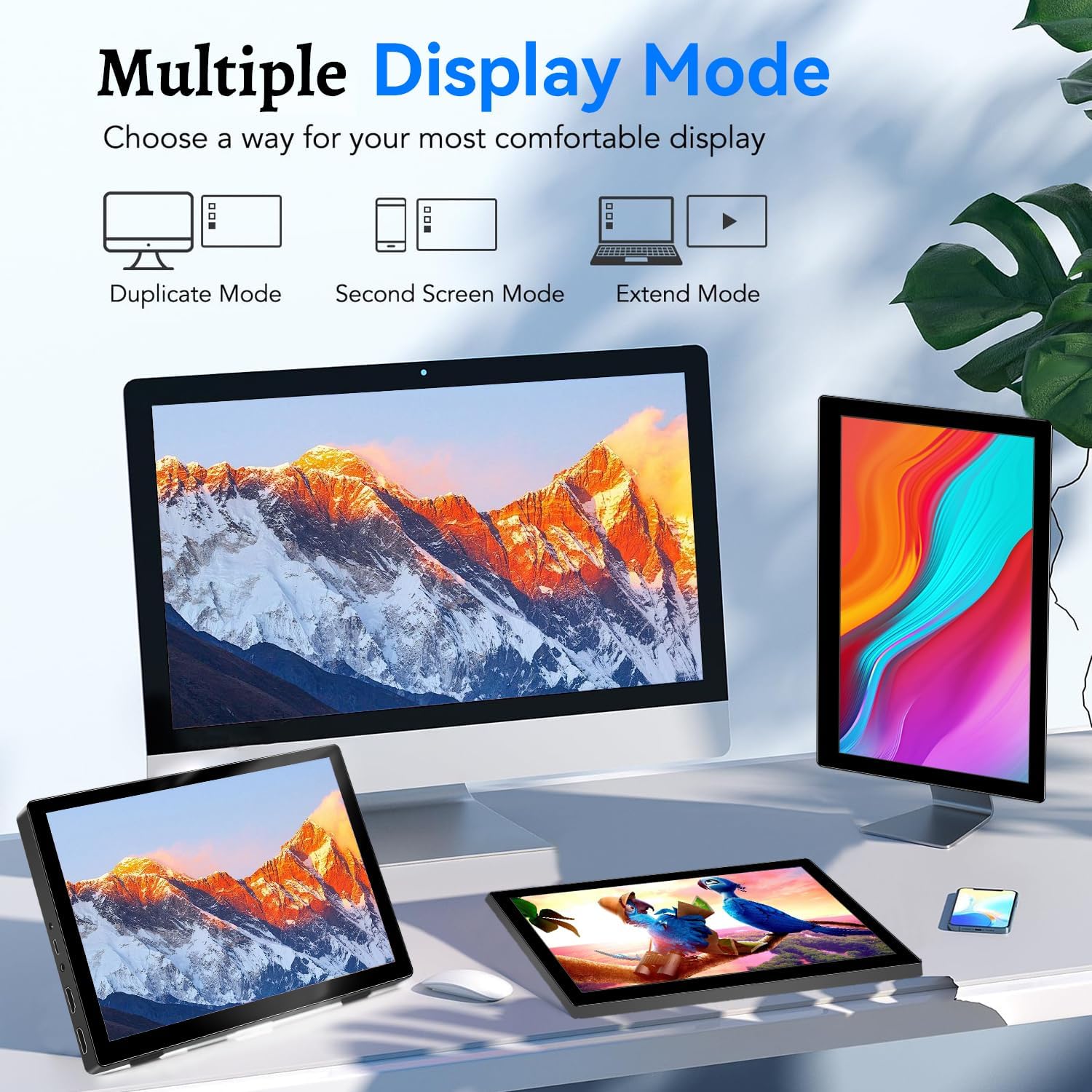
Image: Visual representation of Duplicate, Second Screen, and Extend display modes.
Using Touchscreen Functionality
The monitor supports 10-point touchscreen technology. Ensure the USB-C (Power & Touch) port is correctly connected to your device for touch input to function.

תמונה: דוגמהamples of 10-point touchscreen gestures for interaction.
תַחזוּקָה
- ניקוי המסך: השתמש במטלית רכה נטולת מוך מעט דampנשטף במים או בחומר ניקוי מסך שאינו שוחק. אין לרסס את חומר הניקוי ישירות על המסך.
- ניקוי ה-Casing: נגב את הצג גasinנגבו בעזרת מטלית רכה ויבשה. הימנעו משימוש בחומרי ניקוי חזקים או ממסים.
- אִחסוּן: כאשר הצג אינו בשימוש, יש לאחסן אותו במקום קריר ויבש, הרחק מאור שמש ישיר וטמפרטורות קיצוניות.
- טיפול: הימנעו מהפלת הצג או מחשיפתו לפגיעות חזקות. אין להניח חפצים כבדים על גבי הצג.
פתרון בעיות
| בְּעָיָה | סיבה אפשרית | פִּתָרוֹן |
|---|---|---|
| אין תצוגה/מסך שחור |
|
|
| מסך מגע לא מגיב |
|
|
| אין שמע מהרמקולים |
|
|
| בעיות באיכות התמונה (מטושטשת, מעוותת) |
|
|
מפרטים
| תכונה | פְּרָט |
|---|---|
| מותג | פרשן |
| מספר דגם | HD-101 |
| גודל מסך | 10.1 אינץ' |
| הַחְלָטָה | 1920 x 1200 (UXGA Wide) |
| יחס גובה-רוחב | 16:10 |
| סוג פאנל | IPS |
| קצב רענון | 60 הרץ |
| זמן תגובה | 1 אלפיות השנייה |
| קישוריות | 1x HDMI, 1x USB-C (Power & Touch), 1x 3.5mm Audio Jack, 1x DC Power Port |
| מידות (L x W x H) | 21.8 x 15.8 x 1.4 ס"מ |
| מִשׁקָל | 990 גרם |
| יַצרָן | שנזן קנובה אלקטרוניקה בע"מ |
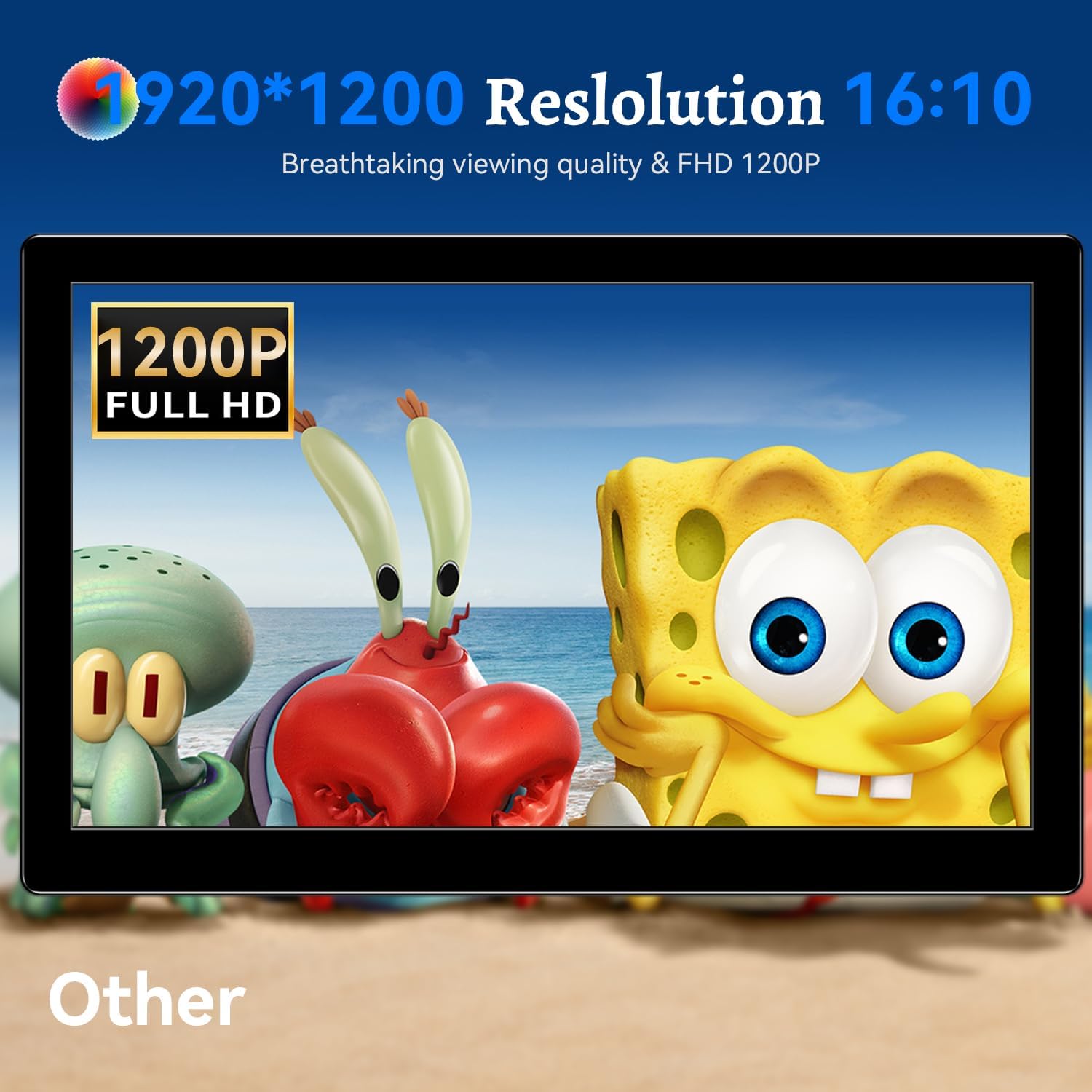
תמונה: הצג מציגasing its 1920x1200 Full HD resolution.

Image: The monitor's IPS panel offering wide viewing angles and rich colors.
אחריות ותמיכה
For warranty information and technical support, please refer to the warranty card included with your product or contact Prechen customer service through their official website. Please have your model number (HD-101) and purchase details ready when contacting support.