
typecase KB206129
כיסוי מקלדת typecase לאייפד פרו 12.9 (דור 6, 5, 4, 3) מדריך הוראות
דגם: KB206129
מָבוֹא
This manual provides detailed instructions for the setup, operation, maintenance, and troubleshooting of your typecase Keyboard Case for iPad Pro 12.9. Please read this manual thoroughly before using the product to ensure optimal performance and longevity.
The typecase Keyboard Case is designed to enhance your iPad Pro 12.9 experience, offering a versatile keyboard with a trackpad and backlit keys. It is compatible with iPad Pro 12.9-inch (6th, 5th, 4th, 3rd Generation) models.
תוכן החבילה
- 1 x typecase Keyboard Case (for iPad Pro 12.9 6th/5th/4th/3rd Gen)
- כבל טעינה 1 x USB-C
- 1 x מדריך למשתמש
הגדרה
1. טעינת המקלדת
Before initial use, fully charge the keyboard. Connect the provided USB-C charging cable to the charging port on the side of the keyboard and to a USB power adapter (not included). The charging indicator light will show the charging status.
- Charging Port Location: Typically on the right side of the keyboard.
- חיי סוללה: The keyboard features a built-in rechargeable lithium polymer battery. Battery level can be checked on your iPad (like other connected Bluetooth devices) or via a shortcut key (Fn + Spacebar, if available, to show 1/3, 2/3, 3/3 battery life).
2. Attaching Your iPad Pro
The keyboard case features a magnetic attachment system. Align your iPad Pro 12.9 with the magnetic panel on the case. The magnets will securely hold the iPad in place.
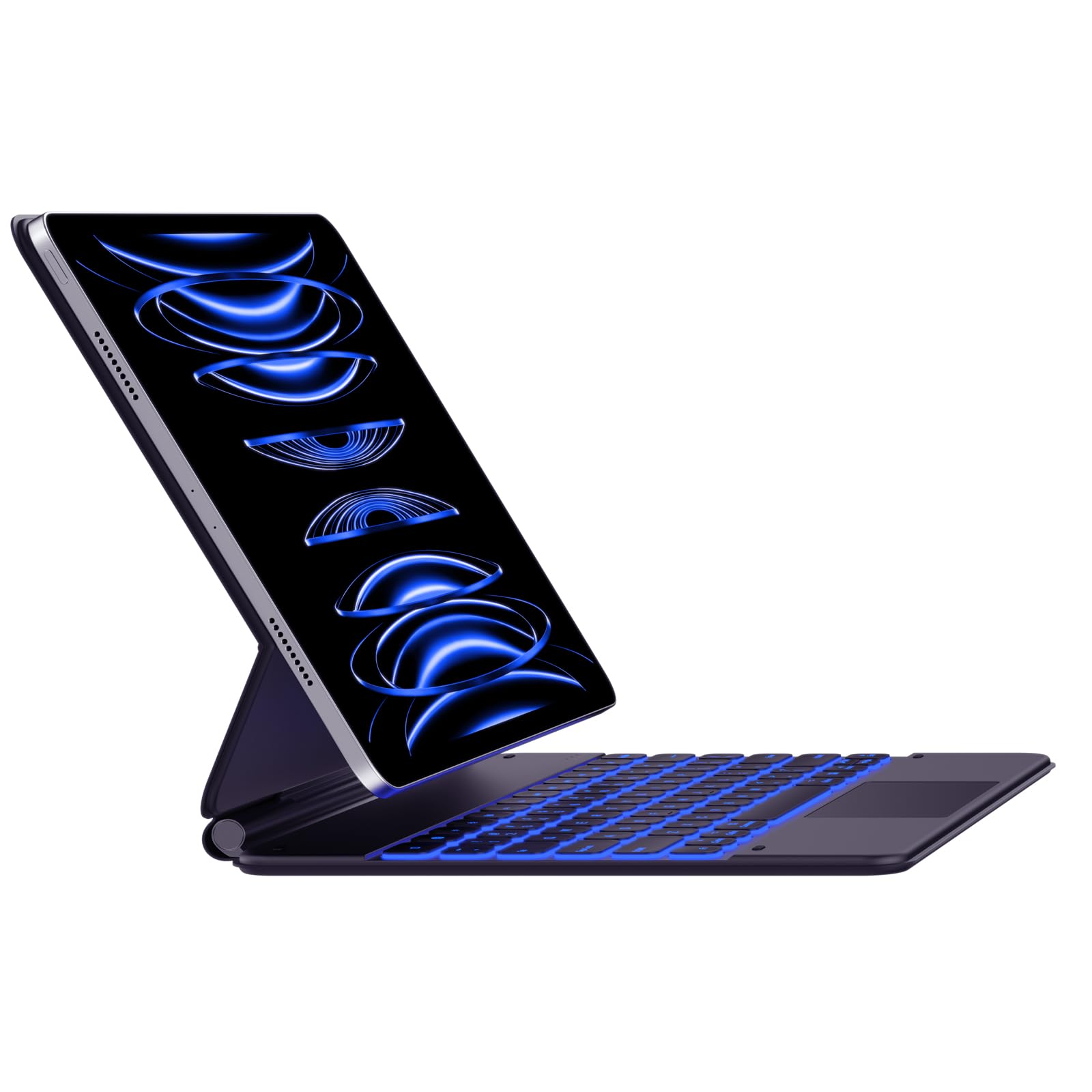
Image: The typecase Keyboard Case with an iPad Pro magnetically attached, displaying blue backlit keys and a vibrant screen.
- Ensure the camera cutout on the case aligns with your iPad's camera.
- The magnetic connection is designed to be strong, but always handle with care.
3. Pairing with Your iPad (Bluetooth Connection)
- הפעלה: Locate the power switch on the side of the keyboard and slide it to the "ON" position.
- הפעל מצב צימוד: לחץ והחזק את לְחַבֵּר button (or a similar Bluetooth pairing key, often indicated by a Bluetooth icon) on the keyboard. The Bluetooth indicator light will start blinking, indicating it's in pairing mode.
- On Your iPad: עבור אל הגדרות > בלוטות'.
- תבחר מכשיר: In the Bluetooth devices list, you should see "typecase Keyboard" or a similar name. Tap on it to connect.
- אִשׁוּר: Once paired, the Bluetooth indicator light on the keyboard will stop blinking and remain solid (or turn off), and your iPad will show the keyboard as "Connected."
Note: The keyboard will automatically attempt to reconnect to the last paired device when powered on. If connection issues occur, repeat the pairing steps.
הוראות הפעלה
פריסת מקלדת ומקשי פונקציה
The keyboard features a standard QWERTY layout with an additional row of function keys at the top for quick access to iPad features.
- Escape (Esc): Functions as a Home button.
- מקשי בהירות: Adjust iPad screen brightness.
- Keyboard Backlight Keys: Adjust backlight color and brightness.
- מקשי בקרת מדיה: הפעלה/השהיה, רצועה קודמת, רצועה הבאה.
- מקשי עוצמת הקול: השתקה, הנמכת עוצמת קול, הגברת עוצמת קול.
- מפתח נעילה: נועל את מסך האייפד.
- Globe Key: Used for switching between keyboard languages or emoji keyboard (functionality may vary based on iPadOS settings).
בקרת תאורה אחורית
The keyboard offers 11 backlight colors and 3 levels of brightness. Use the dedicated backlight keys (often marked with a light bulb icon or similar) in the function row to cycle through colors and adjust brightness.
- Press the backlight key once to change color.
- Press the brightness key (often combined with backlight key or separate) to cycle through brightness levels.
שימוש בלוח העקיבה
The integrated trackpad supports multi-touch gestures, similar to a laptop trackpad. Ensure your iPadOS is updated to support trackpad functionality.
| מחווה | פְּעוּלָה |
|---|---|
| Single Finger Tap | Click, select item. |
| Two Fingers Swipe | Scroll up/down/left/right. |
| Two Fingers Pinch | זום/החוצה. |
| החלק למעלה עם שלוש אצבעות | Go to Home Screen. |
| שלוש אצבעות החלק שמאלה/ימינה | עבור בין אפליקציות פתוחות. |
Note: Trackpad precision and responsiveness are optimized for general use. For specific settings or advanced gestures, refer to your iPad's accessibility settings.
פונקציית שינה אוטומטית
The keyboard case is designed with an auto-sleep feature to conserve battery. If inactive for a period, the keyboard will enter sleep mode. Press any key to wake it up and reconnect to your iPad.
תַחזוּקָה
- ניקוי: השתמש רך, דamp, lint-free cloth to clean the keyboard and case. Avoid harsh chemicals or abrasive materials.
- אִחסוּן: When not in use, close the case to protect both the iPad and the keyboard. Store in a cool, dry place away from direct sunlight.
- טיפול בסוללה: כדי להאריך את חיי הסוללה, הימנעו מפריקה מלאה של המקלדת לעתים קרובות. טען אותה באופן קבוע, גם אם היא לא ריקה לחלוטין.
- Magnetic Clasp: Ensure the magnetic clasp is free from debris to maintain a secure closure.
פתרון בעיות
- המקלדת לא מתחברת:
- ודא שהמקלדת דולקת וטעונה.
- Check that Bluetooth is enabled on your iPad.
- Forget the device in your iPad's Bluetooth settings and re-pair it.
- הפעל מחדש את המקלדת ואת האייפד שלך.
- מקשים לא מגיבים:
- ודא שהמקלדת מחוברת דרך Bluetooth.
- ודא שהמקלדת אינה במצב שינה.
- בדוק אם יש חסימות פיזיות מתחת למקשים.
- Trackpad Issues:
- ודא שהמקלדת מחוברת.
- Check iPadOS settings for trackpad functionality.
- נקו את משטח משטח העקיבה.
- iPad Slipping from Magnetic Mount:
- Ensure the iPad is correctly aligned with the magnetic panel.
- Check for any debris between the iPad and the magnetic surface.
- Avoid excessive force or sudden movements that could dislodge the iPad.
מפרטים
| תכונה | פְּרָט |
|---|---|
| מספר דגם | KB206129 |
| תְאִימוּת | iPad Pro 12.9-inch (6th, 5th, 4th, 3rd Gen) |
| קישוריות | בלוטות' |
| סוג סוללה | פולימר ליתיום (כלול) |
| יציאת טעינה | USB-C |
| תאורה אחורית | 11 Colors, 3 Brightness Levels (RGB support) |
| תכונות מיוחדות | Backlit, Lightweight, Integrated Trackpad, Magnetic Clasp |
| חוֹמֶר | אקרילוניטריל בוטדיאן סטירן |
| משקל פריט | 1.13 קילוגרם |
| מידות חבילה | 30.48 x 25.4 x 3.56 ס"מ |
אחריות ותמיכה
Your typecase Keyboard Case is covered by a limited warranty against manufacturing defects. For specific warranty terms and conditions, please refer to the documentation included with your purchase or visit the official typecase webאֲתַר.
For technical support, troubleshooting assistance, or warranty claims, please contact typecase customer service through their official support channels. Contact information can typically be found on the product packaging or the brand's webאֲתַר.