
גוביי 41074
Goobay 41074 USB-C Sync & Charge Cable Instruction Manual
דגם: 41074
1. הקדמה
This manual provides instructions for the Goobay 41074 USB-C Sync & Charge Cable. This cable is designed for high-speed data transfer, fast charging, and video/audio transmission between compatible USB-C enabled devices.

Image 1.1: The Goobay 41074 USB-C Sync & Charge Cable, featuring a USB-A connector on one end and a USB-C connector on the other. The image also highlights key specifications such as USB-C compatibility, 1-meter length, 60W power delivery, and 20x faster speed than USB 2.0.
2. תכונות מוצר
- טעינה מהירה: Supports power delivery up to 60 W (20 V / 3 A) for rapid charging of compatible USB-C devices.
- SuperSpeed+ Data Transfer: Achieves data transfer rates up to 10 Gbit/s, which is 20 times faster than USB 2.0.
- תקן USB 3.2 דור 2: Utilizes the latest USB 3.2 Gen 2x2 standard for efficient data handling.
- מחבר USB-C הפיך: The USB-C plug can be inserted in either orientation.
- Video & Audio Transmission: Capable of transmitting video and audio content to external displays with a USB-C input.
- שימוש רב תכליתי: Suitable for transferring movies, music, videos, and various files.

תמונה 2.1: תיאור מפורט view of the Goobay USB-C cable, highlighting its USB-A and USB-C connectors and indicating its 1-meter length, 60W power delivery, and 10 Gbps data transfer speed.
3. תכולת החבילה
החבילה מכילה את הפריט הבא:
- 1x Goobay 41074 USB-C Sync & Charge Cable (1 meter)
4. התקנה
To set up your Goobay 41074 USB-C cable, follow these general steps:
- זיהוי יציאות: Locate the appropriate USB-A and USB-C ports on your devices (e.g., computer, charger, smartphone, monitor).
- חבר התקנים: Insert the USB-A end of the cable into a compatible USB-A port on your host device (e.g., computer, wall charger).
- חיבור התקן USB-C: Insert the USB-C end of the cable into the USB-C port of your target device (e.g., smartphone, tablet, laptop, monitor). The USB-C connector is reversible, allowing for easy connection in either direction.
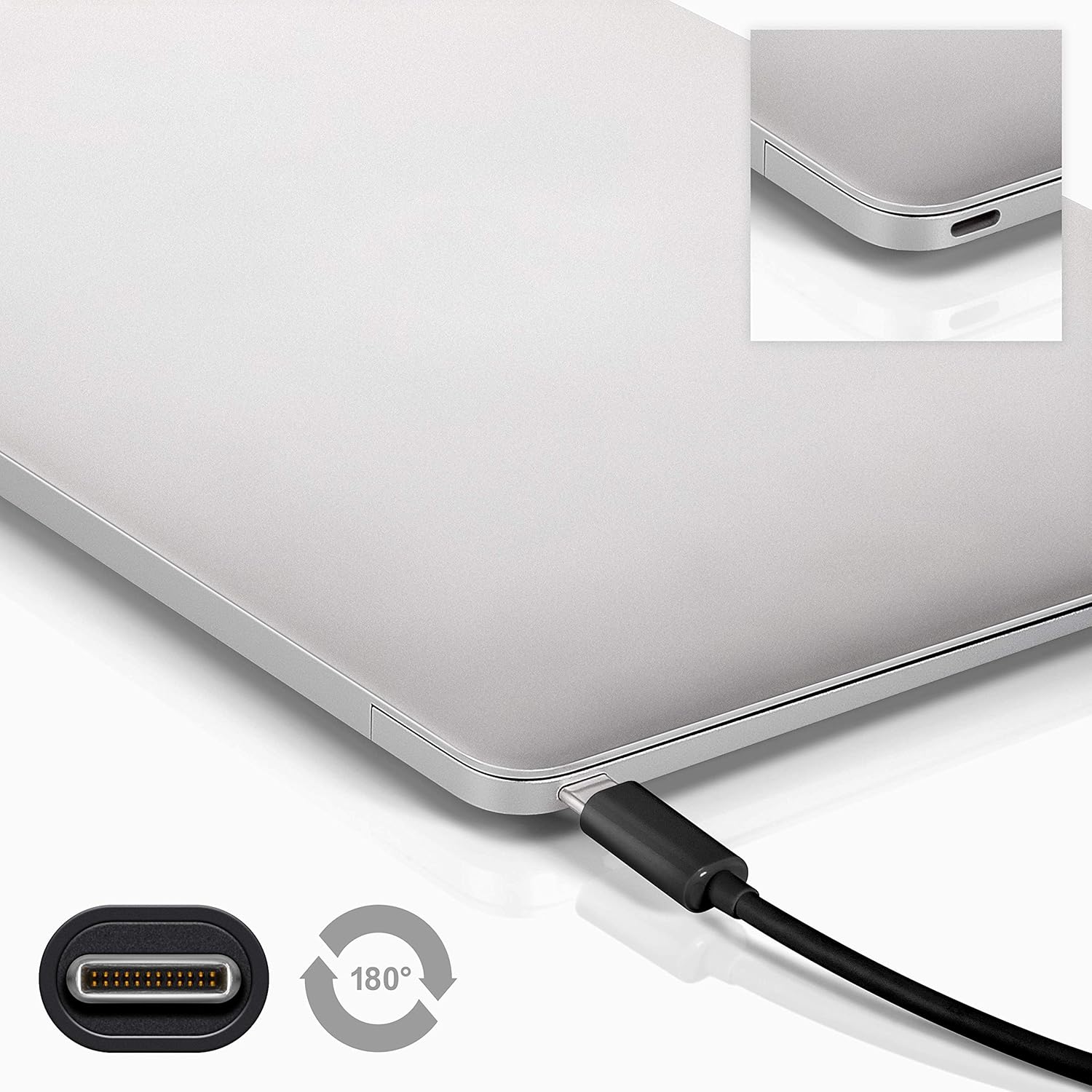
Image 4.1: A Goobay USB-C cable connected to a laptop, demonstrating the reversible nature of the USB-C connector and its ease of use. A close-up of the USB-C port is also shown.
5. הוראות הפעלה
5.1. התקני טעינה
To charge a USB-C enabled device:
- Connect the USB-A end of the cable to a compatible USB wall charger or power adapter.
- Connect the USB-C end of the cable to your USB-C device (e.g., smartphone, tablet, laptop).
- Ensure the power adapter is plugged into a working power outlet. Your device should begin charging.
5.2. העברת נתונים
To transfer data between a computer and a USB-C device:
- חבר את קצה ה-USB-A של הכבל ליציאת USB-A זמינה במחשב שלך.
- חבר את קצה ה-USB-C של הכבל להתקן ה-USB-C שלך.
- Your computer should recognize the connected device. Follow the on-screen prompts on your computer and device to manage data transfer (e.g., select 'File Transfer' mode on your smartphone).

Image 5.1: A Goobay USB-C cable connecting a smartphone to a laptop, illustrating its use for data transfer between devices.
5.3. Video and Audio Output
To transmit video and audio to an external display:
- Connect the USB-A end of the cable to your source device (e.g., laptop with a USB-A port that supports video output via an adapter, or a docking station).
- Connect the USB-C end of the cable to a compatible monitor or television with a USB-C input that supports video.
- Ensure your source device and display are configured correctly for video output.
6. תחזוקה
- אִחסוּן: יש לאחסן את הכבל במקום קריר ויבש, הרחק מאור שמש ישיר וטמפרטורות קיצוניות. יש להימנע מליפוף חזק או כיפוף הכבל בזוויות חדות כדי למנוע נזק פנימי.
- ניקוי: Disconnect the cable from all devices and power sources before cleaning. Use a soft, dry, lint-free cloth to gently wipe the cable and connectors. Avoid using liquid cleaners or abrasive materials.
- טיפול: Always grasp the connector head when plugging or unplugging the cable. Avoid pulling on the cable itself, as this can damage the internal wires or the connector.
- בְּדִיקָה: Periodically inspect the cable and connectors for any signs of wear, fraying, or damage. If damage is observed, discontinue use and replace the cable.
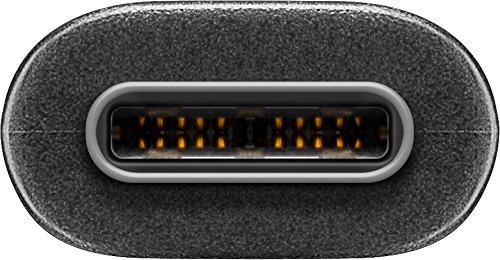
תמונה 6.1: תקריב view of the USB-C connector, showing its internal pins. Regular inspection of connectors helps ensure proper function and longevity.
7. פתרון תקלות
7.1. המכשיר לא נטען
- בדוק חיבורים: ודא ששני קצוות הכבל מחוברים היטב למכשיר ולמקור החשמל.
- בדוק את מקור הכוח: Confirm that the wall outlet or power adapter is functioning correctly. Try another power source if available.
- תאימות מכשיר: Ensure your device supports charging via USB-C and that the power adapter provides sufficient wattage.
- Try Another Cable/Port: If possible, test with a different USB-C cable or a different port on your power source/device to isolate the issue.
7.2. אין העברת נתונים
- בדוק חיבורים: Ensure the cable is firmly connected to both the computer and the USB-C device.
- הגדרות מכשיר: On your USB-C device (e.g., smartphone), check if it's set to 'File Transfer' or 'MTP' mode after connecting to the computer.
- זיהוי מחשב: Verify that your computer's operating system recognizes the connected device. You may need to install specific drivers for your device.
- פונקציונליות הנמל: Test the USB-A port on your computer with another known working device/cable.
7.3. No Video/Audio Output
- תְאִימוּת: Ensure both your source device (e.g., laptop) and the external display support video output over USB-C. Not all USB-C ports support this feature.
- קלט תצוגה: Select the correct input source on your monitor or television.
- הגדרות מערכת: Check your computer's display settings to ensure the external monitor is detected and configured correctly (e.g., extended display, duplicate display).
8. מפרטים
| תכונה | מִפרָט |
|---|---|
| מותג | גוביי |
| מספר דגם | 41074 |
| סוג מחבר 1 | USB Type-A (Male) |
| סוג מחבר 2 | USB Type-C (זכר) |
| סוג כבל | USB |
| תקן USB | USB 3.2 Gen 2 (SuperSpeed+) |
| קצב העברת נתונים | עד 10 Gbit/s |
| אספקת חשמל | Up to 60 W (20 V / 3 A) |
| אורך כבל | 1 מטר |
| צֶבַע | שָׁחוֹר |
| מכשירים תואמים | Monitors, Televisions, USB-C enabled devices |
| תכונה מיוחדת | Fast Charging, Video & Audio Transmission |
9. אחריות ותמיכה
For warranty information and technical support, please refer to the documentation provided with your purchase or visit the official Goobay webאתר. שמור את הוכחת הרכישה שלך לצורך תביעות אחריות.