
1. הקדמה
This manual provides detailed instructions for the installation, operation, and maintenance of your Taffio Android Navigation GPS CarPlay Screen. This advanced in-car entertainment and navigation system is specifically designed for Audi Q2 GA MIB vehicles manufactured between 2016 and 2020, offering a seamless upgrade to your vehicle's multimedia capabilities.
2. תכונות מוצר
The Taffio Android Navigation GPS CarPlay Screen integrates modern technology with your vehicle's existing systems. Key features include:
- מַעֲרֶכֶת הַפעָלָה: אנדרואיד 13
- מעבד: Qualcomm Snapdragon 665 (4x 2 GHz + 4x 1.8 GHz)
- לְהַצִיג: 10.25-inch Full HD (1920x720) Capacitive Touchscreen
- זֵכֶר: זיכרון RAM של 8 ג'יגה-בייט בנפח LPDDR4
- אִחסוּן: זיכרון פנימי של 128GB
- גרָפִיקָה: Adreno 610 GPU
- קישוריות: Integrated Wi-Fi, Bluetooth, 4G LTE (via SIM card slot), USB
- ניווט: Integrated GPS receiver with 3D navigation and free map updates
- שילוב סמארטפון: CarPlay אלחוטי מובנה ואנדרואיד אוטו
- שילוב רכב: Supports original radio functions, i-Drive, steering wheel controls, and vehicle settings.
- תמיכת מצלמה: Automatic switching for rearview camera and parking assistance.
- הַתקָנָה: Plug and Play design, requiring no modification or coding of the original system.
3. תכולת החבילה
אנא ודא שכל הפריטים המפורטים להלן כלולים בחבילה שלך:
- 1 x Taffio Android Navigation Multimedia Screen
- 1 x אנטנת GPS
- 1 x USB Cable (with 2 USB ports)
- 1 x Connection Cable Harness
- 1 x PDF User Manual (this document)
- 1 x Invoice with VAT (for warranty purposes)
4. התקנה והתקנה
The Taffio system is designed for a straightforward Plug and Play installation. While the process is simplified, professional installation is recommended if you are unfamiliar with car electronics.
4.1. תרשים התקנה
Refer to the diagram below for a visual guide to connecting the components.

תמונה: מעלview of the system's connections, illustrating where to connect the WiFi antenna, SIM card, GPS antenna, USB ports, rearview camera, LVDS display plug, and the main power/radio harness.
4.2. שלבי חיבור
- ניתוק מצבר הרכב: לפני התחלת הנסיעה, נתק את ההדק השלילי של מצבר הרכב כדי למנוע קצר חשמלי.
- Remove Original Screen: Carefully remove your vehicle's original display unit following your Audi Q2's service manual.
- Connect Display LVDS Plug: Locate the LVDS cable from the new screen and connect it to the corresponding port, typically found behind the original screen's location.
- Connect to Original Radio & Power Plug: Use the provided connection cable harness to integrate the new system with your vehicle's original radio and power supply. This harness is designed for direct compatibility.
- חיבור אנטנת GPS: התקן את אנטנת ה-GPS במקום עם ראייה נקייה view of the sky (e.g., dashboard, under the windshield) and connect it to the designated port on the new unit.
- חיבור אנטנת WiFi: Attach the WiFi antenna to improve wireless connectivity.
- הכנס כרטיס SIM (אופציונלי): If you plan to use 4G data, insert a compatible micro SIM card into the provided slot.
- חיבור כבלי USB: Route the USB cables to an accessible location (e.g., glove compartment) for connecting external devices.
- Connect Rear Camera Input (Optional): If installing an aftermarket rearview camera, connect its video output to the designated input on the system.
- Secure Wiring and Reinstall: Neatly arrange all cables, secure them to prevent rattling, and reinstall the new screen into the dashboard.
- חבר מחדש את הסוללה: Reconnect the vehicle battery and power on the system for initial setup.
5. הוראות הפעלה
5.1. פעולה בסיסית
The system features an intuitive touchscreen interface. You can also utilize your vehicle's original i-Drive controller and steering wheel buttons for navigation within the Android system.
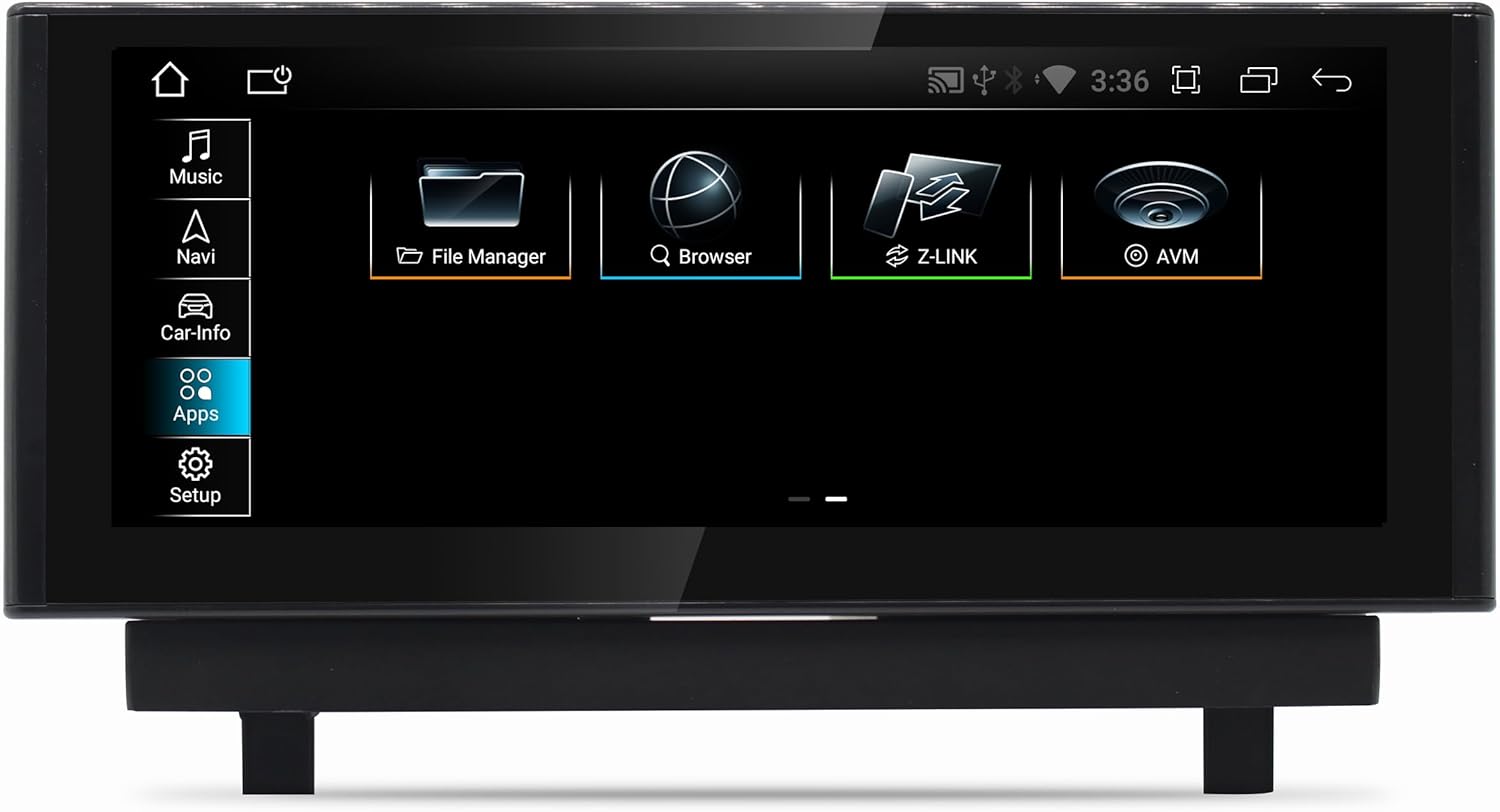
Image: The main Android interface, displaying core functions such as Music, Navigation, Vehicle Information, Applications, and System Setup.
5.2. מעבר בין מערכות
Easily switch between the original Audi MIB system and the Android system. This allows you to retain all original vehicle functionalities while gaining access to the Android features.
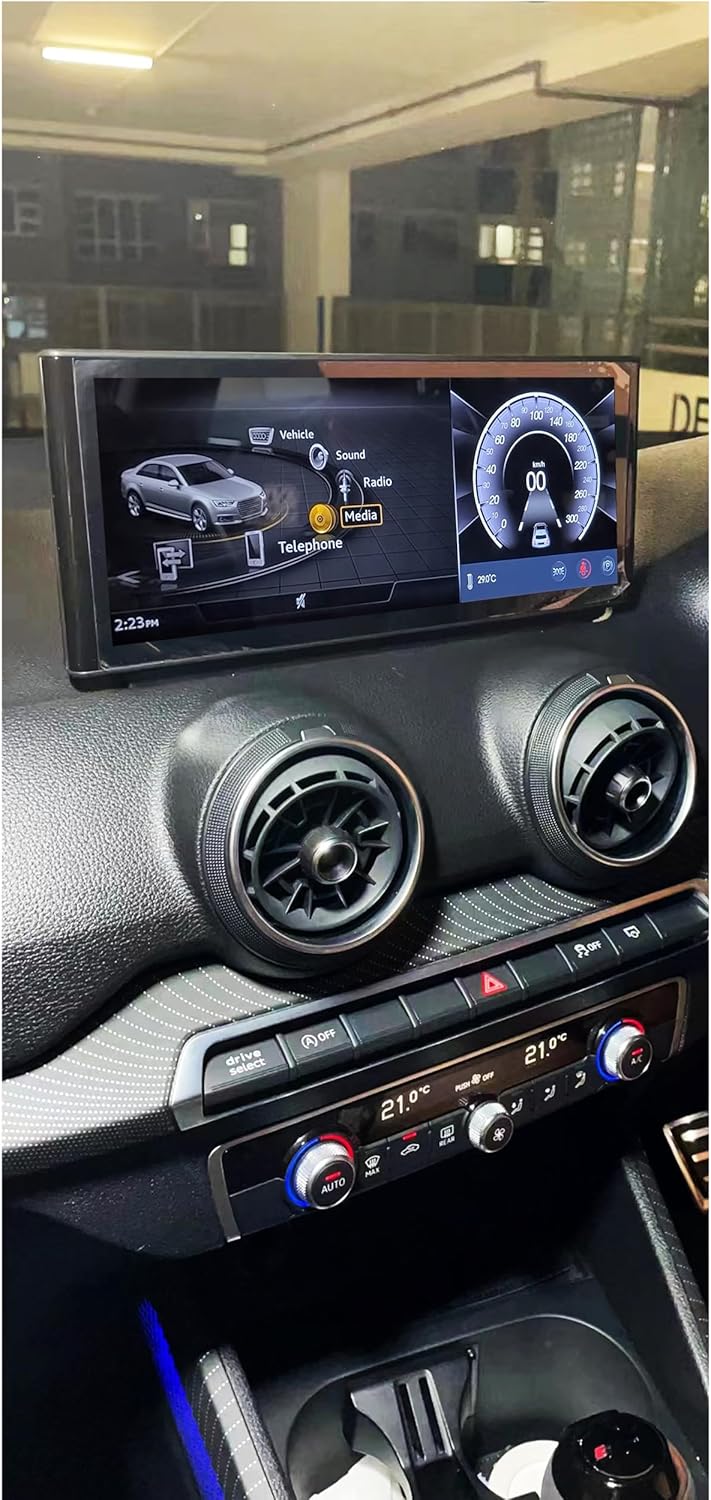
Image: The screen displaying the vehicle's original Audi MMI interface, demonstrating seamless integration and the ability to switch between systems.
5.3. ניווט
The integrated GPS receiver provides accurate positioning. Utilize pre-installed navigation applications or download your preferred navigation apps from the Google Play Store. The system supports 3D navigation and offers free map updates.
5.4. CarPlay אלחוטי ואנדרואיד אוטו
Connect your smartphone wirelessly to access CarPlay or Android Auto. This allows for seamless integration of your phone's navigation, music, calls, and messaging directly on the car's display.

Image: The Wireless CarPlay interface, showing navigation, media playback, and communication features accessible from your iPhone.

Image: The Android Auto interface, providing access to Google Maps, Spotify, and other Android applications from your compatible smartphone.
5.5. השמעת מולטימדיה
The system supports various audio and video formats including 1080p, H264, AVI, RMVB, FLV, MKV for video, and MP3, WMA, FLAC, APE, AAC for audio. Play media from USB drives or stream via Bluetooth.

Image: A selection of Android applications available on the system, including web browsers, media players, and productivity tools.
5.6. קישוריות
- Wi-Fi: Connect to Wi-Fi hotspots or your smartphone's hotspot for internet access.
- 4G LTE: Insert a micro SIM card to enable 4G data connectivity for faster browsing and streaming.
- בלוטות': Pair your phone for hands-free calling and audio streaming. The system also supports the vehicle's original Bluetooth.
5.7. אחוריview Camera and Parking Assistance
The system supports original and aftermarket rearview cameras. It automatically switches to the camera view when reversing and integrates with parking assistance features.
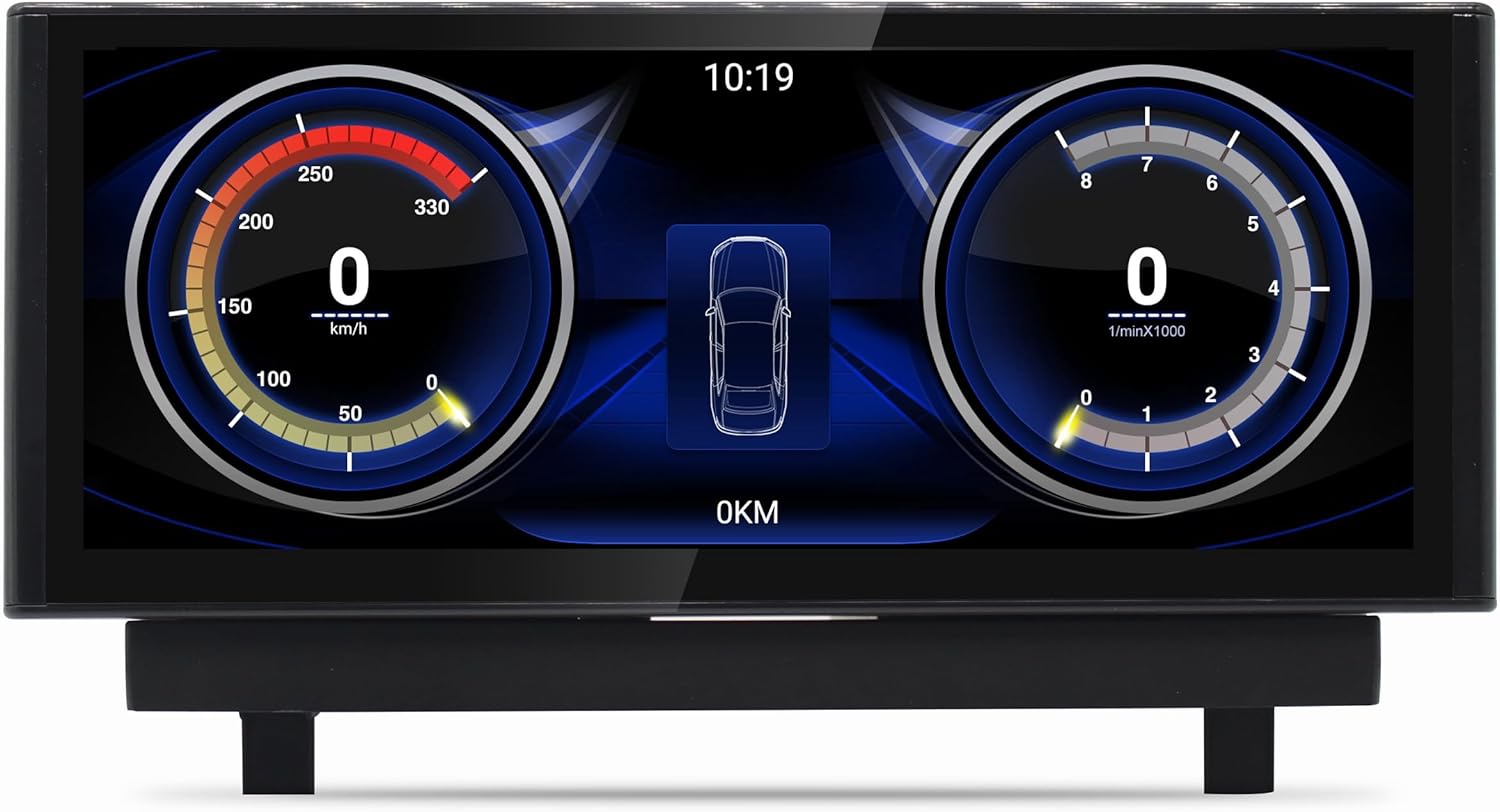
Image: The vehicle information display, showing digital gauges for speed and RPM, providing real-time data from the car's systems.
6. תחזוקה
- ניקוי מסך: השתמש במטלית רכה נטולת מוך מעט דampיש לשטוף עם חומר ניקוי למסכים או מים. יש להימנע מכימיקלים חזקים.
- עדכוני תוכנה: בדוק מעת לעת אם קיימים עדכוני מערכת בתפריט ההגדרות כדי להבטיח ביצועים מיטביים וגישה לתכונות העדכניות ביותר.
- טיפול כללי: הימנעו מחשיפת היחידה לטמפרטורות קיצוניות או לאור שמש ישיר למשך תקופות ממושכות.
7. פתרון תקלות
אם נתקלת בבעיות, עיין בבעיות הנפוצות ובפתרונות הבאות:
- אין כוח: Ensure all power cables are securely connected. Check vehicle fuses.
- אין צליל: Verify volume settings on both the Android system and your vehicle's original audio system. Ensure AUX mode is correctly selected if required by your vehicle.
- אובדן אות GPS: ודא שאנטנת ה-GPS מותקנת במקום עם ראייה נקייה view של השמיים ומחובר היטב.
- מסך מגע לא מגיב: Try restarting the system. If the issue persists, perform a factory reset (note: this will erase all user data).
- CarPlay/אנדרואיד אוטו לא מתחבר: Ensure Bluetooth and Wi-Fi are enabled on both the unit and your smartphone. Check for software updates on your phone and the unit.
- מערכת קופאת/משהה: Close unnecessary background applications. Clear cache from time to time in system settings.
עבור בעיות מתמשכות שלא מכוסות כאן, אנא פנו לתמיכת הלקוחות.
8. מפרטים
| תכונה | מִפרָט |
|---|---|
| מספר דגם | JFQ022 |
| מַעֲרֶכֶת הַפעָלָה | אנדרואיד 13 |
| מעבד | Qualcomm Snapdragon 665 (Octa-core: 4x 2 GHz + 4x 1.8 GHz) |
| גודל תצוגה | 10.25 אינץ' |
| רזולוציית תצוגה | 1920x720 Full HD |
| סוג תצוגה | מסך מגע קיבולי |
| אַיִל | 8GB LPDDR4 |
| אחסון פנימי | 128GB |
| GPU | אדרנו 610 |
| מודם LTE | X12 |
| DSP | משושה 686 |
| קישוריות | Wi-Fi, Bluetooth, 4G LTE (SIM slot), USB |
| מערכת ניווט | GPS משולב |
| שילוב סמארטפון | CarPlay אלחוטי, אנדרואיד אוטו |
| תאימות לרכב | Audi Q2 GA MIB (2016-2020) |
9. אחריות ותמיכה
Your Taffio Android Navigation GPS CarPlay Screen comes with a אחריות לשנה מתאריך הרכישה. אנא שמור את החשבונית שלך כהוכחת קנייה לצורך תביעות אחריות.
For technical support, troubleshooting assistance, or warranty inquiries, please contact the seller, REALMEDIASHOP, through the platform where you purchased the product. Provide your model number (JFQ022) and a detailed description of the issue to facilitate faster service.