
מָבוֹא
Thank you for choosing the MoKo Bluetooth AZERTY Keyboard. This manual provides detailed instructions to help you set up, operate, and maintain your keyboard, ensuring optimal performance with your Microsoft Surface Pro device. Please read this manual thoroughly before use.
תְאִימוּת
This keyboard is specifically designed for the following Microsoft Surface Pro models:
- Surface Pro 7 Plus (2021)
- Surface Pro 7 (2019)
- Surface Pro 6
- Surface Pro 5 (Pro 2017)
- Surface Pro 4
- Surface Pro 3
The keyboard dimensions are approximately 29.5 cm (11.6 inches) in length, 21.7 cm (8.54 inches) in width, and 0.6 cm (0.23 inches) in height, providing a similar typing experience to official Surface Pro keyboards.
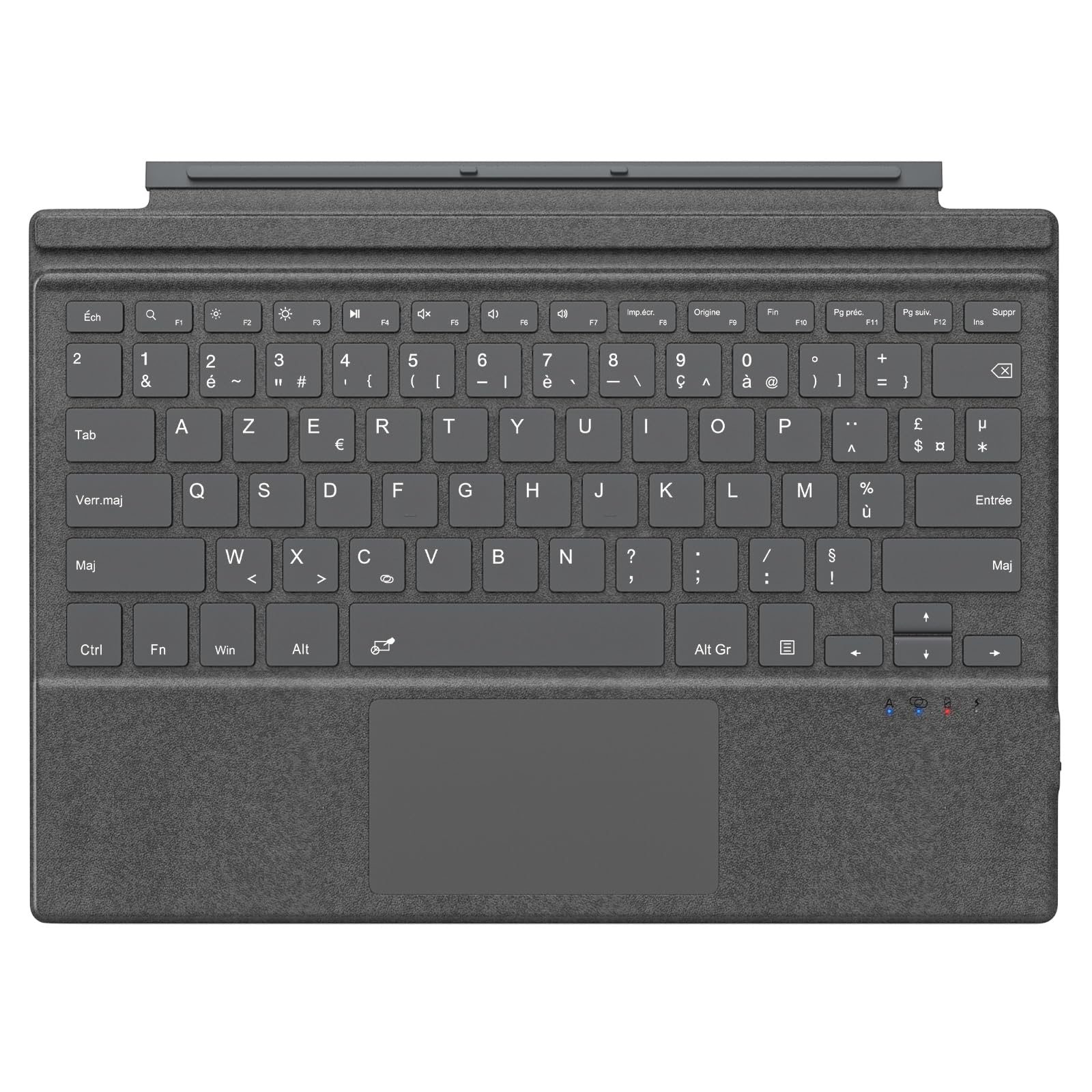
Image: The MoKo Bluetooth AZERTY Keyboard shown with several Microsoft Surface Pro models, illustrating compatibility.
מה יש בקופסה
בעת פירוק האריזה, אנא ודאו שכל הפריטים נמצאים:
- MoKo Bluetooth AZERTY Keyboard
- כבל טעינה USB
הגדרה
1. טעינת המקלדת
The keyboard is equipped with a built-in 520mAh lithium battery. Before initial use, or when the battery is low, charge the keyboard using the provided USB cable.
- חבר את הקצה הקטן של כבל הטעינה מסוג USB ליציאת הטעינה במקלדת.
- Connect the larger end of the USB cable to a USB power source (e.g., computer, wall adapter).
- נורית חיווי הטעינה תידלק. לאחר טעינה מלאה, ייתכן שהנורית תשנה צבע או תיכבה.
טעינה מלאה מספקת כ-25 שעות של שימוש רצוף.

תמונה: תקריב view of the keyboard's charging port with a USB cable connected, indicating the charging process.
2. זיווג Bluetooth
To connect your keyboard to your Surface Pro:
- ודא שהמקלדת טעונה ודלוקה.
- On your Surface Pro, go to הגדרות > התקנים > Bluetooth והתקנים אחרים.
- הפעל את בלוטות'.
- הקש על Fn מפתח ואת C key simultaneously on the keyboard to enter pairing mode. The Bluetooth indicator light on the keyboard will flash.
- On your Surface Pro, click הוסף Bluetooth או מכשיר אחר > בלוטות'.
- Select "MoKo Keyboard" (or similar name) from the list of available devices.
- Follow any on-screen prompts to complete the pairing process. The Bluetooth indicator light on the keyboard will stop flashing once connected.
The keyboard can be used attached to your Surface Pro or detached for flexible positioning. The effective Bluetooth connection range is approximately 10 meters (33 feet).

Image: A Surface Pro tablet with the MoKo keyboard detached, illustrating the wireless Bluetooth connection capability.
הוראות הפעלה
פריסת מקלדת ומקשים
This keyboard features an AZERTY layout with 105 keys, providing a full-size typing experience. The keys utilize a scissor-switch mechanism for comfortable and responsive typing.

תמונה: מפורט view of the keyboard's AZERTY layout, highlighting the scissor-switch keys and integrated trackpad.
פונקציונליות משטח העקיבה
The integrated trackpad allows for precise navigation and control of your Surface Pro. To activate or deactivate the trackpad, press the Fn מפתח ואת מקש רווח בּוֹ זְמַנִית.
פֶּתֶק: Please remove any protective film from the trackpad surface before use to ensure proper functionality.
זוויות הקלדה מתכווננות
The keyboard's design allows for two different typing angles, providing an ergonomic and comfortable experience whether you are working on a desk, lap, or other surface.

Image: A Surface Pro with the keyboard attached, demonstrating the two possible ergonomic typing angles.
ניהול חשמל
מצב שינה אוטומטי
To conserve battery life, the keyboard will automatically enter sleep mode after 10 minutes of inactivity. The Bluetooth connection will automatically disconnect during this period.
Reconnecting After Sleep
To wake the keyboard and re-establish the Bluetooth connection, simply press any key. The keyboard will automatically attempt to reconnect to the last paired device.

Image: An illustration of the keyboard's power management, including automatic sleep mode and USB-C charging.
תַחזוּקָה
To ensure the longevity and optimal performance of your MoKo keyboard, follow these maintenance guidelines:
- ניקוי: השתמשו במטלית רכה, יבשה ונטולת סיבים לניקוי משטח המקלדת. במקרה של לכלוך עיקש, נגבו מעטampשטפו את המטלית במים או בתמיסת ניקוי עדינה. הימנעו מלחות מוגזמת.
- אִחסוּן: כאשר אינה בשימוש, יש לאחסן את המקלדת במקום קריר ויבש, הרחק מאור שמש ישיר וטמפרטורות קיצוניות.
- הימנע מנוזלים: Do not expose the keyboard to liquids. It is not waterproof.
- טפל בזהירות: הימנעו מהפלת המקלדת או מחשיפתה לפגיעות חזקות.
פתרון בעיות
אם נתקלת בבעיות עם המקלדת, עיין בפתרונות הנפוצים הבאים:
| בְּעָיָה | פִּתָרוֹן |
|---|---|
| המקלדת לא נדלקת | Ensure the keyboard is charged. Connect it to a power source using the USB cable. |
| לא ניתן לצמד דרך בלוטות' | 1. Ensure the keyboard is in pairing mode (Fn + C). 2. Make sure Bluetooth is enabled on your Surface Pro. 3. Delete any previous keyboard pairings on your Surface Pro and try again. 4. Ensure the keyboard is within the 10-meter range. |
| המקלדת מתנתקת לעתים קרובות | 1. ודא שהמקלדת טעונה. 2. Avoid placing obstacles between the keyboard and your Surface Pro. 3. Reconnect the Bluetooth connection manually if needed. |
| Trackpad not responding | 1. Ensure the trackpad is activated (Fn + Spacebar). 2. Remove any protective film from the trackpad surface. 3. Restart the keyboard and try again. |
| המפתחות לא מגיבים | 1. Ensure the keyboard is properly connected via Bluetooth. 2. Check battery level and charge if necessary. 3. Restart your Surface Pro and the keyboard. |
מפרטים
| תכונה | פְּרָט |
|---|---|
| מותג | MoKo |
| שם הדגם | Clavier Français |
| מספר דגם | B0CPLZXMFK |
| טכנולוגיית קישוריות | בלוטות' |
| תיאור מקלדת | מְשׁוּלָב |
| תכונה מיוחדת | ארגונומי |
| צֶבַע | אָפוֹר |
| פריסת מקלדת | AZERTY |
| מספר מפתחות | 105 |
| סוג מתג | מתג מספריים |
| מקור כוח | Battery Powered (520mAh Lithium) |
| מידות המוצר (L x W x H) | 29.5 ס"מ x 21.7 ס"מ x 0.6 ס"מ (11.6 x 8.54 x 0.23 אינץ') |
| משקל פריט | 10.93 אונקיות |
| חוֹמֶר | ABS (אקרילוניטריל בוטאדיאן סטירן) |
| מערכת הפעלה תואמת | Windows (Minimum Windows 10) |

Image: A technical diagram illustrating the precise dimensions of the MoKo Bluetooth AZERTY Keyboard.
אחריות ותמיכה
For warranty information or technical support, please refer to the documentation provided with your purchase or contact MoKo customer service directly through their official webהאתר או הקמעונאי שבו המוצר נרכש.