
1. הקדמה
This manual provides instructions for the Macally Wired Keyboard for Mac with an integrated USB Hub (Model: UCAMINIZHUB). This compact keyboard is designed for Apple computers, offering a familiar MacOS layout, convenient shortcut keys, and a built-in 3-port USB hub for connecting additional peripherals. Its 2-in-1 USB-C and USB-A plug ensures broad compatibility.

תמונה: מעלview of the Macally Wired Keyboard for Mac, showcasinהעיצוב הקומפקטי והכבל המשולב שלו.
2. התקנה
2.1 תכולת החבילה
- Macally Wired Keyboard (UCAMINIZHUB)
- מדריך למשתמש (מסמך זה)
2.2 חיבור המקלדת
- Locate the integrated USB cable on the Macally keyboard. This cable features a unique 2-in-1 plug, allowing connection to either a USB-A or USB-C port.
- Connect the appropriate end of the keyboard's USB cable to an available USB-A or USB-C port on your Mac computer (MacBook Pro/Air, Mac mini, iMac).
- Your Mac should automatically detect the keyboard. Follow any on-screen prompts to identify the keyboard type if necessary. No additional drivers are required for basic functionality.

תמונה: תקריב view of the keyboard's 2-in-1 USB-A and USB-C plug, demonstrating its versatility for different port types.
3. תפעול
3.1 MacOS Layout and Shortcut Keys
The Macally UCAMINIZHUB keyboard features a 78-key MacOS layout, providing a familiar typing experience for Mac users. It includes 12 convenient shortcut keys for quick access to common functions such as screen brightness, volume control, media playback, and Mission Control.
- F1-F2: התאמת בהירות המסך
- F3: בקרת משימה
- F4: לוח השקה
- F7-F9: Media Playback Controls (Previous, Play/Pause, Next)
- F10-F12: Volume Control (Mute, Volume Down, Volume Up)

Image: The Macally keyboard positioned next to an iMac, highlighting its MacOS-specific layout and shortcut keys.
3.2 Integrated USB Hub
The keyboard includes a built-in 3-port USB hub, consisting of two USB-C ports and one USB-A port. This allows you to connect additional peripherals directly to your keyboard, such as a mouse, flash drive, or external hard drive, providing convenient access and reducing cable clutter.
- 2x יציאות USB-C: For connecting USB-C compatible devices.
- 1x USB-A Port: For connecting standard USB-A compatible devices.
To use the USB hub, simply plug your peripheral devices into the available ports on the side of the keyboard.

תמונה: תקריב view of the side of the Macally keyboard, clearly showing the integrated USB-C and USB-A ports of the built-in hub.
3.3 Scissor Switch Keys
The keyboard utilizes scissor-switch key technology, providing a tactile and responsive typing experience similar to Apple's native keyboards. This design ensures comfortable and efficient typing.
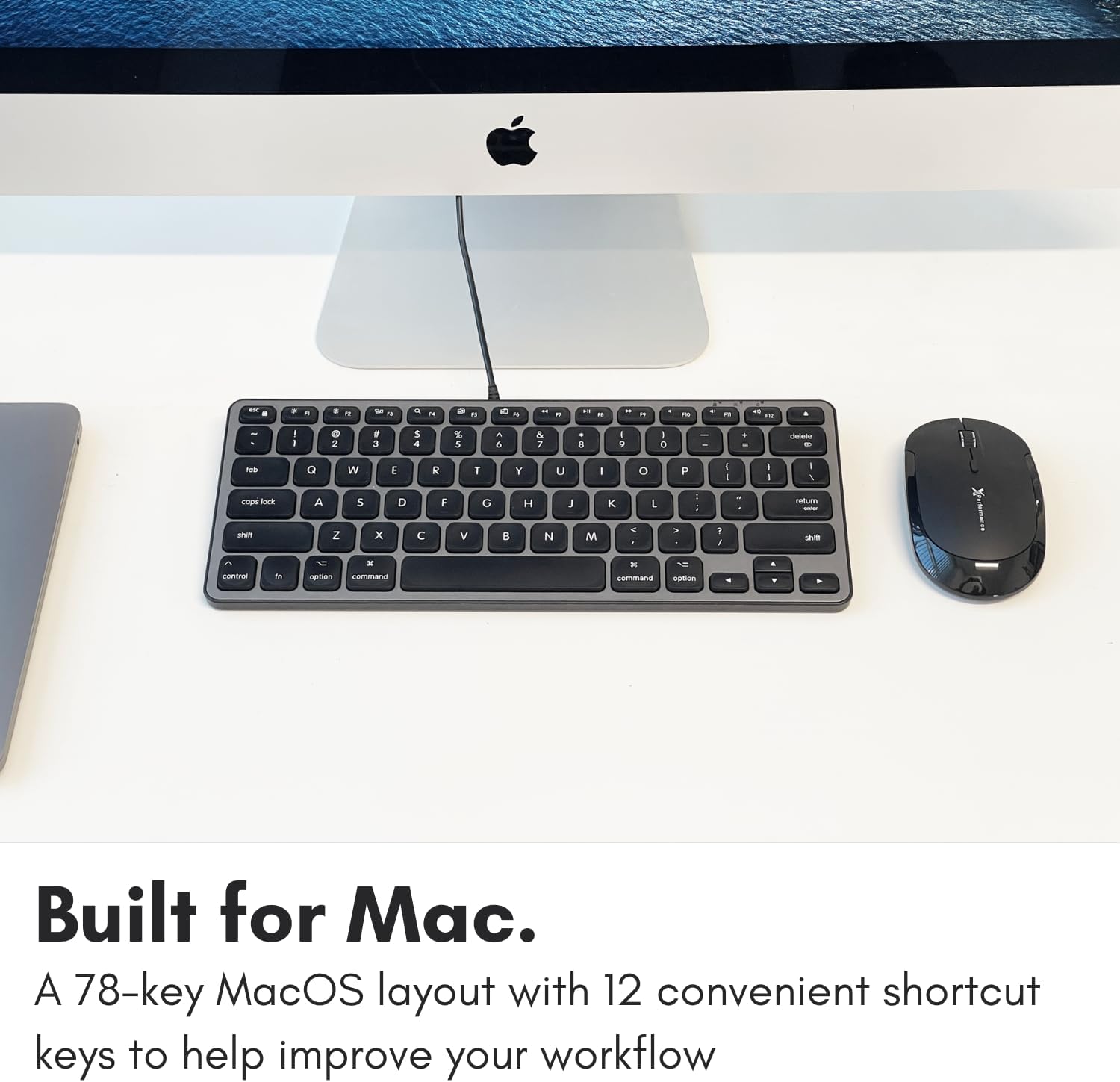
Image: A close-up of the keyboard keys, illustrating the low-profile design and keycap structure indicative of scissor-switch technology.
3.4 Ergonomics and Portability
The keyboard features an integrated kickstand that angles the keyboard slightly, enhancing typing comfort. Its compact size makes it suitable for various desk setups and easy to transport.
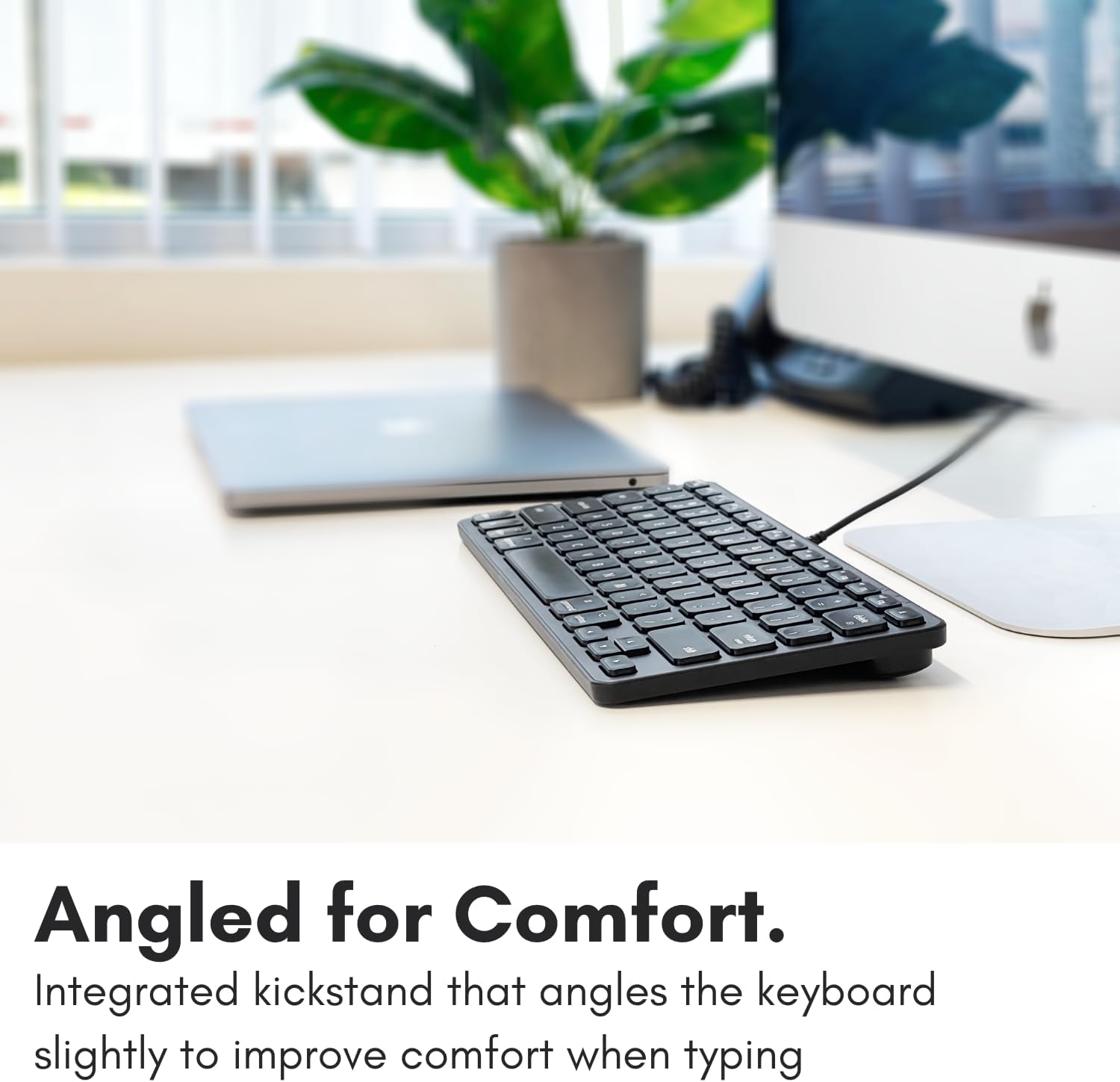
Image: The Macally keyboard shown from a side angle, highlighting the slight incline provided by its integrated kickstand for ergonomic typing.

Image: The compact Macally keyboard on a desk, demonstrating how its small footprint helps save desk space.
4. תחזוקה
To ensure the longevity and optimal performance of your Macally keyboard, follow these maintenance guidelines:
- ניקוי: השתמש במטלית רכה נטולת מוך מעט דampנגב את פני המקלדת במים או בתמיסת ניקוי עדינה. הימנע מכימיקלים חזקים, חומרי ניקוי שוחקים או לחות מוגזמת.
- הסרת אבק: השתמש באוויר דחוס כדי להסיר אבק ופסולת בין המקשים.
- אִחסוּן: When not in use, store the keyboard in a clean, dry environment away from extreme temperatures and direct sunlight.
- טיפול בכבלים: הימנעו מכיפוף או לחיצה מוגזמת של כבל ה-USB כדי למנוע נזק.
5. פתרון תקלות
If you encounter issues with your Macally keyboard, refer to the following common troubleshooting steps:
- המקלדת לא מגיבה:
- Ensure the USB cable is securely connected to your Mac's USB-A or USB-C port.
- נסה לחבר את המקלדת ליציאת USB אחרת במחשב ה-Mac שלך.
- Restart your Mac computer.
- Check System Settings/Preferences > Keyboard to ensure the keyboard is recognized and configured correctly.
- רכזת USB לא מתפקדת:
- Ensure the keyboard itself is properly connected and functioning.
- Verify that the peripheral device connected to the hub is working correctly when plugged directly into your Mac.
- Some high-power devices may require direct connection to your Mac or a powered USB hub. The keyboard's hub is designed for low-power peripherals.
- מקשי קיצור שלא עובדים:
- Ensure your Mac's operating system is up to date.
- Check System Settings/Preferences > Keyboard > Keyboard Shortcuts to ensure no conflicts exist.
6. מפרטים
| מספר דגם | UCAMINIZHUB |
| טכנולוגיית קישוריות | Wired (USB-A, USB-C) |
| מכשירים תואמים | MacBook Pro/Air, Mac mini, iMac, Laptop, PC, Smartphone, Tablet (with appropriate USB port) |
| פריסת מקלדת | 78-key MacOS layout with 12 shortcut keys |
| סוג מתג מפתחות | מתג מספריים |
| רכזת USB משולבת | 2x USB-C ports, 1x USB-A port |
| מידות המוצר | 11.81 x 5.91 x 0.79 אינץ' (30 x 15 x 2 ס"מ) |
| משקל פריט | 1.08 פאונד (0.49 ק"ג) |
| חוֹמֶר | מתכת, פלסטיק |
| צֶבַע | שָׁחוֹר |
7. אחריות ותמיכה
Macally products are designed for reliability and performance. This product comes with a אחריות מוגבלת לשנה מתאריך הרכישה.
For technical support, warranty claims, or further assistance, please contact Macally customer support. US-based support is available to assist you with any questions or issues you may have.
Please visit the official Macally website for the most current contact information and support resources: www.macally.com