
מָבוֹא
This manual provides detailed instructions for the installation, operation, maintenance, and troubleshooting of your wisecoco 12.6 Inch Bar LCD Screen HDMI Display Monitor. This monitor is specifically designed to integrate seamlessly with the Hyte Y60 PC case, serving as an excellent secondary display for monitoring system performance, displaying custom visuals, or extending your desktop.

Figure 1: The 12.6-inch bar LCD screen displaying real-time system performance data.
התקנה והתקנה
The wisecoco 12.6 Inch Bar LCD Screen is designed for easy installation, particularly within the Hyte Y60 PC case. The package includes all necessary components for a straightforward setup.
תוכן החבילה
לפני תחילת ההתקנה, אנא ודא שכל הפריטים נמצאים באריזה:
- 12.6-inch Bar LCD Screen
- 3.5mm DC Power Cable
- כבל HDMI למיני HDMI
- מברג צולב

Figure 2: Included accessories: DC power cable, HDMI to Mini HDMI cable, and a screwdriver.
Installation Steps (for Hyte Y60 PC Case)
- הכן את מארז המחשב: Ensure your Hyte Y60 PC case is powered off and unplugged. Carefully remove the side panel where the monitor will be installed.
- התקנת המסך: The screen features a bracket specifically designed to fit the Y60 case panel. Align the screen with the designated slot on the case. Use the provided screwdriver to secure the screen in place. No additional screws are typically required.
- חבר כבל וידאו: Connect one end of the HDMI to Mini HDMI cable to the Mini HDMI port on the monitor. Connect the other end to an available HDMI port on your graphics card (GPU) or motherboard.
- חבר כבל חשמל:
- Connect the 3.5mm DC power cable to the DC 3.5mm port on the monitor. The other end of this cable typically connects to a power source within your PC.
- Alternatively, the screen can be powered via a Micro USB A cable (not included). If using Micro USB A, ensure the input is 5V500mA. If using the DC cable, the input should be 5V2A.
- ניהול כבלים: Route the cables neatly within your PC case to avoid interference with fans or other components.
- הפעלה: Once all connections are secure, replace the PC case panel, plug in your PC, and power it on. The monitor should be detected as a secondary display.

Figure 3: Visual guide for installing the secondary monitor into the Hyte Y60 PC case.

Figure 4: The monitor seamlessly integrated into a Hyte Y60 PC case, displaying custom visuals.

Figure 5: Dimensions and port layout of the 12.6-inch bar LCD screen.
הוראות הפעלה
The wisecoco 12.6 Inch Bar LCD Screen functions as a standard secondary display, compatible with PCs and laptops. It offers versatile display options and user-friendly controls.
תכונות תצוגה
- הַחְלָטָה: 1920x515 IPS panel for clear and vibrant visuals.
- זמן תגובה: 3-5ms for smooth motion.
- Viewזווית ing: רוחב 178 ° viewזווית הצילום מבטיחה איכות תמונה עקבית מנקודות מבט שונות.
- קצב רענון: 60Hz standard refresh rate.
- יחס ניגודיות: 1000:1 לשחורים עמוקים ולבנים בהירים.
- רמקולים מובנים: Integrated dual speakers provide audio output.

Figure 6: The monitor features a 178° full viewing angle and IPS technology for superior image quality.
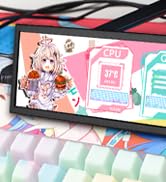
Figure 7: The Wisecoco monitor includes built-in speakers for convenience.
מצבי תצוגה
The monitor supports both landscape and portrait modes, allowing for flexible integration into your setup. You can adjust the display orientation through your operating system's display settings.

Figure 8: The monitor supports both portrait and landscape display orientations.
On-Screen Display (OSD) Controls
The monitor features physical buttons on the back for accessing the OSD menu and controlling basic functions:
- מָקוֹר: Switches between available video inputs (e.g., Mini HDMI 1, Mini HDMI 2).
- נפח +/-: Adjusts the audio output level of the built-in speakers.
- תַפרִיט: Accesses the OSD menu for advanced settings (brightness, contrast, color, etc.).
- כּוֹחַ: מפעיל או מכבה את הצג.
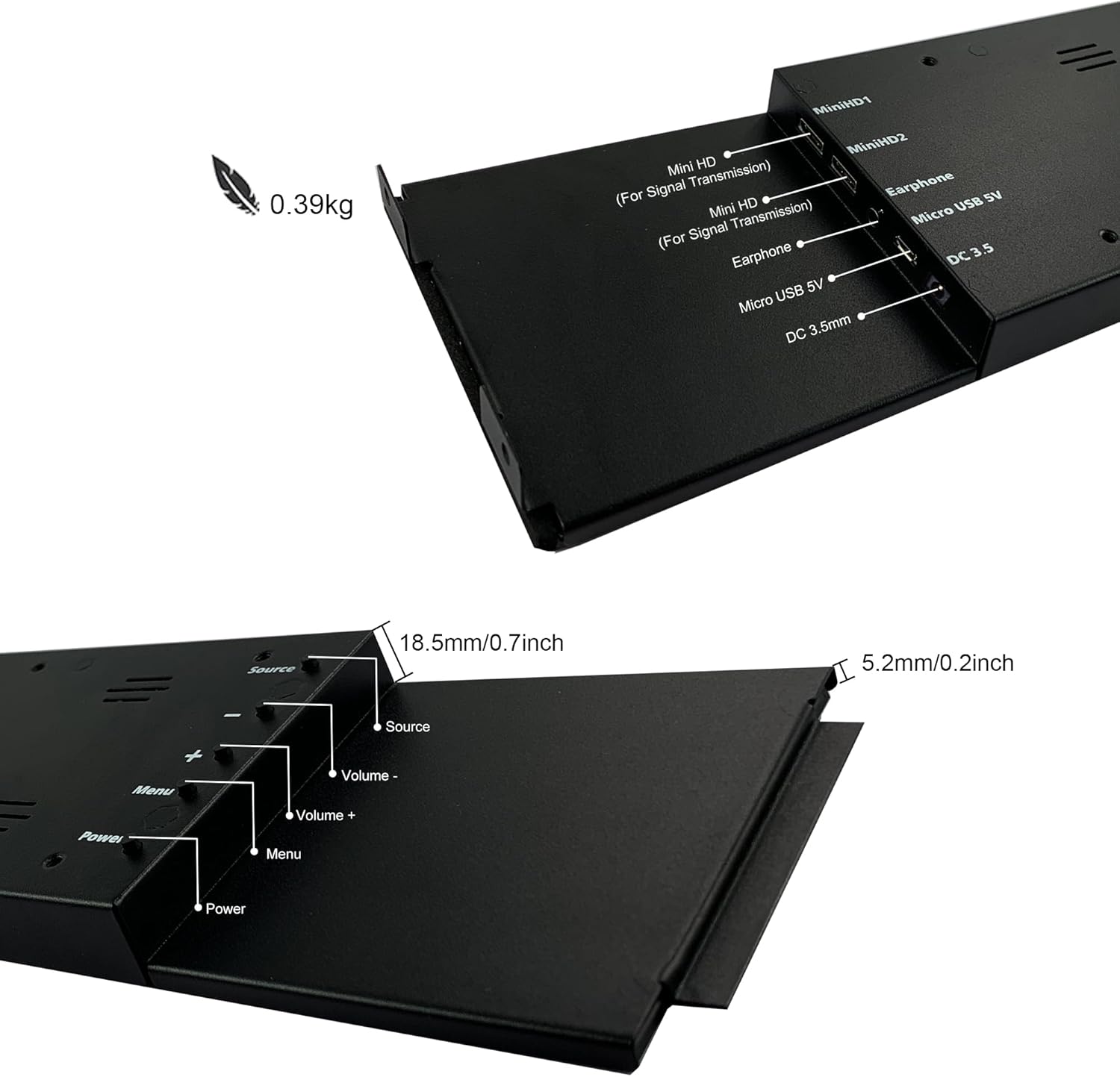
Figure 9: Location of control buttons and ports on the side of the monitor.
תַחזוּקָה
תחזוקה נאותה מבטיחה את אורך החיים והביצועים האופטימליים של הצג שלכם.
- ניקוי המסך: Use a soft, lint-free cloth specifically designed for electronics. For stubborn marks, lightly dampשטפו את המטלית במים או בתמיסת ניקוי מסך. הימנעו מכימיקלים חזקים, חומרים שוחקים או ריסוס נוזלים ישירות על המסך.
- ניקיון כללי: נגב את ה-c של הצגasinנגבו בעזרת מטלית רכה ויבשה.
- אוורור: ודא שפתחי האוורור של הצג אינם חסומים כדי למנוע התחממות יתר.
- תנאים סביבתיים: Avoid exposing the monitor to extreme temperatures, high humidity, or direct sunlight.
- כיבוי כאשר אינו בשימוש: For extended periods of inactivity, it is recommended to power off the monitor.
פתרון בעיות
If you encounter issues with your wisecoco monitor, refer to the following common problems and solutions:
| בְּעָיָה | סיבה אפשרית | פִּתָרוֹן |
|---|---|---|
| No display / "No Signal" message |
|
|
| Screen flashes red, blue, or green when PC sleeps | Specific display settings or driver interaction. | Access the monitor's OSD menu and navigate through settings. Sometimes simply accessing and exiting the menu can resolve this. Ensure GPU drivers are updated. |
| No audio from built-in speakers |
|
|
| Half of the screen not working | Hardware defect or severe connection issue. |
|
מפרט מוצר
Detailed technical specifications for the wisecoco 12.6 Inch Bar LCD Screen HDMI Display Monitor:
| תכונה | מִפרָט |
|---|---|
| מידות המוצר | 1 x 4 x 13 אינץ' |
| משקל פריט | 1.74 פאונד |
| יַצרָן | וייסקוקו |
| מספר דגם של פריט | R126F01-HB |
| גודל תצוגת מסך עומד | 12.6 אינץ' |
| יחס גובה-רוחב | 32:9 |
| כרך ידtage | 5 וולט (DC) |
| הַחְלָטָה | 1920 x 515 |
| מותג | wisecoco |
| גודל מסך | 12.6 אינץ' |
| תיאור משטח המסך | מַברִיק |
אחריות ותמיכה
Wisecoco is committed to providing high-quality products and customer satisfaction.
- אַחֲרָיוּת: מוצר זה מגיע עם אחריות של 12 חודשים מתאריך הרכישה.
- אחריות להחזר כספי: מוצעת אחריות להחזר כספי תוך 30 יום.
- תמיכת לקוחות: 24-hour customer support is available for any inquiries or assistance.
For warranty claims, technical support, or any other questions, please contact Wisecoco customer service through the official channels provided at the point of purchase or on the Wisecoco brand webאֲתַר.

Figure 10: Wisecoco's commitment to customer satisfaction.