
מָבוֹא
The HOMPOW F4 Mini Projector is designed to provide a versatile and high-quality viewing experience. This manual provides essential information for setting up, operating, and maintaining your projector to ensure optimal performance and longevity.
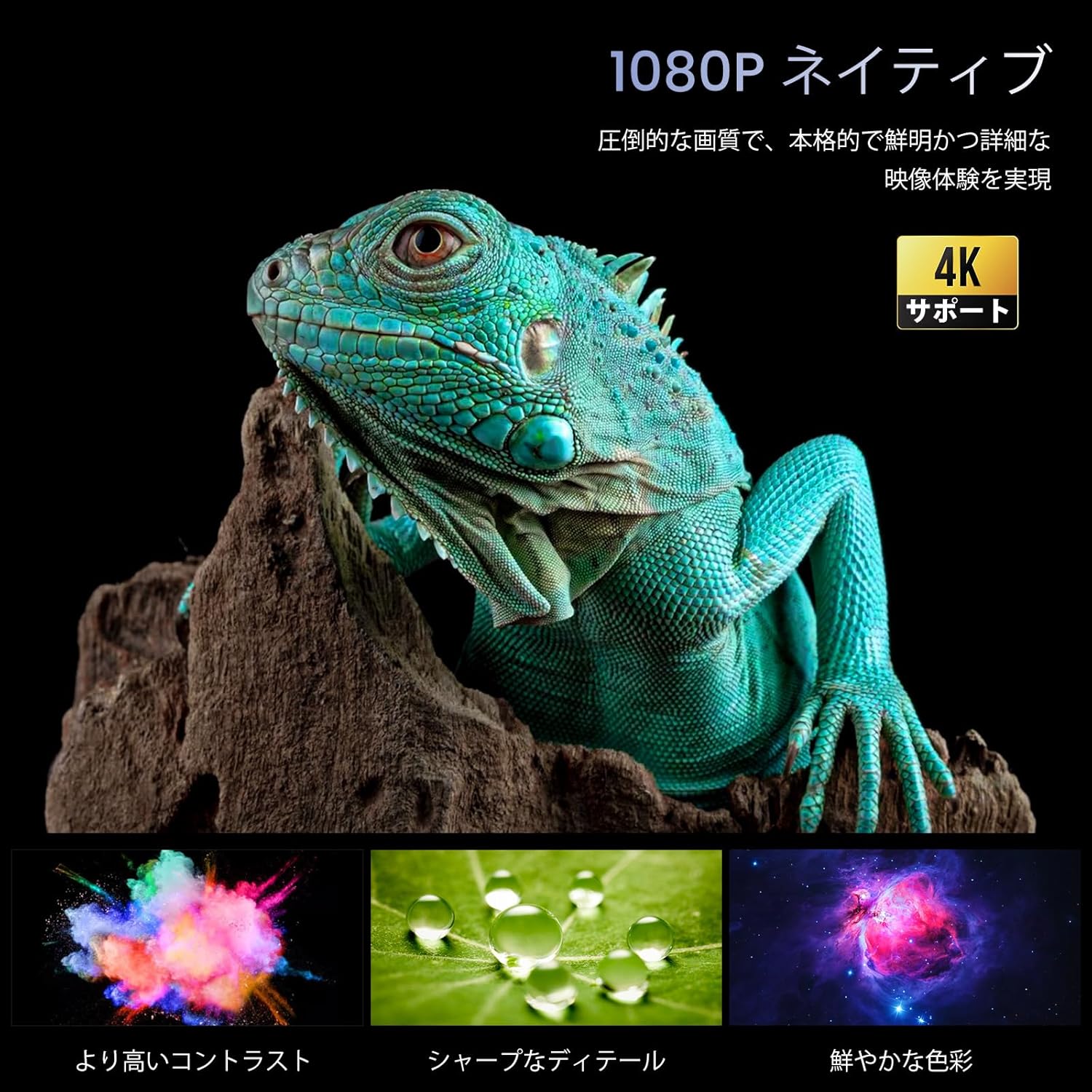
Image: The HOMPOW F4 Mini Projector, a compact device designed for various projection needs.
תכונות מפתח
- 5G Wi-Fi & Wired Connectivity: Supports AirPlay and MiraCast for seamless wireless connection with smartphones and computers. Also allows wired connection via USB cable when Wi-Fi is unavailable.
- High Brightness & Native 1080P with 4K HD Support: Delivers 12000 lumens brightness and native 1080P resolution, with support for 4K HD video playback, ensuring clear and detailed images.
- Wide Compatibility & Bluetooth 5.2: Equipped with AV, 2 USB, and 2 HDMI input ports, compatible with PCs, laptops, TV boxes, smartphones, DVD players, USB memory, Amazon Fire TV Stick, Xbox, PS4, and PS5. Bluetooth 5.2 allows connection to external Bluetooth speakers, headphones, and soundbars for an immersive audio experience.
- Integrated 15W HIFI Speaker & 200-inch HD Large Screen: Features an upgraded 15W HIFI speaker chip for clear sound, stereo separation, and powerful presence. Supports projection sizes up to 200 inches, with a recommended projection distance of 2.3-3 meters.
- Long Lifespan & High Contrast: ה-LED lamp has a lifespan of over 120,000 hours (approximately 25 years of use). A high dynamic contrast ratio of 12000:1 ensures high-quality images and audio.
מדריך התקנה
1. פריקה והשמה
הוציאו בזהירות את כל הרכיבים מהאריזה. הניחו את המקרן על משטח יציב ושטוח. ודאו אוורור נאות סביב המכשיר.
2. חיבור חשמל
- חבר את מתאם החשמל ליציאת קלט DC של המקרן.
- חבר את מתאם החשמל לשקע בקיר.
- לחץ על לחצן ההפעלה במקרן או בשלט רחוק כדי להפעיל אותו.
3. Physical Connections (HDMI/USB)
The projector supports various wired connections for media input.

תמונה: אחורי view of the projector showing AV, USB, and HDMI input ports.
- HDMI: Connect your HDMI-enabled device (e.g., laptop, game console, Fire TV Stick) to one of the HDMI ports.
- USB: Insert a USB drive for media playback or connect a smartphone via USB cable for wired mirroring.
- AV: השתמש ביציאת ה-AV עבור מכשירים ישנים יותר.
Video: Demonstration of connecting a TV Stick to the projector's HDMI port and USB power. This video illustrates the process of physically connecting a streaming device and selecting the correct input source.
4. Wireless Connection (5G Wi-Fi)
The projector supports 5G Wi-Fi for screen mirroring and online streaming.
- Navigate to the projector's main menu and select the Wi-Fi settings.
- Choose your desired 5G Wi-Fi network and enter the password.
- For screen mirroring, select AirPlay (for iOS devices) or MiraCast (for Android devices) from the menu and follow the on-screen instructions to connect your smartphone or computer.

תמונה: דוגמהamples of projection sizes ranging from 40 to 200 inches, illustrating the flexibility of the projector's display capabilities.
5. זיווג Bluetooth
Connect external audio devices via Bluetooth 5.2.
- עבור אל הגדרות ה-Bluetooth בתפריט המקרן.
- אפשר Bluetooth וחפש מכשירים זמינים.
- Select your Bluetooth speaker, headphones, or soundbar from the list to pair.

Image: The projector wirelessly connected to two external Bluetooth speakers, enhancing the audio experience.
6. תיקון מיקוד ותיקון טרפז
Adjust the image for clarity and proper shape.
- מיקוד ידני: סובבו את טבעת המיקוד שעל עדשת המקרן עד שהתמונה תיראה חדה וברורה.
- תיקון אבן מפתח: Use the projector's menu settings to adjust the keystone (trapezoidal distortion) if the image appears wider at the top or bottom.

Image: A close-up of the projector lens with a focus ring, indicating manual focus adjustment for a clear image.
הוראות הפעלה
1. ניווט בתפריט
Use the remote control or the buttons on the projector to navigate through the on-screen menu. Select options using the 'OK' or 'Enter' button.
2. בחירת מקור קלט
From the main menu, select the appropriate input source (e.g., HDMI1, HDMI2, USB, AV, Screen Mirroring) corresponding to your connected device.
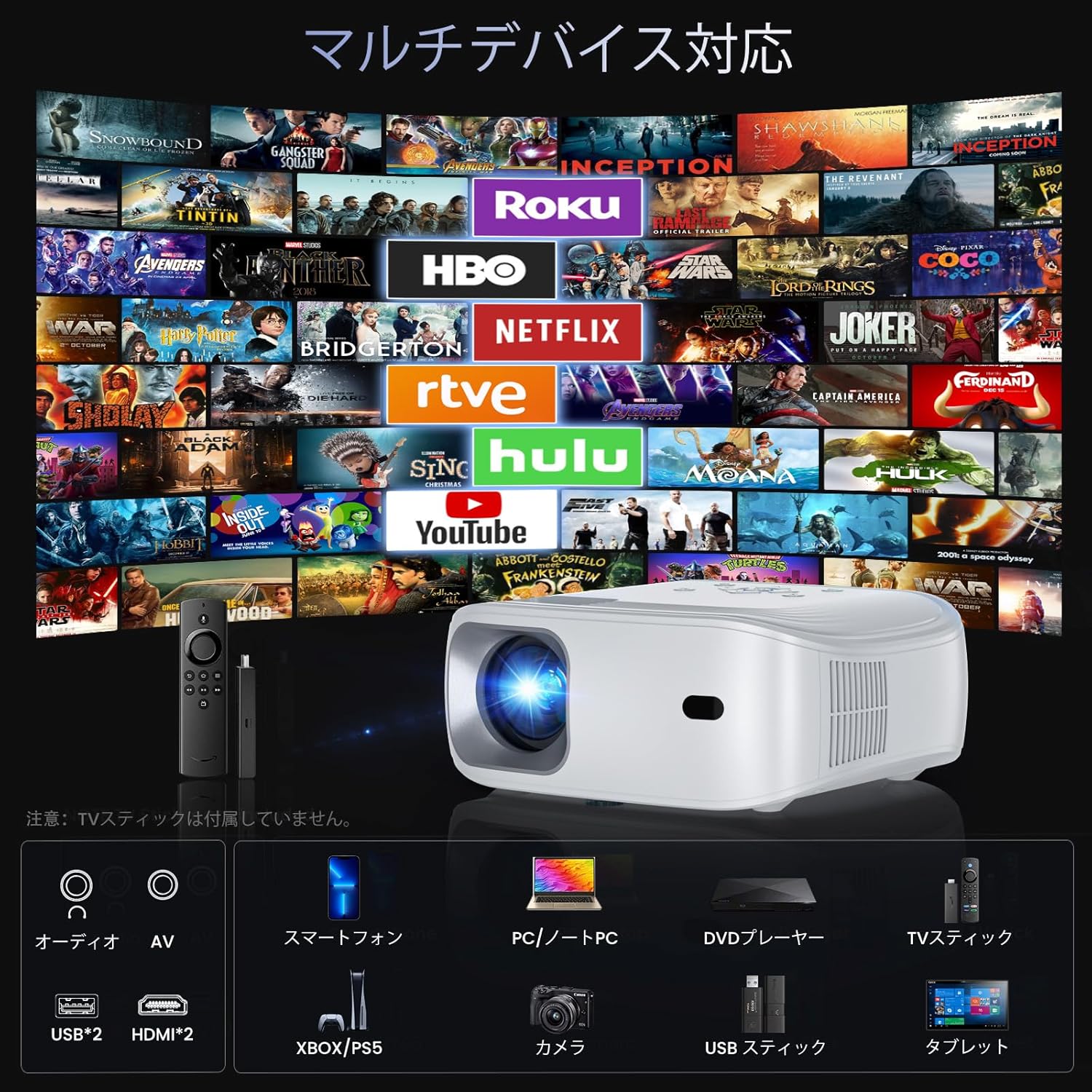
Image: The projector demonstrating compatibility with various devices including smartphones, PCs, DVD players, and TV sticks.
3. שיקוף מסך
To mirror your smartphone or computer screen:
- ודא שהמכשיר והמקרן שלך מחוברים לאותה רשת Wi-Fi.
- Select 'Screen Mirroring' from the projector's menu.
- On your smartphone/computer, activate screen mirroring (e.g., AirPlay for iOS, Smart View/Cast for Android) and select the projector from the list of available devices.
Video: Demonstration of FUNLOGY Projector Usage. This video provides a general overview of how to use the projector in various settings.
4. פונקציית זום
The projector features a 50% zoom function to adjust the image size without moving the projector. Access this feature through the display settings in the menu.
5. Ceiling Projection
For ceiling projection, orient the projector vertically. Adjust the image orientation in the display settings if necessary.
6. כיבוי מתוזמן
The HOMPOW F4 Projector can be set to automatically shut down after a specified period (up to 4 hours). This feature helps conserve energy and prevents the projector from running unnecessarily.

Image: A couple enjoying a movie in bed, highlighting the convenience of the scheduled shutdown feature.
7. תרחישי שימוש
The projector is suitable for various environments:
- קולנוע ביתי: Enjoy movies and TV shows on a large screen.
- משחקים: Connect game consoles for an immersive gaming experience.
- מצגות: Ideal for business meetings or educational purposes.
- בידור בחוץ: Portable design allows for outdoor movie nights or events.

Image: A collage showing the projector being used for outdoor movies, exercise sessions, party projections, and business presentations.
Video: Philoent Home Mini Projector Overview. This video showcases the projector's features and its suitability for various home entertainment and professional uses.
תַחזוּקָה
1. ניקוי העדשה
השתמשו במטלית רכה ונטולת סיבים המיועדת במיוחד לעדשות אופטיות כדי לנגב בעדינות את עדשת המקרן. הימנעו משימוש בחומרי ניקוי שוחקים או משימוש בכוח מופרז, שכן הדבר עלול לשרוט את העדשה.
2. ניקוי גוף המקרן
נגבו את החלק החיצוני של המקרן בעזרת מטלית רכה ויבשה. אין להשתמש בחומרי ניקוי נוזליים ישירות על המכשיר.
3. אוורור
Ensure that the projector's ventilation openings are not blocked. The dual-fan cooling system requires clear airflow to prevent overheating and maintain optimal performance.
4. אחסון
When not in use for extended periods, store the projector in a cool, dry place, away from direct sunlight and excessive dust. Consider using a protective cover.
פתרון בעיות
If you encounter issues with your HOMPOW F4 projector, refer to the following common problems and solutions:
| בְּעָיָה | סיבה אפשרית | פִּתָרוֹן |
|---|---|---|
| אין תמונה או הודעת "אין אות" | נבחר מקור קלט שגוי; חיבור כבל רופף; המכשיר אינו מופעל. | Verify the input source matches the connected device. Check all cable connections (HDMI, USB). Ensure the source device is powered on. |
| תמונה מטושטשת | Focus not adjusted; incorrect projection distance. | Adjust the manual focus ring on the lens. Ensure the projector is within the recommended projection distance (1.4m to 5m). |
| Image is trapezoidal (wider at top/bottom) | המקרן אינו ניצב למסך. | Adjust the keystone correction in the projector's display settings. Reposition the projector to be more aligned with the screen. |
| אין קול | Volume too low; external audio device not connected or paired; incorrect audio output selected. | Increase the projector's volume. If using Bluetooth, ensure the external device is paired and its volume is up. Check audio output settings. |
| Wi-Fi or Screen Mirroring issues | Weak Wi-Fi signal; incorrect password; device compatibility. | Ensure the projector and source device are close to the Wi-Fi router. Re-enter Wi-Fi password. Check device compatibility for AirPlay/MiraCast. |
| Projector overheating or fan noise | Blocked ventilation; prolonged use. | Ensure ventilation ports are clear. Allow the projector to cool down if used for extended periods. |
מפרטים
| תכונה | פְּרָט |
|---|---|
| מותג | HOMPOW |
| דֶגֶם | HOMPOW F4 |
| רזולוציה מקורית | 1920 x 1080 (Full HD) |
| רזולוציה נתמכת | עד 4K HD |
| בְּהִירוּת | 12000 לומן |
| יחס ניגודיות | 12000:1 |
| Lamp תוחלת חיים | 120,000 שעות |
| גודל הקרנה | עד 200 אינץ' |
| מרחק הקרנה | 1.4m - 5m (Recommended: 2.3m - 3m) |
| פונקציית זום | זום דיגיטלי 50% |
| קישוריות | 5G Wi-Fi, Bluetooth 5.2, 2x HDMI, 2x USB, AV |
| שֶׁמַע | רמקול HIFI מובנה 15W |
| צֶבַע | לָבָן |
| מידות | 34 x 27.4 x 13 ס"מ |
| מִשׁקָל | 1.94 ק"ג |
| שימוש מומלץ | קולנוע ביתי |

Image: A vivid display demonstrating the projector's 1080P native resolution and 4K support, highlighting high contrast, sharp details, and rich colors.

Image: An illustration of the projector's internal 15W HIFI speaker, emphasizing lossless audio quality.
Video: About the Projector. This video provides a general overview of the projector's design and capabilities.
אחריות ותמיכה
For detailed warranty information, please refer to the product packaging or the official HOMPOW website. For technical support, troubleshooting assistance, or any other inquiries, please contact HOMPOW customer service through the contact information provided with your purchase or on the official webאֲתַר.