
מָבוֹא
This manual provides detailed instructions for setting up, operating, maintaining, and troubleshooting your Amazon Kindle Paperwhite Signature Edition 32GB. Please read this guide thoroughly to ensure optimal use of your device.
1. התקנה
1.1 פתיחת האריזה וטעינה ראשונית
Upon unboxing, locate the Kindle Paperwhite Signature Edition device and the included USB-C charging cable. It is recommended to fully charge your device before first use.
- כלול בקופסה: קינדל פייפרווייט מהדורת חתימה, כבל טעינה USB-C, מדריך התחלה מהירה.
- טְעִינָה: Connect the USB-C cable to the Kindle and a compatible USB power adapter (9W adapter recommended, sold separately). A full charge takes less than 2.5 hours.
- טעינה אלחוטית: The Signature Edition supports wireless charging. Place the device on a compatible wireless charging dock (sold separately).

Image: Kindle Paperwhite Signature Edition charging wirelessly on a dock. The device can be charged via USB-C or wirelessly for extended battery life.
1.2 הפעלה/כיבוי
- כדי להפעיל: לחץ והחזק את לחצן ההפעלה הממוקם בקצה התחתון של המכשיר עד שהמסך יידלק.
- כדי לכבות: Press and hold the power button until a power dialog appears, then select 'Power Off'. A short press will put the device to sleep.
1.3 קישוריות Wi-Fi
To access the Kindle Store and download content, connect your device to a Wi-Fi network.
- ממסך הבית, הקש על הגדרות icon (gear icon) or swipe down from the top of the screen and tap כל ההגדרות.
- לִבחוֹר Wi-Fi ובלוטות', אז רשתות Wi-Fi.
- בחר את הרשת הרצויה מהרשימה והזן את הסיסמה אם תתבקש.
המכשיר תומך ברשתות 2.4 GHz ו-5.0 GHz עם אבטחת WEP, WPA, WPA2, WPA3 ו-OWE.
1.4 הגדרת חשבון
Register your Kindle to your Amazon account to access your content library and the Kindle Store.
- After connecting to Wi-Fi, follow the on-screen prompts to sign in with your Amazon account credentials.
- If you do not have an Amazon account, you can create one during this process.
2. הפעלת הקינדל שלך
2.1 Basic Navigation and Page Turns
The Kindle Paperwhite Signature Edition features a 7-inch glare-free display designed for comfortable reading.
- דפי עמוד: Tap the right side of the screen to turn to the next page, or the left side to go back. Swiping left or right also turns pages.
- מסך הבית: Tap the top of the screen to reveal the navigation bar, then tap the בַּיִת icon to return to your library.

Image: A hand holding the Kindle Paperwhite, displaying a book page. The 7-inch Paperwhite display offers fast page turns for an enhanced reading experience.
2.2 Reading Features
Customize your reading experience with various display and font settings.
- Adjusting Front Light: The Signature Edition features an auto-adjusting front light. You can also manually adjust the brightness by tapping the top of the screen while reading and using the brightness slider.
- אור חם: Adjust the warmth of the screen light for comfortable reading in different environments.
- מצב כהה: Invert screen colors for white text on a black background, ideal for low-light conditions. Access this from the quick settings menu.
- הגדרות גופן: While reading, tap the top of the screen, then select the Aa icon to adjust font size, font face, line spacing, and margins.
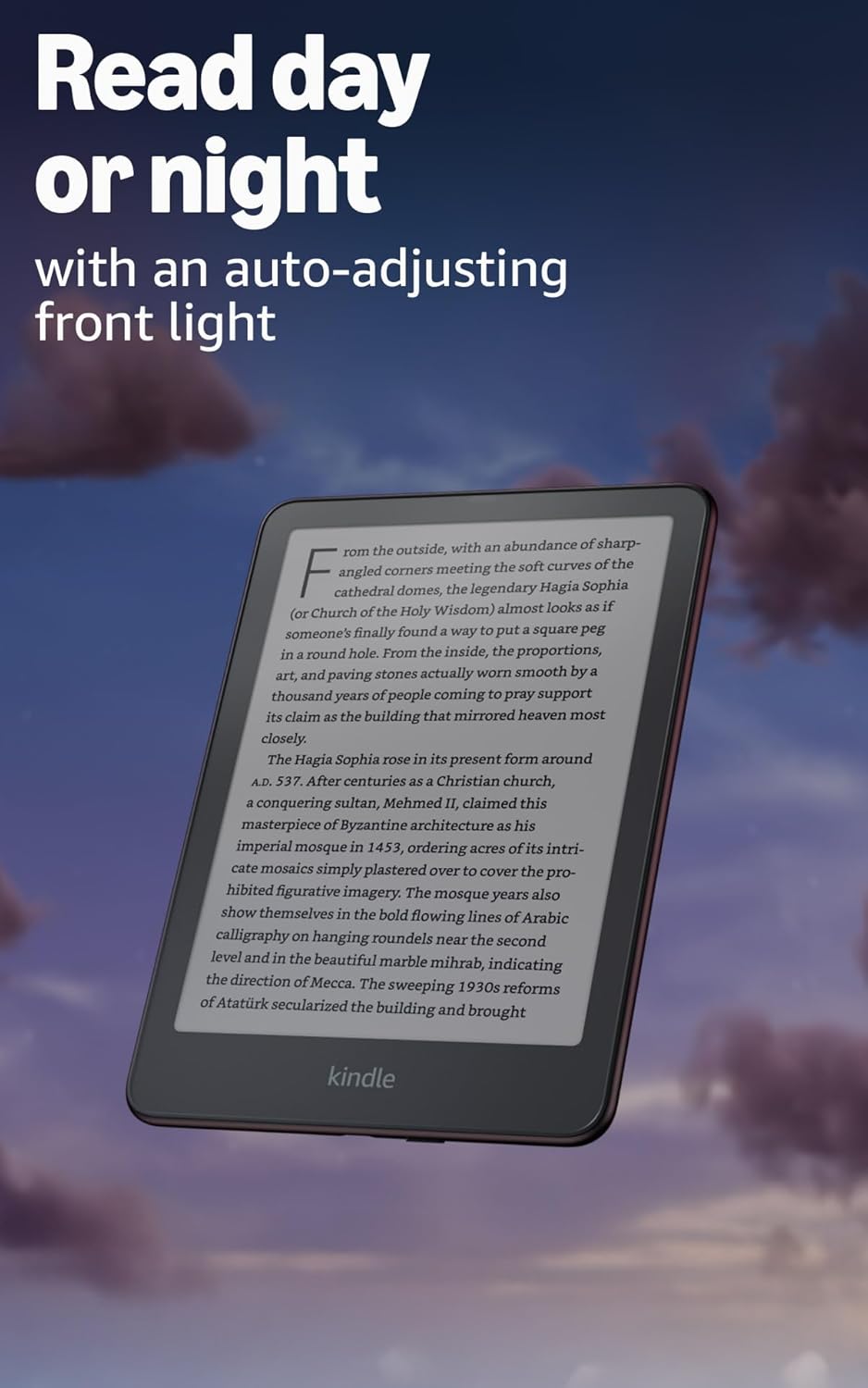
Image: Kindle Paperwhite screen illuminated in a dark room. The auto-adjusting front light allows for comfortable reading day or night.

Image: Close-up of the Kindle Paperwhite screen displaying text. Enjoy a glare-free display without distracting notifications.
2.3 ניהול תוכן
Your Kindle provides access to a vast library of content.
- חנות קינדל: ממסך הבית, הקש על חנות icon to browse and purchase books.
- סִפְרִיָה: All purchased content is stored in your library and can be downloaded to your device.
- אחסון בענן: All Amazon content is stored for free in the cloud, allowing you to access it from any compatible device.
- פורמטים נתמכים: פורמט קינדל 8 (AZW3), קינדל (AZW), TXT, PDF, MOBI לא מוגן, PRC באופן מקורי; PDF, DOCX, DOC, HTML, EPUB, TXT, RTF, JPEG, GIF, PNG, BMP באמצעות המרה; פורמט שמע Audible (AAX).

Image: A collage of various book covers. The Kindle Store offers access to over 15 million titles worldwide.
2.4 ספרי שמע
Listen to Audible audiobooks on your Kindle Paperwhite Signature Edition.
- בלוטות': Connect Bluetooth headphones or speakers to your Kindle via the Wi-Fi ובלוטות' הגדרות.
- Playing Audiobooks: Download Audible audiobooks from the Kindle Store and play them through your connected Bluetooth device.
2.5 איטום
Your Kindle Paperwhite Signature Edition is waterproof (IPX8 rated).
- It is tested to withstand immersion in 2 meters of fresh water for 60 minutes.
- This makes it suitable for reading by the pool, in the bath, or at the beach.
- After exposure to water, ensure the USB-C port is dry before charging.
3. תחזוקה
3.1 ניקוי המכשיר שלך
- Use a soft, lint-free cloth to clean the screen and body of your Kindle.
- הימנעו מחומרי ניקוי שוחקים, ממסים או תרסיסים.
- If the device has been exposed to water, gently wipe it dry.
3.2 טיפול בסוללה
- To maximize battery life, avoid exposing your Kindle to extreme temperatures.
- A single charge can last up to twelve weeks, based on half an hour of reading per day with wireless off and the light setting at 13. Heavy use, especially with wireless features or audiobook streaming, will reduce battery life.
- Charge the device regularly, but it is not necessary to fully discharge it before recharging.
3.3 עדכוני תוכנה
Your Kindle will periodically receive software updates to improve performance and add new features.
- Ensure your Kindle is connected to Wi-Fi to receive automatic updates.
- ניתן לבדוק ידנית אם קיימים עדכונים על ידי מעבר אל הגדרות > אפשרויות מכשיר > בדוק אם קיימים עדכונים.
4. פתרון תקלות
4.1 המכשיר אינו מגיב
- אם הקינדל שלכם קפוא או לא מגיב, לחצו והחזיקו את לחצן ההפעלה למשך 40 שניות עד שהמכשיר יופעל מחדש.
4.2 בעיות חיבור Wi-Fi
- ודא שנתב ה-Wi-Fi שלך דולק ונמצא בטווח קליטה.
- נסה להפעיל מחדש את הקינדל ואת נתב ה-Wi-Fi שלך.
- ודא שאתה מזין את סיסמת ה-Wi-Fi הנכונה.
4.3 הסוללה לא נטענת
- Check that the USB-C cable is securely connected to both the Kindle and the power adapter.
- נסה להשתמש בכבל USB-C או במתאם מתח אחר.
- Ensure the USB-C port on the Kindle is clean and free of debris.
4.4 Content Not Downloading
- ודא שחיבור ה-Wi-Fi שלך פעיל ויציב.
- Check your Amazon account for any payment issues or content restrictions.
- Ensure your device has sufficient storage space.
5. מפרטים
| תכונה | תֵאוּר |
|---|---|
| לְהַצִיג | 7” Paperwhite display technology with built-in front light, 300 ppi, optimized font technology, 16-level gray scale. |
| גוֹדֶל | 5 אינץ' x 7 אינץ' x 0.3 אינץ' (127.6 x 176.7 x 7.8 מ"מ) |
| מִשׁקָל | 7.5 עוז (214g) |
| אחסון במכשיר | 32 ג'יגה-בייט; מכיל אלפי ספרים. |
| אחסון בענן | אחסון ענן חינמי לכל תוכן אמזון. |
| חיי סוללה | Up to twelve (12) weeks (based on 30 mins reading/day, wireless off, light setting 13). |
| זמן טעינה | פחות משעתיים וחצי עם מתאם מתח USB של 9W. |
| קישוריות Wi-Fi | Supports 2.4 GHz and 5.0 GHz networks with WEP, WPA, WPA2, WPA3, and OWE security. |
| תכונות נגישות | קוֹלView screen reader (Bluetooth audio, English only), dark mode, adjustable font size, font face, line spacing, and margins. |
| פורמטי תוכן נתמכים | פורמט קינדל 8 (AZW3), קינדל (AZW), TXT, PDF, MOBI לא מוגן, PRC באופן מקורי; PDF, DOCX, DOC, HTML, EPUB, TXT, RTF, JPEG, GIF, PNG, BMP באמצעות המרה; פורמט שמע Audible (AAX). |
| איטום מים | מדורג IPX8 (עומד בטבילה בעומק של 2 מטרים של מים מתוקים למשך 60 דקות). |
| דוֹר | דור 12 (מהדורה משנת 2024). |
6. אחריות ותמיכה
6.1 מידע אחריות
Your Kindle Paperwhite Signature Edition comes with a 1-year limited warranty and service. Extended warranty options may be available for purchase separately in some regions.
6.2 תמיכה נוספת
לסיוע נוסף ומידע מפורט, אנא עיינו במקורות הבאים:
- מדריך להתחלה מהירה: Included in your product packaging.
- Kindle User Guide: Accessible on your device or via the Amazon webאֲתַר.
- Accessibility for Kindle: Learn more about accessibility features on the Amazon webאֲתַר.
- Manage Your Content and Devices: Visit your Amazon account online to manage your Kindle content and device settings.