
1. הקדמה
This manual provides essential instructions for setting up, operating, maintaining, and troubleshooting your VIBOX VI-63 PC Gamer. Please read this guide thoroughly before using your new computer to ensure optimal performance and longevity.
2. מידע בטיחות
- Ensure the PC is placed on a stable, flat surface with adequate ventilation.
- Do not block any ventilation openings on the PC case.
- Keep the PC away from direct sunlight, heat sources, and liquids.
- Use only the power adapter supplied with your PC.
- נתק את כבל החשמל לפני ניקוי או ביצוע כל תחזוקה.
- Avoid opening the PC case unless instructed by VIBOX support, as this may void your warranty.
3. תכולת החבילה
ודא שכל הפריטים המפורטים להלן כלולים בחבילה שלך:
- VIBOX VI-63 PC Gamer Tower
- צג 22 אינץ'
- מקלדת משחקים RGB
- עכבר משחקים RGB
- Black Mouse Pad
- אוזניות גיימינג עם מיקרופון
- Wireless WiFi Network Adapter (600 Mbps)
- כבלי חשמל)
- Display Cable (HDMI or VGA, depending on monitor)
- תיעוד (מדריך זה)
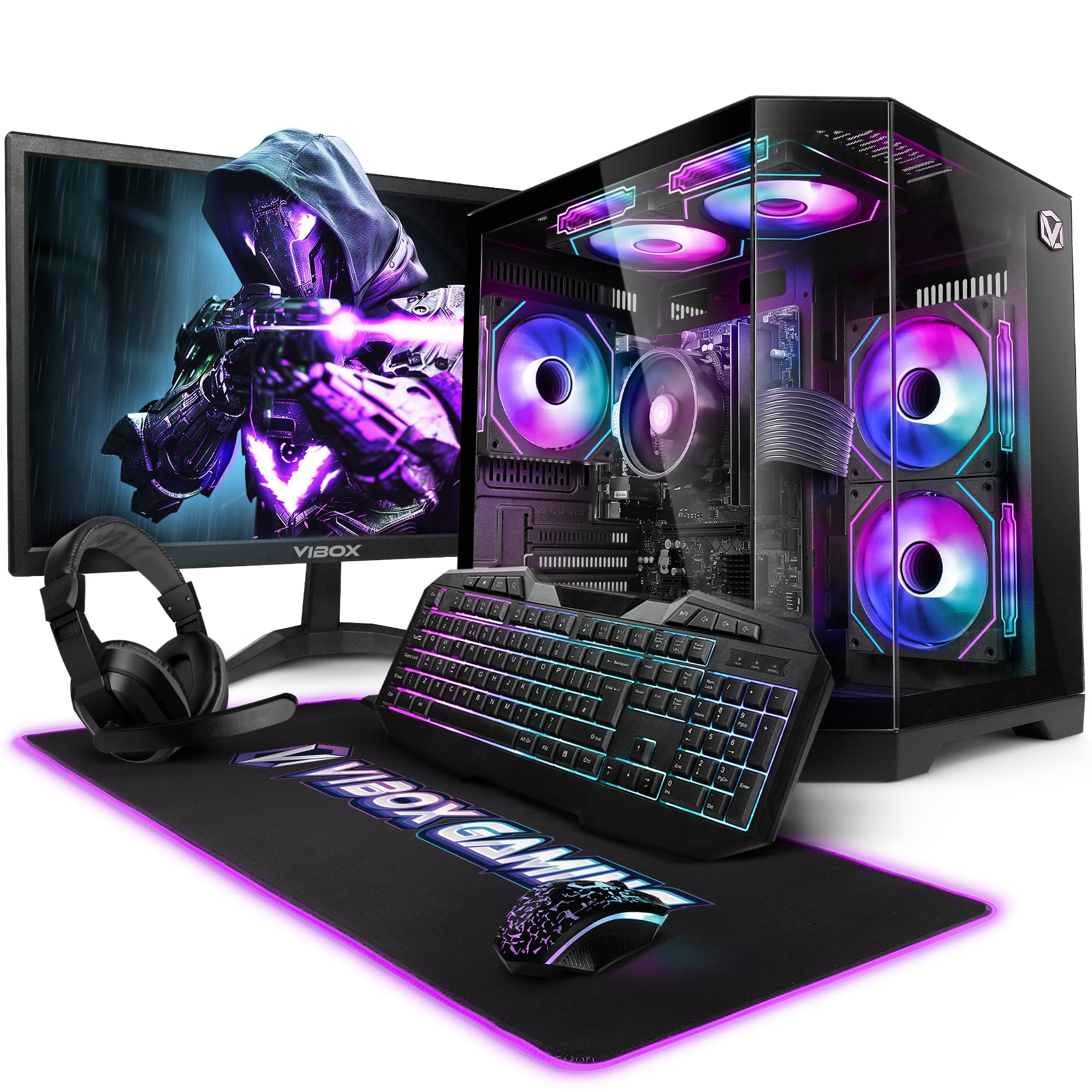
Image 3.1: VIBOX VI-63 PC Gamer Tower with internal RGB lighting.
4. הוראות התקנה
4.1. פריקה והשמה
- הוציאו בזהירות את כל הרכיבים מהאריזה שלהם.
- Place the PC tower on a flat, stable surface. Ensure there is sufficient space around the tower for proper airflow.
- Place the monitor on a stable surface at a comfortable viewגובה.
4.2. חיבור ציוד היקפי
- צג: Connect one end of the display cable (HDMI or VGA) to the corresponding port on the back of the PC and the other end to the monitor.
- מקלדת ועכבר: Connect the USB cables of the keyboard and mouse to any available USB ports on the PC.
- אוזניות: Connect the headset to the audio jacks (headphone and microphone) on the front or rear of the PC.
- מתאם WiFi: Insert the wireless WiFi network adapter into an available USB port.
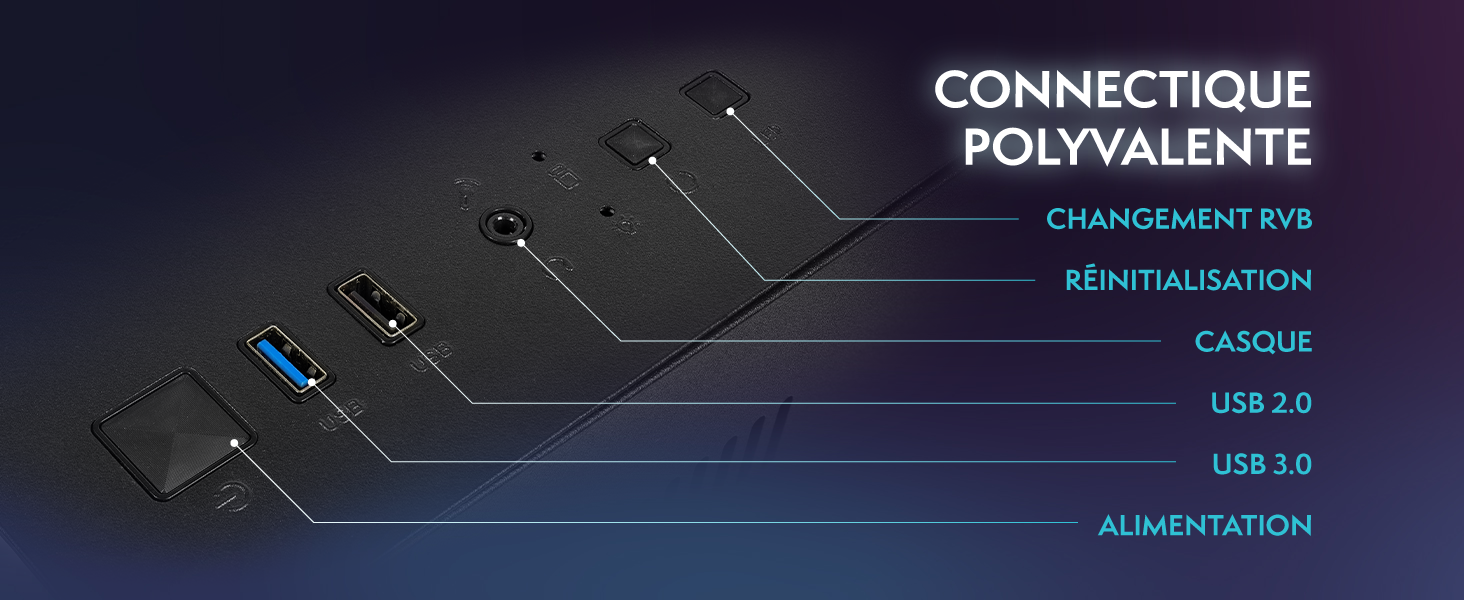
Image 4.1: Front panel connections including USB 2.0, USB 3.0, headset jack, reset button, and RGB change button.
4.3. חיבור חשמל
- Connect the power cable to the power supply unit (PSU) at the back of the PC.
- חבר את הקצה השני של כבל החשמל לשקע בקיר.
- Connect the monitor's power cable to a wall outlet.
4.4. Initial Boot and Windows 11 Setup
- Press the power button on the front of the PC tower.
- הפעל את הצג.
- Follow the on-screen instructions to complete the Windows 11 Home setup. This typically involves selecting your region, language, creating a user account, and connecting to a Wi-Fi network.
5. הוראות הפעלה
5.1. פעולה בסיסית
- הפעלה/כיבוי: Press the power button to turn on the PC. To shut down, click the Start button in Windows, then Power > Shut down.
- הפעל מחדש: מתפריט התחל, בחר הפעלה > הפעלה מחדש.
- מצב שינה: מתפריט התחל, בחר הפעלה > שינה.
5.2. תכונות של Windows 11
Your VIBOX VI-63 PC Gamer comes with Windows 11 Home pre-installed, offering features designed to enhance your computing and gaming experience:
- DirectStorage: Enables faster loading times for compatible games.
- AutoHDR: Automatically enhances visuals for a wider range of games.
- Xbox Game Pass Integration: Seamless access to a library of games (subscription may be required).
- Optimized CPU Performance: Windows 11 is designed to optimize CPU usage for gaming and multitasking.
5.3. ביצועי משחקים
The VIBOX VI-63 is equipped with an AMD Ryzen 3 3200GE processor and integrated Radeon Vega 8 graphics, providing solid performance for everyday computing and gaming at 720p to 1080p resolutions.

תמונה 5.1: נגמרview of internal components including CPU, GPU, RAM, and storage.
5.4. בקרת תאורת RGB
Your PC features RGB lighting. Use the dedicated RGB change button on the front panel (refer to Image 4.1) to cycle through different lighting modes and colors.
6. תחזוקה
6.1. Cleaning the PC
- חִיצוֹנִי: השתמש רך, דamp cloth to wipe down the exterior of the PC case and monitor. Avoid abrasive cleaners.
- אָבָק: Periodically use compressed air to clear dust from the ventilation openings and fan grilles. Ensure the PC is powered off and unplugged before doing so.
- ציוד היקפי: Clean your keyboard and mouse regularly to prevent dust and debris buildup.
6.2. עדכוני תוכנה
- בדוק באופן קבוע אם קיימים עדכוני Windows והתקן אותם כדי להבטיח יציבות ואבטחה של המערכת. עבור אל הגדרות > עדכוני Windows.
- Keep your graphics drivers updated for optimal gaming performance. You can usually download the latest drivers from the AMD webאֲתַר.
6.3. System Care
- Avoid installing unnecessary software to keep your system lean and fast.
- Run regular antivirus scans to protect against malware. Windows Defender is pre-installed.
- Ensure proper airflow around the PC to prevent overheating. The inverted airflow design helps with cooling.
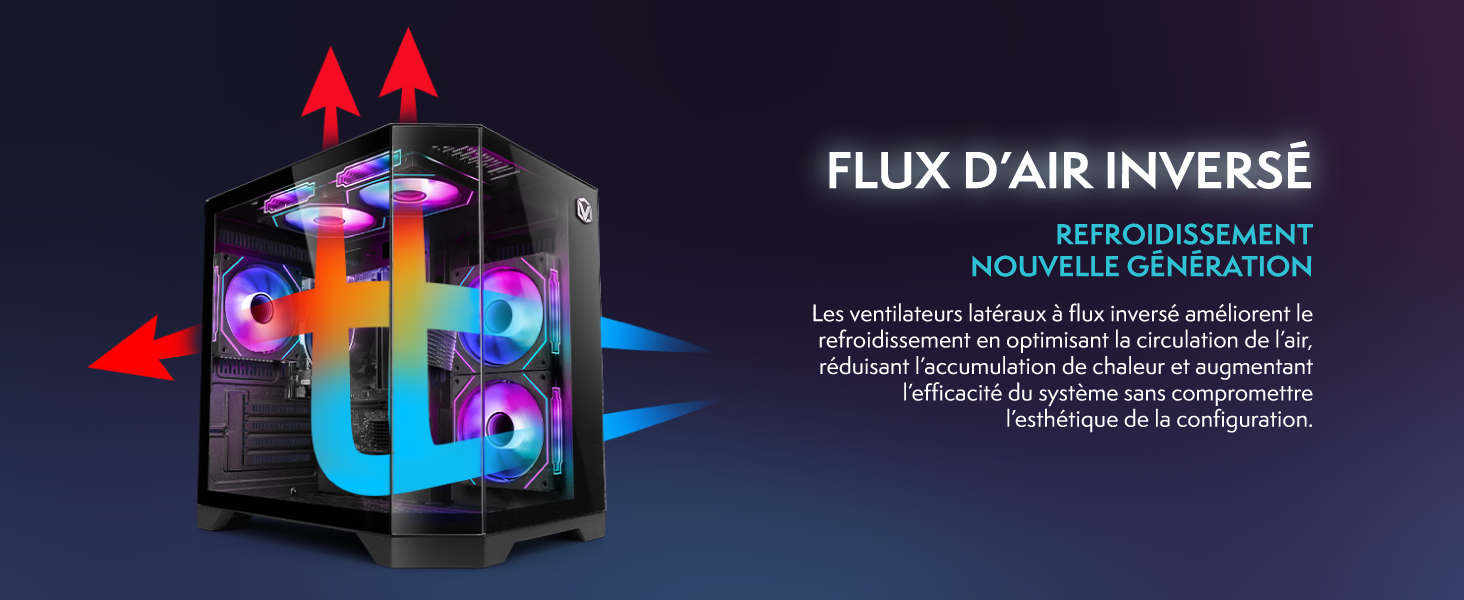
Image 6.1: Inverted airflow design for efficient cooling.
7. פתרון תקלות
- אין כוח: Check all power cable connections. Ensure the wall outlet is functional.
- אין תצוגה: Ensure the monitor is powered on and the display cable is securely connected to both the PC and the monitor. Try a different display cable or port if available.
- אין חיבור אינטרנט: Verify the WiFi adapter is properly installed. Check your router and internet service. In Windows, go to Settings > Network & internet to troubleshoot.
- PC Freezes/Crashes: Restart the PC. Ensure all drivers are updated. Check for overheating (ensure good airflow).
- ציוד היקפי שלא עובד: Try connecting the keyboard, mouse, or headset to different USB/audio ports. Ensure drivers are installed if required.
8. מפרטים
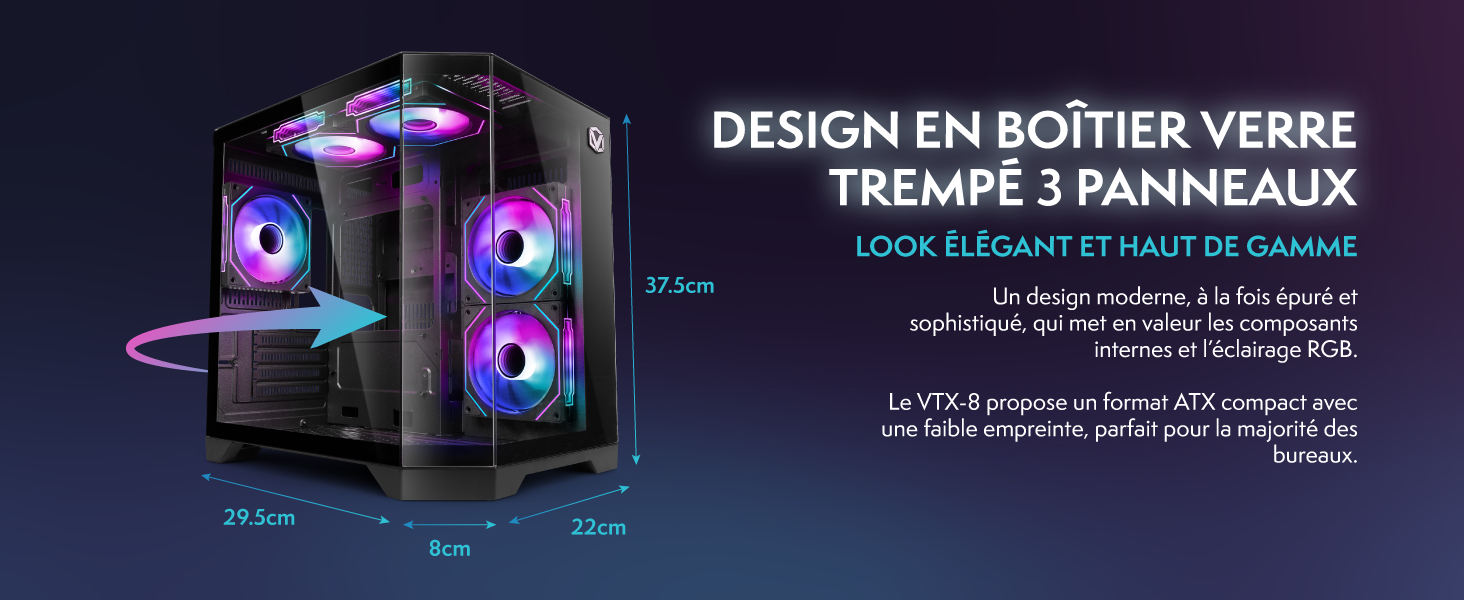
Image 8.1: VIBOX VI-63 PC Gamer case dimensions.
| תכונה | מִפרָט |
|---|---|
| מותג | VIBOX |
| שם הדגם | Vibox VI-63 Gaming PC |
| מַעֲרֶכֶת הַפעָלָה | Windows 11 Home |
| דגם מעבד | AMD Ryzen 3 3200G |
| מהירות מעבד | 3.6 GHz (4 GHz טורבו) |
| ליבות מעבד | 4 |
| מעבד גרפי | Radeon Vega 8 (Integrated) |
| Graphics RAM | 2 ג'יגה-בייט (משותף) |
| זיכרון RAM מותקן | 16 GB DDR4 |
| RAM Speed | 2666 מגה-הרץ |
| קיבולת אחסון | SSD 1 TB |
| טכנולוגיית כונן קשיח | SSD |
| גודל צג | 22 אינץ' |
| רזולוציית תצוגה מקסימלית | 1920x1080 פיקסלים |
| ממשק פלט וידאו | HDMI, VGA |
| טכנולוגיית קישוריות | AMD Radeon Vega 8, Ethernet, HDMI, USB, Wi-Fi |
| מידות (L x W x H) | 32.6 x 19.5 x 42 ס"מ |
| צֶבַע | VTX-1 Black |
9. אחריות ותמיכה
9.1. מידע על אחריות
Your VIBOX VI-63 PC Gamer comes with a אחריות לשנה on spare parts. This warranty covers manufacturing defects and component failures under normal use. Please retain your proof of purchase for warranty claims.
9.2. תמיכת לקוחות
For technical assistance, troubleshooting, or warranty inquiries, please contact VIBOX customer support. Refer to the contact information provided with your purchase documentation or visit the official VIBOX webאתר לפרטי תמיכה.
משאבים מקוונים: For additional support and FAQs, please visit the VIBOX official webאֲתַר.