
Morpheus 360 HS6500SBT
מורפיוס 360 אדווןtagמדריך למשתמש באוזניות אלחוטיות סטריאו e
Model: HS6500SBT | Brand: Morpheus 360
מָבוֹא
This manual provides detailed instructions for the setup, operation, and maintenance of your Morpheus 360 Advantage Stereo Wireless Headset. Designed for seamless communication and audio, this headset features Bluetooth 5.3 connectivity, a detachable noise-cancelling boom microphone, and comfortable protein leather ear cushions, making it ideal for both work and gaming environments.

The Morpheus 360 Advantage Stereo Wireless Headset, showcasing its design and included USB-A and USB-C dongles for versatile connectivity.
תכונות עיקריות:
- Seamless Multi-Device Connection: Bluetooth 5.3 technology allows connection to multiple devices, facilitating easy switching between phone calls and video conferences.
- Wear All Day Comfort: Lightweight design with protein leather ear cushions and memory foam for extended wear.
- Noise-Free Communication: Detachable noise-cancelling boom microphone with 120-degree rotation filters background noise for clear calls.
- תאימות אוניברסלית: Complies with UC standard, ensuring seamless operation with communication software like Zoom, Skype, and MS Teams.
- בקרות משולבות: Built-in call and volume controls for convenient management.
תוכן החבילה
ודא שכל הפריטים נמצאים בחבילה שלך:
- מורפיוס 360 אדווןtage Stereo Wireless Headset
- מיקרופון בום נתיק
- USB-A Receiver-Dongle
- USB-C Adapter (for USB-A dongle)
- כבל טעינה USB (USB-A ל- USB-C)
- מדריך למשתמש (מסמך זה)
המוצר נגמרview
Familiarize yourself with the components of your headset:

Left earcup with microphone port and control buttons.
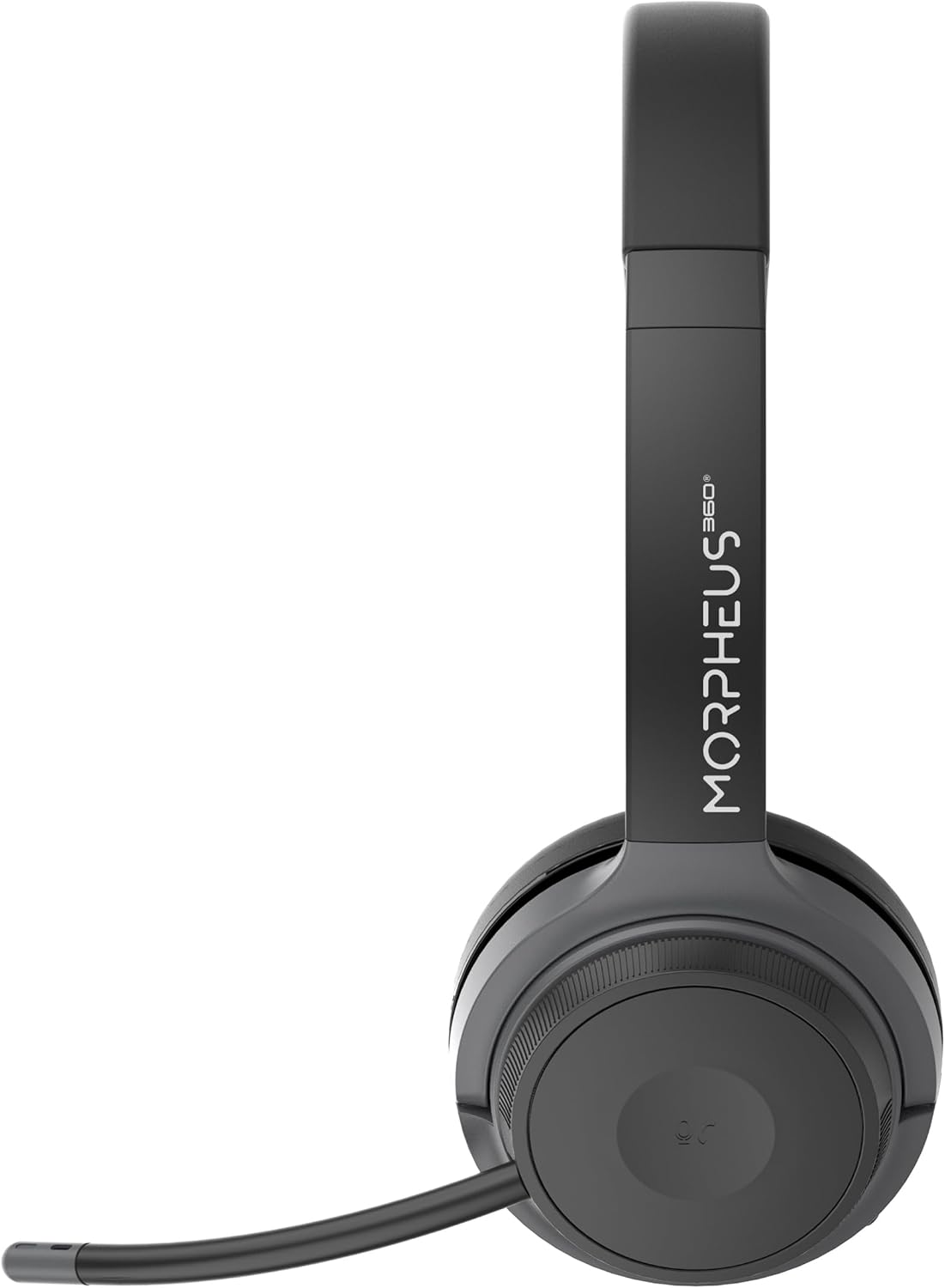
Right earcup featuring the volume control dial and USB-C charging port.
- סרט ראש: מתכוונן להתאמה נוחה.
- כריות אוזניים: Soft protein leather with memory foam for comfort.
- יציאת מיקרופון: Located on the left earcup for attaching the boom microphone.
- לחצן הפעלה/התאמה: Controls power and initiates Bluetooth pairing.
- חוגת בקרת עוצמת הקול: Located on the right earcup, allows for precise volume adjustments.
- יציאת טעינה USB-C: לטעינת סוללת האוזניות.
- לחצני בקרת מדיה: Play/Pause, Next/Previous Track (functionality may vary by device).
- כפתור בקרת שיחות: Answer/End/Reject calls.
הגדרה
1. טעינת האוזניות
לפני השימוש הראשון, יש לטעון את האוזניות במלואן. טעינה מלאה אורכת כ-2 שעות.
- Connect the USB charging cable to the USB-C port on the headset.
- חבר את הקצה השני של הכבל למקור חשמל USB (למשל, יציאת USB של המחשב, מתאם קיר).
- The LED indicator will show charging status (refer to LED indicator section for details).
2. חיבור מיקרופון הבום
The boom microphone is detachable and can be inserted into the microphone port on the left earcup. Ensure it clicks securely into place. The microphone can be rotated 120 degrees for optimal positioning.
3. התחברות למכשירים
Your headset offers two primary connection methods: Bluetooth and 2.4GHz Wireless (via USB dongle).
חיבור Bluetooth:
- ודא שהאוזניות טעונות וכבויות.
- Press and hold the Power/Pairing button until the LED indicator flashes blue and red, indicating pairing mode.
- במכשיר שלך (סמארטפון, טאבלט, מחשב נייד), הפעל את Bluetooth וחפש מכשירים חדשים.
- Select "Morpheus 360 Advantage" from the list of available devices.
- לאחר החיבור, נורית החיווי תדליק אור כחול קבוע.

The headset supports Bluetooth 5.3 for stable connections and Universal Communication (UC) standards for broad compatibility.
2.4GHz Wireless Connection (via USB Dongle):
This method is ideal for devices without Bluetooth or for a more stable connection, particularly with PCs and Macs.
- Plug the USB-A receiver-dongle into an available USB-A port on your computer. If your computer only has USB-C ports, use the included USB-A to USB-C adapter.
- הפעל את האוזניות. הן אמורות להתחבר אוטומטית לדונגל.
- The LED indicator on both the headset and dongle will show a solid blue light when connected.
- Ensure the Morpheus 360 headset is selected as the default audio input and output device in your computer's sound settings.
הוראות הפעלה
הפעלה/כיבוי:
- הפעלה: Press and hold the Power/Pairing button for approximately 3 seconds until the LED indicator lights up.
- כיבוי: Press and hold the Power/Pairing button for approximately 5 seconds until the LED indicator turns off.
בקרת עוצמת הקול:
Rotate the volume control dial on the right earcup:
- סובב עם כיוון השעון כדי להגביר את עוצמת הקול.
- סובב נגד כיוון השעון כדי להנמיך את עוצמת הקול.
ניהול שיחות:
- תשובה לשיחה: לחץ פעם אחת על לחצן בקרת השיחות.
- סיום שיחה: Press the Call Control button once during a call.
- דחה שיחה: לחץ והחזק את לחצן בקרת השיחות למשך 2 שניות.

The headset provides comfortable wear for extended periods, ideal for calls and online meetings.
השמעת מדיה:
- הפעל/השהה: לחץ על לחצן הפעל/השהה פעם אחת.
- הרצועה הבאה: לחץ פעם אחת על כפתור הרצועה הבאה.
- רצועה קודמת: לחץ פעם אחת על כפתור הרצועה הקודמת.
שימוש במיקרופון:
- השתק/בטל השתקה: Use the dedicated mute button on the microphone boom or the headset controls (if available).
- מיקום: Adjust the 120-degree rotatable boom microphone for optimal voice pickup, ensuring it is close to your mouth.
תַחזוּקָה
ניקוי:
- נגבו את האוזניות בעזרת מטלית רכה, יבשה ונטולת סיבים.
- For ear cushions, use a slightly damp cloth with mild soap if necessary, then wipe dry immediately.
- אין להשתמש בחומרי ניקוי שוחקים, אלכוהול או ממסים כימיים.
אִחסוּן:
- יש לאחסן את האוזניות במקום קריר ויבש, הרחק מאור שמש ישיר וטמפרטורות קיצוניות.
- הימנעו מהנחת חפצים כבדים על האוזניות.
טיפול בסוללה:
- טען את האוזניות באופן קבוע, גם אם אינן בשימוש תכוף, כדי לשמור על תקינות הסוללה.
- הימנעו מפריקת הסוללה באופן מלא לעתים קרובות.
פתרון בעיות
| בְּעָיָה | סיבה אפשרית | פִּתָרוֹן |
|---|---|---|
| האוזניות לא נדלקות. | סוללה חלשה. | טען את האוזניות במלואן. |
| לא ניתן להתחבר דרך בלוטות'. | Headset not in pairing mode; Device Bluetooth off; Out of range. | Ensure headset is in pairing mode (flashing blue/red). Turn device Bluetooth on. Move headset closer to device (within 10 meters). |
| אין צליל או איכות צליל ירודה. | Volume too low; Incorrect audio output selected; Headset not connected properly. | Increase headset and device volume. Select "Morpheus 360 Advantage" as audio output. Reconnect headset. |
| המיקרופון לא עובד. | המיקרופון מושתק; לא מחובר כראוי; נבחר התקן קלט שגוי. | Unmute microphone. Ensure microphone is securely attached. Select "Morpheus 360 Advantage" as audio input in device settings. |
| חיבור לסירוגין. | הפרעה; מחוץ לטווח; סוללה חלשה. | Move away from other wireless devices. Stay within 10 meters of connected device. Charge headset. |
מפרטים
| תכונה | פְּרָט |
|---|---|
| שם הדגם | HS6500SBT |
| טכנולוגיית קישוריות | Wireless (Bluetooth 5.3, 2.4GHz via USB Dongle) |
| גרסת בלוטות' | 5.3 |
| טווח בלוטות' | עד 10 מטר (33 רגל) |
| חיי סוללה | Up to 30 Hours (Talk/Playtime) |
| זמן טעינה | בערך 2 שעות |
| בקרת רעש | ביטול רעש פסיבי |
| מִיקרוֹפוֹן | Detachable Noise Cancelling Boom Microphone (120-degree rotation) |
| מיקום אוזניים | מעל אוזן |
| חוֹמֶר | Faux Leather (Protein Leather Ear Cushions) |
| מכשירים תואמים | Laptops, Desktops, Tablets, Telephones, Smartphones, Communication Software (UC Standard) |
| מידות המוצר | 8.75 x 3 x 8.5 אינץ' |
| משקל פריט | 9.6 אונקיות |
| עַכָּבָּה | 30 אוהם |
| UPC | 856816008538 |
מידע על אחריות
Morpheus 360 products are designed and manufactured to the highest quality standards. For detailed warranty information, including terms, conditions, and registration, please refer to the official Morpheus 360 webהאתר או כרטיס האחריות המצורף למוצר שלך.
אנא שמור את הוכחת הרכישה שלך עבור תביעות אחריות.
תְמִיכָה
For further assistance, technical support, or frequently asked questions, please visit the official Morpheus 360 support webאֲתַר:
You may also find helpful resources and contact information on the product's Amazon listing page.
Ask a question about this manual
Ask about setup, troubleshooting, compatibility, parts, safety, or missing instructions. Manuals+ will review the question and use this page’s manual context to help answer it.