
1. המוצר נגמרview
The Assark 2.5K Indoor Surveillance Camera, Model X3E, is designed to provide comprehensive indoor monitoring with advanced features. This camera offers high-definition video, flexible pan and tilt capabilities, and intelligent detection functions to enhance your home security or pet monitoring experience.

תמונה 1.1: Assark 2.5K Indoor Surveillance Camera. This image shows the white dome-shaped camera next to a smartphone displaying a high-resolution image of a dog, illustrating the camera's primary function and video quality.
תכונות עיקריות:
- 2.5K (5MP) Super HD Video: לוכד תמונות ברורות ומפורטותtagברזולוציה של 2560x1920.
- כיסוי סיבוב/הטיה של 360°: Offers 350° horizontal and 70° vertical rotation for comprehensive area monitoring.
- 2.4G WLAN Connectivity: מתחבר לרשת ה-Wi-Fi הביתית שלך לגישה מרחוק.
- זיהוי מתקדם: Features motion, sound, and human detection with instant notifications.
- שמע דו כיווני: מיקרופון ורמקול מובנים לתקשורת בזמן אמת.
- ראיית לילה חכמה: Infrared LEDs provide clear visibility in low-light conditions.
- אפשרויות אחסון כפולות: Supports local Micro SD card storage (up to 128GB) and cloud storage services.
- שילוב בית חכם: תואם עם Amazon Alexa ו-Google Assistant.

תמונה 1.2: תכונה נגמרהview. This diagram highlights key functionalities such as 2.5K video resolution, pan-tilt control (350° horizontal, 70° vertical), two-way audio, motion detection, 24/7 recording, smart night vision, instant alerts, and privacy mask.
2. מדריך התקנה
2.1 תכולת החבילה
לפני שתתחילו, אנא ודאו שכל הפריטים נמצאים:
- Assark 2.5K Indoor Surveillance Camera (Model X3E)
- מתאם מתח
- כבל חשמל USB (מיקרו USB)
- Mounting Accessories (Screws, Wall Plug, Mounting Plate)
- מדריך למשתמש (מסמך זה)
2.2 הפעלת המצלמה
- Connect the Micro USB power cable to the camera's power port.
- חבר את מתאם החשמל מסוג USB לשקע חשמלי רגיל.
- The camera will power on, and its indicator light will begin to flash, indicating it is ready for setup.
2.3 התקנת אפליקציה ויצירת חשבון
- הורד את ה Assark app from your mobile device's app store (available for iOS and Android).
- פתחו את האפליקציה ופעל לפי ההוראות שעל המסך כדי ליצור חשבון חדש או להתחבר אם כבר יש לכם אחד.
2.4 התחברות ל-Wi-Fi
- In the Assark app, tap the "Add Device" or "+" icon.
- Select your camera model (X3E) from the list.
- Follow the in-app instructions to connect the camera to your 2.4 GHz Wi-Fi network. פֶּתֶק: This camera supports 2.4 GHz Wi-Fi only. Ensure your mobile device is connected to the 2.4 GHz band of your router during setup.
- The app may guide you through scanning a QR code displayed on your phone with the camera lens or using an audio pairing method.
- Once connected, the camera's indicator light will change, typically to a solid blue or green, indicating a successful connection.
2.5 התקנת המצלמה (אופציונלי)
ניתן להניח את המצלמה על משטח ישר או להתקין אותה על קיר או תקרה.
- בחרו מיקום מתאים עם שטח ברור view and within Wi-Fi range.
- Use the provided mounting plate as a template to mark screw positions on the desired surface.
- קדחו חורי פיילוט והכניסו תקעים לקיר במידת הצורך.
- Secure the mounting plate with the screws.
- חבר את המצלמה ללוח ההרכבה על ידי סיבובה עד שהיא תינעל במקומה.
3. הוראות הפעלה
3.1 בשידור חי View ובקרת סיבוב/הטיה
- Open the Assark app and select your camera from the device list to access the live view.
- Use the on-screen joystick or swipe gestures to control the camera's pan (horizontal 350°) and tilt (vertical 70°) movements.
- You can save specific viewing angles as presets for quick access.
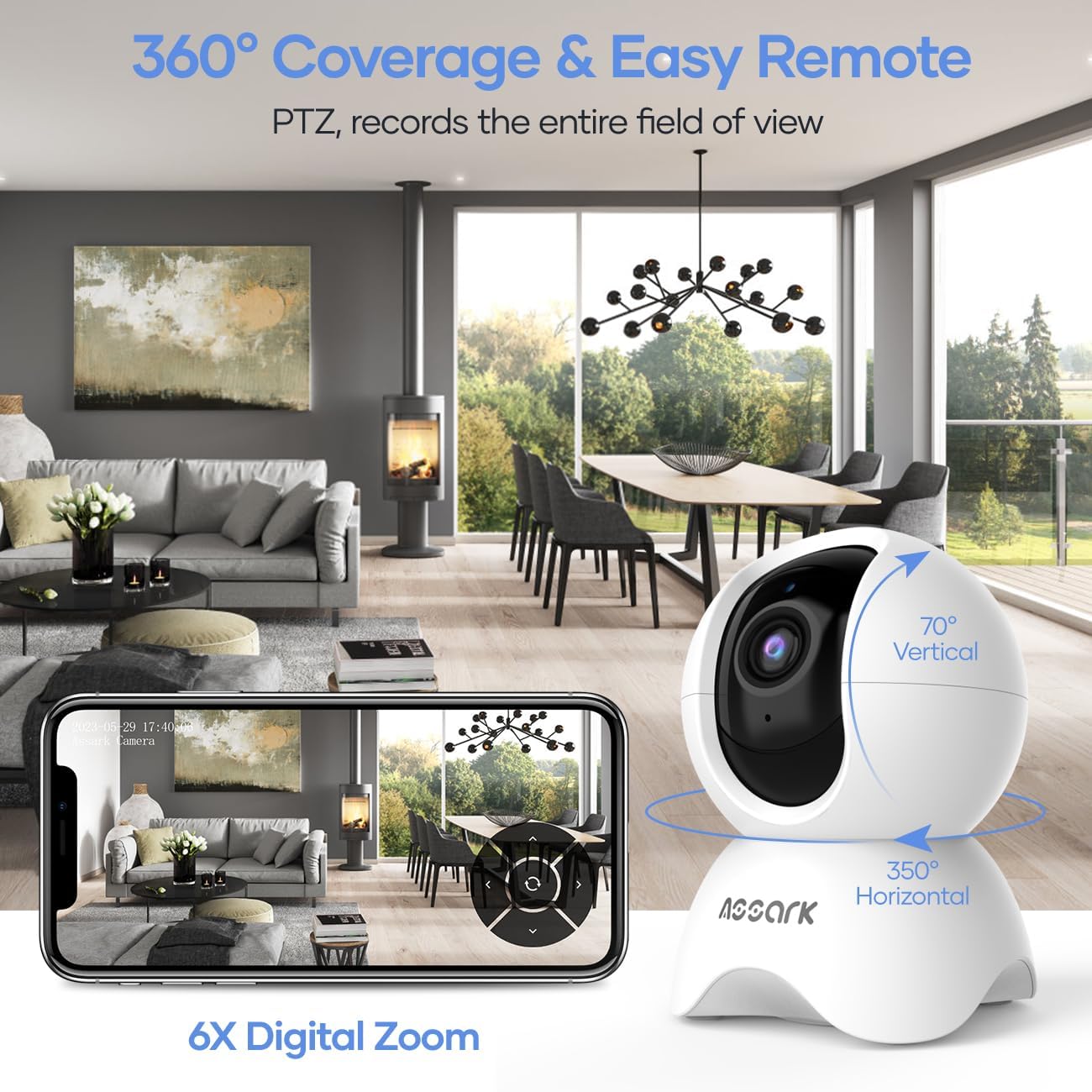
תמונה 3.1: 360° Coverage and Remote Control. This image demonstrates the camera's ability to cover a wide area with its pan and tilt functions, controlled remotely through the smartphone application.
3.2 שמע דו-כיווני
כדי להשתמש בתכונת השמע הדו-כיווני:
- בזמן שידור חי view, הקש על סמל המיקרופון באפליקציה.
- Speak into your phone's microphone to transmit your voice through the camera's speaker.
- The camera's built-in microphone will capture audio from its surroundings, which you can hear through your phone.
3.3 Motion, Sound, and Human Detection
The camera can detect various events and send instant notifications to your phone.
- Navigate to the camera settings in the Assark app.
- Enable and configure detection settings for motion, sound, and human detection.
- Adjust sensitivity levels and set detection zones as needed.
- When an event is detected, you will receive an instant notification on your mobile device.

תמונה 3.2: Instant Alerts. This image displays a smartphone screen with notifications indicating detected abnormal motion, abnormal sound, and human motion, demonstrating the camera's alert capabilities.
3.4 Night Vision and Capture Modes
The camera automatically switches to night vision in low-light conditions. You can also manually select capture modes.
- In the app, access the video settings to select between Day, Night, or Auto mode.
- In Auto mode, the camera will automatically adjust based on ambient light.
- Night mode utilizes infrared LEDs for clear black-and-white video in complete darkness.

תמונה 3.3: Capture Modes. This image shows the camera and icons representing Day, Night, and Auto modes, indicating the camera's flexibility in different lighting conditions, including 850nm infrared light for night vision.
3.5 הקלטת ואחסון וידאו
The camera offers continuous recording and event-triggered recording with flexible storage options.
- כרטיס מיקרו אס די: Insert a Micro SD card (up to 128GB, not included) into the camera's designated slot for local storage. The camera supports 24/7 continuous recording.
- אחסון בענן: The Assark app offers cloud storage services, often with a free trial period (e.g., 30 days). Subscribe to a plan for extended cloud storage and advanced features.
- וידאו פוtage is compressed using H.265 technology for efficient storage.
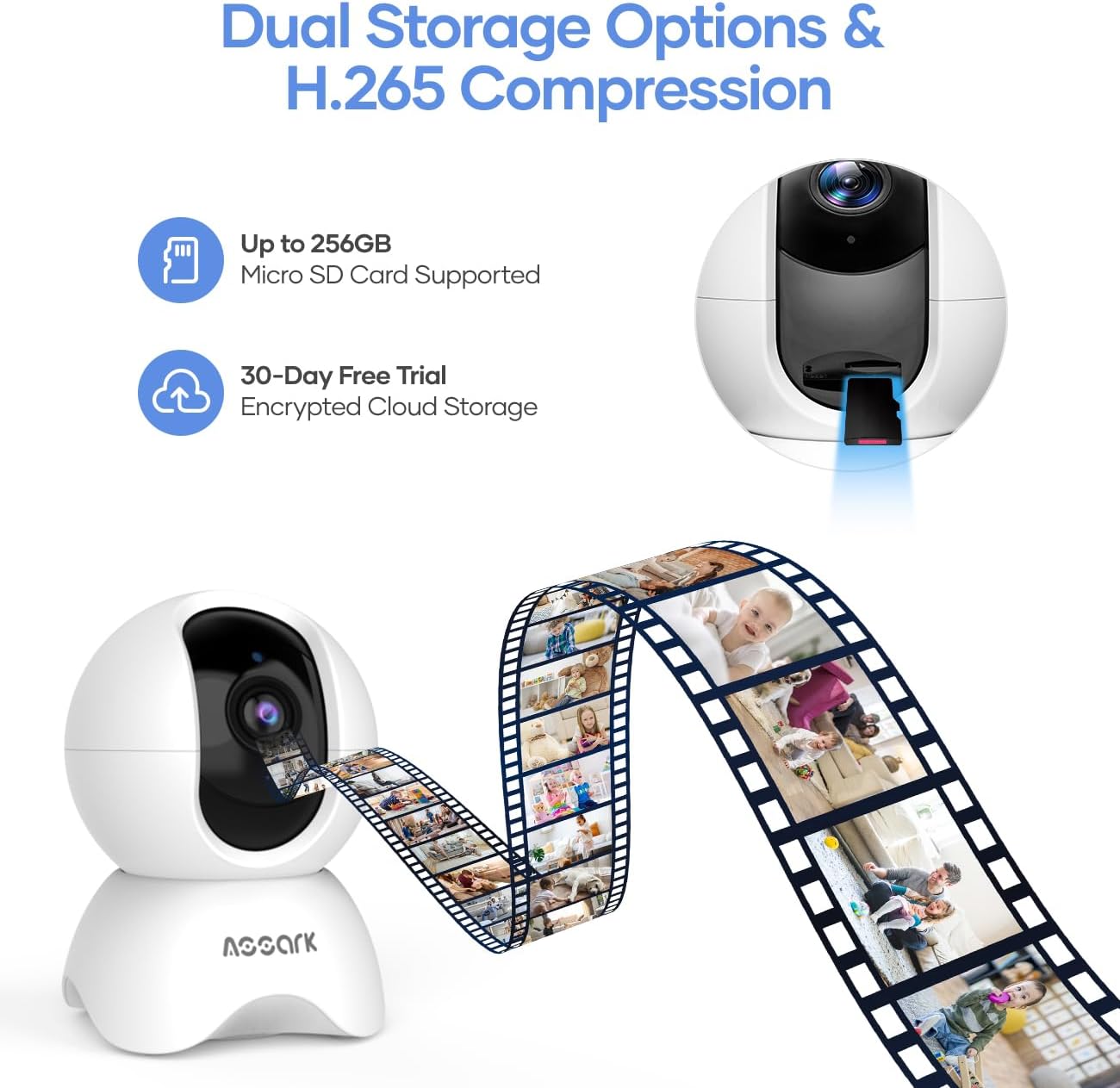
תמונה 3.4: Dual Storage Options. This image visually represents the camera's support for both Micro SD card storage (up to 256GB, though product specs state 128GB) and encrypted cloud storage with a 30-day free trial, along with H.265 compression.
3.6 שילוב בית חכם
Integrate your Assark camera with smart home platforms for enhanced control.
- אמזון אלקסה: Enable the Assark skill in the Alexa app and link your account. Use voice commands like "Alexa, show me the [camera name]" to view the live feed on compatible devices.
- Google Assistant: Link your Assark account in the Google Home app. Use voice commands like "Hey Google, show me the [camera name]" to view the live feed on compatible devices.
4. תחזוקה
4.1 ניקוי המצלמה
To maintain optimal performance, periodically clean your camera:
- ודא שהמצלמה כבויה לפני הניקוי.
- השתמש במטלית רכה ויבשה כדי לנגב את גוף המצלמה.
- For the lens, use a lens cleaning cloth specifically designed for optics to avoid scratches.
- אין להשתמש בחומרי ניקוי נוזליים או בחומרים שוחקים.
4.2 עדכוני קושחה
Regularly check for and install firmware updates through the Assark app. Firmware updates can improve performance, add new features, and enhance security.
4.3 ניהול כרטיסי SD
If using a Micro SD card for local storage:
- Periodically check the card's status in the app.
- Format the SD card through the app if you experience recording issues or wish to clear all data.
5. פתרון תקלות
If you encounter issues with your Assark camera, refer to the following common problems and solutions:
5.1 המצלמה לא נדלקת
- Ensure the power cable is securely connected to both the camera and the power adapter.
- Verify that the power adapter is plugged into a working electrical outlet.
- Try using a different USB power cable and adapter if available.
5.2 לא ניתן להתחבר לרשת Wi-Fi
- Confirm your Wi-Fi network is 2.4 GHz. The camera does not support 5 GHz Wi-Fi.
- Ensure your mobile device is connected to the 2.4 GHz Wi-Fi network during setup.
- בדוק את סיסמת ה-Wi-Fi שלך לדיוק.
- קרב את המצלמה לנתב ה-Wi-Fi שלך כדי לשפר את עוצמת האות.
- Restart your Wi-Fi router and the camera, then attempt setup again.
5.3 Poor Video Quality or Lag
- Ensure the camera has a strong Wi-Fi signal. Relocate the camera or router if necessary.
- Check your internet connection speed. A stable and fast internet connection is required for optimal streaming.
- נקו את עדשת המצלמה אם היא נראית מלוכלכת.
5.4 הודעות שלא התקבלו
- Verify that detection settings (motion, sound, human) are enabled and configured correctly in the Assark app.
- Check your phone's notification settings to ensure the Assark app has permission to send notifications.
- ודא שלטלפון שלך יש חיבור אינטרנט פעיל.
For further assistance, please refer to the help section within the Assark app or visit the manufacturer's support webאֲתַר.
6. מפרטים
| תכונה | מִפרָט |
|---|---|
| דֶגֶם | X3E |
| מותג | אסרק |
| מידות (L x W x H) | 7.8 x 7.8 x 11.5 ס"מ |
| מִשׁקָל | 400 גרם |
| רזולוציית וידאו | 5 מגה פיקסל (2560x1920) |
| טווח פאן | 350 ° אופקי |
| טווח הטיה | 70 ° אנכי |
| קישוריות | 2.4 GHz WLAN |
| אפשרויות אחסון | כרטיס Micro SD (עד 128GB), אחסון בענן |
| קלט כוח | 5 Watts (USB powered) |
| ראיית לילה | נוריות אינפרא אדום |
| שֶׁמַע | שמע דו-כיווני (מיקרופון ורמקול מובנים) |
| איתור | Motion Detection, Sound Detection, Human Detection |
| תאימות לבית חכם | Amazon Alexa, Google Assistant |
7. אחריות ותמיכה
7.1 מידע אחריות
Warranty details for the Assark 2.5K Indoor Surveillance Camera (Model X3E) are typically provided at the point of purchase or can be found on the official Assark webאתר. אנא שמור את הוכחת הרכישה שלך לצורך תביעות אחריות.
7.2 תמיכת לקוחות
For technical support, troubleshooting assistance, or any product-related inquiries, please:
- Refer to the comprehensive help section within the Assark mobile application.
- Visit the official Assark support webאתר לשאלות נפוצות, מדריכים ופרטי יצירת קשר.