
Yitouniu Yitouniu-EWTH16
EWeLink Wireless Remote TH16 Switch User Manual
Model: Yitouniu-EWTH16
1. המוצר נגמרview
The Yitouniu EWeLink TH16 Smart Switch is a versatile device designed to integrate into your smart home system, enabling remote and automatic control of appliances. It features temperature monitoring capabilities, allowing connected devices to be turned on or off based on a preset temperature range. This module works in conjunction with the included waterproof DS18B20 temperature sensor to enhance your home's automation.
Key functionalities include real-time temperature monitoring, remote ON/OFF control, timing tasks, automatic mode based on temperature, manual control, smart scene triggering, and voice control compatibility with Amazon Alexa and Google Home.
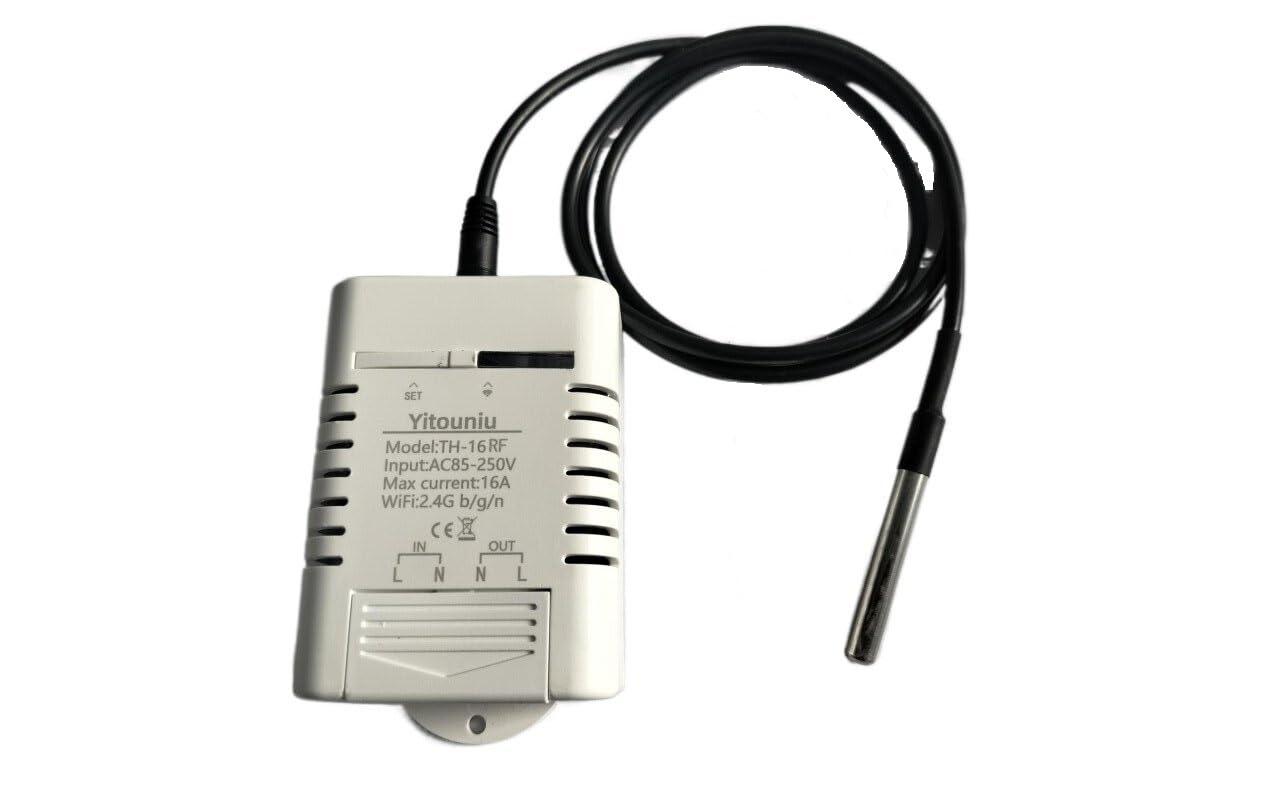
איור 1.1: EWeLink TH16 Smart Switch with connected DS18B20 temperature sensor.
2. מה בקופסה
- 1 x TH-16 Smart Switch (Relay housing, relay module)
- 1 x DS18B20 Sensor (Temperature probe)
Note: The sensor can only detect temperature. For humidity detection, a separate humidity sensor is required.
3. תכונות מוצר
- יישום רחב: Suitable for various uses including home brewing, fermentation, breeding, incubation, greenhouse temperature control, and more. Supports 85-250V, 16A MAX 3500W.
- תמיכה באפליקציה: Free eWeLink mobile application available for iOS and Android devices.
- סטטוס סנכרון: Provides real-time device status and temperature monitoring directly to the eWeLink app. Temperature units (Celsius/Fahrenheit) are switchable.
- הפעלה/כיבוי מרחוק: Control electrical devices from any location using the app, with high accuracy temperature readings from the waterproof DS18B20 sensor.
- שליטה קולית: Compatible with Amazon Alexa, Google Home, and Google Nest for convenient voice commands.
- פונקציות תזמון: Supports up to 8 enabled countdown, single, or repeat timing tasks to automate device operation at specified times.
- מצב אוטומטי: Configure the device to automatically turn on or off when the temperature falls within a specified range.
- מצב ידני: Allows for immediate manual control (ON/OFF) of the connected device.
- טריגר סצנה חכם: Temperature values can be used as conditions to trigger other eWeLink smart devices.
- שתף את השליטה: שתפו בקלות את השליטה במכשירי הבית החכם שלכם עם בני משפחה.
- ניטור צריכת אנרגיה: ניטור צריכת אנרגיה בזמן אמת.
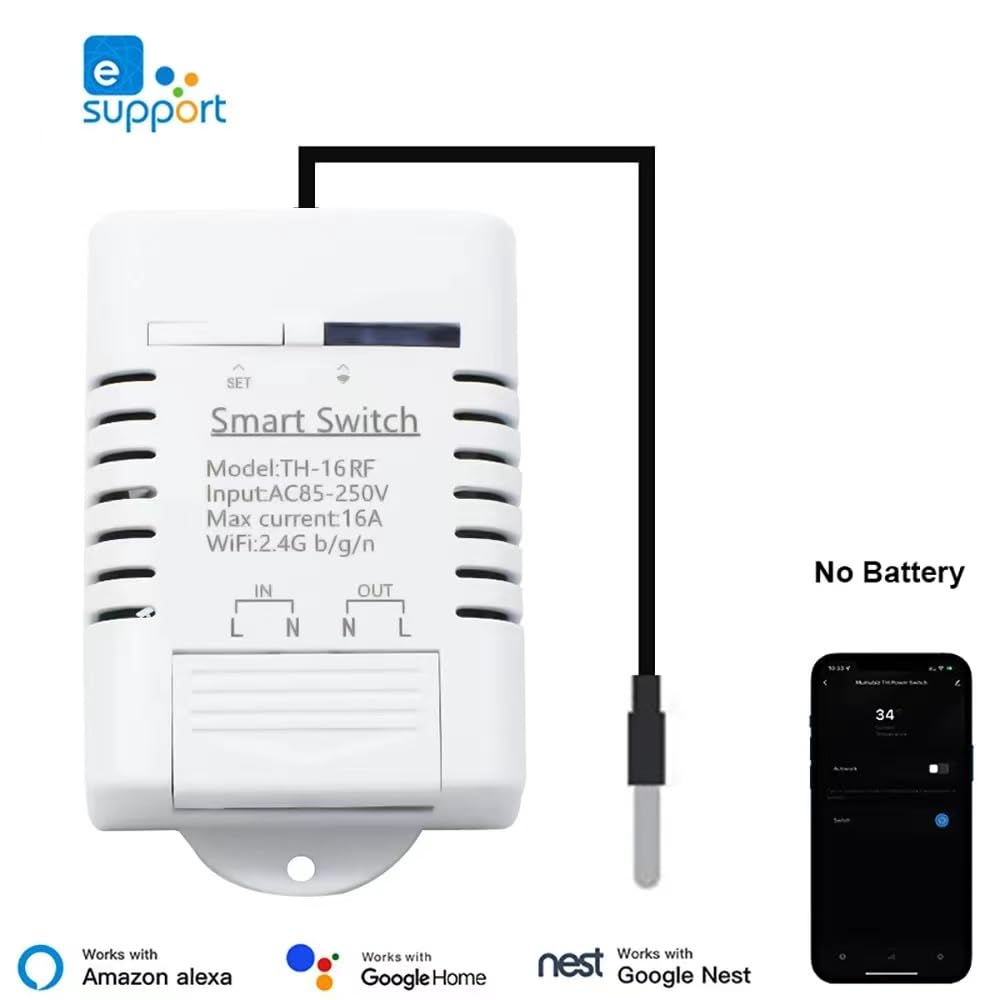
איור 3.1: The Smart Switch integrates with the eWeLink app and is compatible with Amazon Alexa, Google Home, and Google Nest.

איור 3.2: Examples of common usage scenarios for the TH16 Smart Switch.
4. מפרטים
4.1. TH-16 Smart Switch
| תְכוּנָה | עֵרֶך |
|---|---|
| מספר דגם | Yitouniu-EWTH16 |
| קלט כרךtage | AC85-250V |
| מקס הנוכחי | 16A |
| מקסימום כוח | 3500W |
| תקן אלחוטי | WiFi 2.4GHz b/g/n |
| מידות המוצר | אורך 2.79 אינץ' x רוחב 1.65 אינץ' (7.09 x 4.19 ס"מ) |
| חוֹמֶר | פּלָסטִי |
| צֶבַע | לָבָן |
4.2. DS18B20 Sensor
| תְכוּנָה | עֵרֶך |
|---|---|
| סוּג | חיישן טמפרטורה עמיד למים |
| בְּדִיקָה | חיישן טמפרטורה מפלדת אל-חלד |
| טמפרטורת המדידה | -20°C ~ +100°C |
| כרך הפעלהtage | 3.0-5.5V |
| מֶשֶׁך | 1m |
| מִשׁקָל | 26 גרם |

איור 4.1: מְפוֹרָט view of the waterproof DS18B20 temperature sensor.
5. התקנה והתקנה
5.1. חיווט המתג החכם
Before proceeding, ensure the main power supply to the circuit is turned OFF at the breaker to prevent electrical shock. The TH-16 Smart Switch requires a live (L) and neutral (N) input, and provides a switched live (L) and neutral (N) output to your appliance.
- Identify the Live (L) and Neutral (N) wires from your power source.
- Connect the Live wire from the power source to the "IN L" terminal on the switch.
- Connect the Neutral wire from the power source to the "IN N" terminal on the switch.
- Connect the Live wire of your appliance to the "OUT L" terminal on the switch.
- Connect the Neutral wire of your appliance to the "OUT N" terminal on the switch.
- Plug the DS18B20 temperature sensor into the designated port on the smart switch.
- אבטחו היטב את כל חיבורי החוטים.
אַזהָרָה: Incorrect wiring can cause damage to the device or electrical hazards. If you are unsure, consult a qualified electrician.
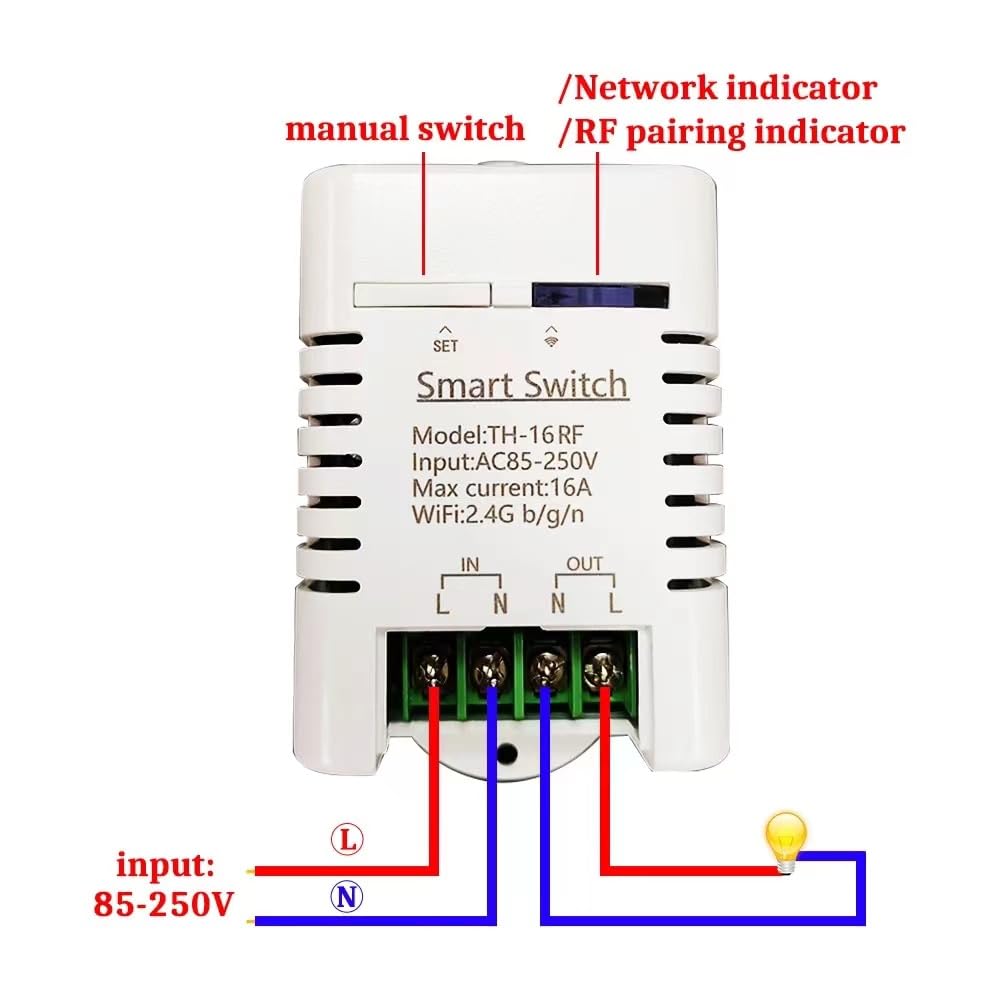
איור 5.1: Wiring diagram for the TH-16 Smart Switch. Ensure correct Live (L) and Neutral (N) connections for both input and output.
5.2. App Pairing (eWeLink)
The smart switch operates on a 2.4GHz WiFi network. Ensure your mobile device is connected to a 2.4GHz WiFi network during the pairing process.
- Download the "eWeLink" app from the App Store (iOS) or Google Play Store (Android).
- Register an eWeLink account and log in.
- Power on the TH-16 Smart Switch. The network indicator LED should be blinking rapidly (if not, press and hold the "SET" button for 5 seconds until it blinks rapidly to enter pairing mode).
- Open the eWeLink app, tap the "+" icon at the bottom center, and select "Quick Pairing Mode".
- עקוב אחר ההוראות שעל המסך כדי לחבר את המכשיר לרשת ה-WiFi שלך.
- Once successfully paired, the device will appear in your eWeLink app, and the network indicator LED will become solid.
6. הוראות הפעלה
6.1. Remote Control and Status Monitoring
After successful pairing, you can remotely turn the connected appliance ON or OFF from anywhere using the eWeLink app, provided your phone has network access. The app also displays the real-time status of the switch and the current temperature from the DS18B20 sensor.
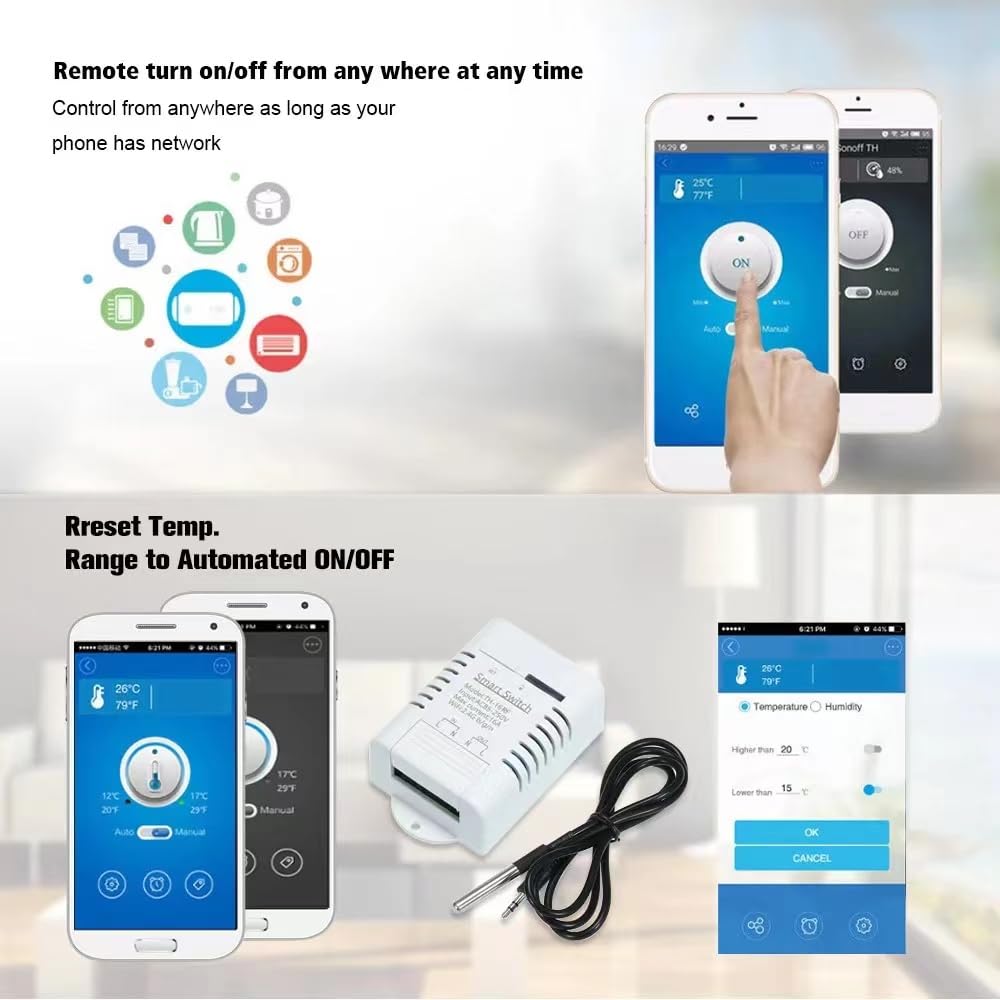
איור 6.1: Remote control and temperature range setting via the eWeLink app.
6.2. Auto Mode (Temperature Control)
Set the switch to automatically turn ON or OFF based on a specified temperature range:
- In the eWeLink app, select your TH-16 device.
- Navigate to the "Auto Mode" settings.
- Set the desired temperature range (e.g., turn ON when temperature is below X°C, turn OFF when temperature is above Y°C).
- Confirm your settings. The device will now operate autonomously based on the temperature readings.
6.3. מצב ידני
For immediate control, you can switch to "Manual Mode" in the eWeLink app or use the physical button on the device to toggle the power ON/OFF.
6.4. פונקציות תזמון
Schedule your devices to turn ON/OFF at specific times:
- In the eWeLink app, select your TH-16 device.
- Go to the "Timing" section.
- אתה יכול להגדיר:
- טיימרים של ספירה לאחור: Turn ON/OFF after a set duration.
- Single Timers: Turn ON/OFF at a specific time on a specific date.
- Repeat Timers: Turn ON/OFF at specific times on selected days of the week.
- Save your timing tasks.
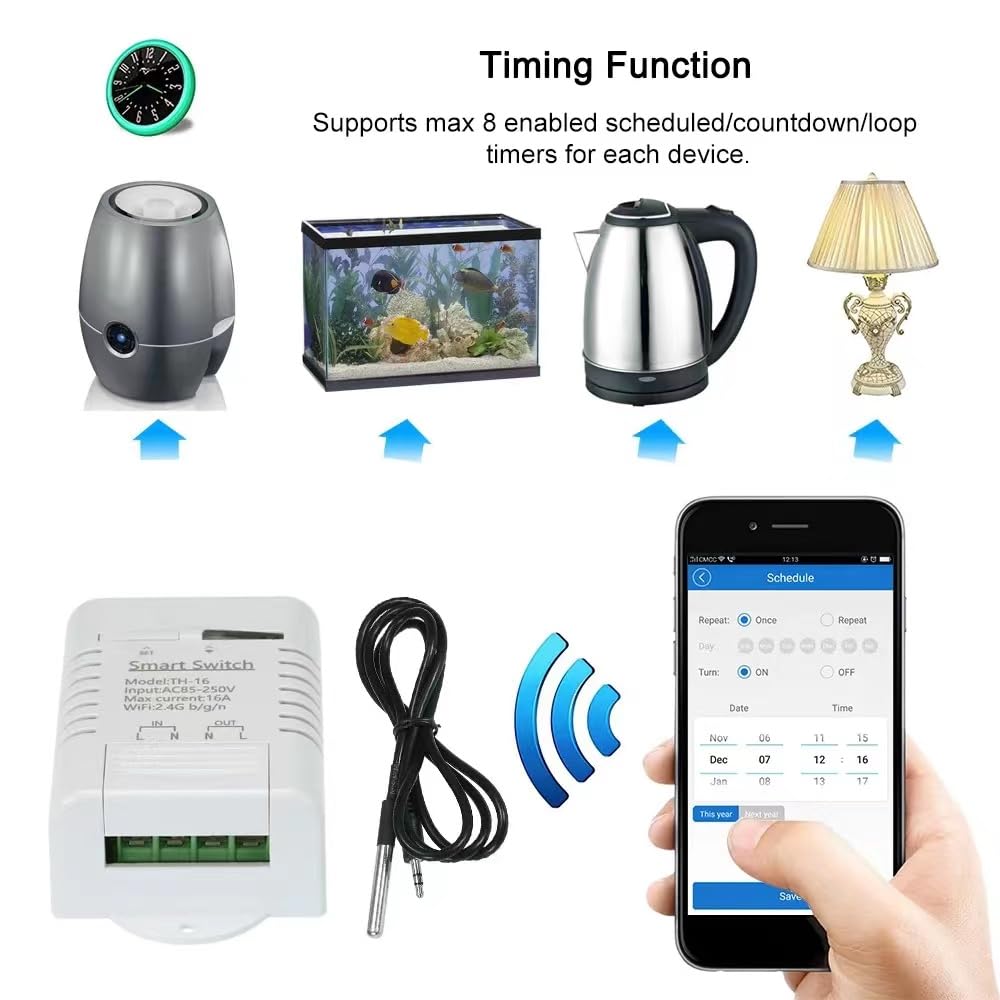
איור 6.2: Setting up timing schedules within the eWeLink app.
6.5. שילוב בקרת קול
To use voice commands with Amazon Alexa or Google Home:
- Ensure your TH-16 Smart Switch is successfully paired with the eWeLink app.
- פתחו את אפליקציית אמזון אלקסה או את אפליקציית גוגל הום.
- הפעל את המיומנות/שירות "eWeLink Smart Home".
- Link your eWeLink account.
- Discover devices. Your TH-16 switch should now be controllable via voice commands (e.g., "Alexa, turn on the switch," "Hey Google, turn off the switch").
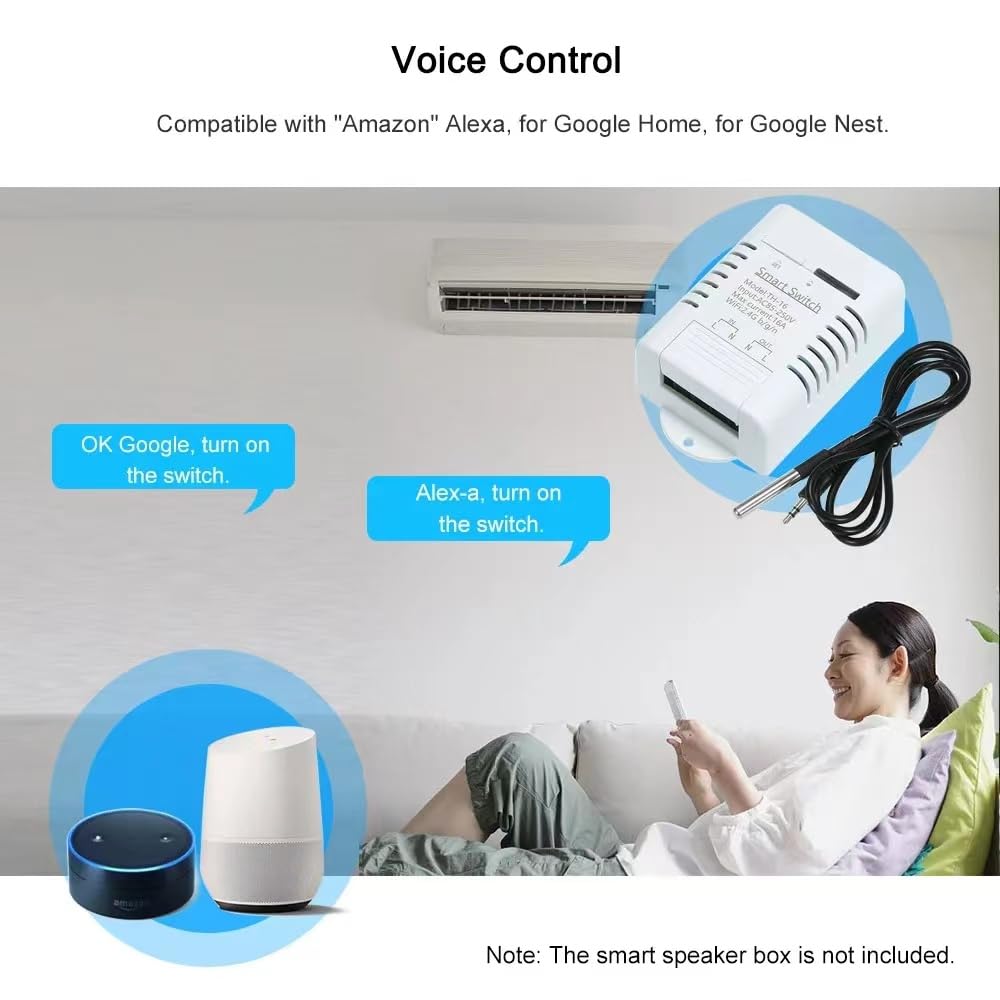
איור 6.3: תאימות לשליטה קולית עם אמזון אלקסה וגוגל הום.
6.6. שליטה בשיתוף
You can share control of your TH-16 Smart Switch with family members or other users:
- In the eWeLink app, select the device you wish to share.
- Tap on the "Share" icon or navigate to the sharing settings.
- Enter the eWeLink account email or phone number of the person you want to share with.
- Set the permissions (e.g., control, view status, set timers).
- The invited user will receive a notification and can accept the shared control.

איור 6.4: Sharing device control with other eWeLink users.
7. תחזוקה
- ניקוי: נגבו את המכשיר בעזרת מטלית רכה ויבשה. אין להשתמש בחומרי ניקוי שוחקים או לטבול את המכשיר במים.
- עדכוני קושחה: בדקו באופן קבוע את אפליקציית eWeLink עבור עדכוני קושחה זמינים כדי להבטיח ביצועים ואבטחה אופטימליים.
- טיפול בחיישנים: While the DS18B20 sensor is waterproof, avoid unnecessary exposure to harsh chemicals or extreme physical stress.
- יציבות רשת: Ensure your 2.4GHz WiFi network is stable and has good signal strength where the device is installed for reliable operation.
8. פתרון תקלות
- מכשיר במצב לא מקוון באפליקציה:
- בדוק אם המכשיר מופעל.
- Verify your WiFi router is working and the 2.4GHz network is active.
- ודא שהמכשיר נמצא בטווח קליטה של נתב ה-WiFi שלך.
- Try restarting the device and your router.
- אם הבעיה נמשכת, נסה לזווג מחדש את המכשיר עם אפליקציית eWeLink.
- לא ניתן לקשר מכשיר:
- Ensure your phone is connected to a 2.4GHz WiFi network (5GHz networks are not supported).
- Make sure the device is in pairing mode (network indicator blinking rapidly).
- בדוק את סיסמת ה-WiFi שלך לדיוק.
- Move the device closer to the router during pairing.
- בקרת קול לא עובדת:
- Confirm the eWeLink skill/service is enabled and linked in your Alexa/Google Home app.
- Ensure your voice assistant device is online and connected to the same network.
- נסה לגלות מחדש מכשירים באפליקציית Alexa/Google Home.
- קריאות טמפרטורה לא מדויקות:
- Ensure the DS18B20 sensor is securely plugged into the switch.
- בדוק אם נגרם נזק פיזי לכבל החיישן או גשוש.
- Verify the sensor is placed in an appropriate location, away from direct heat sources or drafts that could skew readings.
9. אחריות ותמיכה
This product comes with a standard manufacturer's warranty. For specific warranty terms and conditions, please refer to the documentation provided at the time of purchase or contact the seller directly. For technical support, troubleshooting assistance, or inquiries regarding product functionality, please reach out to the manufacturer or your point of purchase.
יַצרָן: Yitouniu
תאריך זמין ראשון: 13 ביולי 2023
Ask a question about this manual
Ask about setup, troubleshooting, compatibility, parts, safety, or missing instructions. Manuals+ will review the question and use this page’s manual context to help answer it.