
1. הקדמה
The AUSDOM Airkey84 is a compact 75% mechanical keyboard designed for versatility and comfort. It features an 84-key layout, retaining essential arrow and function keys while saving desktop space. This keyboard offers triple connectivity modes: USB-C wired, Bluetooth 3.0/5.0, and 2.4GHz wireless, allowing connection to up to four devices. Equipped with low-profile brown switches, it provides a tactile typing experience suitable for both office work and gaming. The keyboard also includes 14 white LED backlight modes and is compatible with both Mac OS and Windows operating systems.
2. מה בקופסה
- 1 x Low-Profile מקלדת מכנית
- 1 x כבל USB
- 1 x מקלט USB
- 1 x מדריך למשתמש
- 3 x Extra Keycaps for Windows
3. התקנה
3.1 מצבי קישוריות
The AUSDOM Airkey84 supports three connection methods: Bluetooth, 2.4GHz wireless, and USB-C wired. It can connect to up to four devices simultaneously and switch between them.

Image: The keyboard supports 2.4G, Bluetooth, and Wired connections, enabling multi-device pairing.
3.1.1 Bluetooth Connection Mode
- Turn the power button on the keyboard to ON.
- לחץ והחזק את Fn + BT1 keycaps for 3-5 seconds. The keyboard will enter pairing mode, and the keys' backlight indicator will flash rapidly.
- On your device (e.g., computer, tablet, smartphone), turn on its Bluetooth function. חפש and select "AUSDOM Airkey84" to pair.
- Repeat steps 2 and 3 for BT2 and BT3 to connect up to three Bluetooth devices.
3.1.2 2.4GHz USB Connection Mode
- Turn the power button on the keyboard to ON.
- הקש על Fn + 4 key once to switch to 2.4GHz USB connection mode.
- Plug the USB receiver into your device's USB port. The keyboard should connect automatically.
3.1.3 מצב חוטי USB-C
- Turn the power button on the keyboard to כבוי.
- חברו את המקלדת למכשיר שלכם באמצעות כבל ה-USB-C המצורף. המקלדת תעבור אוטומטית למצב קווי.

Image: The keyboard connected via USB-C cable, also showing its rechargeable capability.
3.2 תאימות
The keyboard is compatible with both Mac OS and Windows operating systems. Three extra keycaps are provided for Windows users to customize their layout.
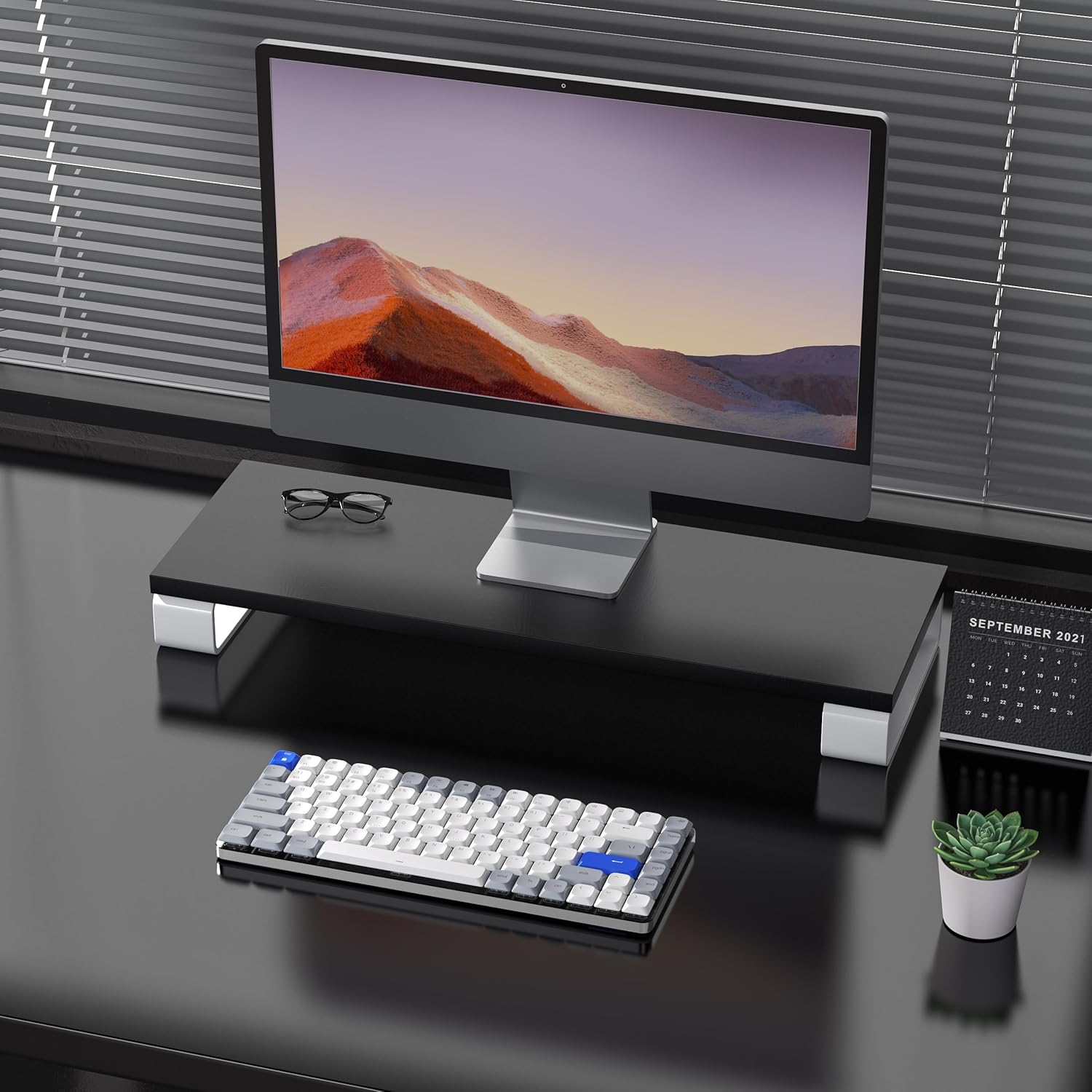
Image: The keyboard is compatible with both Mac and Windows systems, and includes extra keycaps for Windows users.
4. הוראות הפעלה
בקרת תאורה אחורית 4.1
The keyboard features 14 different white LED backlight modes. To cycle through these modes, press the dedicated lightbulb button located in the top right corner of the keyboard. The keycaps are laser-engraved to ensure clear visibility of characters with the backlight on.

Image: The keyboard displaying its white backlight with 14 different lighting options.
4.2 מעמדים מתכווננים
The keyboard is equipped with two adjustable stands on the back. These stands allow you to set the keyboard at a comfortable typing angle (e.g., 3 or 6 degrees) to reduce wrist strain during extended use.

Image: The keyboard's ultra-slim aluminum frame and ergonomic design with adjustable feet.
4.3 Low-Profile מתגים חומים
המקלדת משתמשת ב-low-profile brown switches, which offer a tactile bump without a loud click. This design provides a comfortable and responsive typing experience, ideal for both fast typing and gaming.

Image: A close-up of the low-profile brown switches, highlighting their design for comfortable and effortless typing.
5. תחזוקה
5.1 ניקוי
- To clean the keyboard, power it off and disconnect any cables.
- השתמש במטלית רכה נטולת מוך מעט דampנגב את מכסי המקשים והמשטח בעזרת מים או תמיסת ניקוי עדינה.
- עבור אבק ופסולת בין המקשים, השתמש באוויר דחוס.
- הימנעו משימוש בכימיקלים חזקים או בחומרים שוחקים, מכיוון שאלה עלולים לפגוע בגימור המקלדת או בכיתוב על כיתות המקשים.
5.2 טיפול בסוללה
- The keyboard has a built-in 2000 mAh rechargeable battery.
- טען את המקלדת באמצעות כבל ה-USB-C המצורף.
- כדי להאריך את חיי הסוללה, הימנעו מפריקת הסוללה לחלוטין לעתים קרובות.
- אם מאחסנים את המקלדת לתקופה ממושכת, טען אותה עד לכ-50% לפני האחסון.
6. פתרון תקלות
6.1 בעיות חיבור
- המקלדת לא מתחברת דרך בלוטות': Ensure the keyboard is in Bluetooth pairing mode (flashing backlight). Check your device's Bluetooth settings and ensure it's discoverable. Try forgetting the device and re-pairing.
- 2.4GHz wireless not working: Ensure the USB receiver is securely plugged into a working USB port. Confirm the keyboard is switched to 2.4GHz mode (Fn + 4). Try a different USB port.
- Wired connection issues: Ensure the USB-C cable is fully inserted into both the keyboard and the device. Try a different USB-C cable or port. Ensure the keyboard's power switch is in the OFF position for wired mode.
6.2 תאורת רקע לא עובדת
- ודא שסוללת המקלדת טעונה מספיק.
- Press the backlight control button (lightbulb icon) to cycle through modes or turn the backlight on/off.
6.3 מקשים אינם מגיבים
- Check the connection mode and ensure it's properly established.
- טען את המקלדת אם הסוללה חלשה.
- Try connecting the keyboard via USB-C wired mode to rule out wireless interference or battery issues.
- If specific keys are not responding, gently remove the keycap and check for any obstructions or debris around the switch.
7. מפרטים
| תכונה | פְּרָט |
|---|---|
| מספר דגם | איירקי84 |
| מידות המוצר | 12.13 x 183070.97 x 0.94 אינץ' |
| משקל פריט | 1.03 פאונד |
| יַצרָן | אוסדום |
| סוללות | נדרשת סוללת ליתיום פולימר אחת (כלול) |
| מכשירים תואמים | מחשב נייד, מחשב אישי, סמארטפון, טאבלט |
| טכנולוגיית קישוריות | בלוטות', אלחוטי 2.4GHz, USB-C חוטי |
| תיאור מקלדת | מכאני, Low Profile, 75% Layout |
| תכונה מיוחדת | תאורה אחורית, חסכונית בביצועיםfile מפתח, נטען |
| תאורה אחורית של המקלדת | White LED, Single Color, 14 Modes |
| חוֹמֶר | Acrylonitrile Butadiene Styrene, Aluminum, Silicone |
8. אחריות ותמיכה
For warranty information, technical support, or any product-related inquiries, please contact AUSDOM customer service through the official AUSDOM store or the platform where the product was purchased. Please refer to your purchase documentation for specific warranty terms and conditions.
You can visit the official AUSDOM store for more information: חנות AUSOM