
1. המוצר נגמרview
The HOU Slim Bluetooth Keyboard Case is designed to enhance the functionality and protection of your iPad. It features a minimalist, ultra-thin, and lightweight design, making it ideal for portability. The case is constructed from silicon-containing tech leather, offering wear-resistant and stain-resistant properties. Its magnetic stand provides two ergonomic tilt angles for comfortable typing and viewing.

Image 1.1: HOU Slim Bluetooth Keyboard Case with iPad in open position, showcasinהמקלדת והמסך.
תכונות עיקריות:
- Ultra-Slim & Lightweight: Weighing approximately 434 grams and 0.6 cm thin, designed for easy transport.
- חומר עמיד: Made from PU (with silicon) + synthetic leather for enhanced durability and easy cleaning.
- מעמד מגנטי: Offers 115° for typing and 125° for viewing, providing stable support.
- Magnetic Separation: Keyboard and iPad can be easily separated due to dual magnetic points.
- סוללה עם חיים ארוכים: מספק זמן שימוש ממושך.
- התאמה מדויקת: Specifically designed for iPad 10th and 11th Generation models.
2. מה בקופסה
אנא בדקו את תוכן החבילה עם קבלתה:
- HOU Slim Bluetooth Keyboard Case
- כבל טעינה מגנטי
- מדריך למשתמש (מסמך זה)
3. תאימות
This HOU Slim Bluetooth Keyboard Case is compatible with the following iPad models:
- iPad 10th Generation 10.9 inch (2022 models: A2696/A2757/A2777/A3162)
- iPad 11th Generation 11 inch A16 (2025 models: A3354/A3355/A3356)

Image 3.1: Diagram illustrating the compatible iPad models for the HOU keyboard case.
4. הוראות התקנה
4.1 חיבור האייפד שלך למארז
- Align your compatible iPad with the backplate of the keyboard case.
- The iPad will securely attach to the case via strong magnets. No force or snapping is required.

Image 4.1: A user attaching an iPad to the HOU keyboard case using magnetic attraction.
4.2 זיווג בלוטות '
- ודא שה-Bluetooth של האייפד שלך מופעל.
- Turn on the HOU keyboard case. The Bluetooth indicator light on the keyboard will begin to flash.
- באייפד שלך, עבור אל הגדרות > Bluetooth.
- Select the HOU keyboard from the list of available devices.
- Once paired, the indicator light will stop flashing, and your iPad will show the keyboard as connected.

Image 4.2: An iPad screen displaying the Bluetooth connection status and battery level of the connected keyboard.
4.3 טעינת המקלדת
Use the provided magnetic charging cable to charge the keyboard. Connect the magnetic end to the keyboard's charging port and the other end to a USB power source. The iPad can display the keyboard's battery level in real-time.

תמונה 4.3: תקריב view of the magnetic charging port on the HOU keyboard case.
5. הוראות הפעלה
5.1 התאמת ה Viewזווית
The magnetic stand allows for two primary ergonomic tilt angles:
- זווית 115°: Suitable for typing and productivity tasks.
- זווית 125°: Ideal for media consumption, such as watching videos or reading.

Image 5.1: Illustration of the two adjustable viewing angles (115° and 125°) provided by the magnetic stand.
5.2 שימוש במקשי קיצור
The keyboard features dedicated shortcut keys for quick access to various iPad functions, including:
- בקרת עוצמת הקול
- התאמת בהירות
- פונקציית חיפוש
- גישה למסך הבית
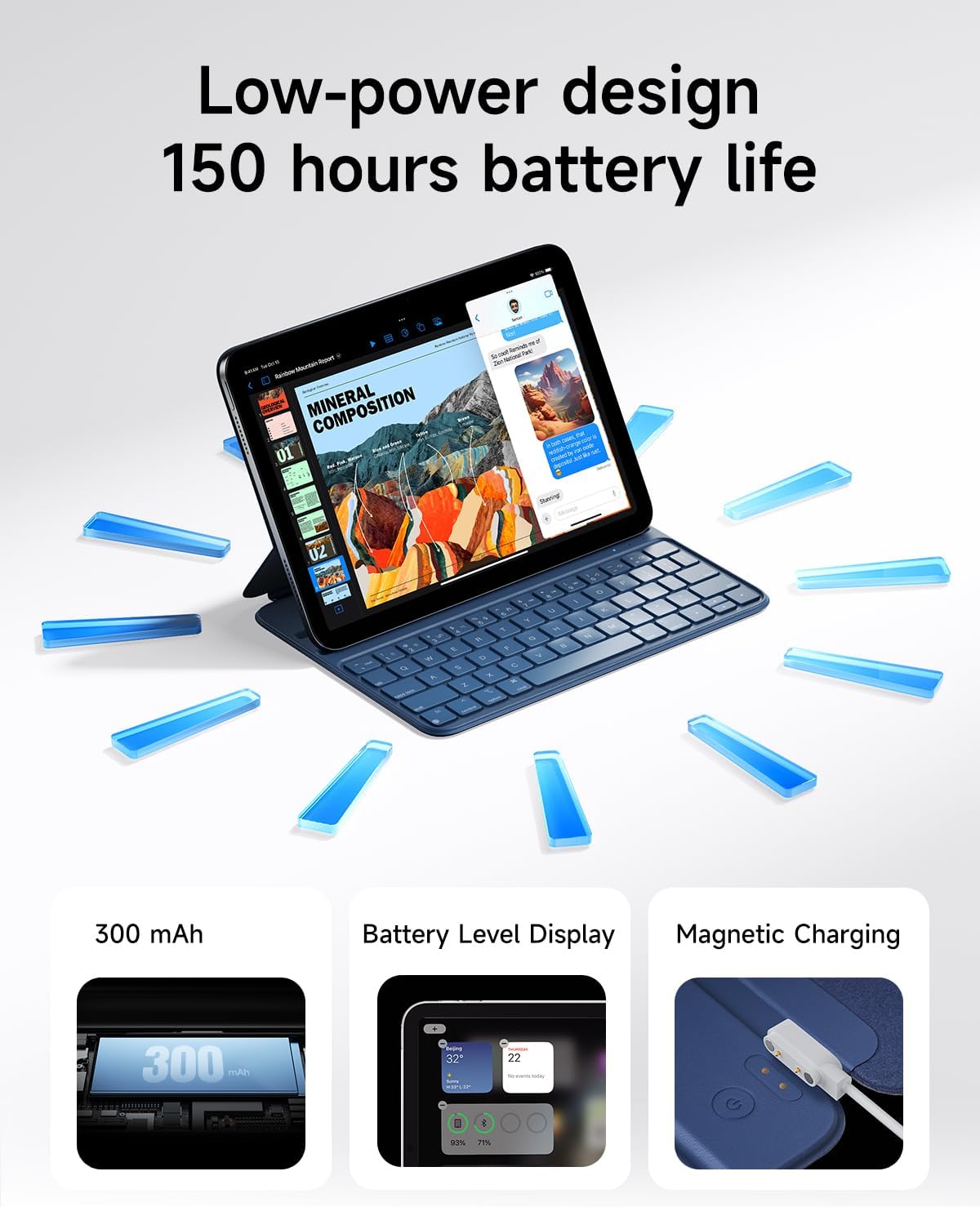
Image 5.2: A close-up of the HOU keyboard highlighting the layout and various shortcut keys.
5.3 ניסיון הקלדה
The keyboard is designed with flat keycaps and a scissor-switch structure to provide smooth input, quiet operation, and responsive feedback, reducing fatigue during extended typing sessions.
Video 5.3: This video demonstrates the HOU Keyboard Case for iPad, showing its magnetic attachment, comfortable typing experience, and shortcut key functionality.
6. תחזוקה
6.1 ניקוי המארז
The silicon-containing tech leather material is designed to be wear-resistant and stain-resistant. To clean, gently wipe the surface with a soft, damp cloth. For stubborn stains like coffee or ink, a mild soap solution can be used, followed by wiping with a clean, damp ייבוש בד ואוויר.
6.2 טיפול בסוללה
כדי להאריך את חיי הסוללה, הימנעו מפריקה מלאה של המקלדת לעתים קרובות. טען את המקלדת באופן קבוע, במיוחד אם היא תישאר מאוחסנת לתקופה ממושכת.
7. פתרון תקלות
7.1 המקלדת לא מתחברת דרך בלוטות'
- בדוק כוח: ודא שהמקלדת דולקת ושהסוללה טעונה מספיק.
- תיקון צימוד המכשיר: On your iPad, forget the device in Bluetooth settings and attempt to pair again.
- הפעל מחדש מכשירים: Turn off and restart both your iPad and the keyboard.
- קִרבָה: Ensure the keyboard and iPad are within close range during pairing.
7.2 Typing Delay or Unresponsive Keys
- חיבור Bluetooth: Verify a stable Bluetooth connection. Disconnect and reconnect if necessary.
- רמת סוללה: A low battery can affect performance. Charge the keyboard fully.
- הַפרָעָה: התרחק מהתקנים אלחוטיים אחרים שעלולים לגרום להפרעות.
8. מפרטים
| תכונה | פְּרָט |
|---|---|
| מידות המוצר | 9.8 x 3.3 x 0.3 אינץ' |
| משקל פריט | 1.59 פאונד (כ-721 גרם) |
| יַצרָן | HOU |
| מספר דגם של פריט | A2696/A2777/A2757 |
| סוללות | סוללת ליתיום פולימר אחת (כלול) |
| מכשירים תואמים | iPad 10th Generation 10.9 inch 2022 & iPad 11th Generation 11 inch A16 2025 |
| טכנולוגיית קישוריות | בלוטות' |
| תכונות מיוחדות | Ergonomic, Hotkeys and Media Keys, Lightweight, PU+ABS, Rechargeable |
| צֶבַע | כְּחוֹל |
| חוֹמֶר | אקרילוניטריל בוטאדיאן סטירן (ABS) |
9. אחריות ותמיכה
HOU provides a 12-month extended after-sales service for this product. For any inquiries or support needs, please contact HOU Store Customer Service. 24/7 online support is available.

Image 9.1: HOU Customer Service information, highlighting 24/7 online support and a 12-month extended after-sales service.
Additionally, a 30-day refund/replacement return policy is available through the retailer.