
1. הקדמה
This manual provides detailed instructions for the installation, operation, and maintenance of your darkFlash Aquarius Mesh Computer Case. Please read this manual thoroughly before beginning installation to ensure proper setup and safe use of your new computer chassis.
2. מידע בטיחות
הקפידו תמיד על אמצעי הזהירות הבאים:
- נתק את כל מקורות החשמל לפני התקנה או הסרה של רכיבים כלשהם.
- ענדו רצועת כף יד אנטי-סטטית כדי למנוע נזק לרכיבים כתוצאה מפריקה אלקטרוסטטית (ESD).
- Handle components carefully to avoid physical damage.
- הרחק חלקים וכלים קטנים מילדים.
- Ensure proper ventilation around the computer case.
3. תכולת החבילה
ודא שכל הפריטים נמצאים בחבילה שלך:
- darkFlash Aquarius Mesh Computer Case
- קופסת אביזרים (ברגים, מעמדים, אזיקוני כבלים וכו')
- מדריך למשתמש (מסמך זה)
4. התקנה והתקנה
Follow these steps for proper component installation.
4.1. הכנת התיק
Before installing components, remove the side panels. The Aquarius Mesh case typically features a tempered glass side panel and a solid metal panel.
- Locate the thumbscrews on the rear of the case securing the side panels.
- Unscrew the thumbscrews and carefully slide the panels backward, then lift them off.

איור 1: חזית וצד view of the darkFlash Aquarius Mesh case. Note the mesh front panel and tempered glass side panel.

איור 2: אחורי view of the darkFlash Aquarius Mesh case, showing expansion slots and rear fan mount.
4.2. התקנת לוח אם
The Aquarius Mesh supports ATX, Micro-ATX, and Mini-ITX motherboards.
- Install the I/O shield into the cutout at the rear of the case.
- Align your motherboard with the pre-installed standoffs. Ensure the I/O ports align with the I/O shield.
- אבטחו את לוח האם באמצעות הברגים המתאימים מקופסת האביזרים.
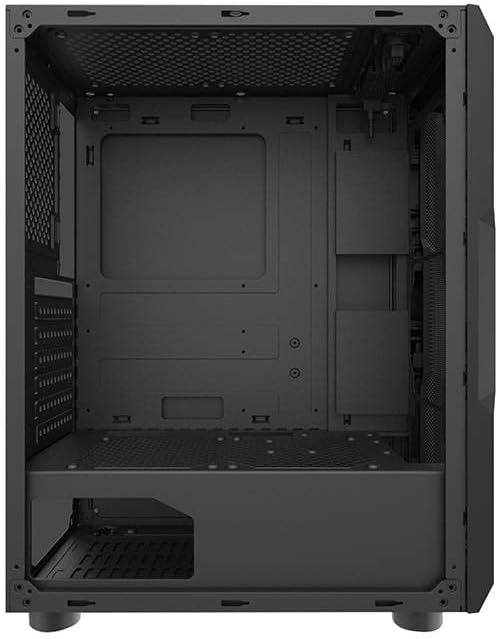
איור 3: פנים view of the darkFlash Aquarius Mesh case, highlighting the motherboard tray and cable routing options.
4.3. התקנת יחידת ספק כוח (PSU)
ספק הכוח מותקן בחלק האחורי התחתון של המארז.
- Slide the PSU into its designated compartment from the rear of the case.
- Align the screw holes and secure the PSU with screws.
4.4. התקנת כונן אחסון
The case provides mounting options for 3.5-inch HDDs and 2.5-inch SSDs.
- כוננים קשיחים בגודל 3.5 אינץ': Locate the drive cage usually beneath the PSU shroud or behind the motherboard tray. Slide the HDD into the bay and secure it with screws.
- כונני SSD בגודל 2.5 אינץ': Mount SSDs to dedicated brackets behind the motherboard tray or on the PSU shroud. Secure with screws.
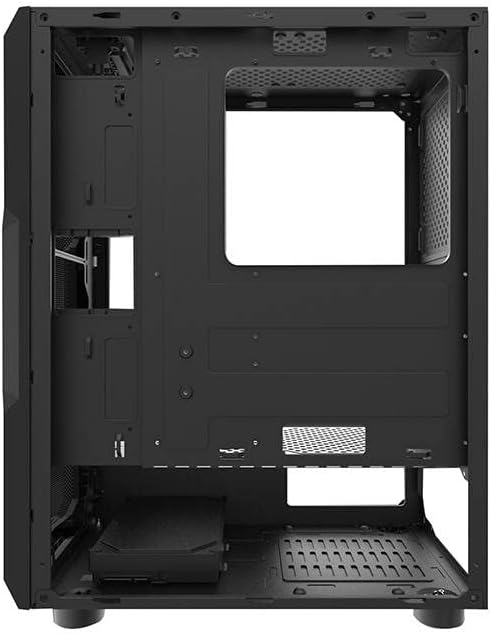
איור 4: פנים האחורי view of the darkFlash Aquarius Mesh case, showing the motherboard cutout and potential SSD mounting points.
4.5. Expansion Card Installation (e.g., GPU)
- הסר את כיסויי חריצי ההרחבה הדרושים מחלקו האחורי של המארז.
- Insert the expansion card into the appropriate PCIe slot on the motherboard.
- Secure the card with the provided screws or retention clips.
4.6. ניהול כבלים
נצלו את פתחי ניתוב הכבלים ואת נקודות הקשירה שמאחורי מגש לוח האם כדי לארגן את הכבלים. זה משפר את זרימת האוויר ואת האסתטיקה.
4.7. הרכבה מחדש של המארז
Once all components are installed and cables are managed:
- Carefully reattach the side panels, ensuring they slide into place correctly.
- Secure the side panels with the thumbscrews.
5. הוראות הפעלה
After assembly, connect your peripherals and power cable.
- Connect your monitor, keyboard, mouse, and other peripherals to the motherboard's I/O ports.
- חבר את כבל החשמל לספק הכוח ולשקע בקיר.
- Press the power button located on the top panel of the case to start your computer.

איור 5: למעלה view of the darkFlash Aquarius Mesh case, showing the front I/O panel with power button, reset button, USB ports, and audio jacks.
6. תחזוקה
תחזוקה שוטפת מסייעת להבטיח ביצועים אופטימליים ואורך חיים של רכיבי המחשב שלך.
- מסנני אבק: The Aquarius Mesh case features removable dust filters (e.g., on the front, top, and bottom). Regularly remove and clean these filters with water and mild soap, or by vacuuming, to maintain good airflow. Ensure they are completely dry before reinstallation.
- ניקוי פנים: Periodically open the case and use compressed air to remove dust buildup from fans, heatsinks, and other components.
- ניקוי חיצוני: נגב את המשטחים החיצוניים עם רך, דamp בַּד. הימנע מכימיקלים קשים.
7. פתרון תקלות
אם נתקלת בבעיות, שקול את הפתרונות הנפוצים הבאים:
- אין כוח:
- ודא שמתג ספק הכוח נמצא במצב 'ON'.
- בדוק את כל חיבורי החשמל ללוח האם ולרכיבים.
- Verify the power cable is securely plugged into the wall outlet and PSU.
- מאווררים שלא מסתובבים:
- Check fan connections to the motherboard or fan controller.
- Ensure fans are not obstructed by cables or dust.
- Front Panel I/O Not Working:
- Verify that the front panel connectors (USB, audio, power/reset switches) are correctly connected to the motherboard headers. Refer to your motherboard manual for header locations.
8. מפרטים
| תכונה | פְּרָט |
|---|---|
| מותג | כהה פלאש |
| מספר דגם | Aquarius Mesh |
| סוג מקרה | Mid-Tower |
| חוֹמֶר | סגסוגת פלדה |
| צֶבַע | שָׁחוֹר |
| שיטת קירור | אֲוִיר |
| שימוש מומלץ | מַחשֵׁב |
| Hard Drive Form Factor | 3.5 אינץ' |
9. אחריות ותמיכה
For warranty information or technical support, please refer to the official darkFlash webאתר או צרו קשר עם שירות הלקוחות שלהם. שמרו את הוכחת הרכישה שלכם לצורך תביעות אחריות.
לסיוע נוסף, ניתן לבקר ב darkFlash official webאֲתַר.