
1. הקדמה
This manual provides detailed instructions for the assembly, installation, operation, and maintenance of your AMANSON H07 ATX Mid Tower PC Case. Please read this manual thoroughly before beginning installation to ensure proper setup and safe operation. Keep this manual for future reference.

Figure 1.1: AMANSON H07 ATX Mid Tower PC Case with illuminated internal components.
2. מידע בטיחות
- יש לנתק תמיד את ספק הכוח משקע הקיר לפני ביצוע כל התקנה או תחזוקה בתוך מארז המחשב.
- טפלו בכל הרכיבים בזהירות כדי למנוע נזק.
- ענדו רצועת כף יד אנטי-סטטית כדי למנוע נזק לפריקה אלקטרוסטטית (ESD) לרכיבים אלקטרוניים רגישים.
- הרחיקו חלקים קטנים וחומרי אריזה מהישג ידם של ילדים.
- ודא אוורור נאות סביב מארז המחשב כדי למנוע התחממות יתר.
3. תכולת החבילה
ודא שכל הפריטים נמצאים בחבילה:
- AMANSON H07 ATX Mid Tower PC Case
- קופסת אביזרים (ברגים, מעמדים, אזיקוני כבלים וכו')
- מדריך למשתמש (מסמך זה)
4. רכיב מעלview
The AMANSON H07 PC case features a panoramic design with tempered glass panels for full visibility of your internal components. It supports various motherboard sizes and extensive cooling configurations.

Figure 4.1: Top I/O Panel with power button, USB 3.0, USB 2.0, and audio ports.
The top I/O panel includes:
- כפתור הפעלה
- לחצן איפוס
- 2x יציאות USB 2.0
- 1x יציאת USB 3.0
- שקעי כניסה/יציאה של אודיו
5. התקנה והתקנה
5.1. הכנת התיק
The AMANSON H07 features tool-less hinged tempered glass side panels for easy access. Gently open the side panel by pulling it from the rear edge. The panels can also be removed by lifting them off their hinges for full access during installation.

Figure 5.1: Hinged tempered glass side panel for easy access.
5.2. התקנת לוח אם
The H07 supports E-ATX, ATX, Micro-ATX, and ITX motherboards. Install the necessary standoffs for your motherboard form factor. Carefully align your motherboard with the standoffs and I/O shield, then secure it with screws.
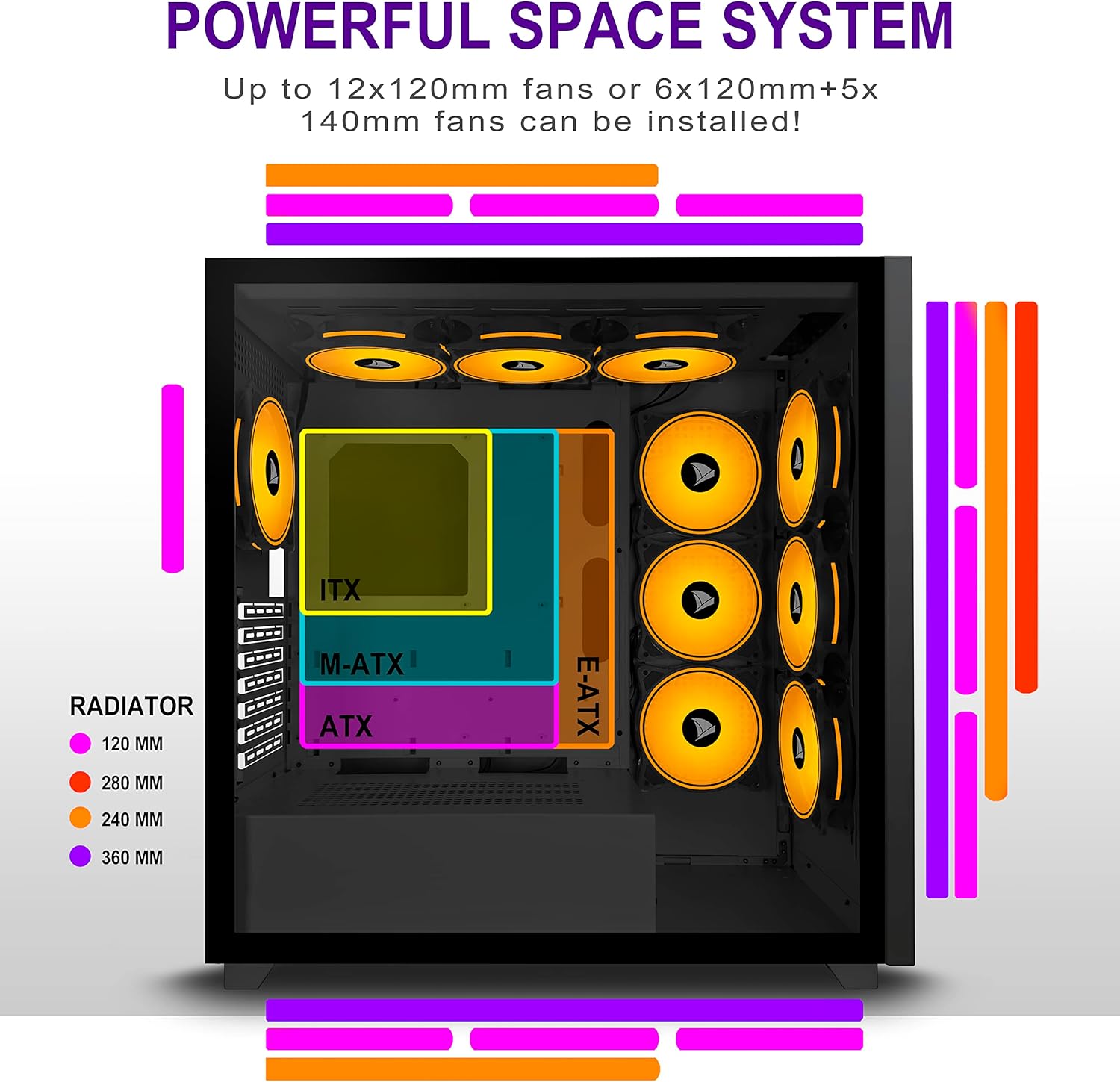
Figure 5.2: Motherboard and cooling component placement options.
5.3. התקנת ספק כוח
Install your power supply unit (PSU) into the dedicated compartment at the bottom rear of the case. Secure it with screws from the rear of the case.
5.4. התקנת התקן אחסון
The case provides multiple mounting points for storage devices. Install your 3.5" HDDs and 2.5" SSDs into the designated trays and mounting locations. Refer to the case diagram for specific locations.

Figure 5.3: Storage drive mounting options for HDDs and SSDs.
5.5. Expansion Card (GPU) Installation
Remove the necessary PCI-E slot covers from the rear of the case. Insert your graphics card or other expansion cards into the motherboard's PCI-E slots and secure them with screws.
5.6. ניהול כבלים
Utilize the cable routing cutouts and tie-down points behind the motherboard tray to manage cables. This improves airflow and maintains a clean aesthetic.
6. הוראות הפעלה
6.1. הפעלה / כיבוי
Press the power button located on the top I/O panel to turn on your PC. To shut down, use the operating system's shutdown function or press and hold the power button for several seconds.
6.2. Using Front I/O Ports
Connect USB devices to the USB 2.0 or USB 3.0 ports. Use the audio jacks for headphones, microphones, or speakers.
7. תחזוקה
7.1. ניקיון
נקו באופן קבוע את החלק החיצוני של המארז בעזרת מטלית רכהamp cloth. For internal cleaning, use compressed air to remove dust from fans and components. Ensure the PC is powered off and unplugged before cleaning.
7.2. מסנני אבק
The AMANSON H07 may include removable dust filters. Clean these filters periodically to maintain optimal airflow and cooling performance.
8. פתרון תקלות
- PC does not power on: Check all power connections, including the PSU to the wall, the PSU to the motherboard, and the front panel power switch cable to the motherboard.
- Overheating issues: Ensure all fans are properly installed and functioning. Verify that dust filters are clean and not obstructing airflow. Check thermal paste application on CPU cooler.
- יציאות USB לא עובדות: Confirm that the front panel USB cables are correctly connected to the motherboard headers.
- Audio jacks not working: Verify that the front panel audio cable is correctly connected to the motherboard's audio header.
9. מפרטים
Below are the technical specifications for the AMANSON H07 PC Case:
| תכונה | פְּרָט |
|---|---|
| דֶגֶם | H07 |
| סוג מקרה | מגדל אמצע |
| תאימות לוח אם | E-ATX, ATX, Micro ATX, ITX |
| חוֹמֶר | זכוכית מחוסמת |
| מידות המוצר (LxWxH) | 19.69 x 13.78 x 19.69 אינץ' (500 x 350 x 500 מ"מ) |
| משקל פריט | 24.2 פאונד |
| מספר יציאות USB 2.0 | 2 |
| מספר יציאות USB 3.0 | 1 |
| מספר חריצי הרחבה | 8 |
| שיטת קירור | אֲוִיר |
| סוג הרכבה של ספק כוח | הר תחתון |

Figure 9.1: AMANSON H07 PC Case dimensions (520mm height, 510mm length, 250mm width).
10. מידע על אחריות
Please refer to the product packaging or the official AMANSON webבאתר לקבלת תנאי האחריות הספציפיים. שמור את הוכחת הרכישה שלך לצורך תביעות אחריות.
11. תמיכה
For technical assistance or customer support, please visit the official AMANSON website or contact their customer service department. Contact details can typically be found on the product packaging or the brand's webאֲתַר.